Configuring Gateway Settings in PAM360
Gateway Settings in PAM360 allow you to customize various aspects of secure remote connections, such as modifying the gateway port, adjusting HTTP header log settings, selecting SSL protocols, and managing cipher suites for encrypted communication. While basic configurations can be made via the PAM360 web interface, advanced settings can be modified by editing the gateway.conf file located at <PAM360-Installation-Directory>\conf folder.
Steps to Configure Gateway Settings
- Navigate to Admin >> Privileged Session >> Session Gateway Server in the PAM360 web interface.
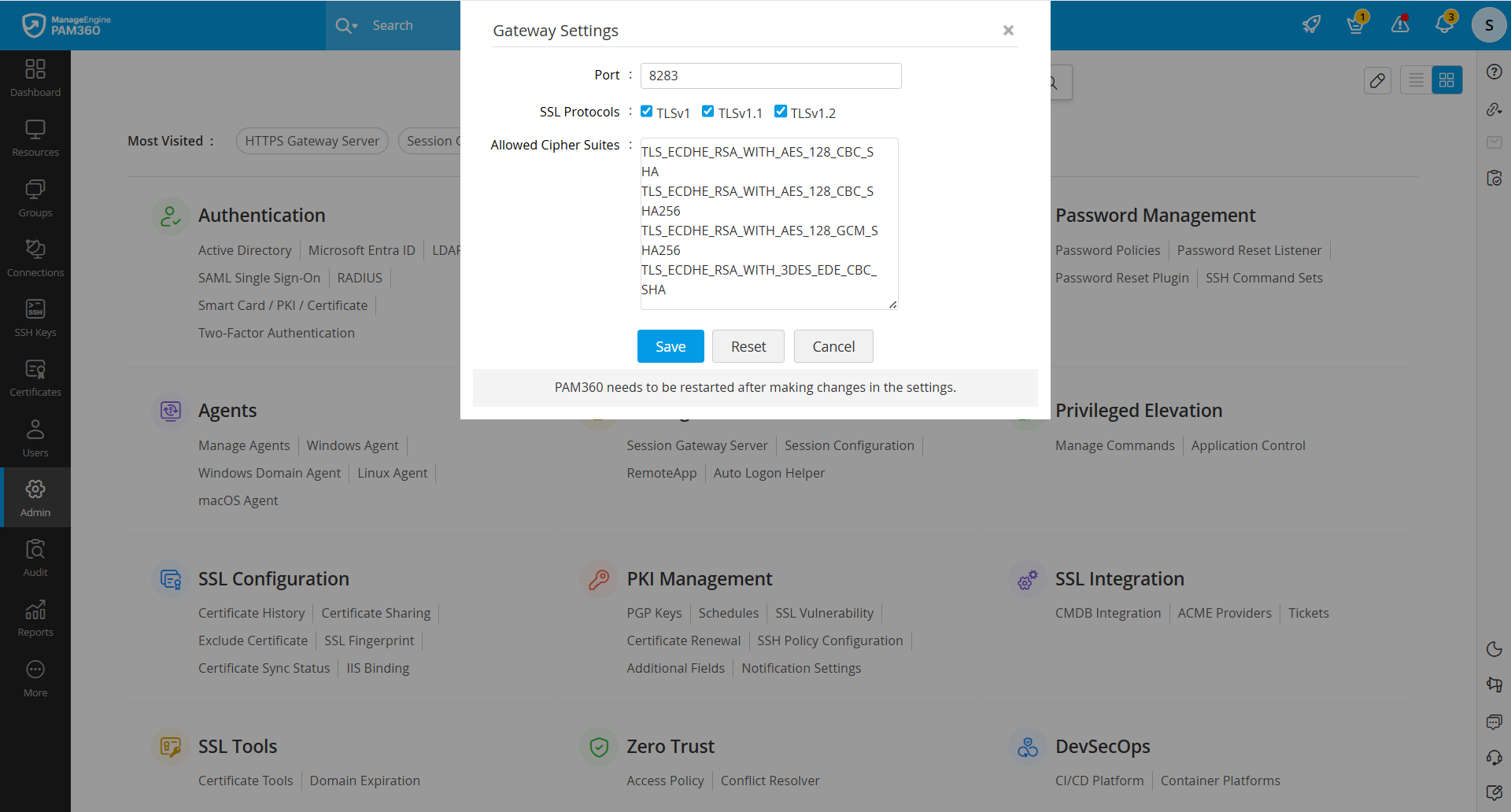
- In the pop-up that opens, modify the attributes as required:
- Gateway Port: The default port is 8283. You can change it by entering a new port number.
- SSL Protocols: Supported protocols include TLSv1, TLSv1.1, and TLSv1.2 - all enabled by default.
- Allowed Cipher Suites: PAM360 supports the following cipher suites:
- TLS_ECDHE_RSA_WITH_AES_128_CBC_SHA
- TLS_ECDHE_RSA_WITH_AES_128_CBC_SHA256
- TLS_ECDHE_RSA_WITH_AES_128_GCM_SHA256
- TLS_ECDHE_RSA_WITH_3DES_EDE_CBC_SHA
- Click Save to apply the changes. Click Reset to revert to the default settings.
Advanced Customization: For in-depth customization, refer to the gateway.conf file located at <PAM360-Installation-Directory>\conf folder. This file allows you to fine-tune additional gateway parameters beyond what is available in the web interface.
By leveraging these settings, you can optimize PAM360’s secure gateway functionality to meet your organization's security and compliance requirements.