Connections Tab - A Walkthrough
The Connections tab in PAM360 provides a centralized view of all the managed and shared connections, allowing users to launch secure remote connections to privileged resources managed by PAM360 within your environment. It serves as a centralized space for initiating remote access sessions, offering direct connectivity to target systems through supported protocols such as RDP, SSH, VNC, Telnet, and SQL.
The Connections tab offers quick-access control buttons such as Request, Check-in, Check-out, and Connect, allowing users to directly perform essential actions for resources configured with the Access Control Workflow, streamlining the workflow, and enhancing efficiency. Additionally, users can initiate secure website and HTTPS Gateway connections for sensitive web applications and services and can securely transfer files between managed and shared resources from this tab.
The Connections tab streamlines remote access by consolidating all available connections, allowing users to quickly launch authorized sessions without exposing sensitive credentials. By utilizing the Connections tab, users can efficiently access their managed resources or those shared with them while maintaining strict security controls and adhering to PAM360's privileged access policies.
Additional Detail
PAM360 uses HTML5-compatible browsers such as Firefox 3.5 or above, Safari 4 or above, and Chrome to initiate remote sessions.
Connections Tab - Overview
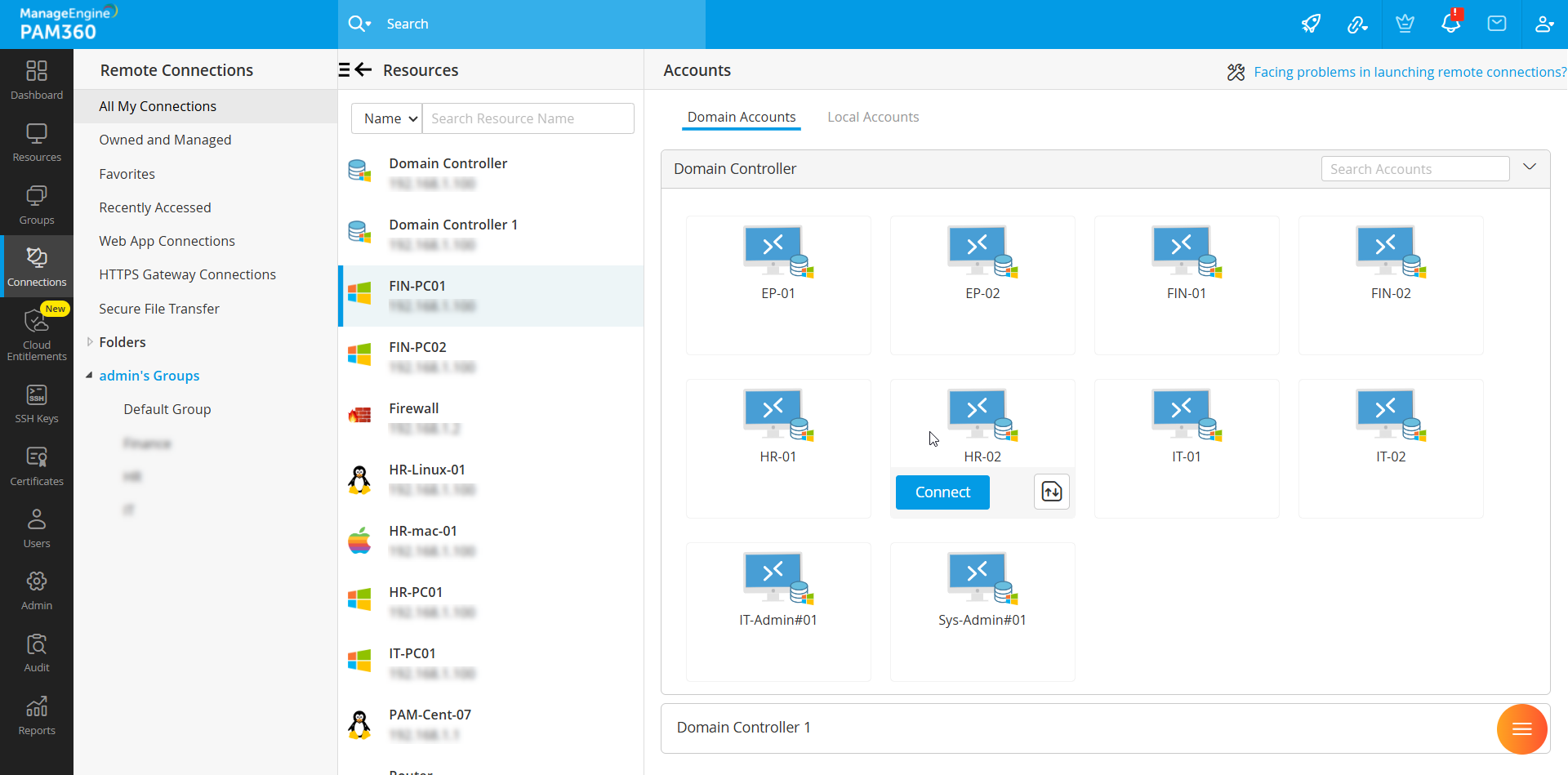
All the resources and the associated accounts added through the Resources tab are accessible as connections under the Connections tab, allowing users to seamlessly initiate remote access sessions to their managed and shared resources. The Connections tab is divided into three distinct sections:
- Connections Tree (Left Pane): Displays the hierarchical structure of all available connection categories, including personal, shared, and group-based resources.
- Resources Pane (Mid Pane): Lists the resources under the selected category from the left pane.
- Accounts Pane (Right pane): Lists the accounts/connections associated with the resource selected in the Resources Pane.
The Connections Tree, located on the left pane of the Connections tab, displays the list of categories into which all available connections are grouped. This organized view allows users to navigate and access specific resources quickly. Click on the desired category to view the associated connections under that category.
- All My Connections - This category displays a list of all the resources you own, manage, or those shared with you, offering a consolidated view of all your accessible connections.
- Owned and Managed - All the resources that you own and manage are listed under this category. This category is specific to users with administrator privileges.
- Favorites - All accounts marked as Favorites on the Passwords tab are listed here. To mark an account as a favorite, go to the Resources tab, switch to the Passwords pane, and click the star icon () beside an account name.
- Recently Accessed - All the connections that you recently accessed will be listed here for quick and easy reference.
- Web App Connections - All the web application-type resources you own and manage, or those shared with you, will be displayed under this category. You can seamlessly connect to the web application and services with a single click without manually entering the credentials.
- HTTPS Gateway Connections - All the resources configured with an HTTPS-based website URL in the resource URL field will be listed under this category. From here, you can seamlessly access these URLs, and all the sessions are tunneled through the PAM360 server. Click here to learn more about HTTPS Gateway connections.
- Secure File Transfer - PAM360 supports bi-directional file transfer between two remote resources. From this section, you can seamlessly transfer files present within two folders located in different remote resources without initiating the remote sessions. Click here to learn about secure file transfer in detail.
- Groups - All resource groups you create will be listed here. This option is available only for users with administrator privileges. All resource groups you create will be listed here. Click here to learn more about different types of resource groups in PAM360.
Whenever you select an option in the Connections Tree, the corresponding resources will be displayed in the Resources Pane, and the associated accounts or connections for the selected resource will appear in the Accounts Pane. The Resource pane features a search filter that allows you to fine tune the list of resources based on the Resource Name, DNS Name, and Resource Type. Additionally, the Accounts pane features a search option allowing you to identify the specific accounts of interest. This intuitive layout streamlines navigation, allowing users to locate and launch remote sessions quickly without switching between multiple tabs.
The Connections tab enhances productivity and streamlines remote access management by centralizing the access points to all the remote resources from a single location and offering a simplified view of accessible connections.