Migrating Database from Local MS SQL to Microsoft Azure SQL
PAM360 supports the use of Microsoft Azure SQL, a robust cloud database solution offered as part of the Microsoft Azure platform, for its backend database needs. Migrating your data from a local MS SQL database to Microsoft Azure SQL allows you to leverage a fully-managed database service with numerous advantages.
Benefits of using Microsoft Azure SQL
- Accessibility: As a cloud-based service, Microsoft Azure SQL can be accessed anytime and from anywhere, ensuring high availability and ease of access.
- Intelligent Database Service: Powered by AI, Microsoft Azure SQL learns your workload patterns and automatically optimizes performance, leading to cost savings and enhanced efficiency.
- High Availability: The service includes built-in availability SLA that ensure your database remains operational with minimal downtime.
- Dynamic Scaling: Microsoft Azure SQL offers dynamic scaling capabilities, allowing you to adjust resources based on demand, thus optimizing performance and cost.
- Automatic Performance Optimization: The platform provides automatic tuning and performance enhancements, ensuring your database runs efficiently without manual intervention.
This document provides a detailed guide on migrating your data from a local MS SQL database to Microsoft Azure SQL within PAM360. It covers all necessary steps and considerations to ensure a seamless and efficient migration process, allowing you to fully leverage the benefits of Microsoft Azure SQL.
The process of migrating data from Local MS SQL to Microsoft Azure SQL database involves three steps. The first step is to transfer the data from the local MS SQL database to the Microsoft Azure SQL database. Next, encrypt the data uploaded to the Microsoft Azure SQL database. Then, the final step is to import an SSL certificate into the PAM360 server.
- Migrating Database from Local MS SQL Data
- Encrypting the MS Azure SQL Database
- Importing the SSL Certificate
1. Migrating Database from Local MS SQL Database
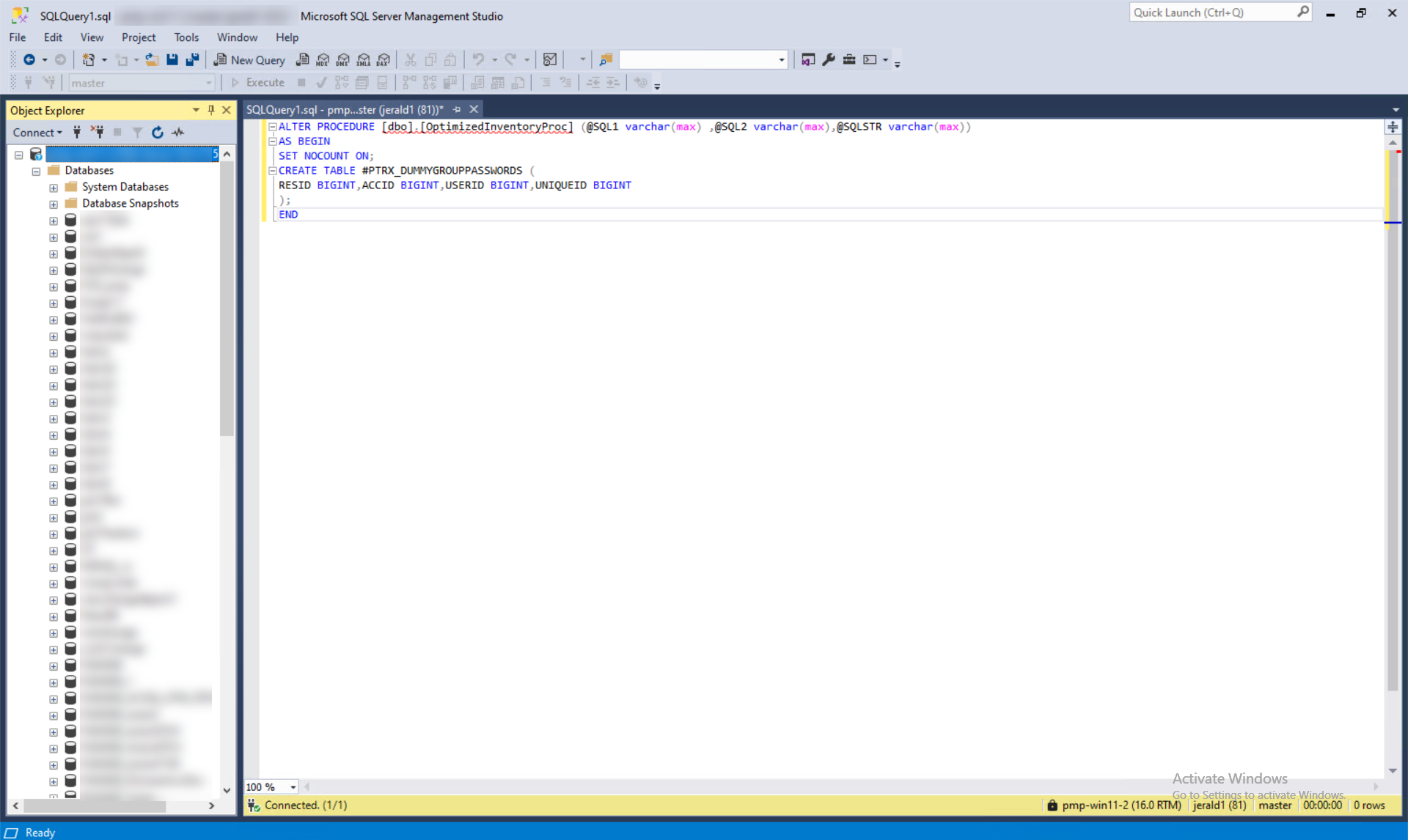
- Open the SQL Management Studio, select local MSSQL Database and execute the below queries:
ALTER PROCEDURE [dbo].[OptimizedInventoryProc] (@SQL1 varchar(max) ,@SQL2 varchar(max),@SQLSTR varchar(max)) AS BEGIN SET NOCOUNT ON; CREATE TABLE #PTRX_DUMMYGROUPPASSWORDS ( RESID BIGINT,ACCID BIGINT,USERID BIGINT,UNIQUEID BIGINT ); END
ALTER PROCEDURE [dbo].[PasswordActionNotificationProc] (@SQL1 varchar(max),@SQL2 varchar(max)) AS BEGIN SET NOCOUNT ON; DECLARE @SQl VARCHAR(MAX) EXEC(@SQL2) EXEC(@SQL1) SET @SQL ='SELECT TOP 1 * from Ptrx_DummyGroupNotification' EXEC(@SQL) SET NOCOUNT OFF; END
DROP SYMMETRIC KEY PMTE PMP_SYM_KEY DROP CERTIFICAP_CERT DROP MASTER KEY
- Now, right click over the database and navigate to Task >> Deploy Database to Microsoft Azure SQL Database.
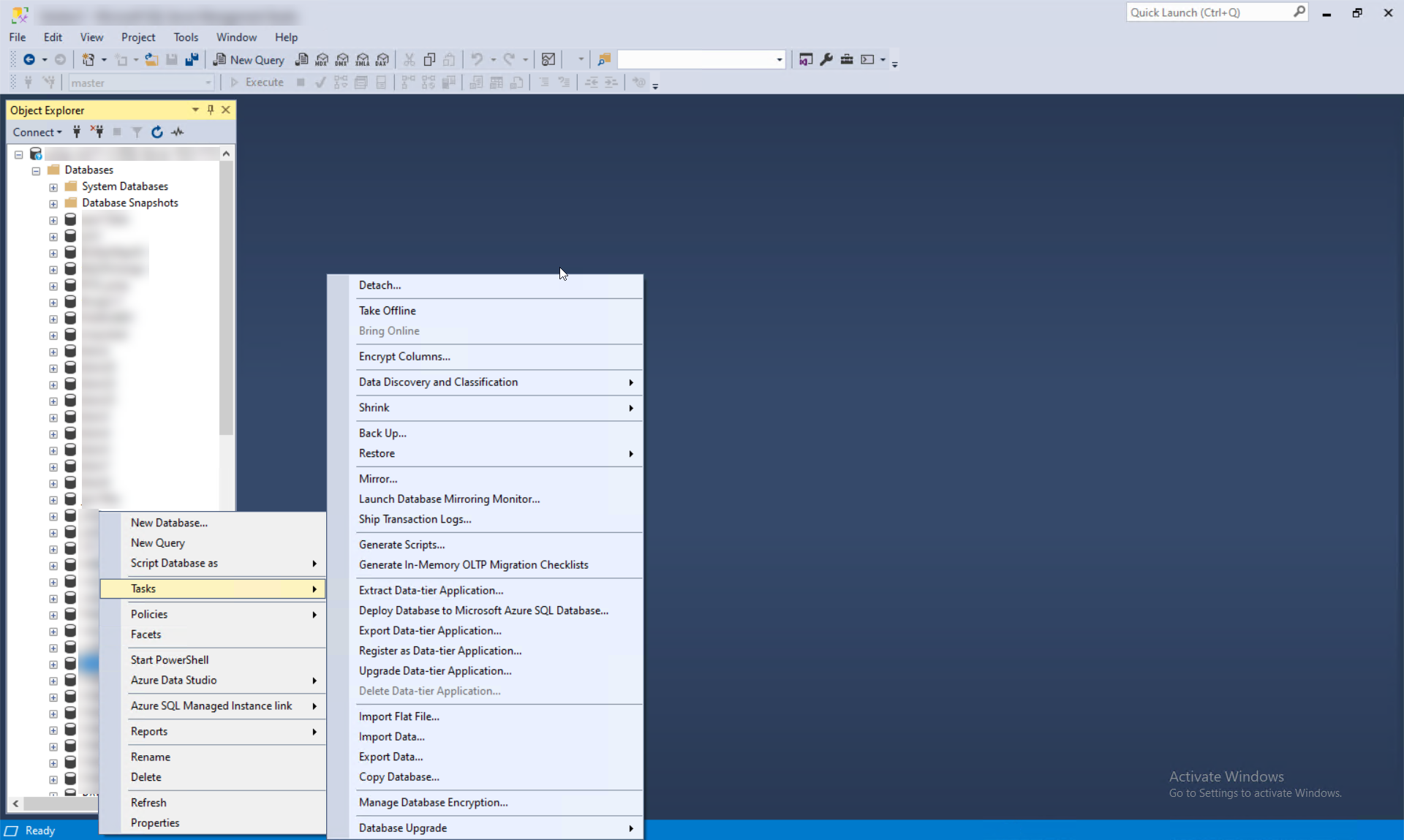
- In the dialog box that opens, click Next, fill in the required details and click Next.
- Click Finish.
2. Encrypting Azure Database
- Now, in SQL Management Studio, connect the database to Azure and execute the following queries:
ALTER PROCEDURE [dbo].[OptimizedInventoryProc] (@SQL1 varchar(max) ,@SQL2 varchar(max),@SQLSTR varchar(max)) WITH ENCRYPTION AS BEGIN SET NOCOUNT ON; CREATE TABLE #PTRX_DUMMYGROUPPASSWORDS ( RESID BIGINT,ACCID BIGINT,USERID BIGINT,UNIQUEID BIGINT ); END
CREATE MASTER KEY ENCRYPTION BY PASSWORD='<Password in masterkey.key file>' CREATE CERTIFICATE PMP_CERT WITH SUBJECT='Created by ManageEngine'; CREATE SYMMETRIC KEY PMP_SYM_KEY WITH ALGORITHM = AES_256, KEY_SOURCE = 'ZOHO_Key_Source', IDENTITY_VALUE = 'ZOHO_Identity_Value' ENCRYPTION BY CERTIFICATE PMP_CERT; OPEN SYMMETRIC KEY PMP_SYM_KEY DECRYPTION BY CERTIFICATE PMP_CERT;
- Open database_params.conf file from the conf folder and replace the <%DNS_NAME%> with Microsoft Azure SQL instance url and also modify the username and password.
3. Importing SSL Certificate
For Windows: Download the Azure Portal's certificate from browser and import the mycertfile.cer certificate using the command:
importCert.bat <Absolute-Path-of-the-Certificate>
For Linux:
- Download the Azure Portal's certificate from browser or create a certificate by executing the following command:
openssl s_client -showcerts -connect <%DNS_NAME%>:443 </dev/null 2>/dev/null|openssl x509 -outform PEM >mycertfile.cer
- Import the mycertfile.cer certificate using the following command:
importCert.sh<Absolute-Path-of-the-Certificate>
You have now successfully migrated from Local MSSQL Database to Microsoft Azure SQL Database. Now, Start the PAM360 server and connect to the PAM360 web client to retrieve the passwords.