Edge Browser Extension
To make password management and auto-logon activities seamless, PAM360 provides the option to securely synchronize your privileged accounts and passwords across browsers through native browser extensions.
The extensions help you perform privileged access management operations such as sending and approving password requests, auto-filling passwords to websites, web applications, and also set up an Auto Logon gateway to launch RDP and SSH sessions. The extensions allow you to view all the passwords, resource groups, favorites, recently used resources and also enables you to search for resources.
The browser extensions, once deployed, allows you to directly perform most of the privileged access management activities, with PAM360 running in the background.
Caution
While passwords are undisclosed within the PAM360 interface for security reasons, please note that users with access to the developer console or similar debugging tools may still be able to view them. Exercise caution with sensitive information and ensure appropriate access controls are implemented to manage potential risks associated with password visibility.
Apart from the Edge browser extension, the other available extensions are:
This document explains you in detail about the Edge browser extension. Below is a detailed explanation of the steps to install the extension, the settings required, and how it helps in managing the privileged resources:
- Benefits of PAM360 Browser Extension
- Steps to Install the Extension
- Supported Operations
- PAM360 Browser Extension Settings
1. Benefits of PAM360 Browser Extension
The Edge browser extension provides certain advantages such as:
- Automatic login to websites and applications from the browser without the need to access the PAM360 web interface.
- Exclusive icons for auto-logon and copy username/password to simplify operations.
- A Resource Description icon to display more information about a resource. Click the resource name to list all the associated accounts.
- Central Search bar to search for resources based on the criteria, such as resource name, DNS name, etc., specified at the time of resource creation.
2. Installation and Login
2.1 Installing the PAM360 Extension
Follow these steps to add the PAM360 browser extension to your Microsoft Edge browser:
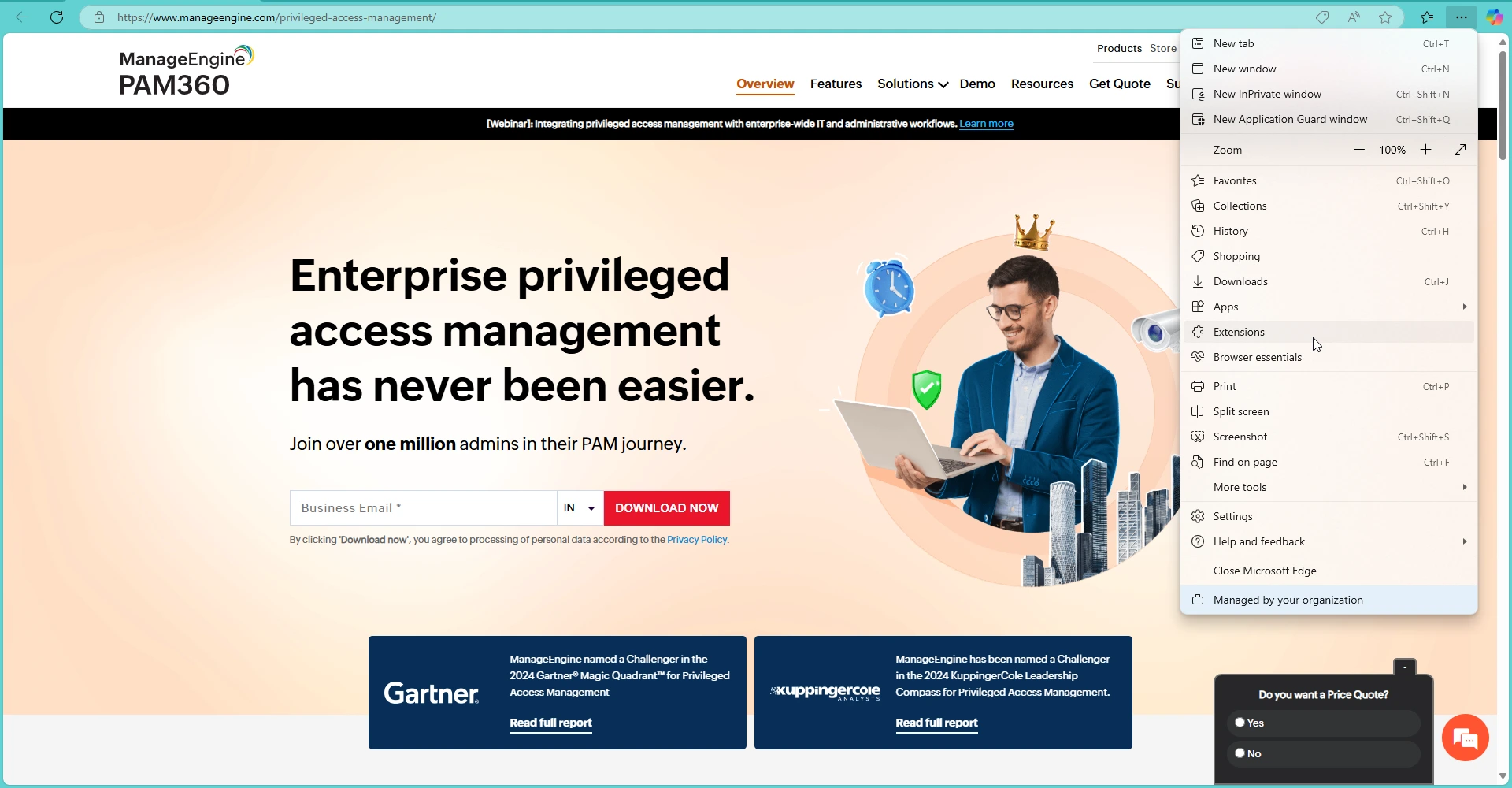
- Access the Microsoft Edge browser, click the Menu icon on the address bar or press Alt+F, and select Extensions.
- On the Extensions pop-up window that appears, click the Manage Extensions button.

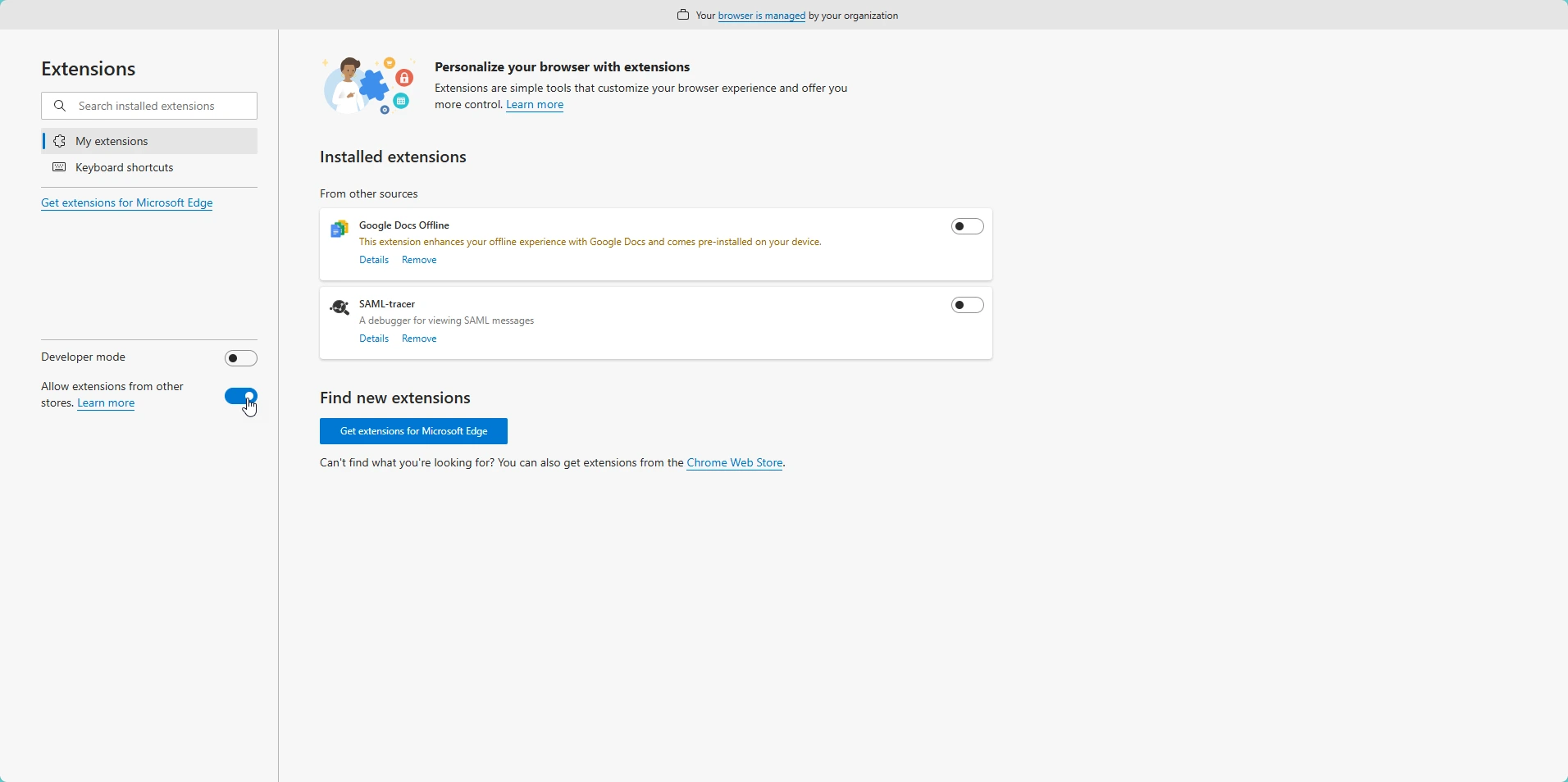
- On the Extensions window, enable the Allow extensions from other stores toggle button and click Allow on the confirmation pop-up window.
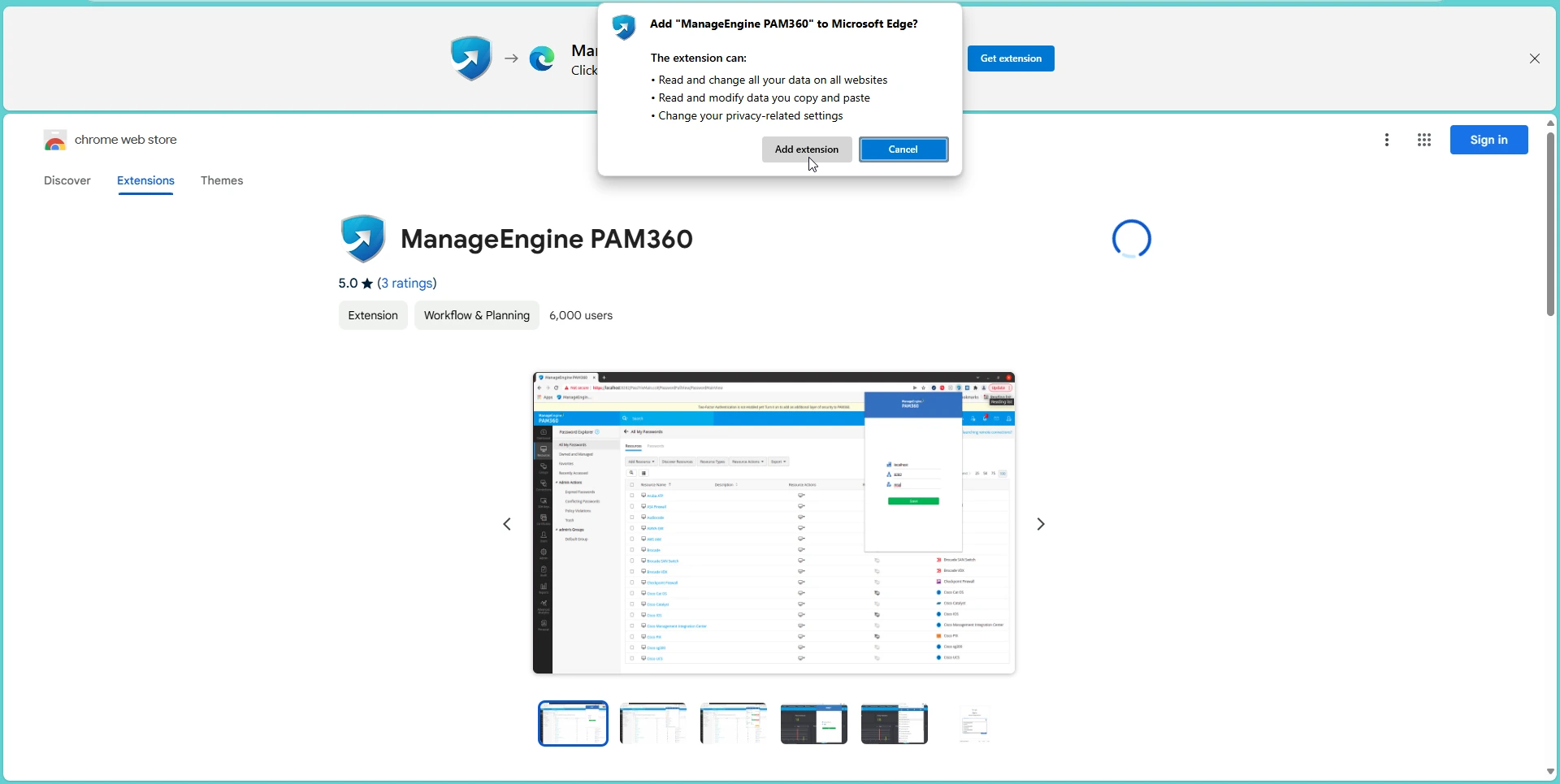
- Access the Chrome Web Store on your Edge browser and find the ManageEngine PAM360 extension.

- On the PAM360 extension page, click the Get button and then the Add Extension button on the confirmation pop-up window.
- To display the extension on the tool bar, click the Extension icon on the Address bar and enable the eye icon beside the PAM360 extension. Now, the PAM360 logo will be displayed beside the address bar.
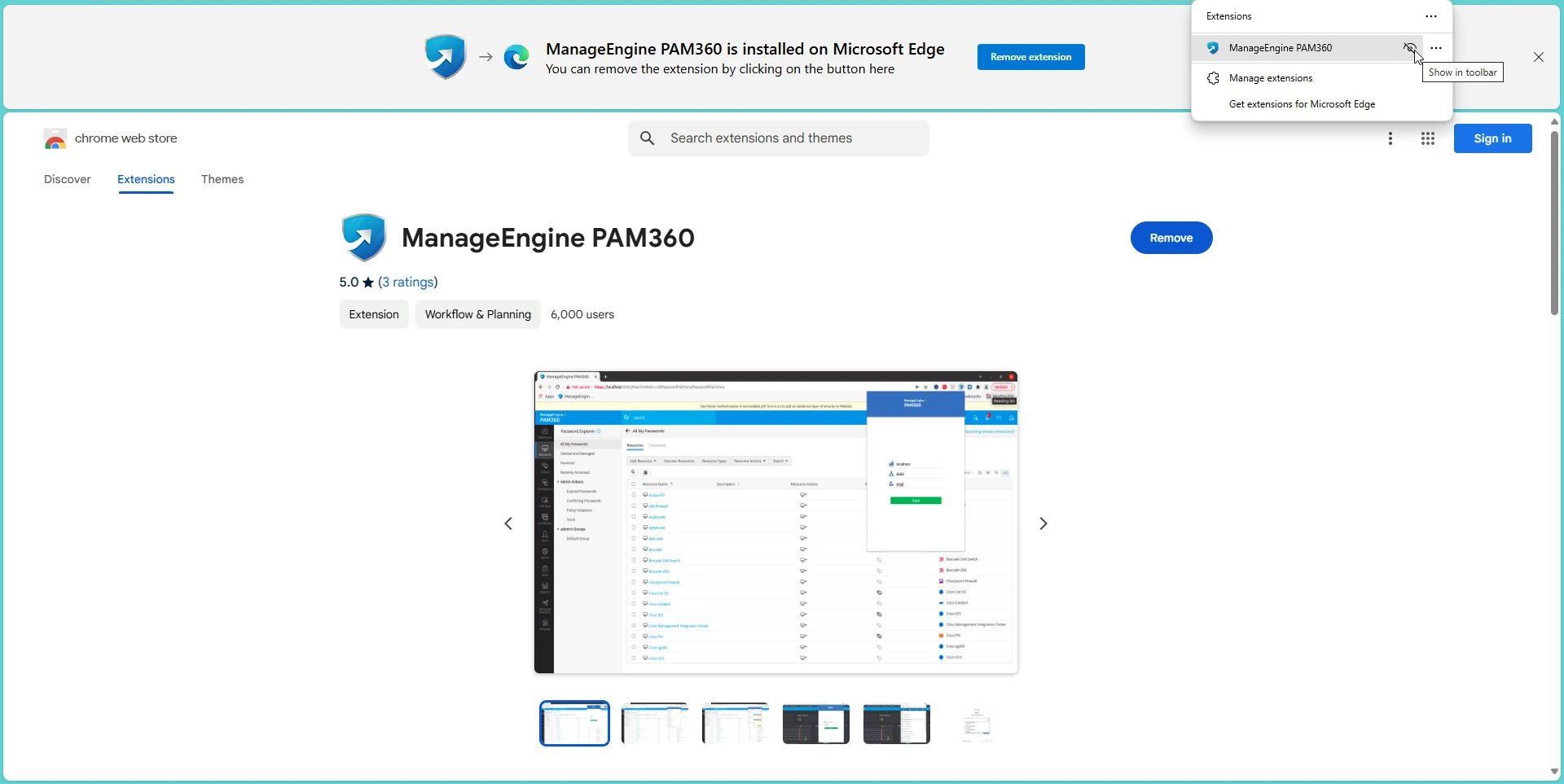
You have successfully added the PAM360 browser extension to your Microsoft Edge browser.
2.2 Log into the PAM360 Extension
PAM360 supports single sign-on between the browser extension and the web server. Follow these steps to log into your PAM360 account via the Microsoft Edge browser extension:
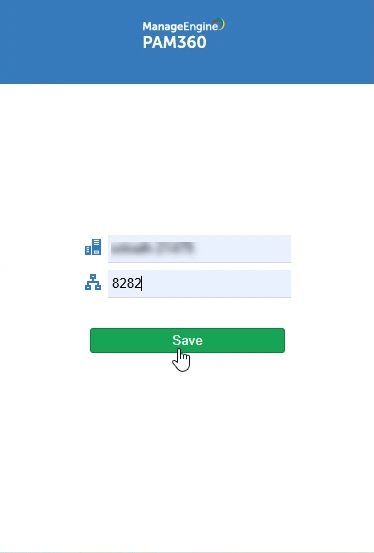
- Click the PAM360 icon on the browser's address bar to access the PAM360 Extension. When you perform this action for the first time, you will be prompted to enter the Hostname and Port where the PAM360 server is running.
- Enter the hostname of the PAM360 server and the connection port in the respective fields and click Save. If you have an active PAM360 web session, you will be logged into your PAM360 account automatically.
- If you do not have an active PAM360 web session while accessing the browser extension, you will be redirected to the PAM360 login page. Enter your login credentials to access your PAM360 account. The browser extension supports all types of login (Local/AD/LDAP/RADIUS) and authentication mechanisms as available in the web interface.
- Similarly, when you log out of your PAM360 account from the web interface, you will automatically be logged out of the browser extension and vice versa.
- Click the PAM360 icon on the browser's address bar to access the PAM360 Extension. When you perform this action for the first time, you will be prompted to log into your PAM360 account.
- On the login page, enter the Hostname of the PAM360 server and specify the connection Port.
- Enter your login credentials. The browser extension supports all types of login (Local/AD/LDAP/RADIUS) and authentication mechanisms as available in the web interface.


You have successfully added the PAM360 extension to the Microsoft Edge browser successfully.
3. Supported Operations
3.1 View Passwords
To view the list of all passwords, click the All Passwords tab in the browser extension. To view passwords specific to a resource group, switch to the Resource Groups tab. Here, the browser extension will maintain the same tree structure of resource groups and corresponding accounts as shown in the PAM360 web interface. You can view the password of any account associated with that particular resource group from the Resource Groups tab. In addition, you can view the personal passwords stored in PAM360 from the browser extension.
3.2 Search All Resources
Search for resources directly from the search bar in the browser extension based on any criteria such as resource name, user name, DNS name, user account, resource type, resource description, department, location, domain name, all resources or additional custom fields.
3.3 Launching Privileged Sessions
PAM360’s browser extension simplifies the process of initiating privileged sessions across various resource types. By leveraging the Auto Logon functionality, users can establish secure connections to websites and Windows/Linux resources without manually entering credentials. This feature streamlines access while maintaining security and flexibility
- Windows - Remote access via Remote Desktop Protocol or through RDP console sessions.
- Linux - SSH/Telnet sessions
- Websites - Direct URL-based sessions to the configured URLs.
Additional Details
- Users can launch HTTPS gateway sessions to the configured URLs on both the account and resource level from the PAM360 browser extension.
- PAM360 now supports Auto Logon and Autofill functions for HTTPS gateway sessions launched from the PAM360 extension.
- PAM360 also supports Time-based One Time Password. If an account (particularly the web accounts) is enabled with Time-based One Time Password (TOTP) as the Two-Factor Authentication (2FA), copy the TOTP before launching the connection to the website account directly from the browser extension. As, this will be required when signing in to the website account once the connection to the interface is launched. For more details about configuring TOTP in PAM360, refer to this document.
3.3.1 Launching Remote Session
To launch a remote session via PAM360 browser extension, follow these steps:
- Navigate to the All Passwords section and select the required resource from the list.
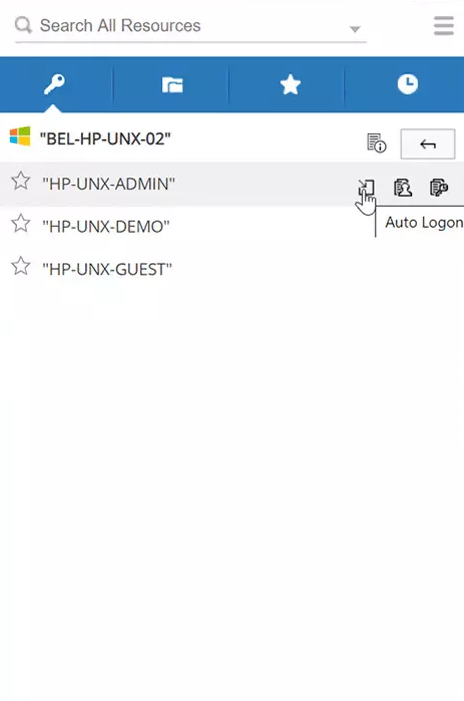
- Click the Auto Logon icon beside the account to which you want to launch the remote session.
- Select any of the following connection type:
- Window Remote Desktop
- RDP Console Session
- SSH
- Telnet
- Legacy SSH
- SQL
- HTTPS Gateway
- Open URL in browser
This will launch a remote session to the selected endpoint or URL.
3.3.2 Launching Website Session
To launch a website session via HTTPS Gateway server for the resource configured with a valid resource URL, follow these steps:
- Navigate to the All Passwords section and locate the required resource from the list.
- Click the Auto Logon icon beside the resource and select Launch HTTPS Gateway connection.
This will launch the resource URL associated with the selected resource from the hosted PAM360 server. To learn how to use password auto fill feature after launching the connection, refer to the section 3.4.
Additional Detail
In addition to managing personal passwords via the PAM360 server, users can launch connection to the configured web accounts via the browser extension.
Caution
Ensure that a domain account is added to PAM360 and shared with you before launching a website session for a resource from the browser extension.
To launch a website session for a resource configured with a valid resource URL using a domain account, follow these steps:
- Navigate to the All Passwords section and locate your resource from the list.
- Click the Auto Logon icon beside the resource and select Launch connection using domain account.
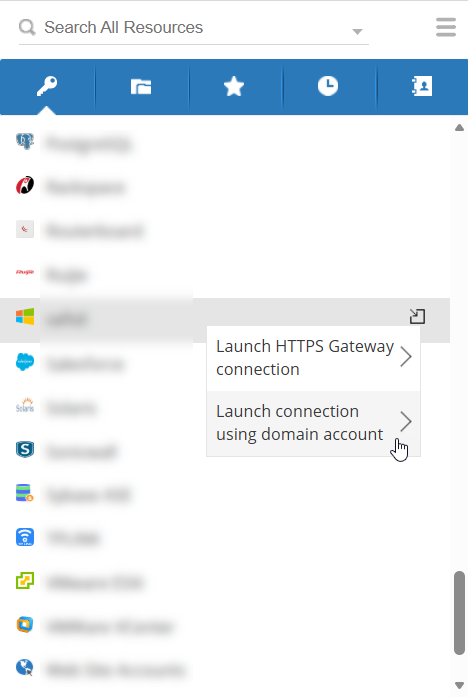

- In the window that appears, select the respective resource name and domain account name from the drop-down lists, and optionally enter a reason.
- Tick the Launch using HTTPS Gateway Server checkbox if you want to route the session through the HTTPS Gateway server and click Connect.
This launches the configured resource URL from the hosted PAM360 server using the domain account credentials.
3.4 Autofill Support for Websites and Web Applications
The PAM360 extension offers autofill support for websites and web applications, provided the credentials are stored within a resource in PAM360. When you attempt to log into a website, click the PAM360 extension icon that appears beside the credentials field and choose an account. The corresponding username and password will be auto-filled, and you can manually hit enter to log into the website. In addition, PAM360 allows you to launch simultaneous connections to the preconfigured resource URLs and autofill the passwords to sign in to the accounts.
Caution
- PAM360 Browser extensions securely retrieve the stored credentials from the PAM360 vault and auto-fill them in the respective fields on the target web pages/websites. This feature allows users to log into websites and web applications automatically without manually entering the credentials.
- Please note that this feature is designed primarily to improve user experience and is not a flawless system, as the credentials are submitted to the client-side browser. Therefore, ensure you have enforced the necessary security measures on the client-side browser and the user systems.
- When you enter a new login credential while accessing a website or application, the extension will prompt you to save it rather than asking you to select an account for autofill. Upon saving, you can add the credential as an enterprise or personal account to the PAM360 server directly from the browser extension.
- From build 7400 onwards, PAM360 provides autofill support for HTTPS gateway sessions launched from the PAM360 Extension.
3.5 Auto Logon Support for Websites and Applications
PAM360 provides auto logon support for website sessions launched from the PAM360 extension. When a user initiates a session to the configured resource URL, they will be automatically logged into the target website or application using the shared account credentials. This feature eliminates the hassle of manually entering credentials, enhancing user efficiency and security.
Caution
- The user should have access to at least one of the user accounts that belong to the URL-configured resource for the auto-logon function to work.
- From build 7400 onwards, PAM360 provides auto logon support for HTTPS gateway sessions launched from the PAM360 Extension.
3.5 Favorites
This option provides quick access to the list of all your frequently used passwords that you marked as favorites in PAM360. This helps you locate resources and corresponding passwords easily. To mark any password as a favorite in the All Passwords, click the star icon beside it.
3.6 Recently Used
Click the Recently Used tab in the browser extension to find the list of all recently accessed passwords.
3.7 Copy Username or Password
Click the Copy Username or Password options to copy the credentials to the clipboard for pasting them elsewhere as required.
3.8 File Download
You can download the digital files, certificates and documents stored under a FileStore resource type, directly from the extension.
3.9 Password Access Request/Release
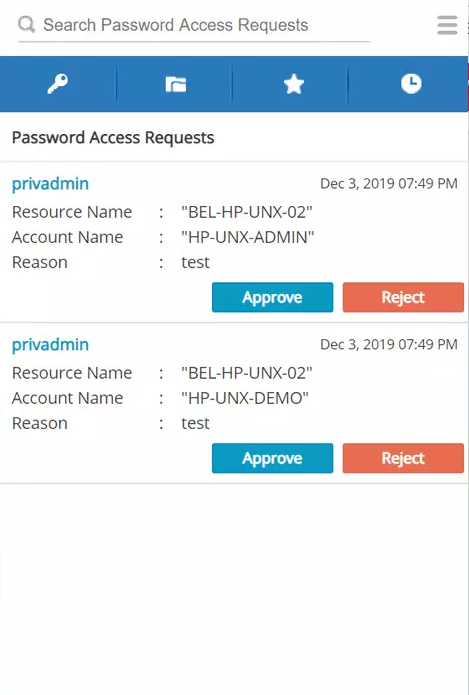
If you have configured password access control workflow in your web interface, the same will be applied to the browser extension. The administrators can either approve or reject password requests from the browser extension menu. Once a password request is approved, you can perform password check-in and check-out operations also from the extension.
Additional Details
- If you have enabled Ticketing System Integration or the reason for retrieving the passwords setting in your PAM360 web interface, the browser extension will also prompt you to enter the ticket id or reason for access whenever you try to retrieve the password.
- The access control mechanism in the browser extension works the same way as in the web interface.
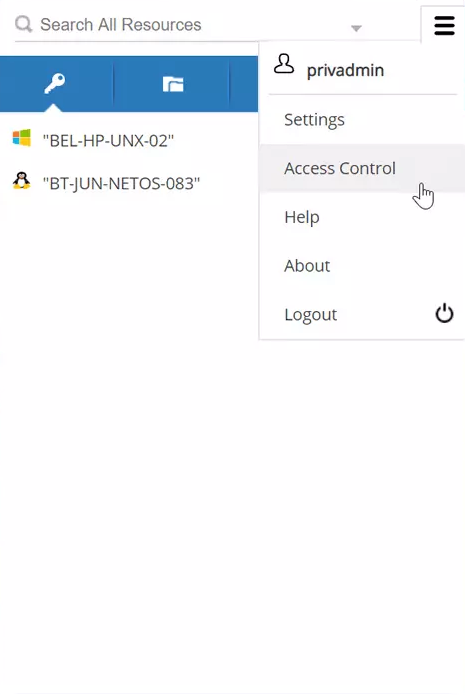
4. PAM360 Browser Extension Settings
4.1 Clear Clipboard
Specify a time period in seconds to choose how long the copied data should remain in the clipboard. Enter '0' as the value to never clear the clipboard. 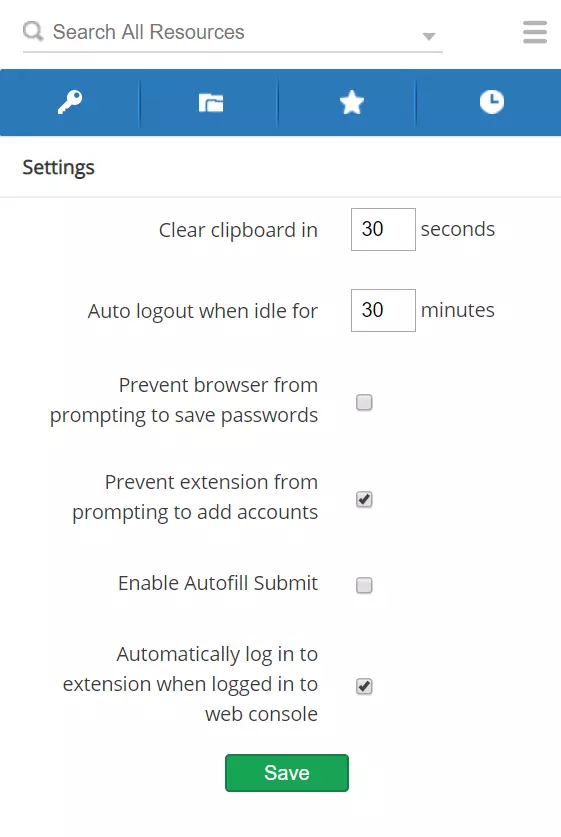
4.2 Automatically Logout After
Specify a time period in minutes to choose how long the session should remain logged in. Enter '0' as the value to never logout of a session in the browser extension. The automatic logout time specified for the web interface and the extension are independent of each other. However, you can apply the same automatic logout time given for the web interface to the browser extension as well. Follow the below steps to do so:
- Go to PAM360's web interface. Navigate to Admin >> Settings >> General Settings and click User Management from the left pane.
- Specify a value for automatic logout in the option Automatically log off users for X minutes and select the checkbox Enforce this as a maximum time limit also for users logged in through browser extension.
4.3 Prevent Browser from Prompting to Save Passwords
Select this option to prevent the browser from prompting to save passwords during any login. Once you select the option, click Allow in the pop-up that opens to confirm your permission to prevent the browser from prompting further.
4.4 Prevent Extension from Prompting to Add Accounts
Select this option to prevent the browser extension from prompting to save passwords during any login. However, if this option is unchecked, PAM360 will prompt to add your account when you try to login to a website. The account details will be saved as an enterprise account in PAM360 web interface.
4.5 Enable Autofill Submit
Select this option to enable the browser extension to auto-fill the credentials and submit them during login.
4.6 Automatically Log in to Extension When Logged in to Web Interface
Select this option to enable concurrent login to the browser extension when you are logged into the PAM360 web interface.