Failover Service Model using Microsoft SQL Server
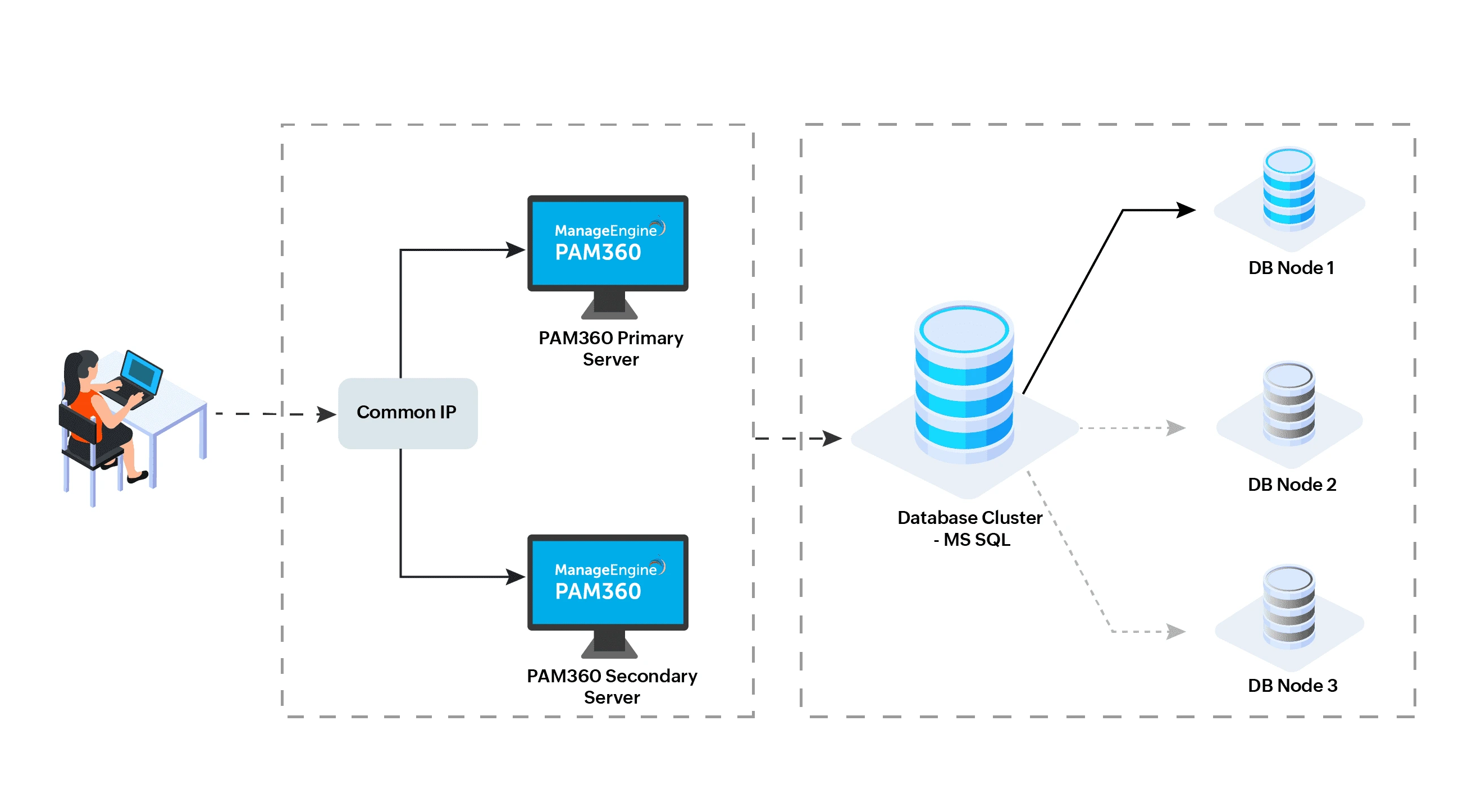
The Failover Service in PAM360 is designed to ensure continuous, uninterrupted access to passwords and other privileged resources. Unlike the secondary server model in PAM360, which requires two separate database instances linked to primary and secondary PAM360 servers respectively, the Failover Service operates with redundant PAM360 server instances that share access to a centralized MS-SQL cluster with multiple PAM360 database instances.
At the end of this document you will have learned about the following FOS topics:
1. How Does the PAM360 Failover Service Model Work?
In this setup, PAM360 relies on redundant server instances that share a common MS-SQL cluster containing multiple PAM360 database instances. Each PAM360 server instance is configured as a primary installation, providing read and write access to users. Here is how it functions:
- Primary and Standby Server Roles: The setup includes two PAM360 server instances: a Primary instance and a Standby instance, each hosted on separate machines. These servers are configured to work in sync, with the primary server active and the standby server monitoring its status. The MS-SQL cluster database also runs on a separate machine.
- Automatic Failover Mechanism: Under normal conditions, the primary PAM360 server is active, handling all user requests. If the primary server crashes or goes offline, the standby server is configured to automatically start and take over. This seamless transition ensures uninterrupted service.
- Automatic Role Reversal: When the original primary server is restored, it will automatically assume the standby role, while the former standby server, now active, continues as the primary server. This dynamic role-switching maintains stability and continuity without manual intervention.
- Consistent Access via Public IP: Both primary and standby servers are bound to a shared public IP, ensuring users always connect through a single endpoint. Regardless of which server is active, users can seamlessly access PAM360 using this consistent public IP.
Additional Details
- The Failover Service in PAM360 supports a maximum of two PAM360 instances.
- All three machines (primary server, standby server, and SQL cluster) must be within the same subnet.
- In the event of an unrecoverable primary server crash, you can configure an additional alternate server directly from the now-active standby server, which will then act as the new primary.
2. How to Set Up a Failover Service Model?
Step 1: Install Primary and Standby Servers
Install PAM360 on two separate machines, designating both as Primary server. You can specify which server will operate as Primary and Standby during a later configuration step.
Caution
- Both servers should have 64-bit processors to support failover compatibility.
- Ensure identical PAM360 versions are installed on both machines.
- If switching from Secondary Server model to Failover Service, refer to the migration steps provided in this documentation.
Step 2: Database Setup
The Failover Service requires a MS-SQL cluster setup as the backend database. Follow the documented steps to configure the MS-SQL cluster as PAM360's backend.
Caution
When linking the clustered MS-SQL instance to PAM360, ensure you use the fully qualified DNS name of the failover cluster instance, not the IP address.
Step 3: Configure the Failover Service on Primary and Standby Servers
- Open a command prompt with administrative privileges and navigate to the <PAM360_Primary-Installation-Directory>/bin folder.
- Run the script FOSSetup.bat. A configuration window will appear; fill out the fields as described below:
- Common IP: Specify a static IP that will be used by both the Primary and Standby servers for external connectivity. This IP should be exclusive to PAM360.
- Common IP Netmask: Enter the subnet mask for the common IP.
- Standby IP: Input the IP address of the Standby server to enable communication between the Primary and Standby.
- Network Connection Type: Ensure that both servers are on the same network type.
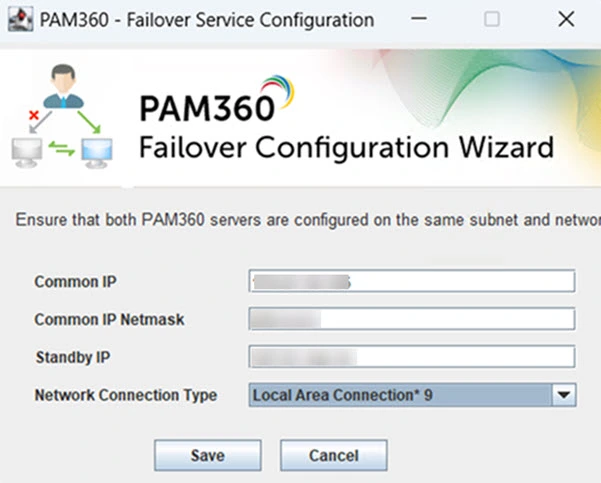
- Once the fields are filled, click Save. A .zip file, named FOSPack.zip, will be created in the <PAM360-Primary-Installation-Directory>/FailoverService folder. This file contains the Failover Service configuration and will be needed on the Standby server.
Caution
Ensure that PAM360 is not running during this configuration.
- Copy the FOSPack.zip file from the Primary server and place it in the home directory of the PAM360 installation on the Standby server.
- Now, open a command prompt with administrative privileges, navigate to <PAM360-Standby-Installation-Directory>/bin folder, and run the script ConfigureStandbyFOS.bat <file-path>, where <file-path> points to the location of FOSPack.zip.
- Once unzipped, the Failover Service will be configured on the Standby server.
- Verify that the pam360_key.key file is present in the manage_key.conf file under <PAM360-Installtion-Directory>/conf folder on both Primary and Standby servers. This file contains the encryption key necessary for synchronization.
Caution
The license used for the Primary server will automatically reflect on the Standby server when the Failover Service is configured. If the PAM360 license is updated later, apply it separately on the Standby server.
Step 4: Start Failover Service in Primary and Standby
- Open the Windows Services Panel. After configuring the Failover Service, you should see two services: PAM360 and PAM360 Modules.
- Start only the PAM360 service on both the Primary and Standby servers. The Primary server will actively run the application, while the Standby will monitor the Primary and only activate if the Primary goes down.
Additional Detail
By default, the Standby server checks the Primary server’s status every 40 seconds. If the Primary is down, it confirms twice before starting the application on the Standby server.
Caution
- Ensure both the PAM360 service and PAM360 Modules service are running under a domain account with sysadmin privileges on the MS SQL server.
- Confirm all servers are accessible from both the Primary and Standby PAM360 instances for optimal failover functionality.
3. Uninstalling the Failover Service
To deactivate the Failover Service from either the Primary or Standby server, run the UninstallFOS.bat script from the <PAM360-Installation-Directory>/bin folder. Upon deactivation, PAM360 can be uninstalled from the other server.