Integrating PAM360 with ManageEngine Log360 UEBA
ManageEngine PAM360 integrates with ManageEngine Log360 UEBA (User and Entity Behavior Analytics) to bring intelligent behavior-based insights into privileged access activities. Log360 UEBA is a machine learning-powered add-on that analyzes audit logs to detect anomalies and potential security threats by assigning risk scores, identifying unusual behavior patterns, and generating detailed audit reports.
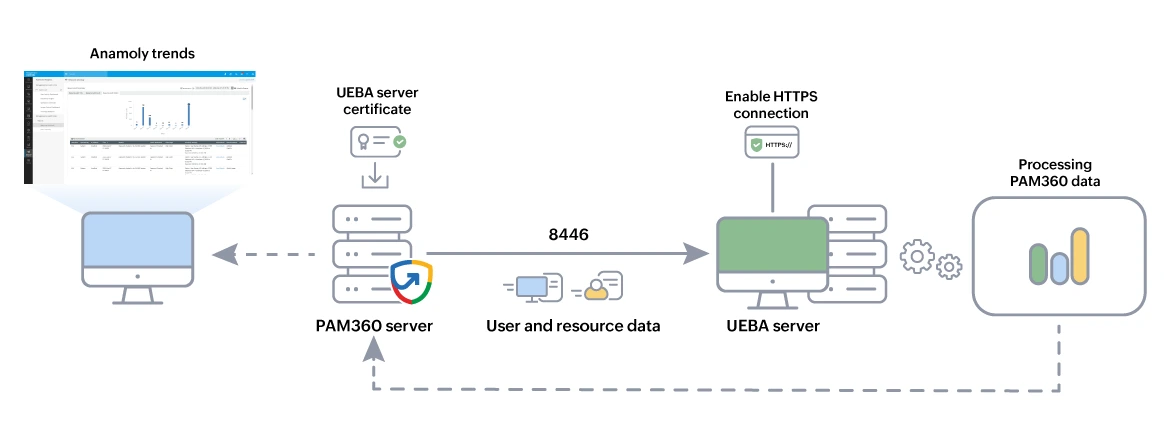
Through this integration, PAM360 sends audit trail data, covering both user and resource activities, to Log360 UEBA via API using your configured server details and credentials. This data is processed at regular intervals and presented in the form of intuitive visualizations such as graphs, risk trends, and anomaly reports, allowing administrators to identify irregular activity and investigate risks proactively.
Once configured, the audit insights from Log360 UEBA are accessible directly from the Advanced Analytics tab within PAM360. The data is categorized into audit and anomaly reports, offering a clear view of user behavior trends and deviations from normal patterns. This enhances the organization's ability to detect threats, comply with regulatory requirements, and make informed security decisions.
Caution
The PAM360-Log360 UEBA integration is supported from Log360 UEBA build 4023 and above only.
At the end of this document, you will have learned the following:
- Prerequisites
- Configuring the Integration in PAM360
- Viewing Log360 UEBA Reports in PAM360
- Important Points to Consider
1. Prerequisites
- Change the connection type to HTTPS in the Log360 UEBA server. The integration works only with HTTPS connections as PAM360 uses HTTPS to secure remote connections. Click here to learn how to change the connection type in the Log360 UEBA server. Once you change the connection type, follow the steps given in this document to generate and apply an SSL certificate in the Log360 server.
- Once HTTPS is enabled, follow the below steps to import a valid SSL certificate into PAM360:
- Stop the PAM360 service.
- Open the command prompt with the administrative privilege, navigate to the <PAM360-Installation-Directory>/bin folder, and execute the following command:
importCert.bat <Absolute-Path-of-the-Log360-UEBA-Certificate>
- Restart the PAM360 service.
2. Configuring the Integration in PAM360
In the PAM360 console, follow the below steps to enable the integration:
- Navigate to Admin >> Integrations >> ManageEngine.
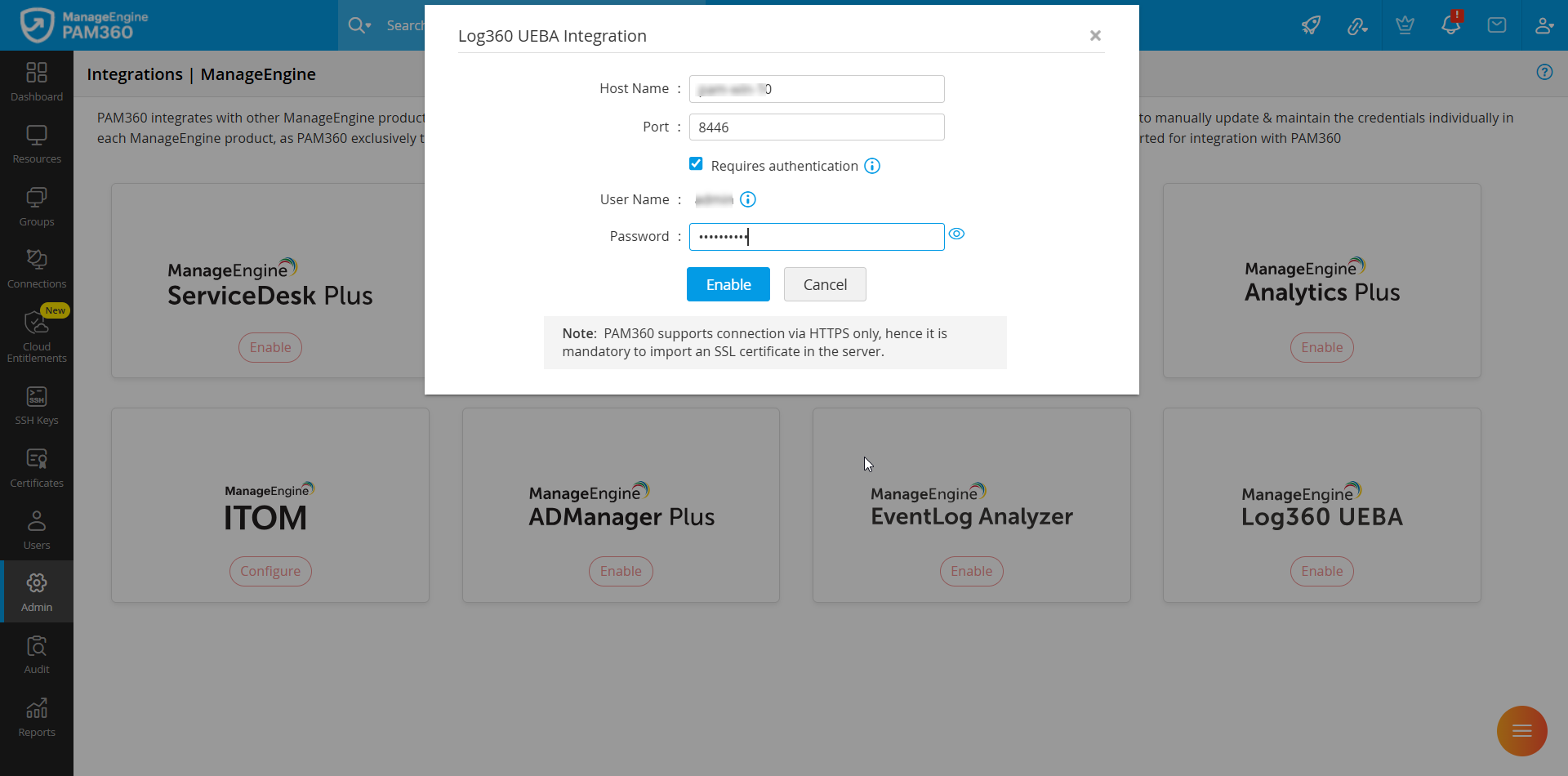
- Under ManageEngine Log360 UEBA, click Enable. In the Log360 UEBA Integration dialog box that opens up, enter the following details:
- Host Name - The host machine in which Log360 UEBA is running.
- Port - The port number in which Log360 UEBA is listening.
Before providing the authentication password, consider the below two cases:
- PAM360 and Log360 UEBA Servers Reside in the Same Machine
- PAM360 and Log360 UEBA Servers Reside in Different Machines
2.1 PAM360 and Log360 UEBA Servers Reside in the Same Machine
If both PAM360 and Log360 UEBA servers reside in the same machine, then the authentication password is not necessary. In this case, do as follows:
- In the Log360 UEBA Integration dialog box, enter the Host Name and Port.
- Leave the Requires Authentication option unchecked and click Enable.

2.2 PAM360 and Log360 UEBA Servers Reside in Different Machines
If PAM360 server and Log360 UEBA servers reside in different machines, then the authentication password is mandatory. In this case, do as follows:
- In the Log360 UEBA Integration dialog box, enter the Host Name and Port.
- Select the Requires Authentication checkbox and enter the Password. This password must be the login password of the server in which Log360 UEBA is running.
- Click Enable to save the configuration.
Caution
This integration will work only with the username admin which is the default username of the Log360 UEBA Super Admin account. As of now, Log360 UEBA does not support PAM360 integration with Active Directory users and custom users in Log360 UEBA.
The integration is now completed. All existing the audit trail from PAM360 will be sent to Log360 UEBA right away. This is a one time operation, after which the audit data will be sent from PAM360 once every one hour. As of now, this integration supports only two types of audit data from PAM360: Resource audit and User audit.
If case 2 applies to you, Log360 UEBA reports dashboard may not work as expected in Google Chrome and Microsoft Edge browsers. If you are using either of those browsers, follow any one of the workaround steps given below:
- Enter the Fully Qualified Domain Name (FQDN) as the Host Name in this step. For example: [hostname].[domain].[top level domain]
- Open a new tab, go to chrome://settings/, click Cookies and other site data, and choose the Allow all cookies option. Then, open a new tab, go to chrome://flags/, enter the keyword samesite in the search bar and disable the SameSite by default cookies option by choosing Disabled from the dropdown beside it.
- Now, relaunch the browser.
3. Viewing Log360 UEBA Reports in PAM360?
Once the integration is complete, follow the below steps to view Log360 UEBA reports in PAM360:
- Navigate to the Advanced Analytics tab.
- Click ManageEngine Log360 UEBA from the left pane. Under this, choose Resource Anomaly or User Anomaly. As per your choice, the analysis of resource and user audit reports will be displayed in the dashboard area on the right. Click here to learn about the dashboards in detail.
- Log360 UEBA dashboard works well in the following browsers: IE 11 and above, Mozilla Firefox 4 and above, Microsoft Edge, and Google Chrome.
If you have applied steps for case 2, then Log360 UEBA reports dashboard may not work as expected in Google Chrome and Microsoft Edge browsers. Click here to learn the workaround steps.
4. Important Points to Consider
- You can integrate only one PAM360 server with a Log360 UEBA server because, as of now, Log360 UEBA does not have the provision to segregate data from different PAM360 servers as separate reports. Therefore, attempting to integrate multiple PAM360 servers with a single Log360 UEBA server might lead to data loss.
- All audit trails sent to Log360 UEBA are stored in the Log360 UEBA server and will remain there forever. Purging audit records in PAM360 will not delete the data stored in Log360 UEBA.
- Once the integration is enabled, all existing audit data from PAM360 are imported to Log360 UEBA immediately. After the initial import, the audit data is sent from PAM360 once every one hour.
- If your Log360 UEBA server license expires and you move to the free edition, Log360 UEBA will stop fetching audit trails from PAM360. As a result of this, the Log360 UEBA dashboard in PAM360 will not display new reports. However, the anomaly reports generated before the license expiry will remain in PAM360 unless the integration is manually disabled.
- To configure how audit trails are recorded in PAM360, go to the Audit tab and click Audit Actions >> Configure Resource Audit or Configure User Audit. Any configuration setting applied to the Resource and User audit types will apply to the audit data sent to Log360 UEBA. However, it is not possible to control the type of audit logs sent to Log360 UEBA without affecting the way PAM360 records the audit trails.
Click here to learn more about audits in PAM360.