Periodic Password Reset
IT security best practices recommend rotating the passwords of sensitive resources periodically to minimize the risk of unauthorized access. PAM360’s Periodic Password Reset feature helps achieve this by automating scheduled password rotations, eliminating the need for manual password changes. While PAM360 supports remote password reset for a wide range of resources, the scheduled password rotation can only be performed at the resource group level. These resets can be carried out either in agent-less mode or by deploying PAM360 agents on the remote resources.
Administrators can configure the periodic password reset schedule by defining various properties such as when the password reset should be executed, the time interval between each schedule, email notifications to desired users, the number of retry attempts, the retry interval, etc. PAM360 also maintains a detailed history of all password reset activities for audit and compliance purposes.
Follow these steps to add a periodic password reset schedule for the desired resource group:
- Navigate to the Groups tab, click the Actions button beside the desired resource group, and select Periodic Password Reset from the displayed options.
- In the Periodic Password Reset window that appears, you will see the following details: the selected resource group name and the existing password reset schedule (if configured). Click the View Selected Resource(s) button to see the list of member resources that are part of the selected resource group for which you are adding a periodic password reset schedule.
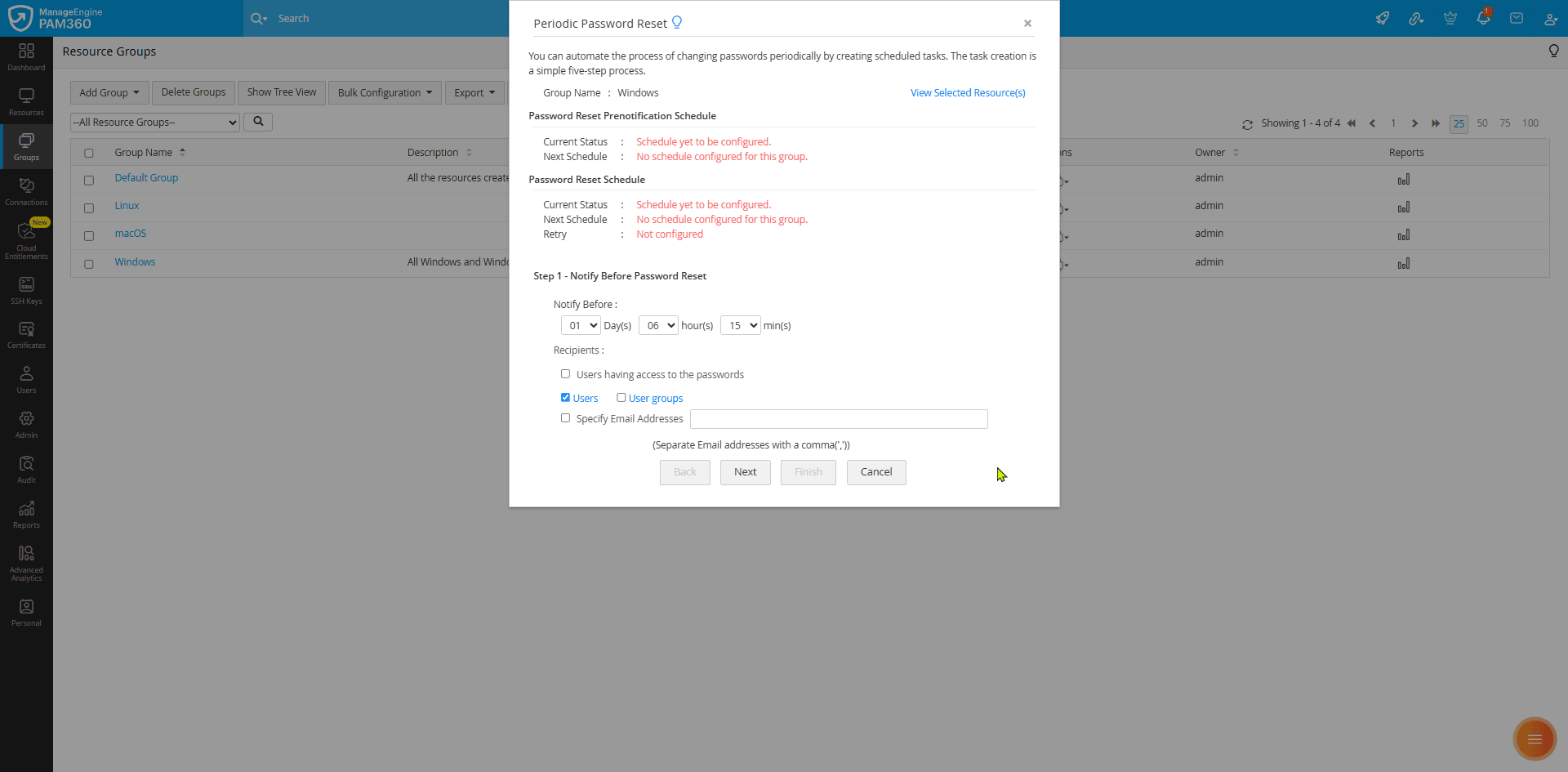
- Follow these steps to modify the existing schedule or add a new periodic password reset schedule:
- Notify Before Password Reset - PAM360 allows you to send email notifications to the desired users to inform them about the scheduled password reset operation.
- Enter the duration before which the users should be notified in the Notify Before field.
- Choose the desired recipients. Enable the Users having access to the passwords checkbox to notify all the users who have access to the passwords.
- Click the Users or User Groups button and select the desired users or user groups in your environment whom you wish to notify.
- You can also enable the Specify Email Addresses checkbox and enter the email address of the specific users you wish to notify in the given field. You can enter multiple email addresses in the comma-separated format.
- After entering the required details, click Next to proceed to the next step.
- Password Allocation - Here, you can choose how you want to assign new passwords for the accounts of the resources available in the selected resource group.
- Enable the Generate unique password for every account radio button to generate a random password for all the accounts based on the applied password policy.
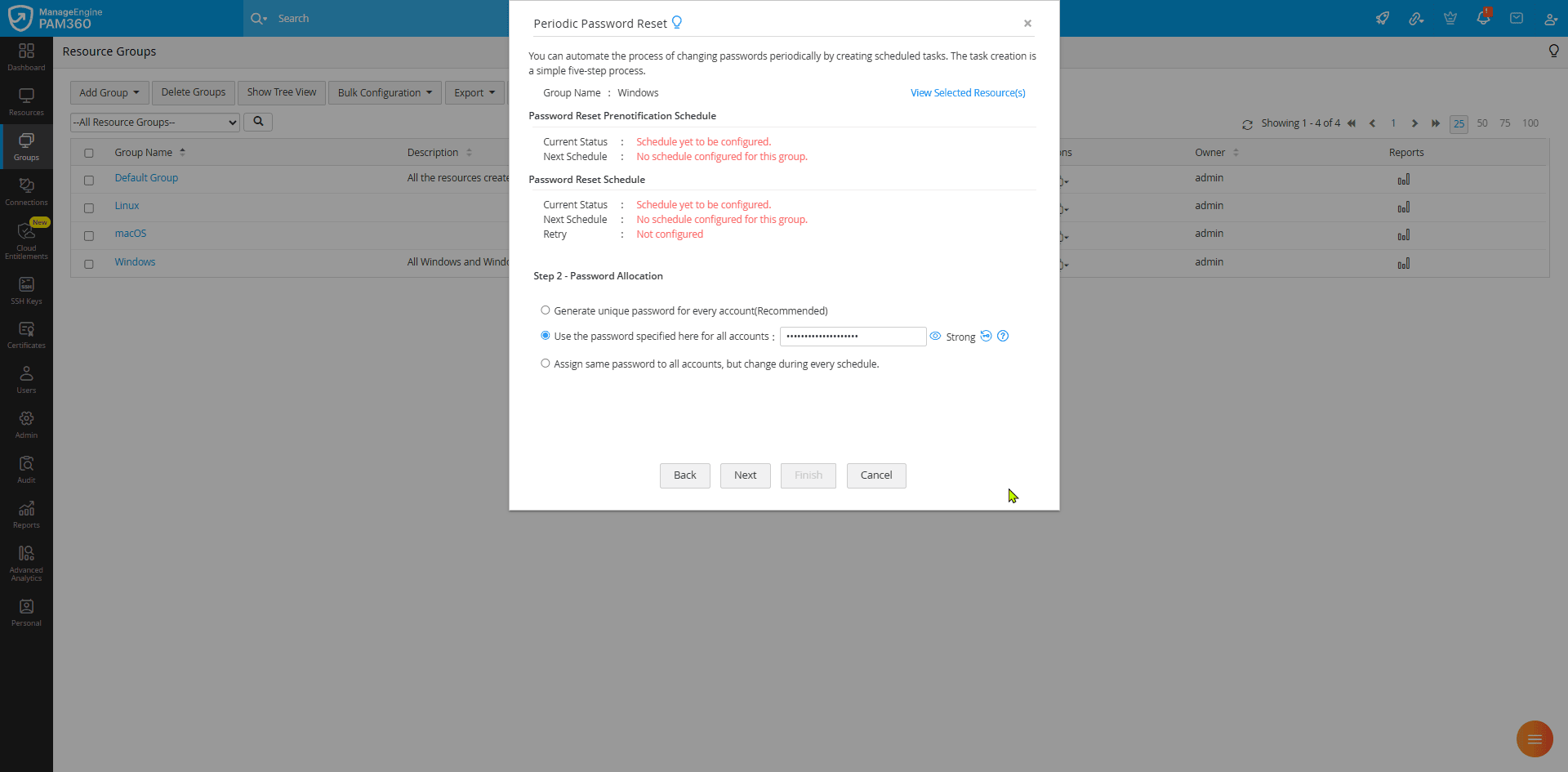
- If you wish to use the same password for all the accounts, select the Use the password specified here for all accounts radio button and enter the desired password in the given field.
- Select the Assign same password to all accounts, but change during every schedule radio button if you want to use a randomly generated password for all the user accounts during each instance of the configured schedule. Please note that enabling this option will allocate the same password for all the accounts in selected resource groups.
- Click Next to proceed to the next step.
- Enable the Generate unique password for every account radio button to generate a random password for all the accounts based on the applied password policy.
- Reset Periodicity - Specify how often the password should be changed for the accounts belonging to the resources available in the selected resource group.
- Select Once to execute the task only once, Days to repeat it every few days, Monthly to run it once every month, or Never to disable the existing schedule.
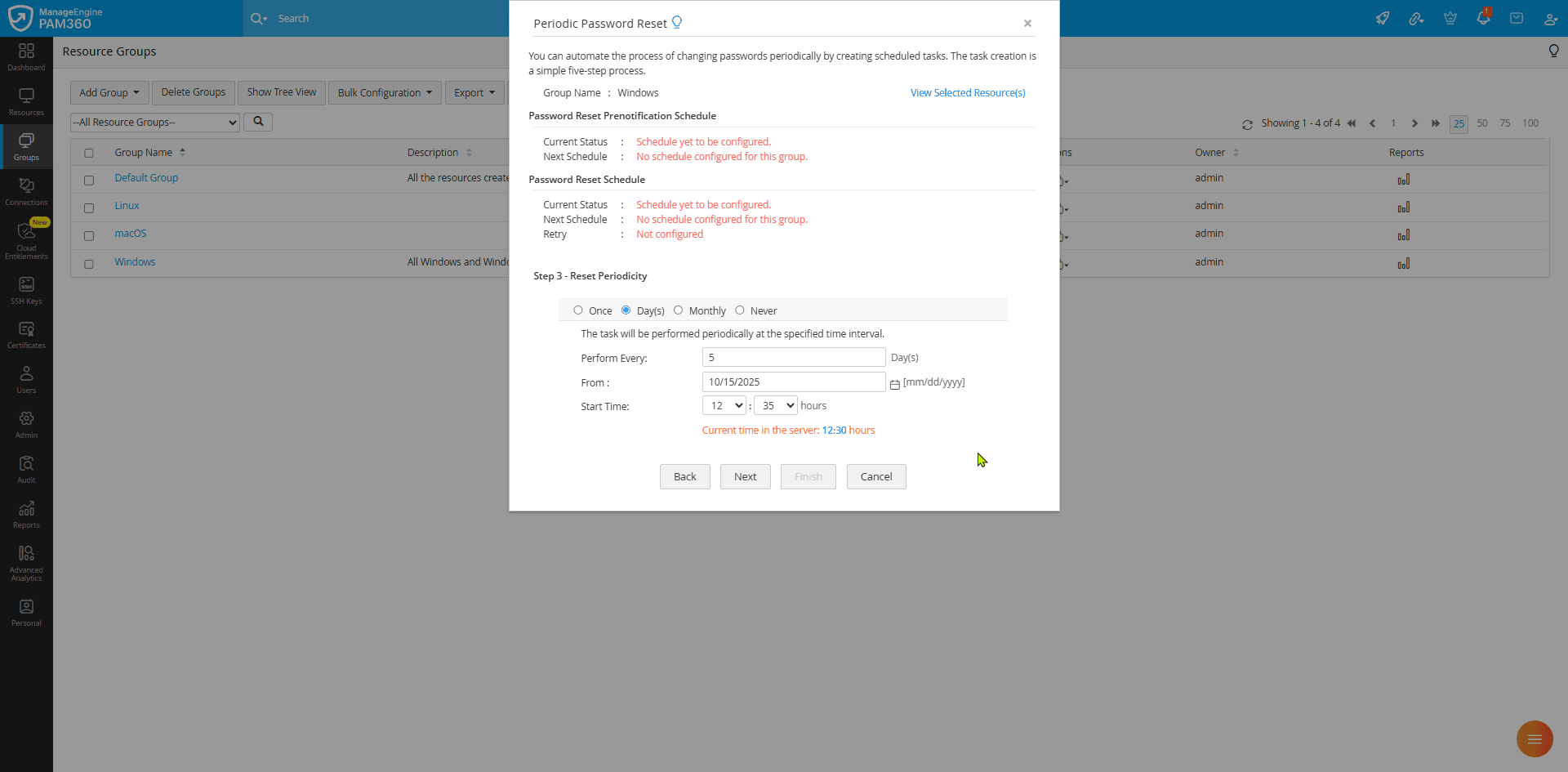
- If you select Once, specify the time at which the password reset task should be executed. If you choose Now, the passwords of all the member resources will be reset immediately. If you select Later, specify the desired date and time at which the password reset task should be executed.
- If you choose the periodicity as Day(s), enter the number of days after which the task should repeat, the schedule start date, and the start time in the given fields.
- If you choose the periodicity as Monthly, select the date on which the schedule should be executed every month and the start time in the given fields. The task will run on the selected date and time every month.
- If you choose the periodicity as Never, any configured periodic password reset schedule will be disabled.
- Click Next to proceed to the next step.
- Select Once to execute the task only once, Days to repeat it every few days, Monthly to run it once every month, or Never to disable the existing schedule.
- Reset Retry - Specify the number of retries PAM360 should attempt and the interval at which the retries should be attempted if the initial password reset attempt fails.
- Enable the Retry password reset during a failure checkbox and specify the number of times PAM360 should retry the password reset task in the Number of retries to attempt field.
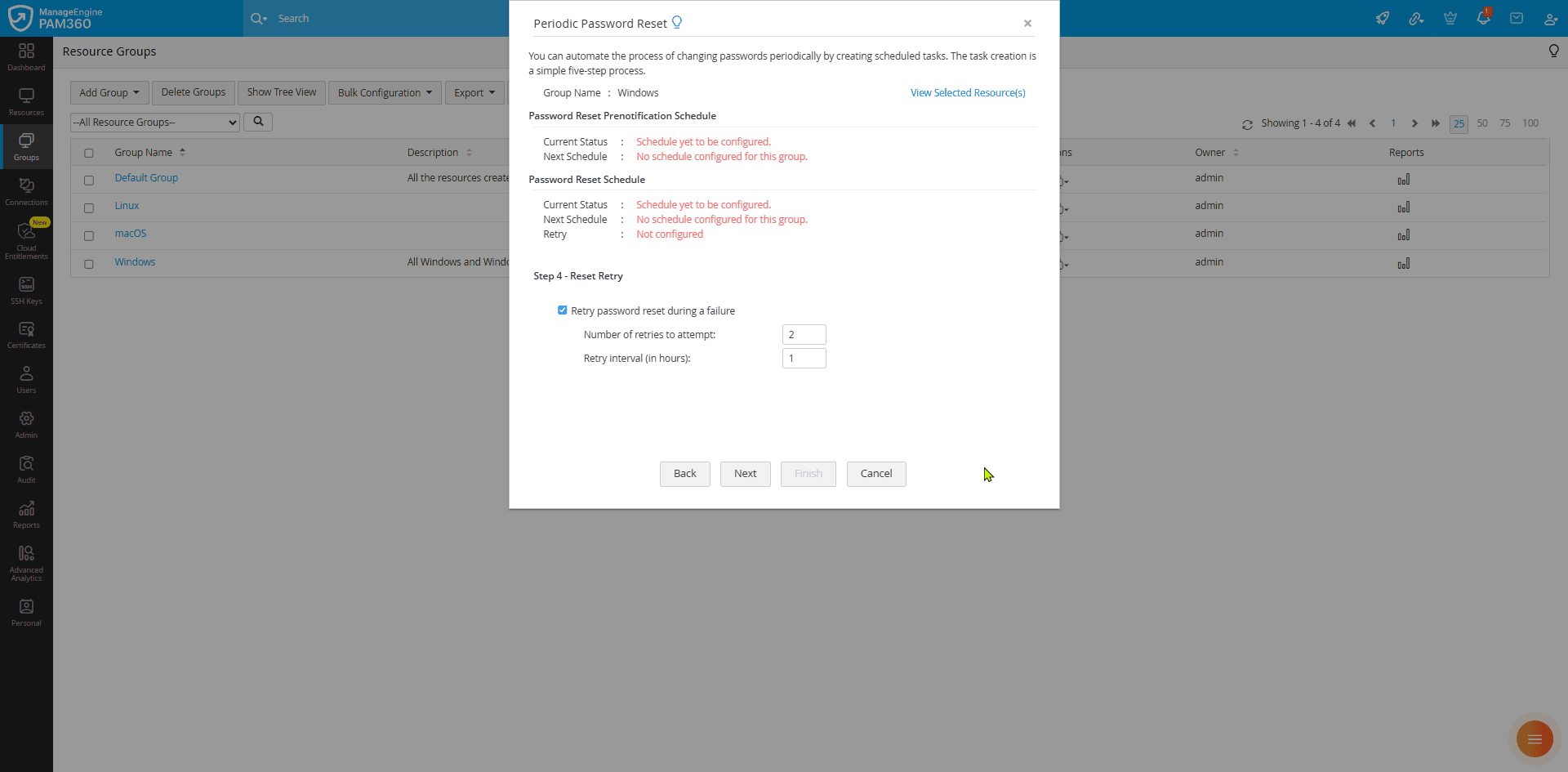
- Specify the duration between each retry attempt in hours in the Retry Interval field.
- Click Next to proceed to the next step.
- Enable the Retry password reset during a failure checkbox and specify the number of times PAM360 should retry the password reset task in the Number of retries to attempt field.
- Notify After - You can configure email notifications to users after the password reset schedule is executed.
- Choose the desired recipients. Enable the Users having access to the passwords checkbox to notify all the users who have access to the passwords.
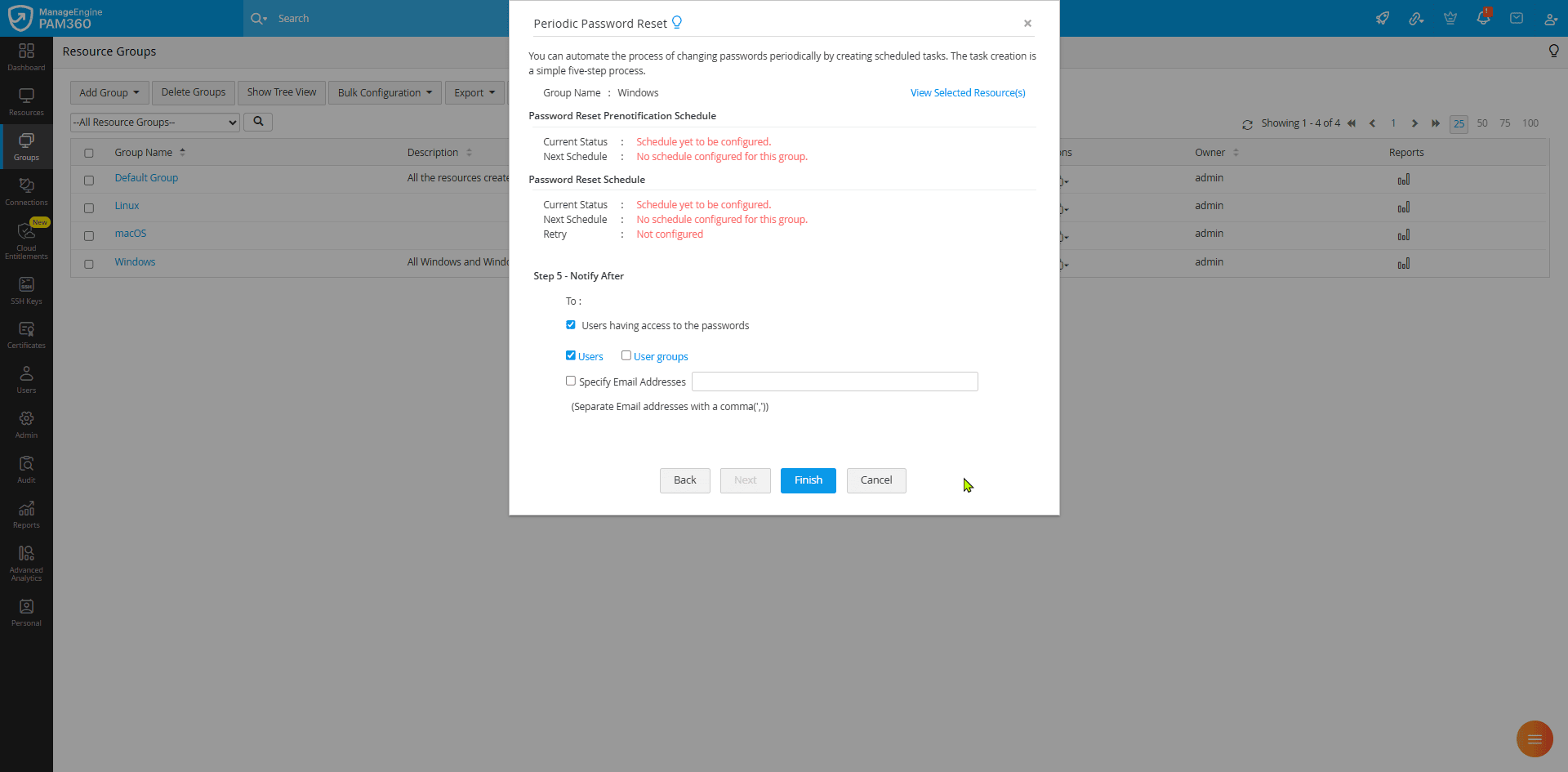
- Click the Users or User Groups button and select the desired users or user groups in your environment whom you wish to notify.
- You can also enable the Specify Email Addresses checkbox and enter the email address of the specific users you wish to notify in the given field. You can enter multiple email addresses in the comma-separated format.
- Choose the desired recipients. Enable the Users having access to the passwords checkbox to notify all the users who have access to the passwords.
- After entering the required details, click the Finish button to add a periodic password reset schedule for the selected resource group.
- Notify Before Password Reset - PAM360 allows you to send email notifications to the desired users to inform them about the scheduled password reset operation.