SSL Agent for Certificates Management
PAM360 allows you to discover the SSL certificates deployed across their network through agents. Alongside certificate discovery, the agent can be further used to perform certificate management operations on remote machines via PAM360. Refer to the following sections for managing the SSL agent and performing the certificate-based operations on remote machines.
Caution
- The SSL agent is applicable only for servers with Windows as the Operating System.
- In PAM360 build 8500, the SSL agent is included as a module within the PAM360 agent. To manage SSL certificates using the PAM360 agent, enable the SSL Management module either during installation or from the Manage Agents page. Refer to the respective help document for step-by-step instructions to install or enable the SSL Management module in the PAM360 agent.
- Downloading the SSL Agent
- Installing the SSL Agent
- Managing the SSL Agents
- Discovering SSL Certificates using Agent
- Signing Certificates using Agent
- Deploying Certificates using Agent
- Deploying Certificates in Multiple Servers using Agent
- Deleting the Agents
1. Downloading the SSL Agent
To download the SSL Windows agent, follow these steps:
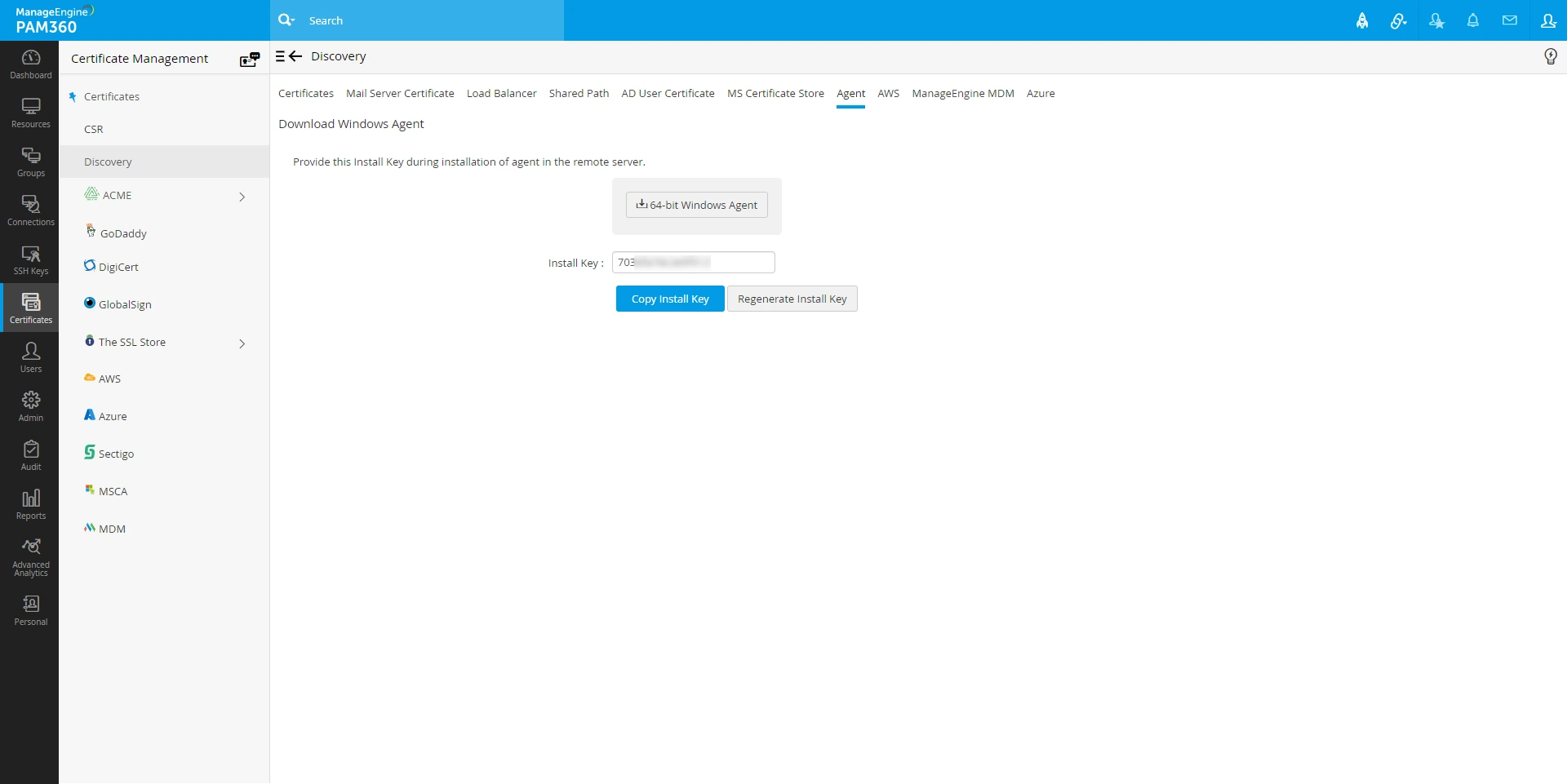
- Navigate to Certificates >> Discovery >> Agent >> Download Windows Agent.
- From the window that opens, download the agent. Also, copy and save the Install Key in a secure location.
2. Installing the SSL Agent
Once you have downloaded the agent, follow the instructions below to install it in the target servers. The downloaded package already contains the configurations necessary to perform the required operations. Just make sure the account in the server in which the agent is installed has sufficient privileges to perform certificate discovery. To install SSL agent as a Windows service, follow these steps:
- Move the downloaded .zip file from the PAM360 server to the target server.
- Unzip its contents and place the file in an unshared folder.
- Open the command prompt with the administrative privilege, navigate to the agent installation directory and execute the following command by supplying the Install Key stored in the secure location:
AgentInstaller.exe install <Agent-Installation-Key>
Caution
The Install Key is revoked after being used for a single installation. If you want to perform another installation of the agent, you need to Regenerate Install Key from the PAM360 server and supply it in the agent server.
- To start the agent as a Windows service, execute the following command:
AgentInstaller.exe start
- To stop the agent, execute the following command:
AgentInstaller.exe stop
3. Managing the SSL Agents
PAM360 provides administrators insights about agent activity and allows management of agents installed on various target resources. To manage SSL agents:
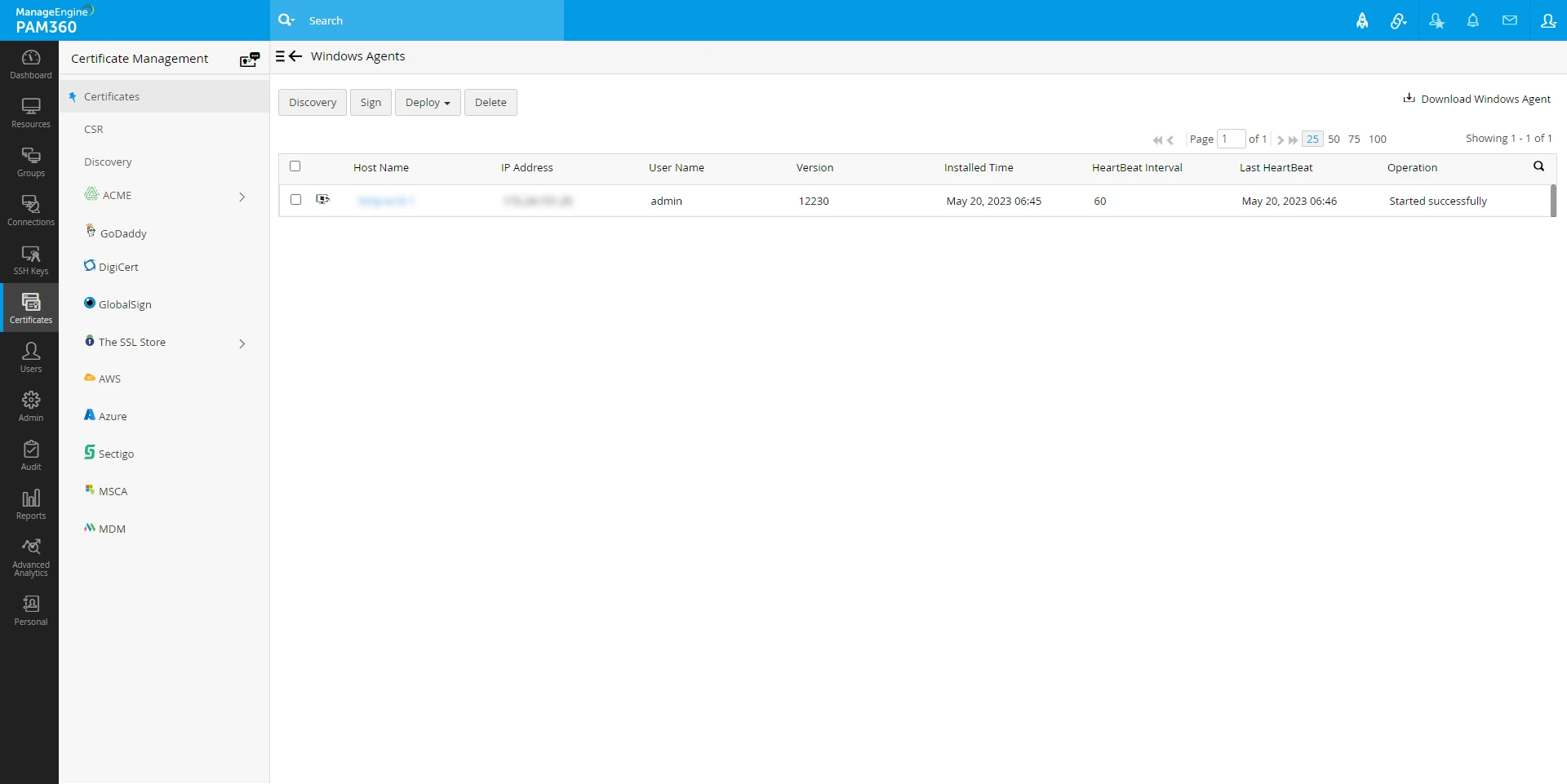
- Navigate to Certificates >> Windows Agent.
- In the window that opens, you will be able to see a list of SSL agents installed on remote resources along with insights such as Host Name, IP address, User Name, Version, Installed Time, HeartBeat Interval, Last HeartBeat, and last Operation performed.
- If you want to delete an agent, you can do so by choosing the agent and clicking Delete from the top menu.
4. Discovering the SSL Certificates using Agent
- Navigate to Certificates >> Windows Agent and select the agent.
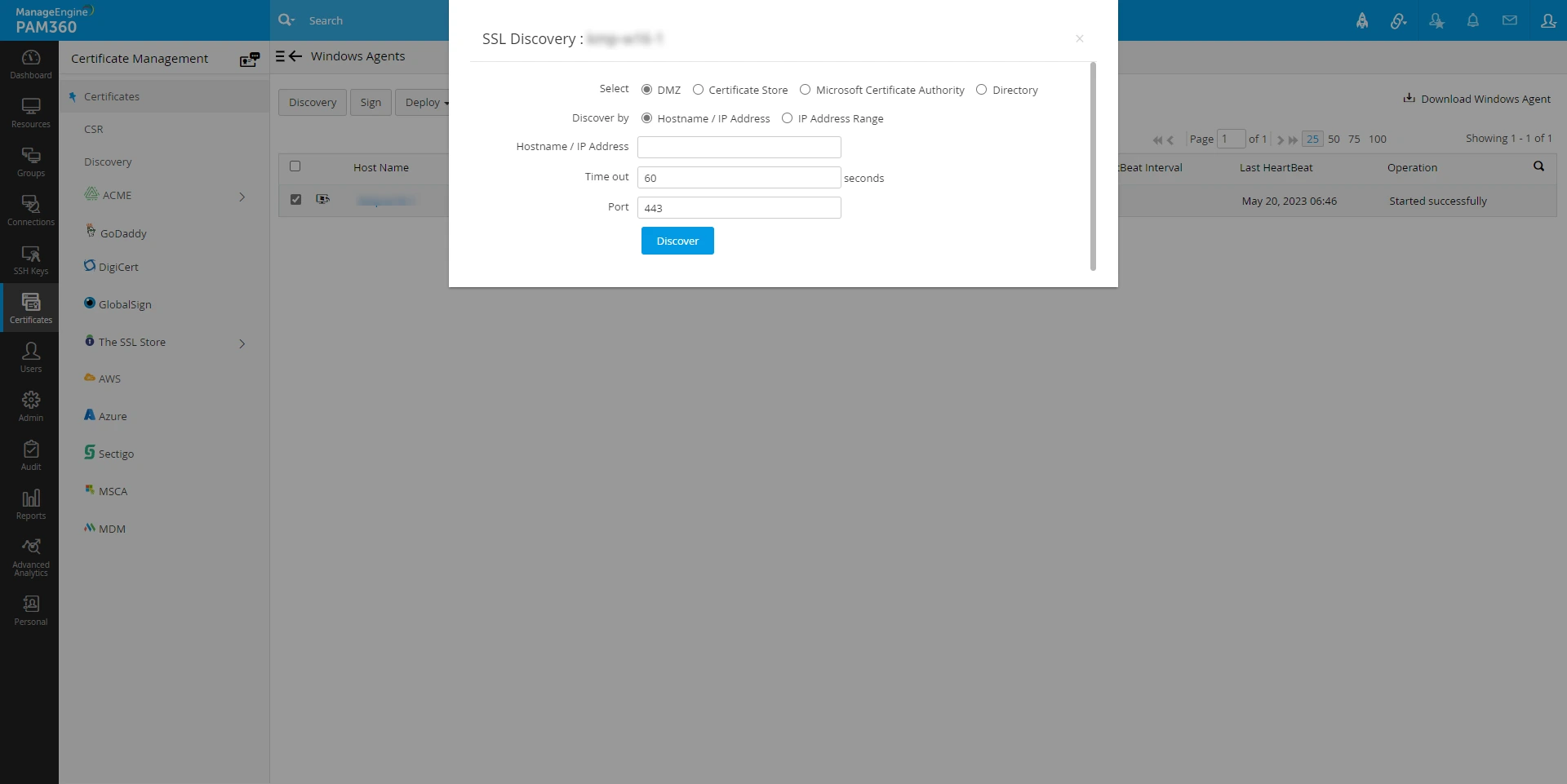
- Click Discovery. In the pop-up that appears,
- Choose DMZ to discover certificates from servers in the demilitarized zone.
- Choose to Discover by
- If you choose to Discover by
- If you choose Microsoft Certificate Authority, select the required checkboxes and enter the required details. If you select Template Name / ODI, mention the template name or click Get Templates to get a list of templates. You can select up to five templates from the dropdown. Mention the Time out (in seconds) and click Discover.
- The certificates are successfully discovered and imported into PAM360 centralized certificate repository. You can view them from Certificates >> Windows Agent.
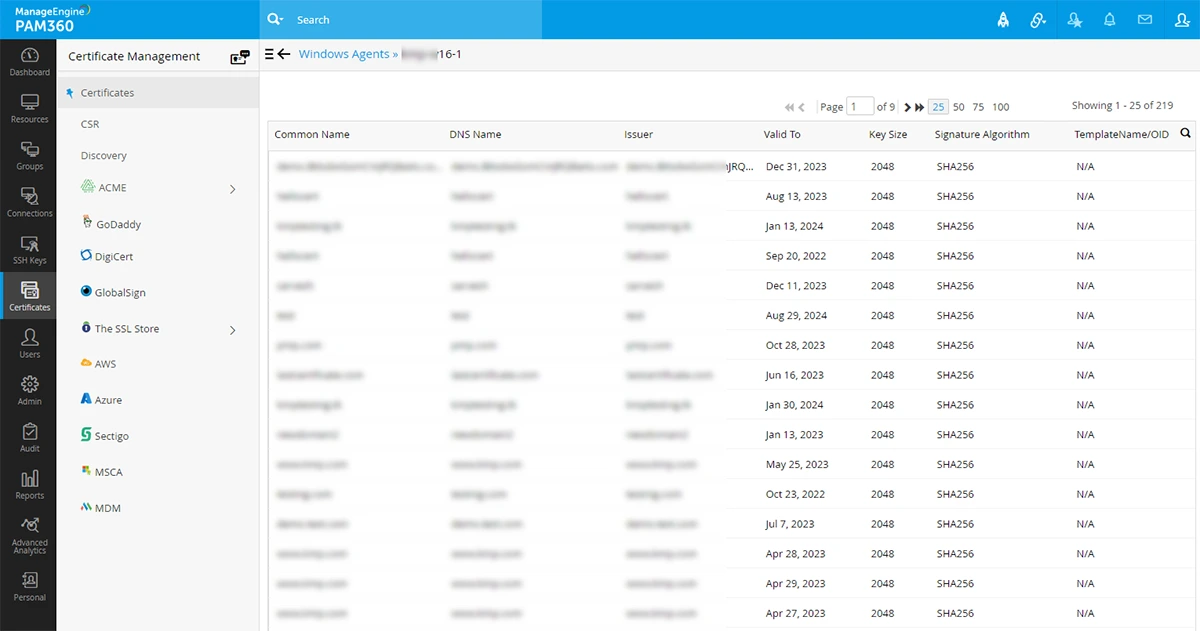
- After certificate discovery, click the Host Name of an agent to view all certificates associated with that particular agent.
5. Signing Certificates using Agent
- Navigate to Certificates >> Windows Agent >> Discovery and select the agent.
- Select the Certificate Template or click Get Templates link to get new templates.
- Mention the Agent Time out in seconds within which the agent should respond. If the agent does not respond within the timeout period, the operation will be audited as failed.
- Select the CSR from the dropdown and click Sign.
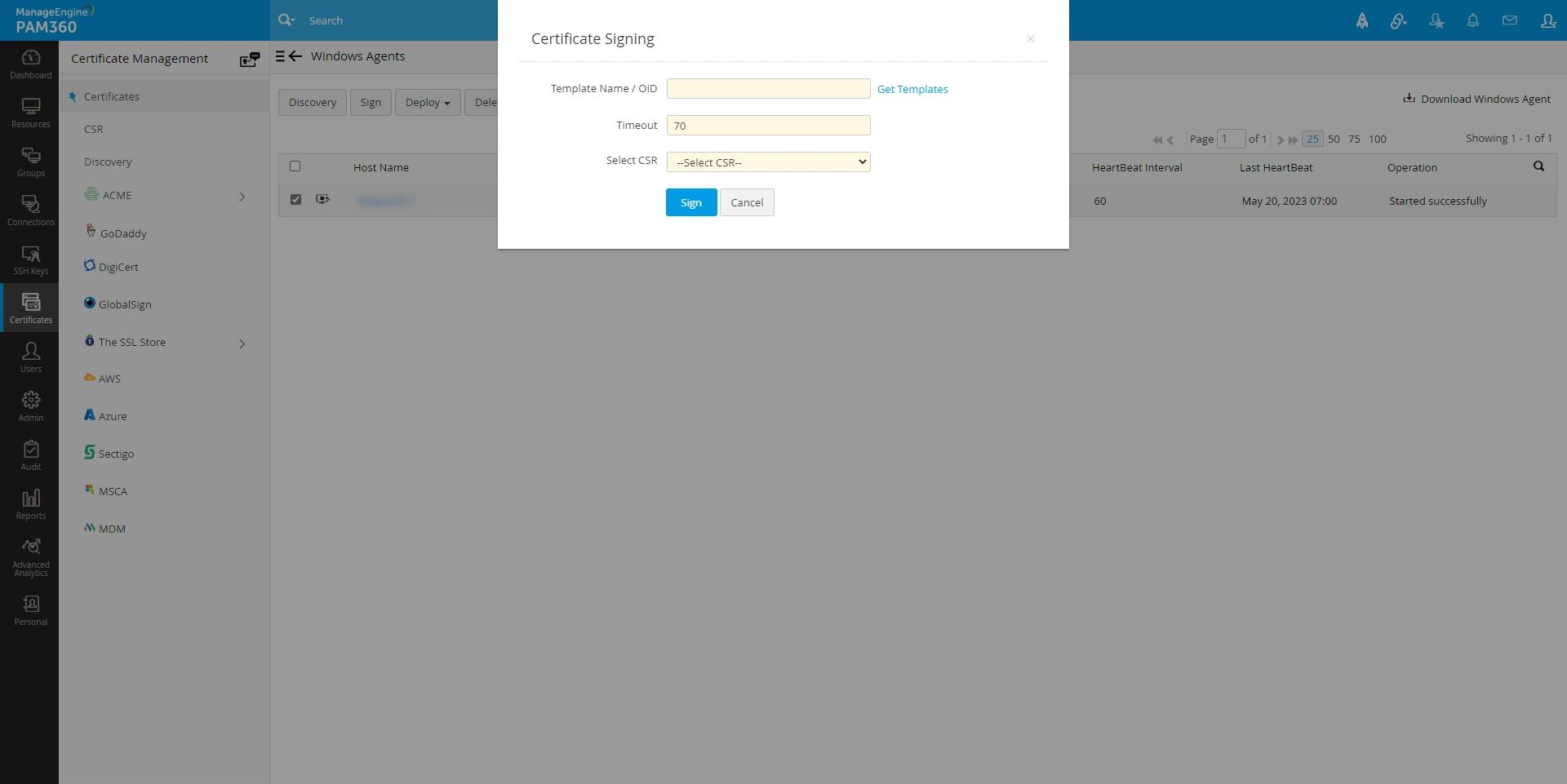
Now the certificates are successfully signed and will be available in the repository.
6. Deploying Certificates using Agent
- Navigate to Certificates >> Windows Agent and select the agent.
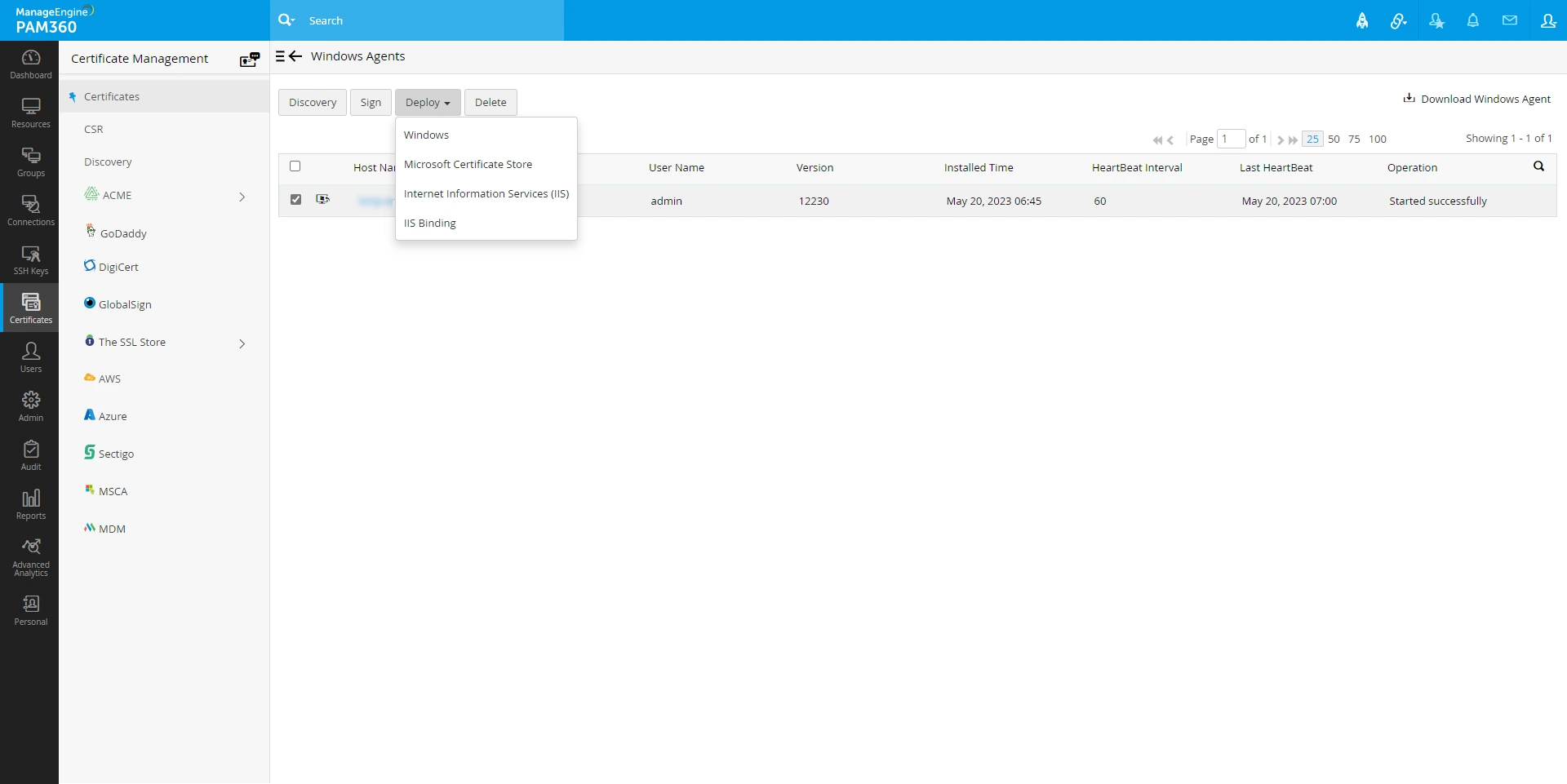
- Click Deploy and select the required server from the drop-down.
- If you choose Windows (using agent), select the Certificate Group, mention the Path and select the checkbox(es) certificate and/or JKS/PKCS based on your requirement and click Deploy.
- If you choose MS Store (using agent), select the Certificate Group and click Deploy.
- If you choose IIS (using agent), select the Certificate Group and click Deploy.
- If you choose IIS Binding (using agent), select the Certificate Group, mention the Site Name and click Get Bindings.
- Click Manage link to manage the certificate group.
- Click Save to save the changes.
- Now, the certificates will be deployed and will be available under SSL tab.
7. Deploying Certificates in Multiple Servers using Agent
- Navigate to Certificates >> Certificates tab and click multiple servers icon corresponding to the required certificate.
- A window opens listing the servers in which the certificate is deployed along with other information such as IP address, port and certificate validity.
- The DNS name should be same as the Agent's name and this agent should be running under the DNS server.
- To modify the Server details, click credentials icon corresponding to the required certificate.
- Select the Deployment Type as Agent.
- Select the Server Type and select the required Agent.
- Mention the Path, and select the required checkbox(es).
- If you select Certificate, enter the Certificate File Name.
- If you select JKS / PKCS, mention the Store File Name.
- If you choose the Server Type as Microsoft Certificate Store, select Computer and/or User account to deploy the certificate to the selected account.
- Now, select Enable PrivateKey Export from MS Certificate Store after deployment to export private key from the certificate store.
- Click Save.
- To edit a deployed server, click edit icon corresponding to required certificate.
- In the pop-up that appears, you will be able to edit the DNS Name, IP Address and Port.
- You can choose to Deploy Certificate to all servers on Auto Renewal.
- Click Save.
- To auto deploy certificates after renewal, select the desired certificates and click the Edit button. In the pop-up that appears, select Enable and click Save in the pop-up that appears.
Caution
You will be able to deploy certificate to all servers on auto renewal only if the user credentials are available.
- To check the Sync Status using the agent, select the desired certificates and click the Edit button. Now, select Sync Check With Agent and click Save.
- Click Add to Add Deployed Servers.
- In the pop-up that appears, mention the DNS Name, IP Address and Port.
- You can choose to Deploy Certificate to all servers on Auto Renewal.
- Click Save.
- You can also add deployed servers from Certificates >> Certificates >> More >> Add Deployed Server.
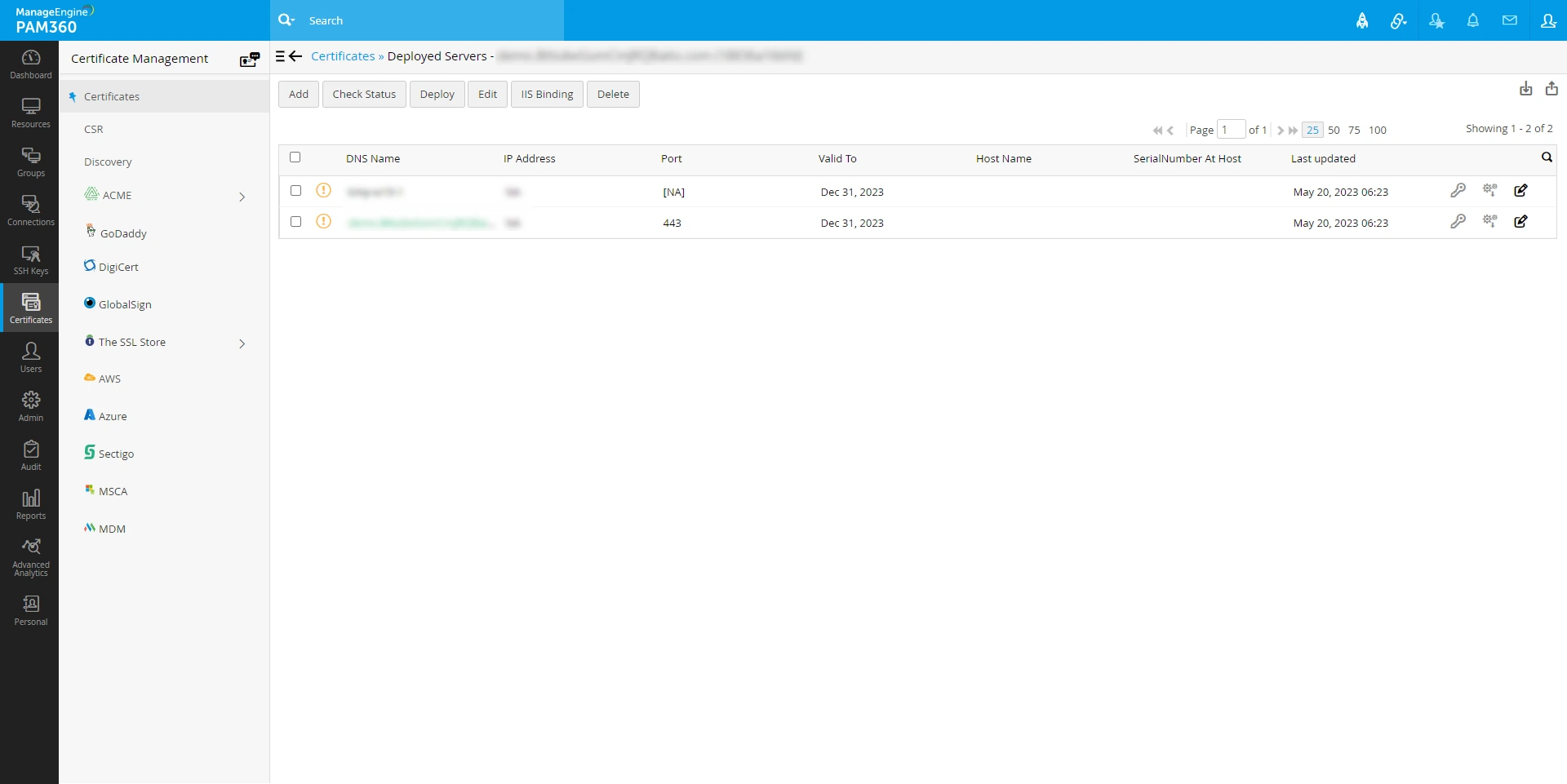
- To check the Sync Status of the server, select a server and click Check Status on the top pane.
- Now, PAM360 will check the Sync Status and will display it on the corresponding server's column.
Now, the certificates have been successfully deployed using agent. To know more about SSL certificate deployment click here.
8. Deleting the Agents
- Navigate to Certificates >> Windows Agent and select the required Agents to be deleted and click Delete.
- In the pop-up that appears, click OK. Upon confirmation, the certificate will be deleted from the list.