

Multiple file modifications in a short period of time and evidence of encryption are two telltale signs of ransomware. By default, DataSecurity Plus is designed to detect these signs and identify ransomware attacks right as they happen. Furthermore, you can set up alert and response mechanisms to stop ransomware from spreading.
With DataSecurity Plus, you can detect and stop ransomware attacks across your storage environment.
Detect and respond to ransomware attacks on file servers using the steps listed below:
- Select File Audit from the applications drop-down.
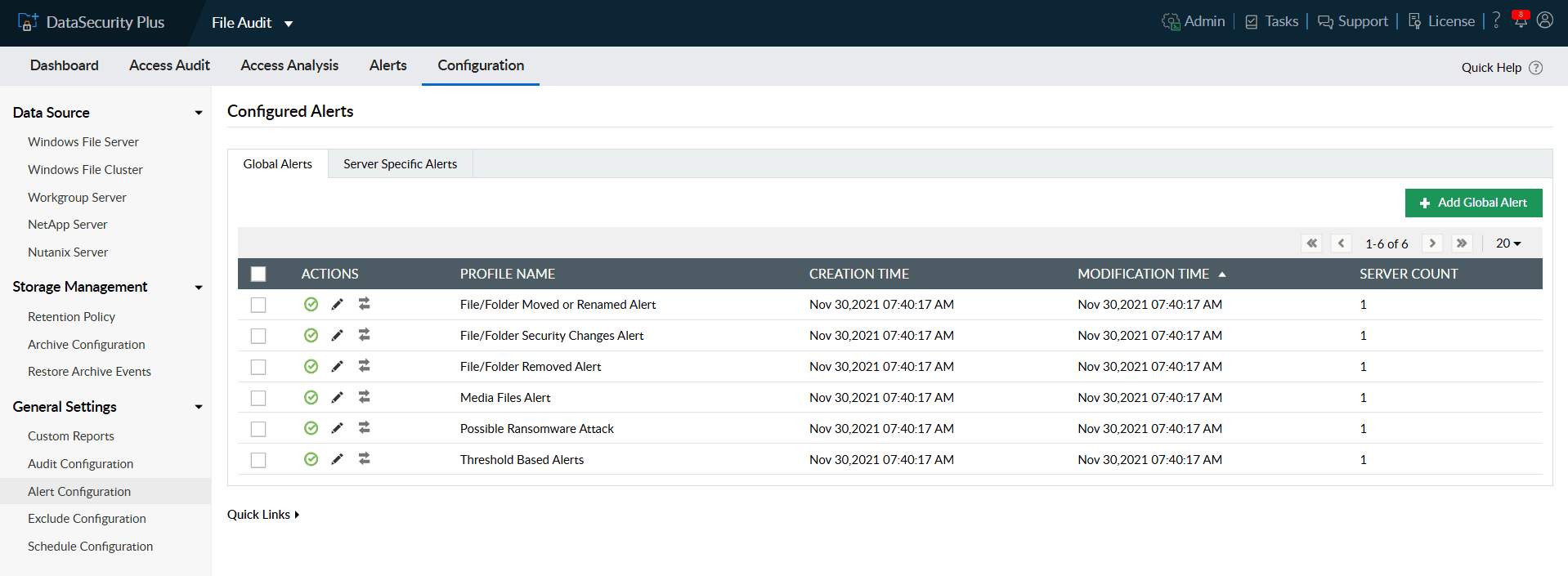
- Navigate to Configuration > General Settings > Alert Configuration.
- Under Global Alerts, click the Edit icon next to the pre-configured Possible Ransomware Attack profile.
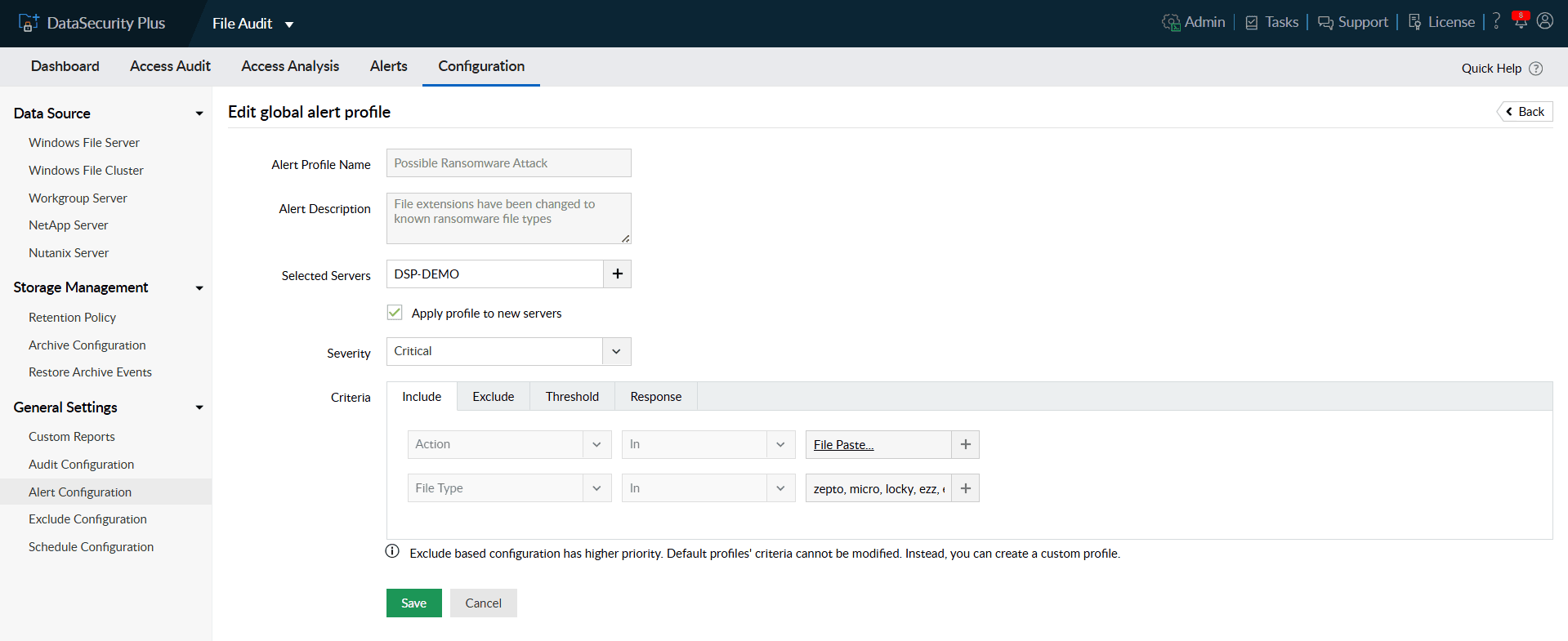
- In the Include tab under Criteria, you can find the file actions and file types that are monitored to detect ransomware attacks.
Note: All Create, Modify, Rename, File Pasted, and File Extension Change actions on known ransomware file types are monitored by default. These criteria cannot be updated.
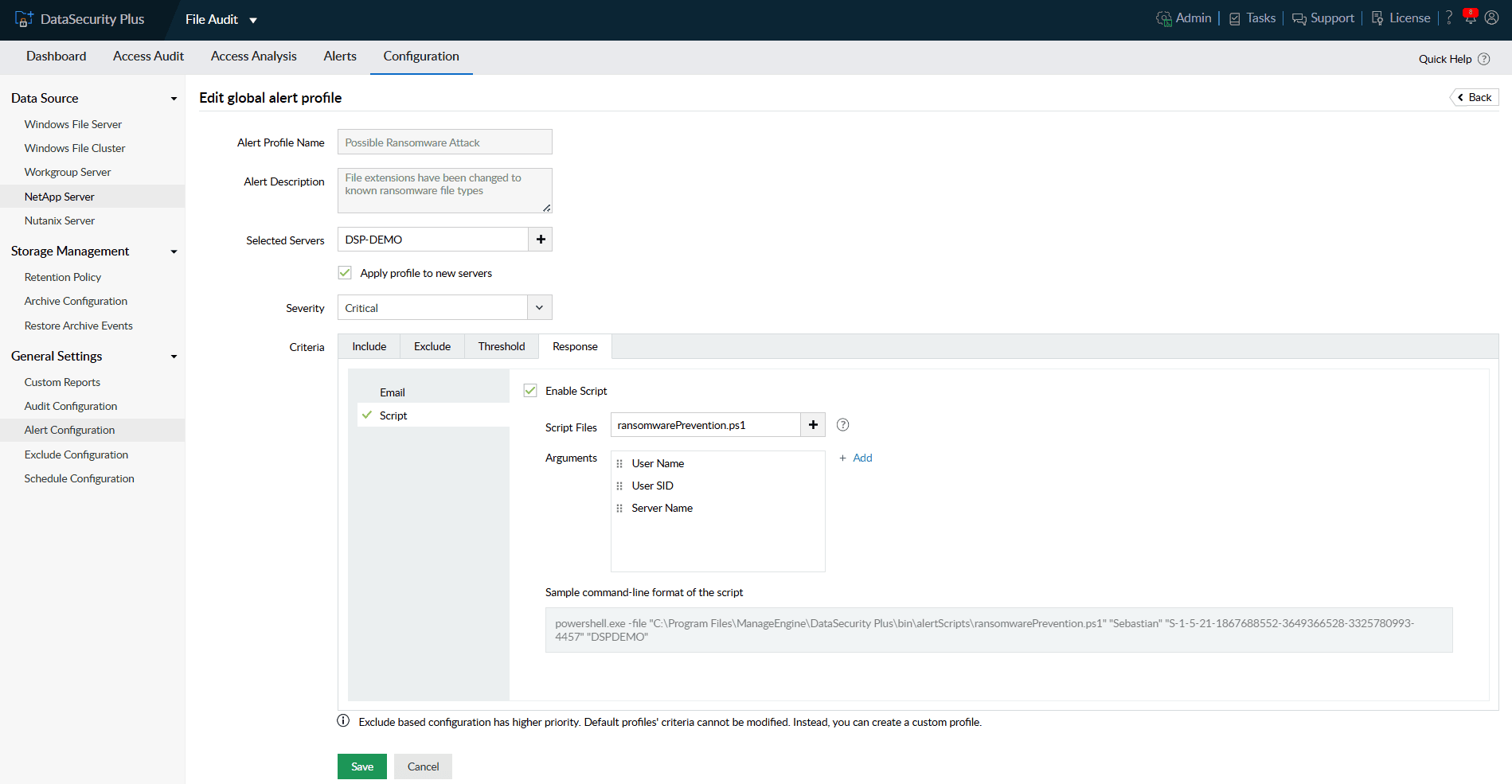
- Under the Response tab, you can enable email notification or execute scripts as response to the detected attack.
Note: You can use in-built scripts that are commonly used response actions. You can also create your own custom scripts to be executed when alerts are triggered.


Now, you can find the source of ransomware with detailed audit logs from within the DataSecurity Plus console. The configured attack response will be carried out appropriately to stop the detected attack at its inception.
Detect and respond to ransomware attacks on endpoints using the steps listed below:
- Select Endpoint DLP from the applications drop-down.
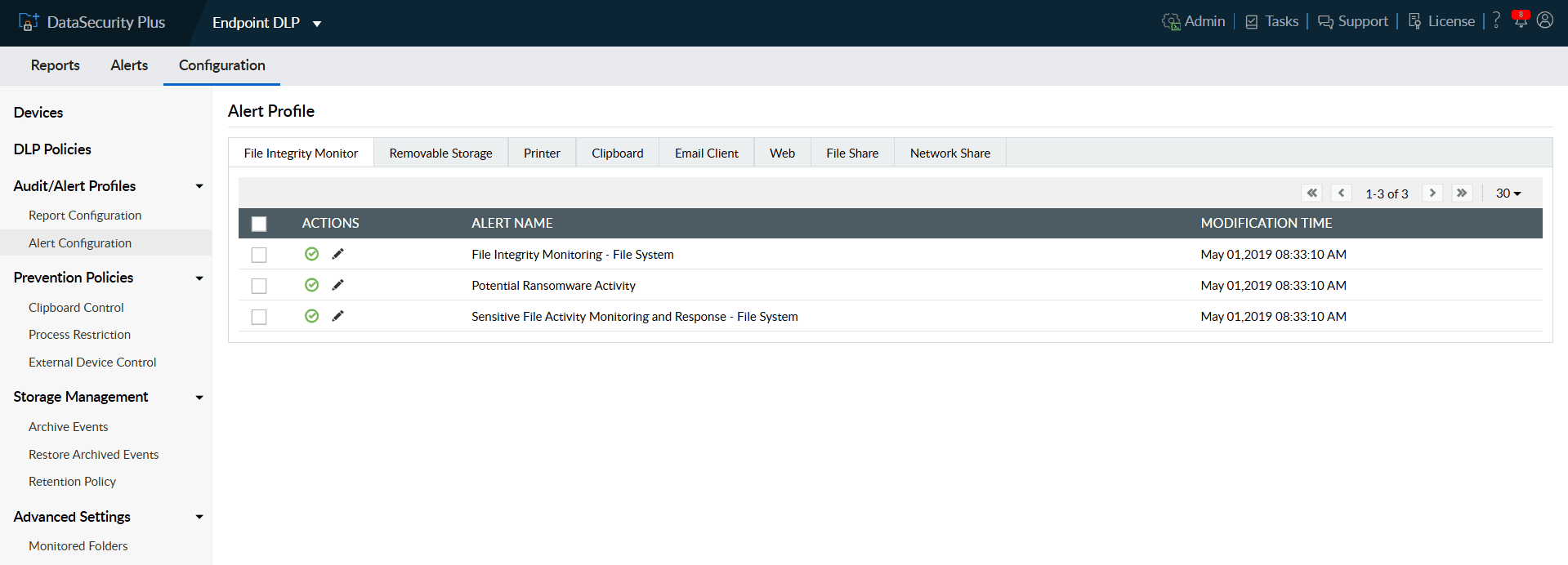
- Navigate to Configuration > Audit/Alert Profiles > Alert Configuration.
- Under File Integrity Monitor tab, click the Edit icon next to the pre-configured Potential Ransomware Activity profile.
- In the Include tab under Criteria, you can find the user objects, file actions and file types that are monitored to detect ransomware attacks.
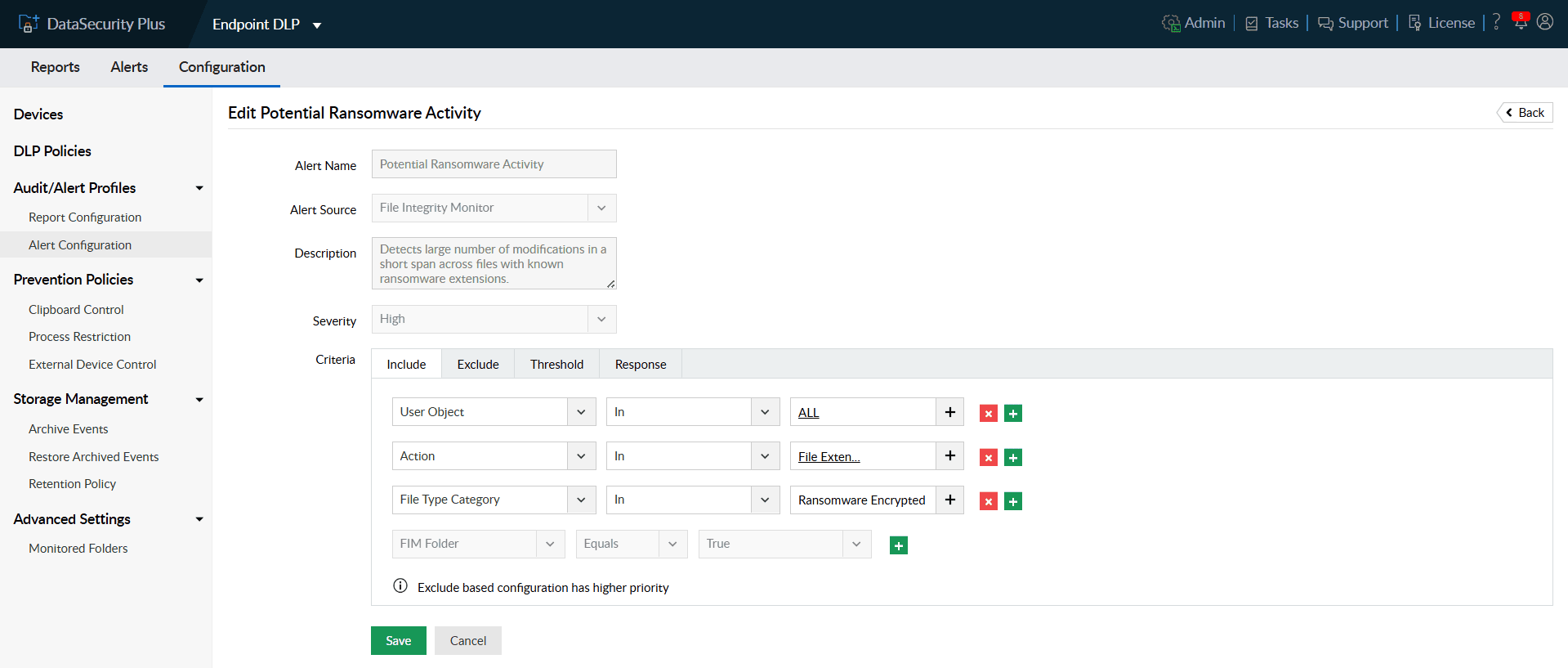
- Use the Exclude tab to igno re trusted files, file types, and folders for selective monitoring to reduce false positives.
- Under the Threshold tab, specify when you want the ransomware alert to be triggered.
Note: By default, when 100 events are generated across any source within 1 minute, the alert will be triggered.
- Under the Response tab, you can enable email notification or execute scripts as response to the detected attack.
Note: You can use in-built scripts that are commonly used response actions. You can also create your own custom scripts to be executed when alerts are triggered.
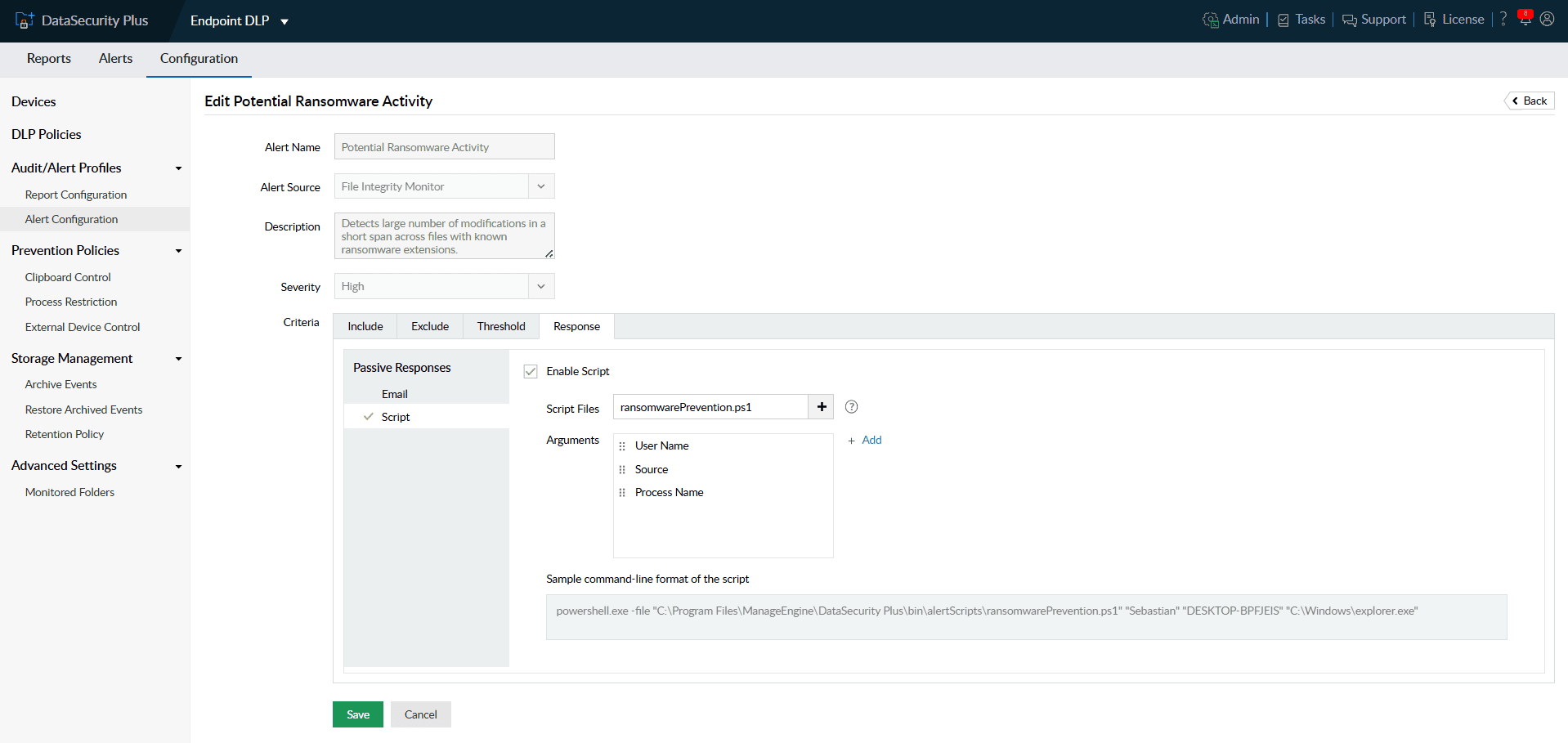


Now, when ransomware attacks are detected on endpoints, you can find them listed on Alerts tab within the DataSecurity Plus console. The attack response will be carried out as per response configuration.
Frequently asked questions
Ransomware often reveals itself through abnormal file activity—such as rapid file modifications, mass renaming, or sudden extension changes. You can continuously monitor these file actions and flag unusual behavior that matches known ransomware patterns, helping you identify an attack in its earliest stage.
Containment is key. Once ransomware is detected in a system, configure an automated response that can lock out the compromised source user, end the user session, shut down the infected system, and disable it's network access. Such responses help prevent ransomware from propagating across the network.
Yes. The product includes a built-in ransomware detection engine that continuously scans for known ransomware file types, suspicious encryption activity, and other early indicators of ransomware. It functions as a real-time ransomware finder, automatically analyzing actions that match ransomware signatures or behavior patterns.
A good security auditing software typically logs all events related to ransomware. Those audit logs and incident reports show where the first malicious action originated—whether from a specific file, process, user account or endpoint. By tracing this sequence, you can identify the exact source of the ransomware and take steps to isolate or remediate the compromised system.
Adopt a layered defense strategy and follow the best practices for ransomware prevention:
- Deploy a strong data security software that can detect and respond to ransomware attacks at the earliest.
- Keep your ransomware detection policies active, update threat intelligence feeds regularly, and enforce least-privilege access for file shares.
- In addition, maintain secure, versioned backups stored separately from production data. These measures minimize both infection risk and recovery time.