Managing Keys and Certificates Schedules
A schedule is a planned list of activities that will take place at specific times or in a specified sequence. In PAM360, users can create scheduled tasks to perform operations on SSH resources and SSL certificates, such as key rotation, SSL certificate discovery, and vulnerability assessment. These schedules can be customized to run at regular intervals, providing an efficient means of automating critical security tasks.
In this document, you will learn about the schedule-based operations that follow:
1. Adding a New Schedule
- Navigate to Admin >> PKI Management >> Schedules. From the Schedule page that opens, you can perform all the schedule relevant operations.
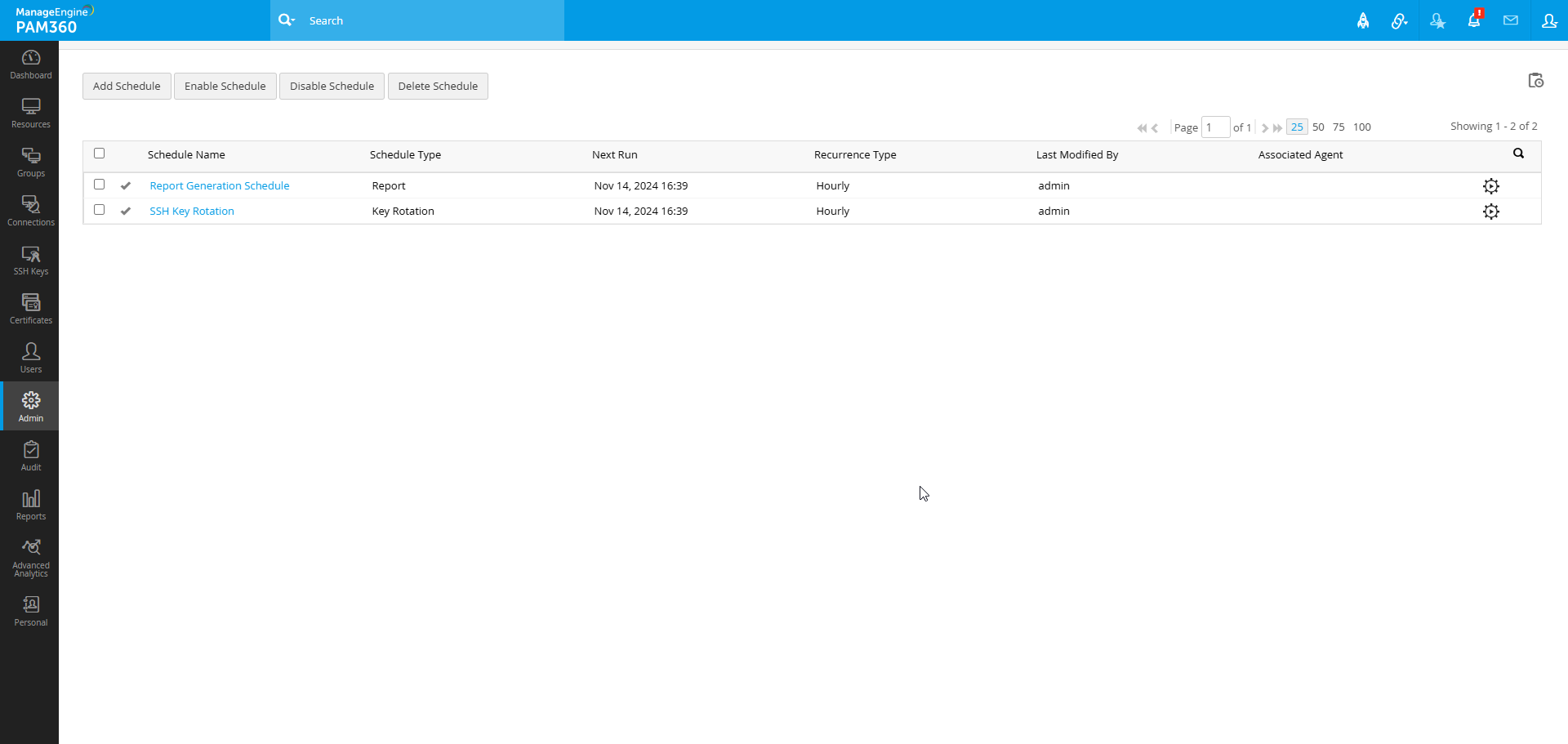
- Click the Add Schedule button located at the top pane.
- On the new page that appears, enter the Schedule Name.
- In the Schedule Type dropdown, choose any of the type of operation you want to schedule. The following options are available:
- Key Rotation: Automates SSH key rotation for specified user accounts.
- Select the keys directly or via the key groups for rotation. Ensure keys are assigned to avoid scheduling failures. Errors will appear in the Audit tab if any unassigned keys are scheduled.
- Automatically push the key files (private key, public key or both the private and public keys) onto its associated users by enabling the Push private key file to remote user account and/or Push public key file to remote user account option, and you can also opt for the Use keyname as filename option.
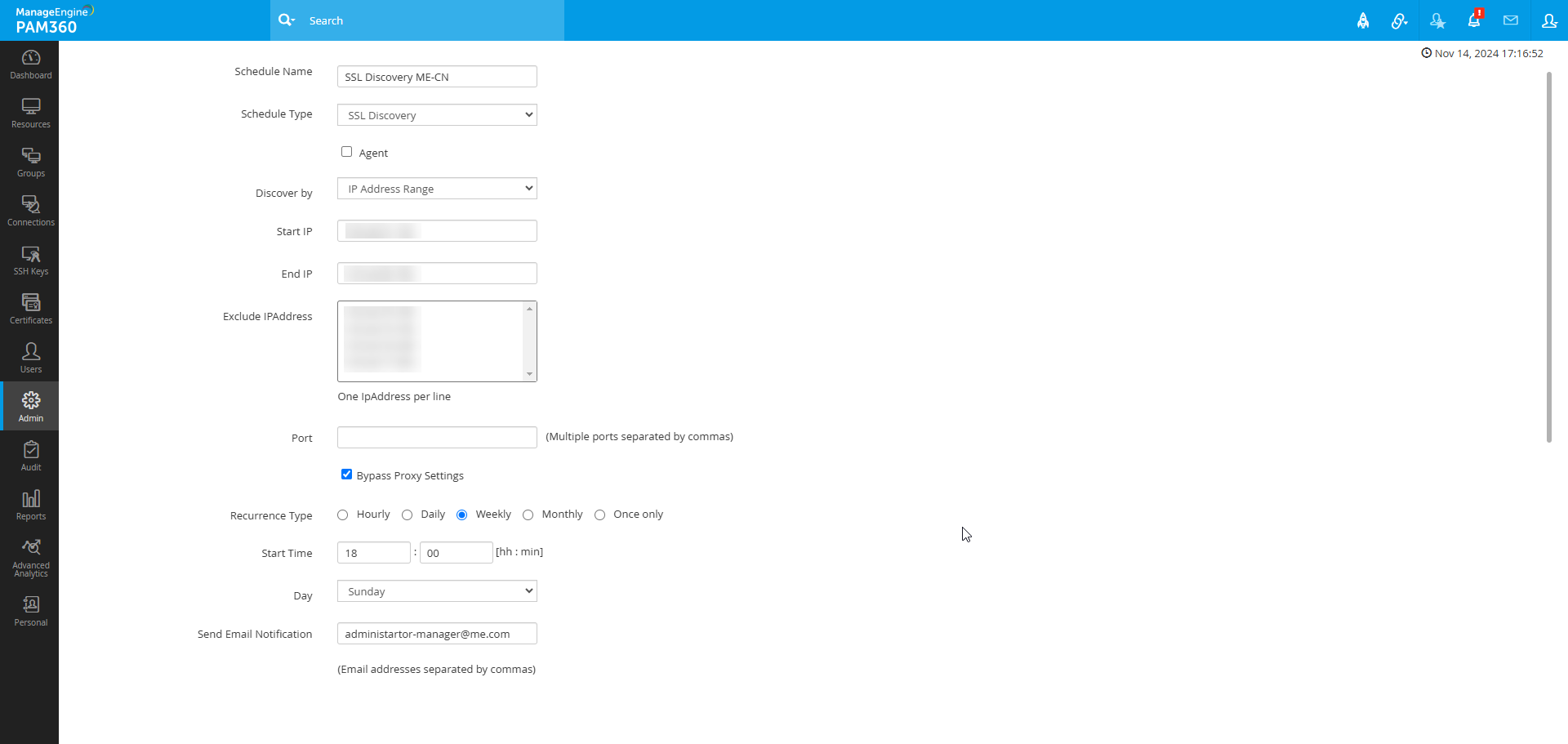
- SSL Discovery: Automates the discovery of SSL certificates.
- Check the Agent box to enable SSL discovery through the PAM360 agent.
- IP Address Range: If you choose to discover SSL certificates using an IP address range, enter the Start IP and End IP addresses. You may also specify an Exclude IP Address if necessary.
- Subnet: For discovering SSL certificates from a subnet, provide the relevant IP address along with the specific ports that need to be checked for deployed SSL certificates.
- From File: If you prefer to discover SSL certificates from a file, browse and select the appropriate file.
- Load Balancer: When discovering SSL certificates from a load balancer, input the following details, Server Name, Port, User Name, Credential Type, Password, and Path. Select the type of load balancer from the dropdown menu, which includes options like General, BIG-IP F5, Citrix, or Fortigate Firewall. For Citrix discovery using REST API commands, check the box labeled Use REST API (By default PMP uses CLI commands for discovery and fetching certificates).
- Shared Path: Choose either Shared Path - Windows or Shared Path - Linux/Mac OS to conduct a discovery operation for a specific server as required.
- Bypass Proxy Settings: If needed, select the Bypass Proxy Settings checkbox. This option applies to discovery modes involving IP Address Range, Subnet, and From File, as well as when using Citrix discovery with REST API and FortiGate Firewall.
- AD User Certificate Discovery: Fetches SSL certificates associated with Active Directory users.
- Select a Domain Name or click New Domain to add a new domain.
- Enter Primary Domain Controller and/or Secondary Domain Controller details and specify user credentials.
- Select the Connection Mode (No SSL / SSL) and enter the user credentials.
- Click Fetch Groups & OUs and select the required user accounts / OUs in which certificate discovery has to be performed.
- Select a Domain Name or click New Domain to add a new domain.
- MS Certificate Store Discovery: Fetches SSL certificates from Microsoft Certificate Store or Microsoft Certificate Authority.
- Enable Agent to select the required agent from the list of available agents and mention the Time out in seconds or specify the Server Credentials.
- Enter the user credentials or select the checkbox to Use PAM360 service account credentials for authentication.
- For certificates issued by Microsoft Certificate Authority, you can fine tune your discovery based on certificate issue date, certificate revocation / expiration statuses, and certificate templates.
- AWS Discovery: Automates discovery of SSL certificates from AWS services like ACM or IAM.
- Choose the appropriate AWS Credentials from the dropdown. To add new credentials, navigate to the Certificates >> AWS >> Manage.
- Choose the required AWS Service from which certificates need to be imported: ACM or IAM.
- To import certificates from ACM, select ACM under AWS service and choose the service Region. To import certificates from IAM, specify the required AWS User Name(s) or use the List AWSUserNames option to retrieve the usernames. Choose the required usernames.
- SSL Vulnerability: Schedules periodic vulnerability scans on selected SSL certificates.
- Select the certificates on which the vulnerability scan is to be performed at regular intervals of time, and specify an e-mail id to which notification is to be sent after every scan.
- SSL Expiry: Automates SSL expiry notifications for selected certificates.
- Choose Certificates or Certificate Groups and set notification intervals, specify days to expiry for alerts, and customize email notification preferences.
- Reports: Schedules regular report generation and email distribution for specified certificates.
- Customize reports to be sent at defined intervals, selecting specific certificates/groups.
- Key Rotation: Automates SSH key rotation for specified user accounts.
- Set the recurrence interval: Hourly, Daily, Weekly, Monthly, or Once Only.
- Configure Start Time, Start Date and enter notification email addresses in the Send Email Notification filed.
- Add a custom Subject and tailor the email Content with Signature.
- Select the Report Format as PDF or CSV, based on the selected format the report will be sent to the specified email addresses.
- Click Save to add the schedule. The schedule is now configured and can be executed from the Schedule window.
- To run a schedule immediately, go to the Schedule window and click the execute schedule icon next to the desired schedule.
Additional Details
Execution results are recorded in schedule audit and relevant operation audits.
2. Modifying a Schedule
- Navigate to Admin >> PKI Management >> Schedules.
- Click on the schedule you wish to modify to open the Edit Schedule window.
- Adjust the schedule details as needed, except for name and type.
- Click Update to save the modifications.
3. Enabling or Disabling the Schedules
Schedules can be temporarily disabled or re-enabled as necessary.
- Navigate to Admin >> PKI Management >> Schedules.
- Select the schedules you wish to modify, then choose Enable Schedule or Disable Schedule. A confirmation message will indicate successful enabling or disabling.
Caution
One-time schedules cannot be re-enabled if already executed. Modify the schedule to enable it.
4. Deleting the Schedules
- Navigate to Admin >> PKI Management >> Schedules.
- Select the schedules for deletion.
- Click Delete Schedule at the top pane and confirm when prompted. A message will appear confirming successful deletion.
Using PAM360’s scheduling functionality, you can streamline SSH/SSL operations, automate routine security tasks, and stay proactive about certificate management, ultimately ensuring better time management and system security.