PostgreSQL Database Backup
The data stored in PAM360 includes sensitive information such as privileged account names, passwords, DNS names, and other critical information vital for maintaining operational continuity and ensuring the security of privileged access management. In any production environment, having regular and reliable backups is crucial for safeguarding against data loss, corruption, or unforeseen disasters. Backups not only provide a safety net in case of hardware failures, cyber-attacks, or accidental data deletion, but they also facilitate data recovery and compliance with organizational and regulatory requirements. To address these needs, PAM360 offers a robust Database Backup feature, enabling users to efficiently manage data backups for both reference purposes and disaster recovery scenarios.
Caution
- The Database Backup feature is not supported in environments where Application Scaling is configured, as it uses an external database.
- From PAM360 build 8000 onwards, if custom cryptography is configured in your environment, the generated database backups will be encrypted using the custom cryptography key.
This document explains the two backup options available: Scheduled Backup for automated backups and Instant Backup for immediate, manual backups. Regularly backing up your data is a critical practice that ensures data integrity and business continuity, preventing downtime and operational disruptions.
1. Scheduled Backup
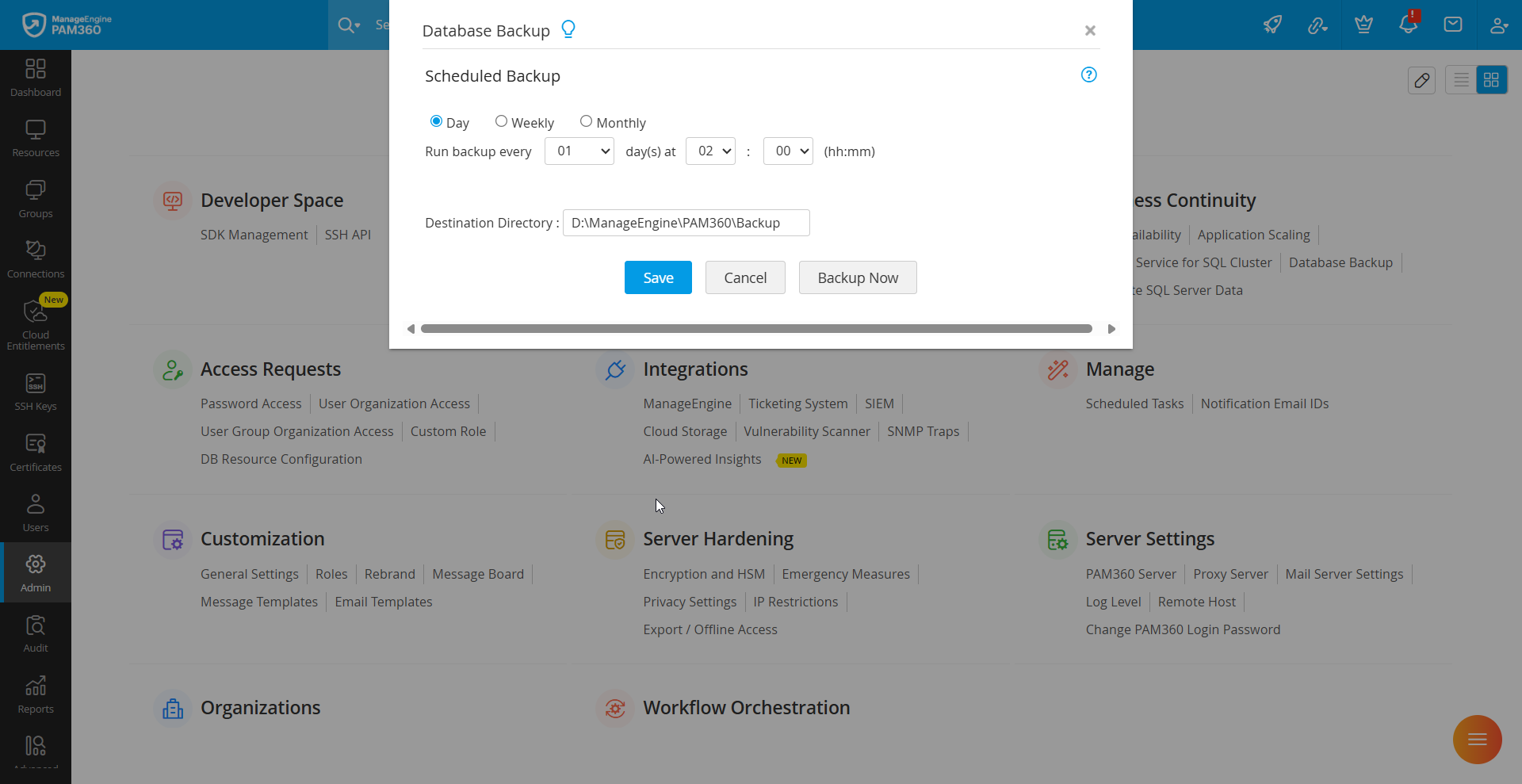
A scheduled backup enables you to automate database backups at a specified time. To schedule a backup, follow these steps:
- Navigate to Admin >> Business Continuity >> Database Backup.
- In the pop-up window, select the desired schedule option: daily, weekly, or monthly.
- Choose the time-frequency (dd:hh:mm) at which the backup should occur.
- The Destination Directory field will display the default path: <PAM360-Installation-Directory>/Backup. You can modify the directory path as needed.
- Specify how many recent backup files should be retained. For example, selecting 10 under the Maintain latest option will ensure that only the 10 most recent backups are stored in the directory.
- Click Save to finalize the backup schedule.
2. Instant Backup
An instant backup allows you to manually create a database backup at any time. Navigate to Admin >> Business Continuity >> Database Backup and click Backup Now to perform an instant backup.
By following these procedures, you can ensure that your PAM360 database is securely backed up, either through scheduled automation or instant backups, as per your operational requirements.