Managing PAM360 User Accounts
This guide provides detailed instructions for efficiently managing user accounts within PAM360. Whether you need to edit user details, manage API access, delete or restore accounts, or handle user data synchronization with directories like AD/Microsoft Entra ID or LDAP, this document outlines all key operations. Each operation is designed to ensure streamlined account management, data security, and compliance within your organization.
At the end of this document, you will have learned about the following operations:
- Editing a User Account in PAM360
- Modifying REST API and SDK Access
- Modifying Mobile Application and Browser Extension Access
- Modifying Remote Connect and Remote Connect Proxy Access
- Deleting the PAM360 User Account
- Restoring User Accounts from Trash
- Handling User Accounts Deleted from AD/Microsoft Entra ID/LDAP Directories
- Managing Notification Email Addresses in PAM360
1. Editing the PAM360 User Account
User with the provided privilege can modify various details of existing user accounts, including roles, email addresses, access levels, password policies, departments, and Two-Factor Authentication (2FA) settings. Follow these steps to edit user information:
- Navigate to the Users tab.
- Click on the User Actions icon next to the desired user, and select Edit User from the dropdown menu.
- In the window that appears, make the necessary changes to the user details.
- Click Save to apply the modifications.
For more information on each field, refer to the Add User Manually help documentation.
Additional Detail
If you are currently logged in as an administrator, you cannot modify your own access level or scope. In such cases, request another administrator to make the necessary changes.
2. Modifying REST API and SDK Access
You can manage REST API and SDK access for users directly from the Users tab by editing their user accounts. Here’s how:
- To modify REST API and Application access, click on the User Actions icon beside the desired user and select REST and Application Access. In the dialog box that opens, you can enable/disable access, regenerate the authentication token, update access validity, and more as needed.
To manage these accesses in bulk:
- Navigate to More Actions >> Configure >> REST API Access. Select the required usernames and click Disable to revoke REST API access. You can similarly Enable access from this menu.
- To manage SDK access, go to More Actions >> Configure >> SDK Access. Select the desired usernames and click Disable or Enable as needed.
Additionally, you can invalidate a user's authentication token by selecting Invalidate Authentication Token under the User Actions beside the relevant user.
Caution
Mobile application and browser extension access cannot be modified for the currently logged-in user accounts.
3. Modifying Mobile Application and Browser Extension Access
To modify the mobile application access for the users,
- Navigate to the Users >> More Actions >> Mobile Application Access.
- In the dialog box that opens, use the toggle button beside the respective user to modify the access permissions.
- To enable or disable the mobile application access in bulk, select the required usernames and click the Disable or Enable button at the top pane accordingly.
To modify the browser extension access for the users,
- Navigate to Users >> More Actions >> Browser Extension Access.
- In the dialog box that opens, use the toggle button beside the respective user to modify the access permissions.
- To enable or disable the browser extension access in bulk, select the required usernames and click on the Disable or Enable button at the top pane accordingly.
4. Modifying Remote Connect and Remote Connect Proxy Access
To modify the Remote Connect access for the users, follow these steps:
- Navigate to the Users >> More Actions >> Remote Connect Access.
- In the dialog box that opens, use the toggle button beside the respective user to modify the access permissions.
- To enable or disable the Remote Connect access in bulk, select the required usernames and click the Disable or Enable button at the top pane accordingly.
To modify the Remote Connect proxy access for the users, follow these steps:
Additional Detail
If an SSH proxy is configured for Remote Connect in PAM360, users will be able to establish remote connections to the target machine through the configured proxy only when this access is enabled.
- Navigate to Users >> More Actions >> Remote Connect Proxy Access.
- In the dialog box that opens, use the toggle button beside the respective user to modify the access permissions.
- To enable or disable the Remote Connect proxy access in bulk, select the required usernames and click on the Disable or Enable button at the top pane accordingly.
5. Deleting a User Account in PAM360
Users with the appropriate privileges can remove unnecessary user accounts from PAM360. To delete a user, follow these steps:
- Navigate to the Users tab.
- To delete a specific user, click on the User Actions icon next to the desired user and select Delete User from the dropdown menu.
- To delete multiple users in bulk, select the users and click the Delete Users button from the top pane.
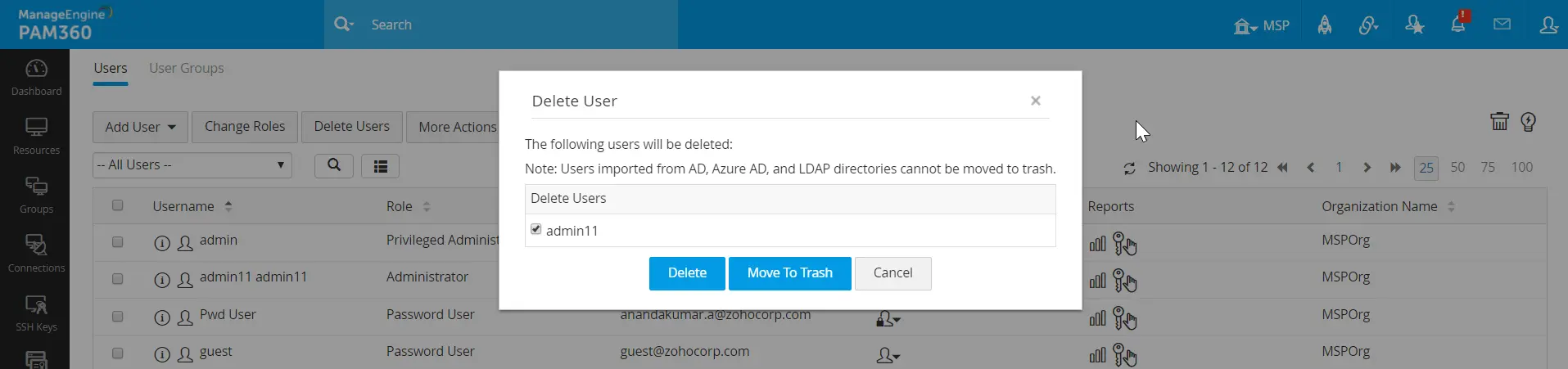
- In the pop-up window that appears, you will have two options:
- Delete:This option permanently removes the user account from PAM360.
- Move To Trash: This option moves the user to Trash without permanently deleting them. Users in Trash can be restored until the PAM360 encryption keys are rotated. After key rotation, users in Trash, along with their associated credentials, will be permanently deleted from the PAM360 repository.
Caution
- Users imported from AD, Microsoft Entra ID, and LDAP directories cannot be moved to Trash.
- PAM360 will allow the deletion/trash of users only if they do not own any resources. If the user owns any resources, ownership must first be transferred to another user with an administrator-type role.
- The currently logged-in user cannot delete/trash their own account.
- Delete:This option permanently removes the user account from PAM360.
Before deleting an administrator user account, ensure that all resources owned by the user are transferred to another user with the similar privilege. Refer to this help documentation to learn more about in detail. Upon successful ownership transfer, the administrator user account can be deleted from the PAM360 by another administrator.
6. Restoring Users from Trash
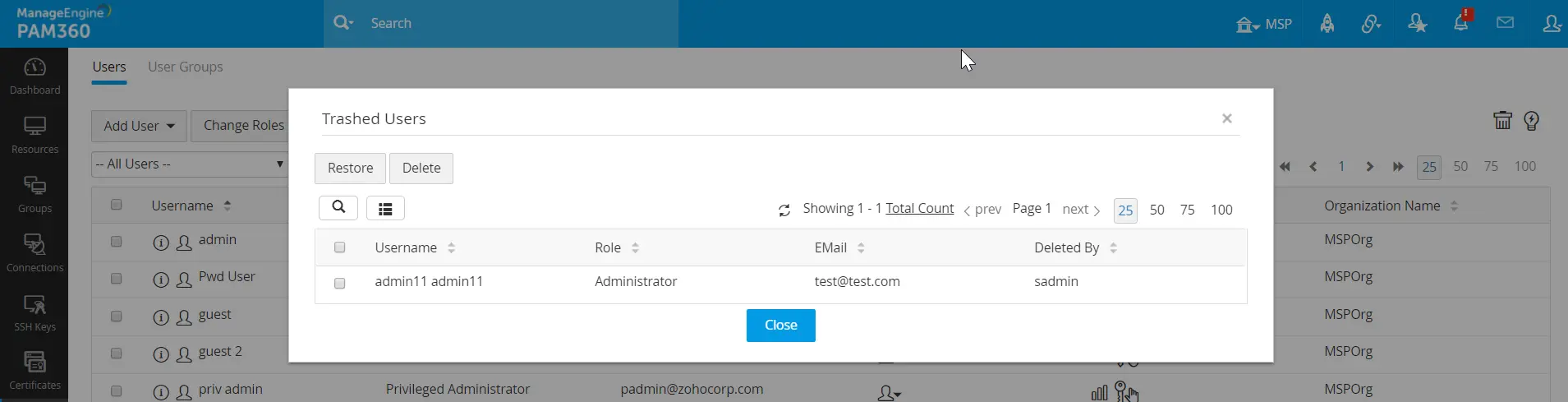
To restore a user account that has been moved to Trash, follow these steps:
- Navigate to the Users tab and click on the Trash icon located at the top-right corner of the page.
- A pop-up window displaying the list of users in Trash will appear.
- Select the user(s) you wish to restore and click Restore.
Additional Details
- Enterprise Data Preservation: Since PAM360 mandates that all resources owned by a user must be transferred to another user prior to deletion, there will be no loss of enterprise data during the deletion or restoration process.
- Permanent Deletion of Personal Data: While enterprise data is preserved, all personal data stored by the deleted user will be permanently removed from the system.
- Audit Trails: PAM360 ensures comprehensive auditing. All actions related to user deletions and restorations are recorded in the audit trails. These records remain intact even after the user is deleted, ensuring that no audit trails associated with the deleted user are erased from the database.
7. Handling User Accounts Deleted from AD/Microsoft Entra ID/LDAP Directories
Whenever a user account is deleted directly at the user directory from which it was imported to PAM360 i.e. from AD, Microsoft Entra ID or LDAP directory, PAM360 identifies those deleted user accounts at the time of next synchronization schedule. The identified user accounts are then subsequently disabled in PAM360 and held as locked accounts.
Caution
PAM360 will identify deleted user accounts only if you have set up synchronization with the respective user directory.
After disabling the user accounts, PAM360 informs the administrators or users with user management privileges via email as well as an alert notification within the product. Clicking the alert notification will open a dialog box as shown below: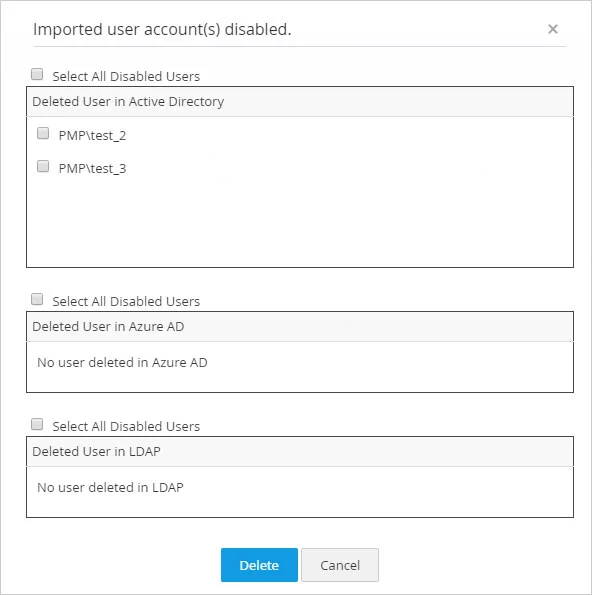
The administrator can review the locked accounts and then choose to delete those user accounts permanently from PAM360 by clicking the Delete button. Further, the administrator can also review the locked accounts directly using the user filter provided in the Users page and can delete the disabled accounts individually or in bulk.
On the other hand, to activate the accounts,
- Navigate to Users >> More Actions >> Lock Users.
- In the dialog box that opens, use the toggle button beside the respective user to unlock the user accounts.
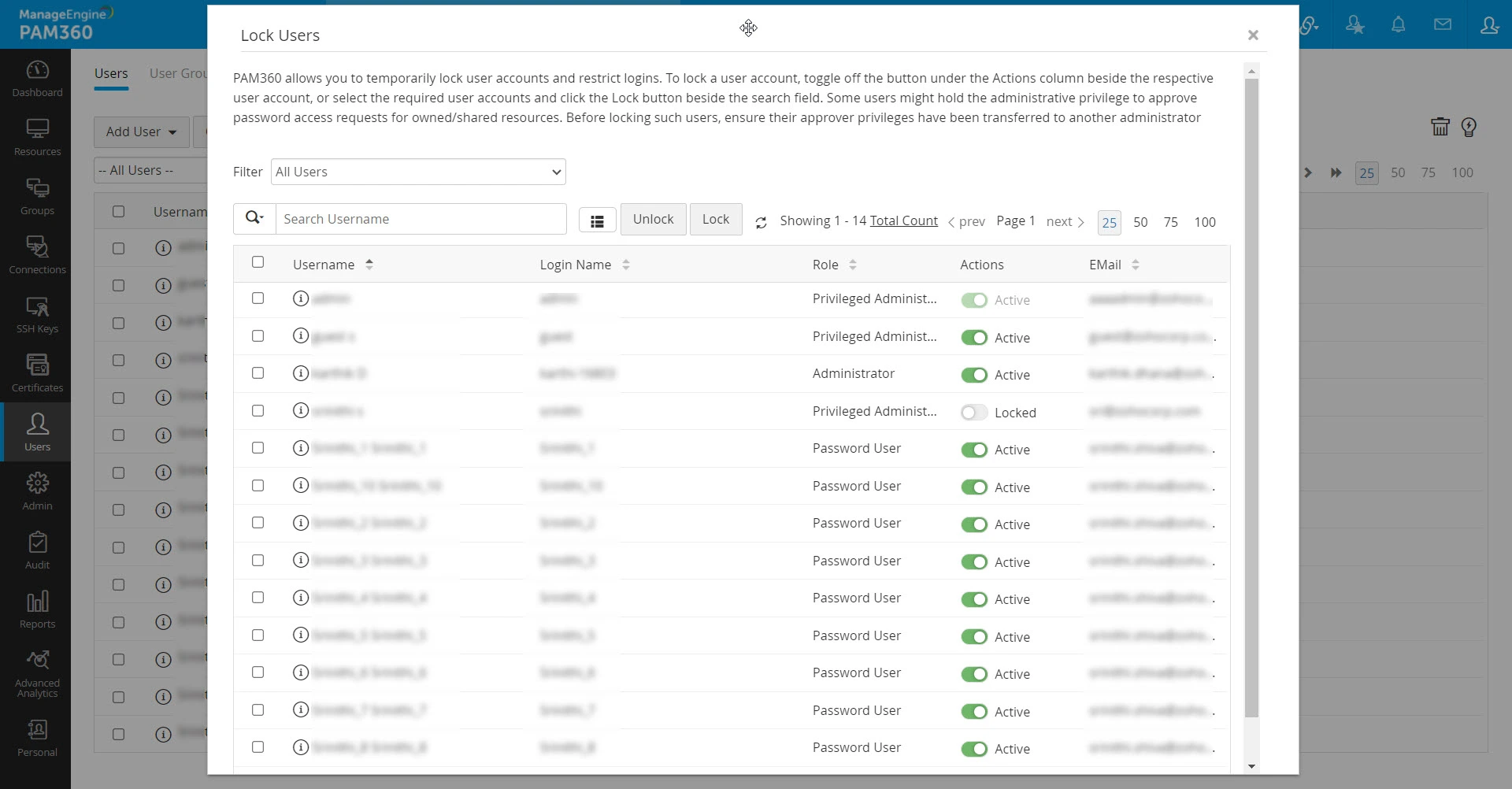
- To unlock the user accounts in bulk, select the required usernames and click on the Unlock button at the top pane to restore the disabled user accounts.
8. Managing Notification Email Addresses in PAM360
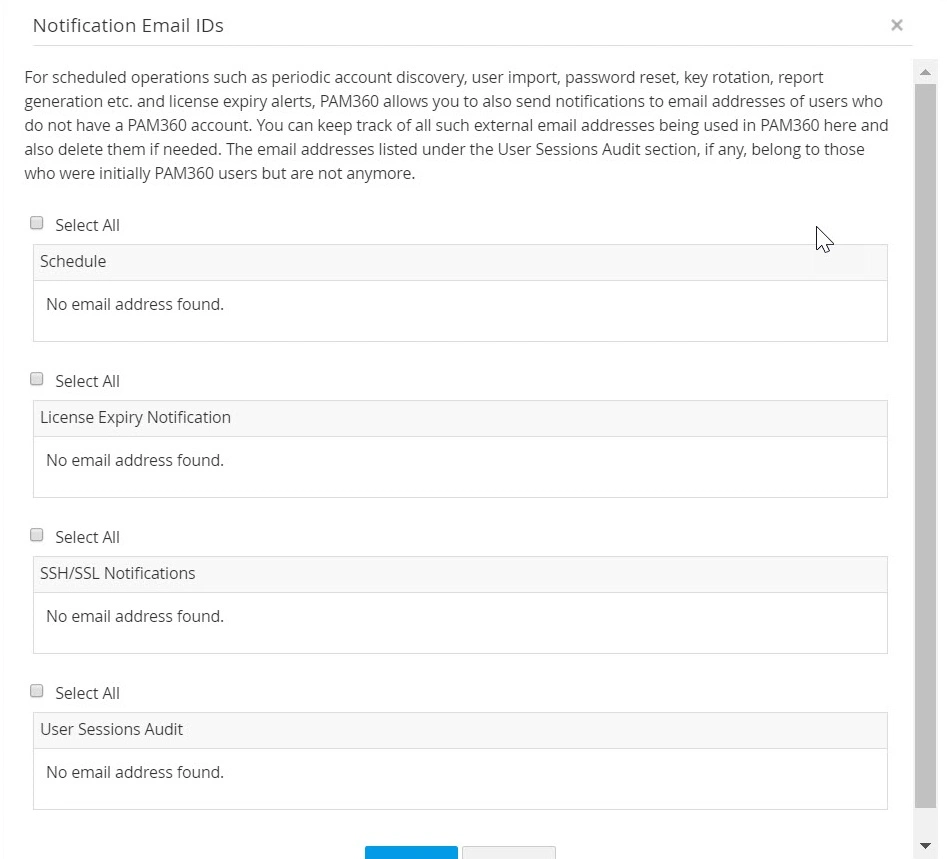
PAM360 allows you to configure generic email addresses as recipients of notification emails for scheduled tasks' completion statuses and license expiry alerts. You can keep track of all such external email addresses being used in PAM360 and also delete them if needed. Additionally, the email addresses of users captured in the User Sessions audit can also be managed using this provision, in the event of those users being removed from PAM360.
To view the list of notification email addresses,
- Navigate to Admin >> Manage >> Notification Email IDs.
- In the dialog box that opens, you will find the email addresses listed under four different sections - Schedules, License Expiry Notifications, SSH/SSL Notifications, and User Sessions Audit, if there are any.
- Review the listed email addresses under each section, select the one that you want to delete, and click Delete.