Setting up Two-Factor Authentication - Google Authenticator
Google Authenticator is a software-based authentication token developed by Google. It generates a six-digit code that users should enter as the second factor of authentication. Unlike waiting for a few seconds to receive a text message for authentication, Google Authenticator generates a new six-digit code every 30 seconds. To use Google Authenticator, install the app on your smartphone or tablet. It is officially supported on Android, iPhone, iPad, iPod Touch, and BlackBerry devices. Click here for detailed instructions for installing the app on your device.
Caution
Enable Google Authenticator as the Two-Factor Authentication (TFA) and enforce it to the PAM360 users prior configuring it from the Google interface. Refer here for detailed instructions.
Connecting to the PAM360 Web Interface with Google Authenticator as TFA
As explained here, the first level of authentication will be through the usual authentication i.e. users have to authenticate through PAM360's local authentication or Active Directory/Entra ID/LDAP authentication. The users for whom TFA is enabled, will have to authenticate twice successively.
Upon launching the PAM360 web interface after enabling Google Authenticator TFA,
- Proceed with the first level of authentication and click Login.
- Associating Google Authenticator with your account in PAM360: When you log in for the first time after enabling TFA through Google Authenticator, you will be prompted to associate it with your account in PAM360. You need to launch the Google Authenticator app on your mobile device/tablet and tap the + button. Then, select Scan a QR code and point your device to the QR code shown in the PAM360 GUI. This will automatically configure Google Authenticator to start generating authentication codes for PAM360.
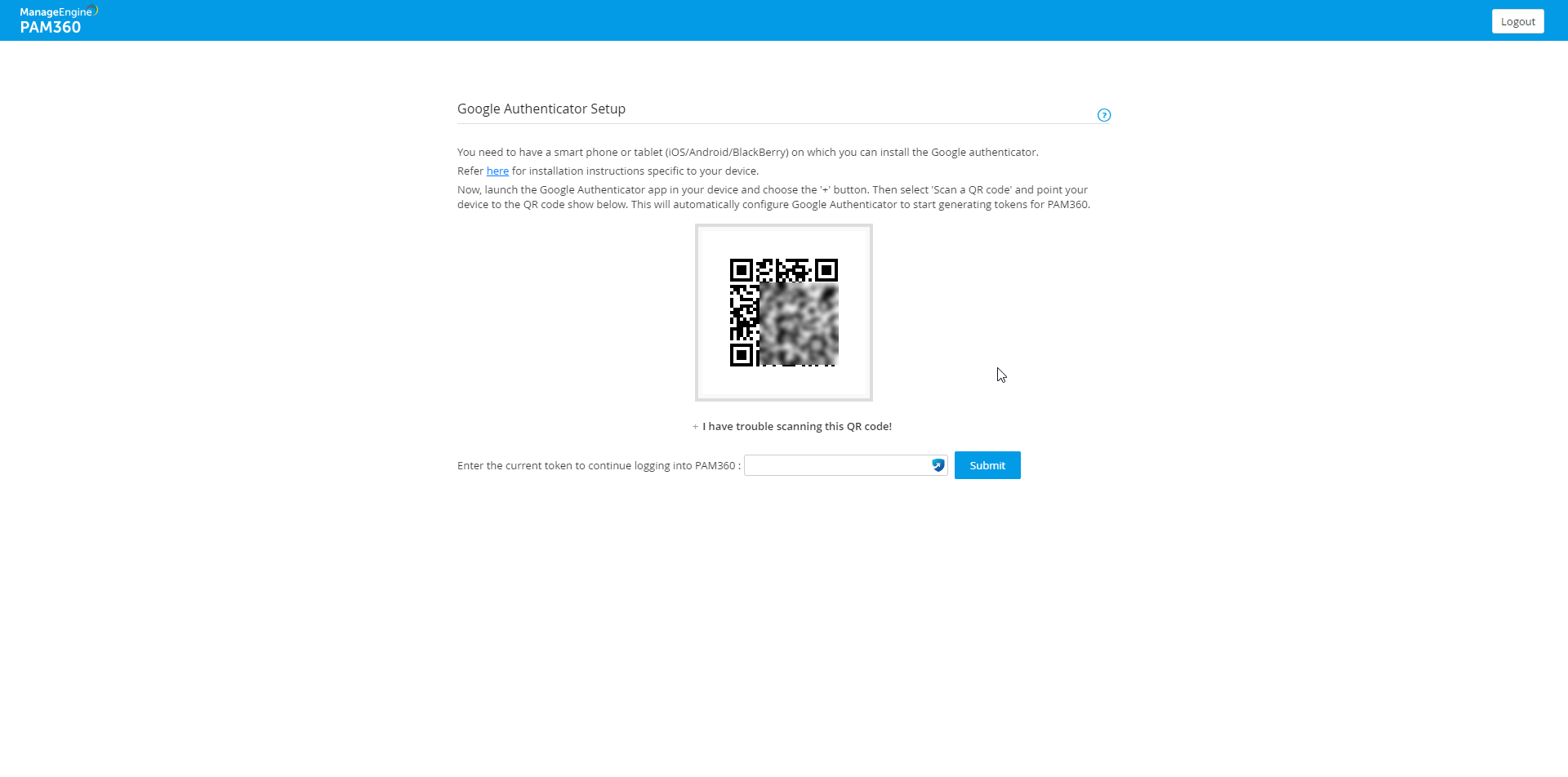
- Enter the current token for second factor authentication in the text box to log in to PAM360.
Additional Detail
If you have trouble scanning the QR code, the automatic setup will not work. So, perform the below steps in the Google Authenticator app for manual setup.
- Tap the + button and select the Enter a setup key option.
- In the window that appears, enter your account details such as Account name, Your key, and select Time based as your Type of key.

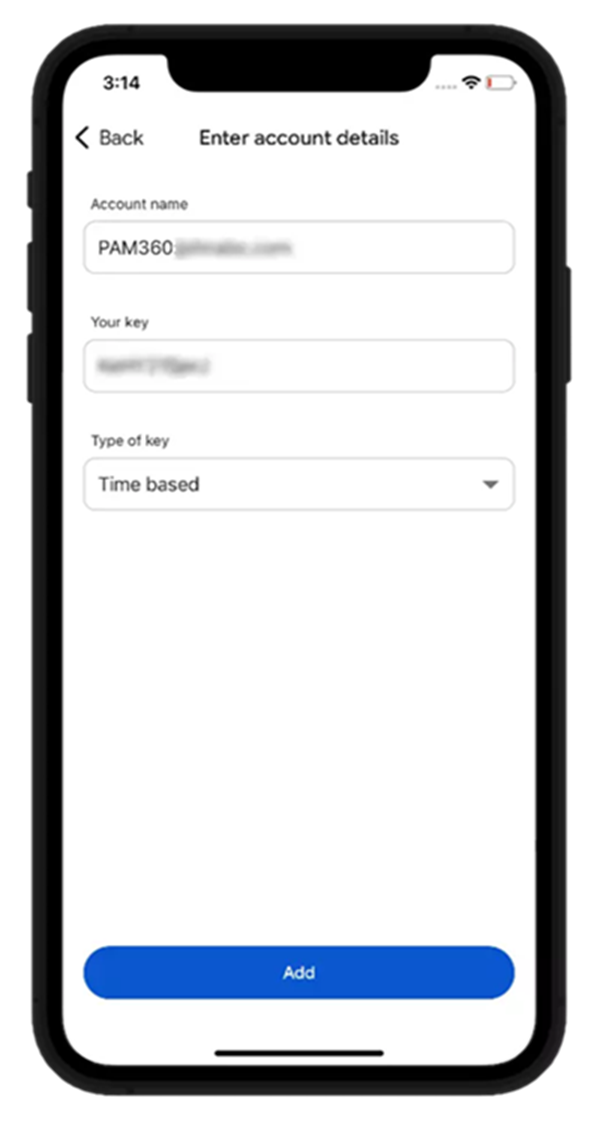
- Make sure that you enter an identifier for your PAM360 account in this format - PAM360:account name (for example, PAM360:john@abc.com).
- Enter the alphanumeric string as the key and tap Add.
- Google Authenticator setup is now complete. It will start generating codes periodically for <PAM360:user@mailid>. Enter the code displayed and complete the authentication.
Additional Detail
If you lost your TFA registered device or deleted the Google Authenticator application, reset the TFA using the applicable method mentioned here.