Password Action Notification
Password Action Notification in PAM360 enables administrators to send email alerts to resource owners and other designated users automatically whenever specific password-related actions occur, such as password access, modification, sharing changes, expiration, policy violations, or when passwords are out of sync. Additionally, administrators can configure automated password reset actions to occur when passwords expire or share permission of the passwords altered, thereby reducing manual effort.
By configuring password action notifications at the resource-group level, organizations gain better visibility, control, and efficiency in password management. This feature is essential for maintaining security and compliance, as it ensures that users are always aware of critical password events and can respond promptly. For example, when a password is shared with a new user or when it expires, both resource owners and administrators can be notified immediately, helping them take necessary action without delay.
Follow these steps to configure the password action notification for the resources belonging to a resource group:
- Navigate to the Groups, and click the Actions button beside the desired resource group, and select Configure Notifications from the displayed options.
- In the Configure Notifications window that appears, you can configure notifications for the following password actions:
- Password Accessed
- Password Changed
- Password Share Changed
- Password Expired
- Password Policy Violated
- Password Out Of Sync
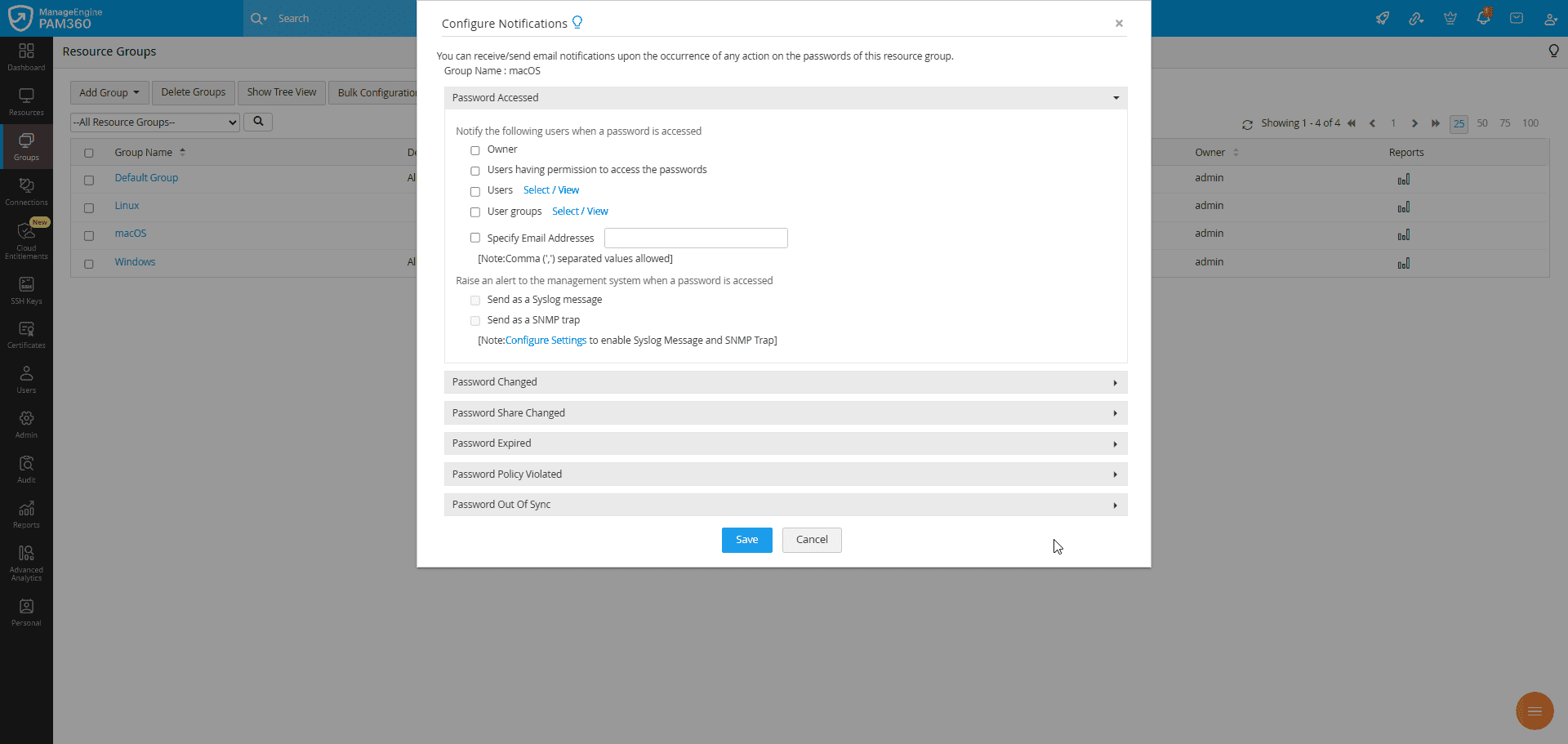
- For the desired password action, enter the following details:
- Notify the following users - Choose the desired recipients you wish to notify for the selected password action. Enable the desired checkbox based on your requirement.
- You can choose to notify the resource owner and the users who have access to the passwords.
- You can also notify specific users or user groups by clicking the Select / View button and enabling notifications for the desired users or user groups in the Select User or Select User Group window that appears.
- You can enter the email addresses of specific users you wish to notify in the Specify Email Addresses field. Here, you can enter multiple email addresses in the comma-separated format.
- Raise an alert to the management system - PAM360 also allows you to send these notifications as alerts to the external log management systems configured in your environment when the selected password action occurs.
- Enable the Send as a Syslog message checkbox to send alerts to your configured log management system.
- Enable the Send as a SNMP trap checkbox to forward alerts to the configured SNMP management system.
- Click the Configure Settings button to configure PAM360 to send the alerts to the log management system in your environment.
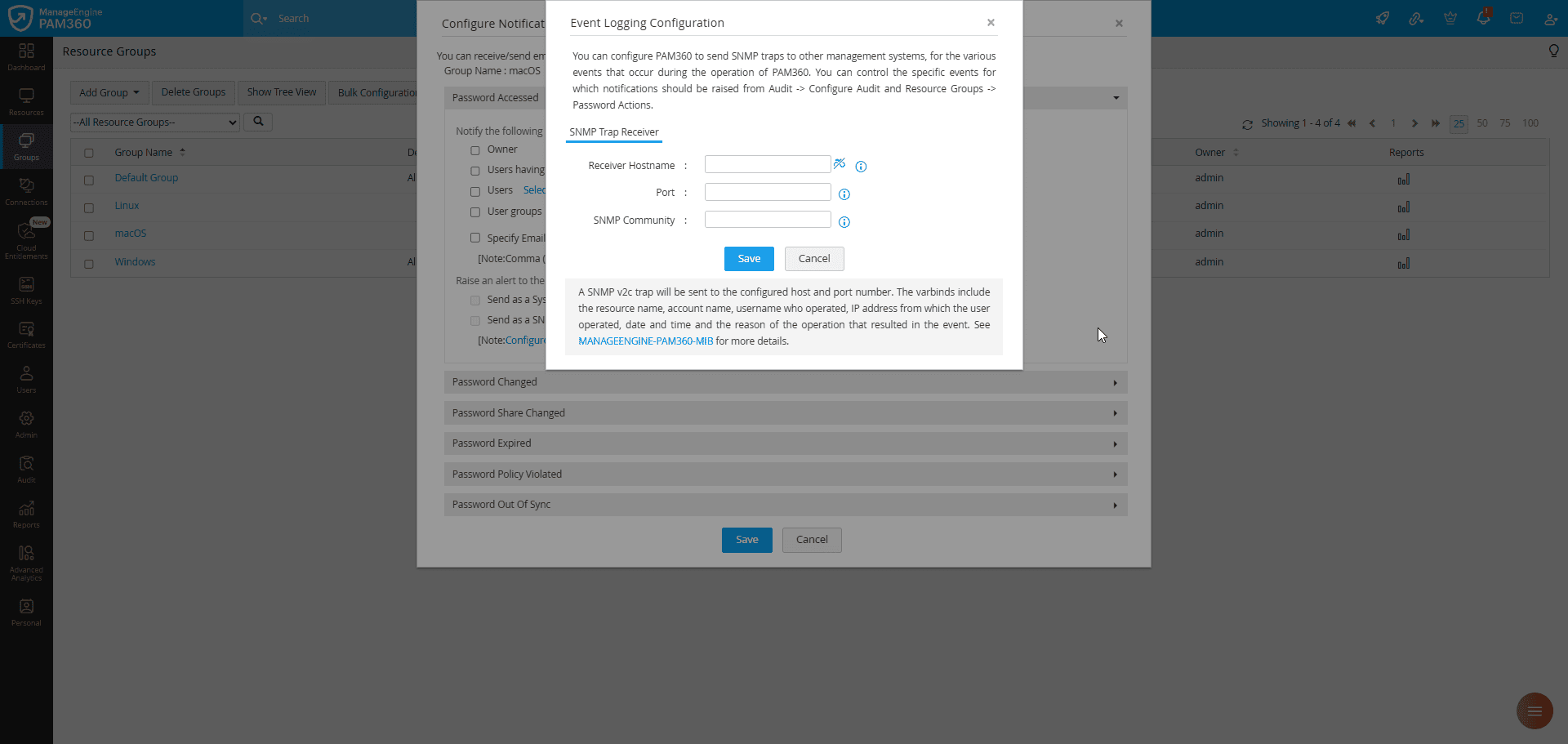
- If you wish to forward audit logs as SNMP traps, ensure SNMP traps are configured under Admin >> Integrations >> SNMP Traps. Explore our help documentation for more details.
- Reset the Password - You can configure PAM360 to reset the account passwords automatically for the following password events: Password Share Changed, Password Expired, and Password Policy Violated.
- Enable the Reset Passwords checkbox to trigger automatic resets when any of the specified events occur.
- Click the View Selected Resource(s) button to view the list of resources whose passwords will be reset.
- Notify the following users - Choose the desired recipients you wish to notify for the selected password action. Enable the desired checkbox based on your requirement.
- Repeat the process for the desired password action and click Save to save the configured changes.
Additional Details
- For all the above actions, email notifications are sent to the specified recipients. You can also customize the email content. Refer to the Email Templates page to learn about the email customization options.
- The password reset action applies only to accounts that are supported and to the accounts of those resources configured with remote password reset, either through agent-based or agentless modes.