Password Policies in PAM360
In any IT environment, enforcing a password policy is essential to protect privileged accounts and sensitive information from unauthorized access. Without a mandated password policy in place, users may create simple, predictable, or reused passwords, leaving systems vulnerable to brute force attacks, credential theft, and other security threats. The Password Policy feature in PAM360 enables administrators to define rules for password complexity, mandate periodic password changes, and restrict the reuse of old passwords. By enforcing these rules, administrators can mitigate common security risks while ensuring compliance with organizational policies, regulatory requirements, and industry standards. This help document covers the following topics in detail:
1. Default Password Policies in PAM360
By default, PAM360 offers four password policies: Strong, Medium, Low, and Offline Password File, which you can apply to the privileged resources in your environment. To view the password policies, navigate to Admin >> Password Management >> Password Policies. On the Password Policy page, click the Tick button under the Set as Default column beside the desired password policy to set it as the default password policy for all resources in your environment.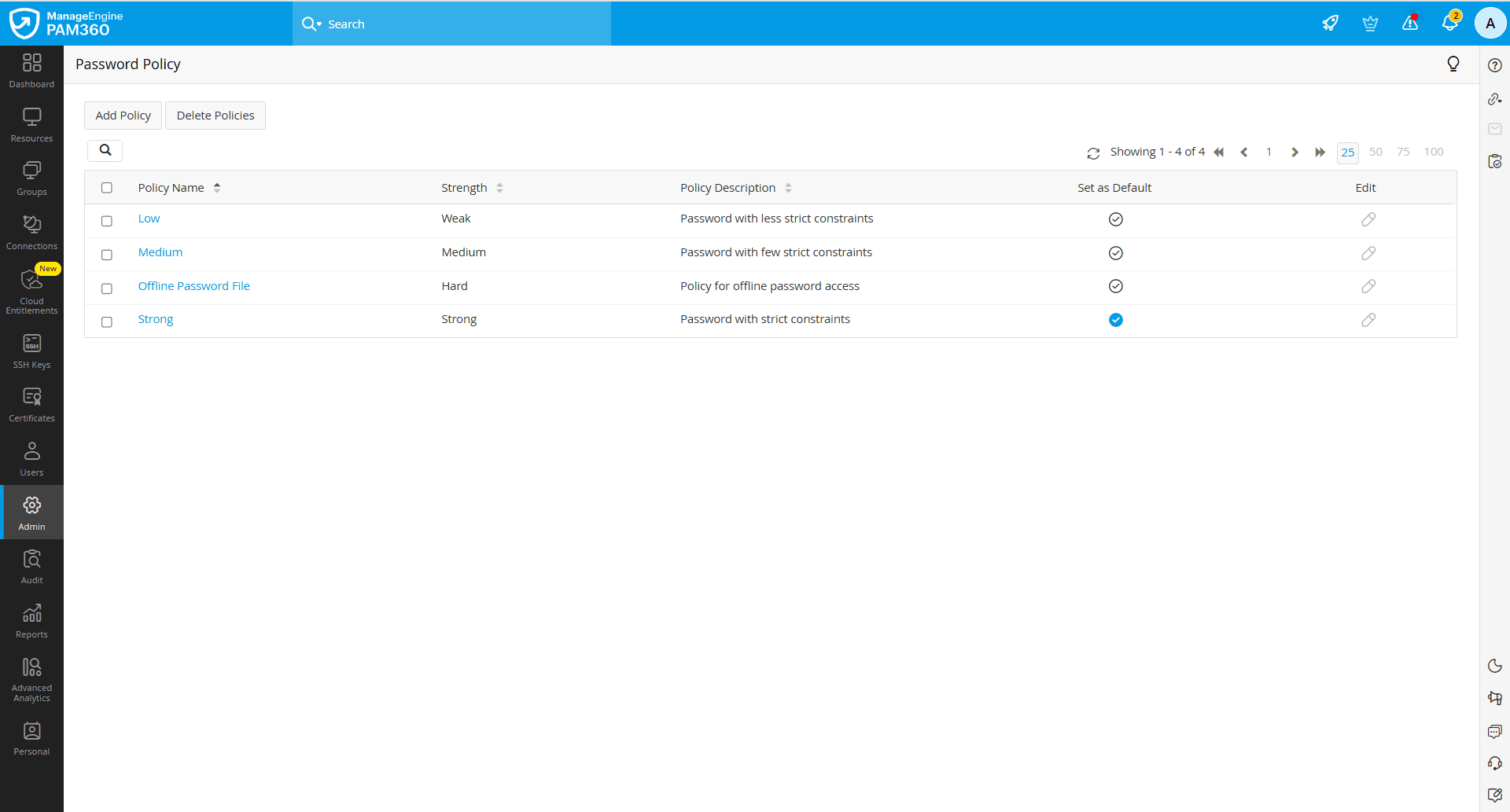
Additional Detail
The default password policies provided by PAM360 cannot be edited.
2. Creating a Custom Password Policy
PAM360 allows you to create custom password policies based on the specific requirements of your organization. Follow these steps to create a new custom password policy:
- Navigate to Admin >> Password Management >> Password Policies.
- On the Password Policy window that appears, click the Add Policy button in the top pane.
- In the Add Password Policy window, enter the following details:
- Policy Name - Enter a name for the password policy you are creating.
- Description - Enter a brief description of the password policy in this field.
- Use Existing Template - If you want to create this password policy based on an existing password policy template, select the desired password policy from the drop-down and click the Apply button.
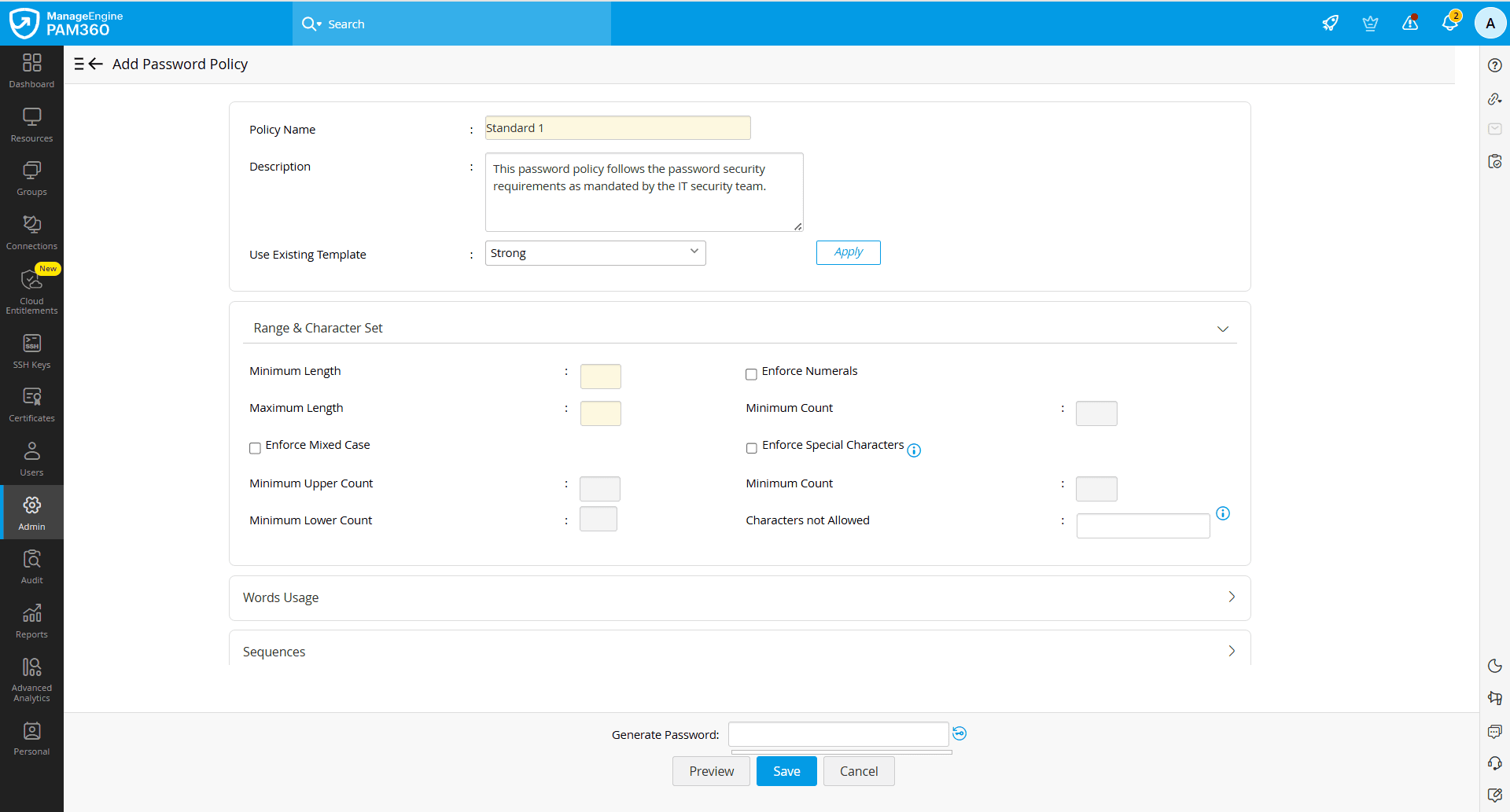
- The password parameters are split into the following sections, where you can configure them as required.
- Range & Character Set
- Maximum Length - Enter the maximum length of the password in this field.
- Minimum Length — Enter the minimum length of the password in this field.
- Enforce Mixed Case — Enable this checkbox to mandate the use of both uppercase and lowercase letters in the password. Specify the minimum number of uppercase and lowercase letters in the respective fields.
- Enforce Numerals — Enable this checkbox to mandate the use of numbers in the password. Specify the minimum numeral count in the given field.
- Enforce Special Characters — Enable this checkbox to mandate the use of special characters in the password. Specify the minimum special character count in the given field.
- Characters Not Allowed — Enter the specific alphanumeric or special characters that should not be used in the password in this field.
- Words Usage - You can restrict the usage of certain words in the password.
- Password should not contain dictionary words — Enable this checkbox to prevent the use of common dictionary words.
- Password should not contain login name — Enable this checkbox to prevent the login name from being used in the password.
- Password should not contain obvious substitutions — Enable this checkbox to prevent passwords with common character substitutions (e.g., “P@ssw0rd” instead of “Password”, @pple instead of "Apple", etc.).
- Password should not be an anagram of the login name — Enable this checkbox to prevent rearranged forms of the login name from being used as the password.
- Password should not contain repeated substring — Enable this checkbox to restrict the repetition of the same substring (e.g., “abcabc”) within the password.
- Enforce starting with an alphabet — Enable this checkbox to ensure that the passwords always begin with an alphabet character.
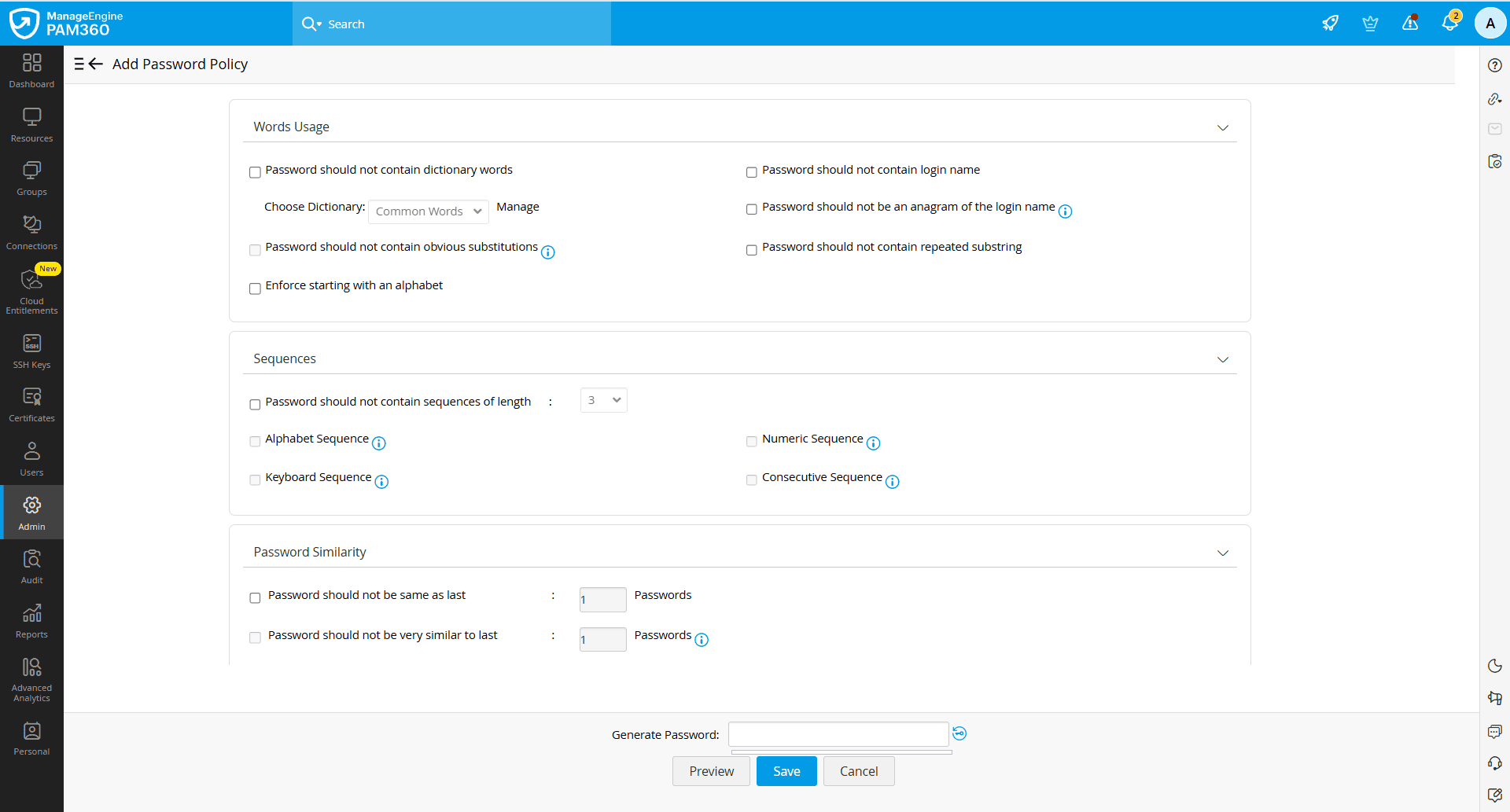
- Sequences - You can restrict the usage of character sequences in the password.
- Password should not contain sequences of length - Enable this checkbox to restrict the usage of sequences in the password. Enter the restricted sequence length in the given field.
- Alphabet Sequence — Enable this checkbox to prevent the use of alphabetical sequences (e.g., “abcd”) in the password.
- Numeric Sequence — Enable this checkbox to prevent the use of numeric sequences (e.g., “1234”) in the password.
- Keyboard Sequence — Enable this checkbox to prevent the use of keyboard patterns (e.g., “qwerty”) in the password.
- Consecutive Sequence — Enable this checkbox to prevent the use of consecutive characters (e.g., “aaaa” or “1111”) in the password.
- Password Similarity
- Password should not be same as last X Passwords - Enable this checkbox to prevent reuse of the last several passwords. Enter the number of previous passwords to be checked in the given field.
- Password should not be very similar to last X Passwords - Enable this checkbox to prevent users from creating a password that is identical to the last several passwords. Enter the number of previous passwords to be compared in the given field.
- Password Age
- Expire password after X days - Enable this checkbox to enforce a password expiry period. Enter the number of days after which the password should be counted as expired in the given field.
- Range & Character Set
- After entering the required details, click the Key icon beside the Generate Password field to generate a sample password based on the configured password parameters. PAM360 will generate a password that adheres to the defined policy constraints.
- Click the Preview button to review the selected password policy constraints.
- Click Save to apply and save the configured password policy.
You have successfully created a password policy that suits your specific organizational requirements.
3. Enforcing Password Policy
PAM360 allows you to associate password policies with resources and accounts at two different stages:
- During the resource and account creation
- From the Resources tab, after adding resources to the PAM360's inventory
This section covers the detailed steps to associate password policies with the resources and accounts in your environment.
3.1 Enforcing Password Policy During Resource and Account Creation
Follow these steps to enforce password policies during resource and account creation:
- Navigate to Admin >> Customization >> General Settings.
- On the General Settings page, select Resource / Password Creation from the left pane.
- Enable the Enforce password policy during resource or password creation checkbox in the right pane.
- When enabled, administrators should create passwords that comply with the configured password policy during account creation.
- Account creation will fail until the password meets the constraints defined in the specified password policy.
- Click Save to save the configured changes.
3.2 Enforcing Password Policy from the Resources Tab
Follow these steps to associate a password policy with resources from the Resources tab:
- Navigate to the Resources tab, select the desired resources for which you want to associate a password policy, and select Resource Actions >> Manage >> Edit.
- In the Edit Resources window that appears, select the required password policy under the Resource Attributes and Account Attributes tabs.
You have successfully associated the password policy for the desired resources. If the selected resources were previously associated with another policy, the new policy will overwrite the existing one.