Integrating RADIUS Server for RADIUS Authentication
PAM360 offers seamless integration with RADIUS servers, enabling organizations to leverage RADIUS-based authentication for user access while bypassing the default local authentication mechanism provided by PAM360. This integration enhances security by allowing centralized authentication management and ensuring compliance with enterprise access policies.
This section provides a comprehensive guide to configuring and integrating a RADIUS server with PAM360, empowering administrators to utilize RADIUS authentication for streamlined and secure user access management.
1. Integrating RADIUS Server with PAM360
To configure the RADIUS server in PAM360, provide the following basic details about the RADIUS server and credentials to establish the connection:
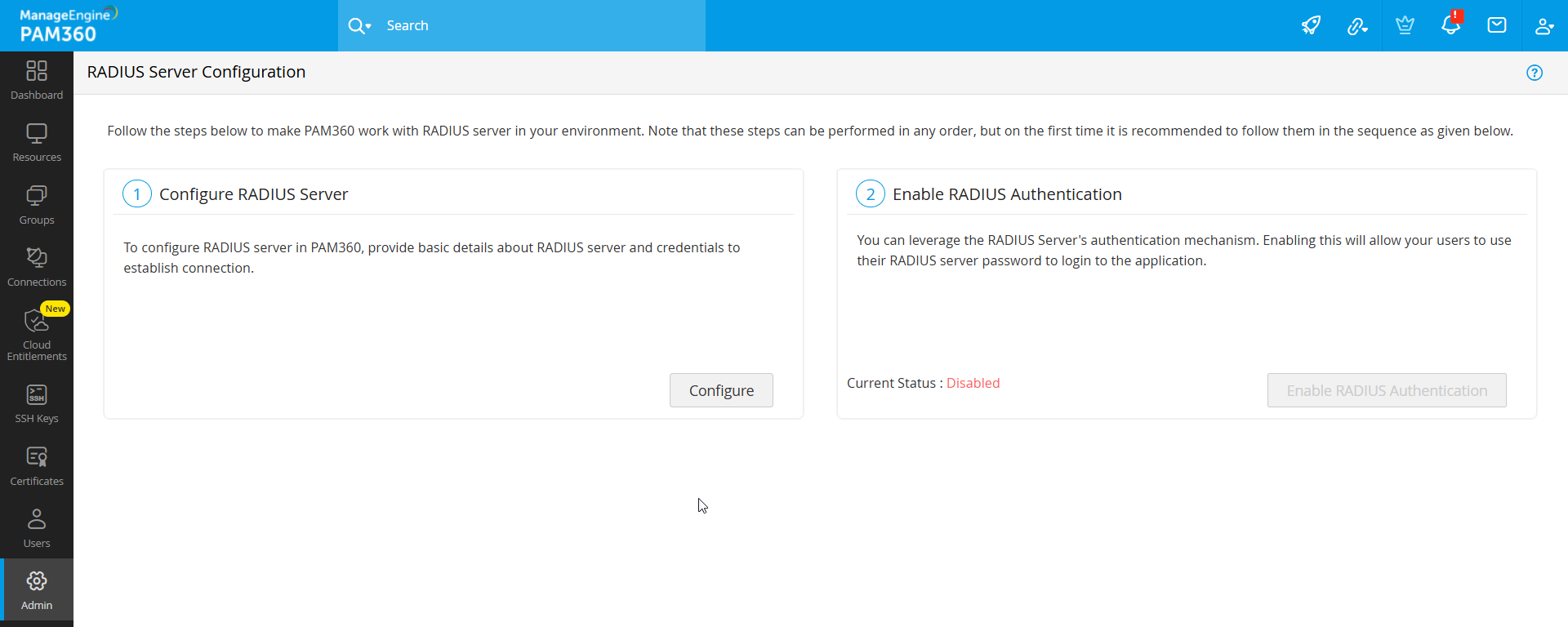
- Navigate to Admin >> Users >> RADIUS.
- In the RADIUS Server Configuration window that opens, click the Configure button under the Configure RADIUS Server section.
- In the pop-up that opens, enter the following details:
- Server Name/IP Address: Enter the hostname or IP address of the host where the RADIUS server is running
- Server Authentication Port: Enter the port used for RADIUS server authentication. By default, RADIUS has been assigned the UDP port 1812 for RADIUS authentication
- Server Protocol: Select the protocol that is used to authenticate users. Choose from four protocols - Password Authentication Protocol (PAP), Challenge-Handshake Authentication Protocol (CHAP), Microsoft Challenge-Handshake Authentication Protocol (MSCHAP), Version 2 of Microsoft Challenge-Handshake Authentication Protocol (MSCHAP2)
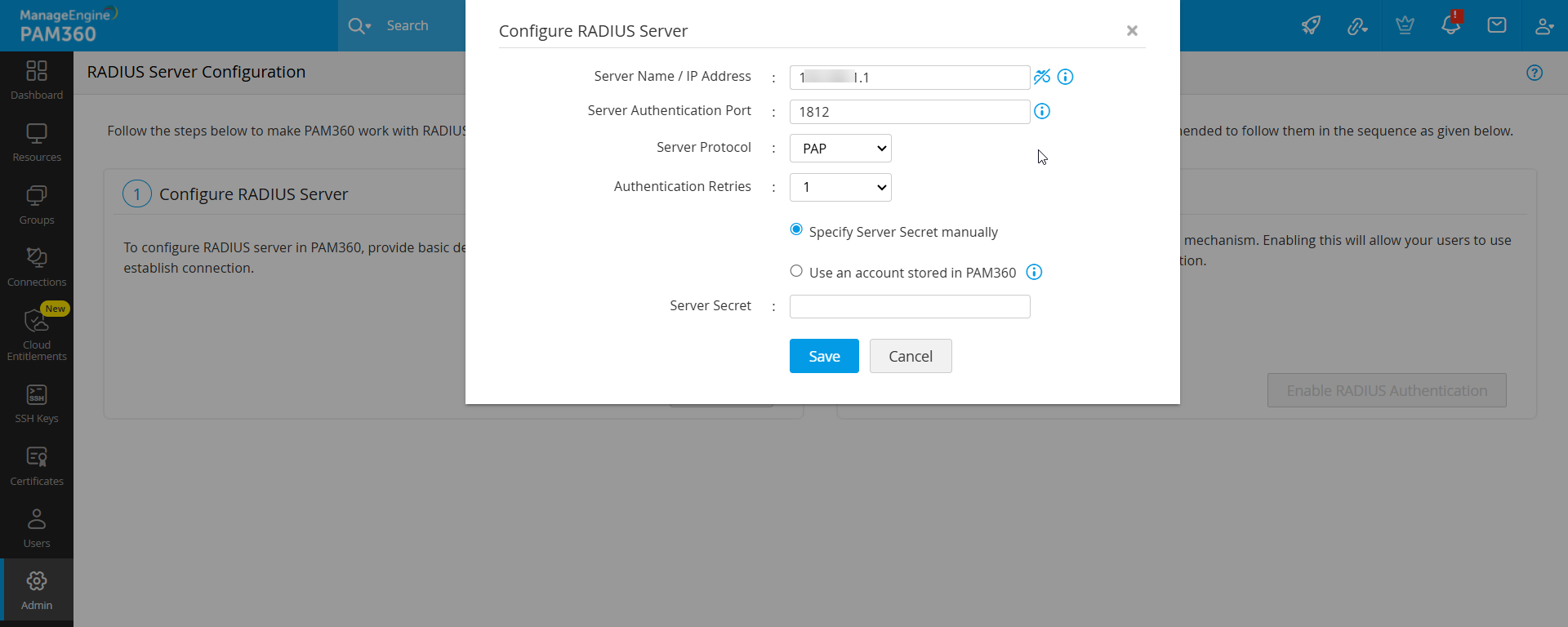
- Authentication Retries: Select the number of times you wish to retry authentication in the event of an authentication failure.
- Server Secret - Enter the RADIUS server secret either manually in the text box or you can direct PAM360 to use the secret already stored in the product. In that case, you need to select the resource name and account name from the drop-down. The second option - storing the RADIUS password in PAM360 and selecting it from the drop-down is the recommended approach.
- Click Save to complete the RADIUS server configuration. You have now successfully configured the RADIUS server in PAM360.
2. Enabling RADIUS Authentication for PAM360
After configuring the RADIUS server, the next step is to leverage the RADIUS server's authentication mechanism for PAM360. To enable the RADIUS authentication, click the Enable button under Enable RADIUS Authentication. Upon enabling, users would be able to log in with their RADIUS credentials.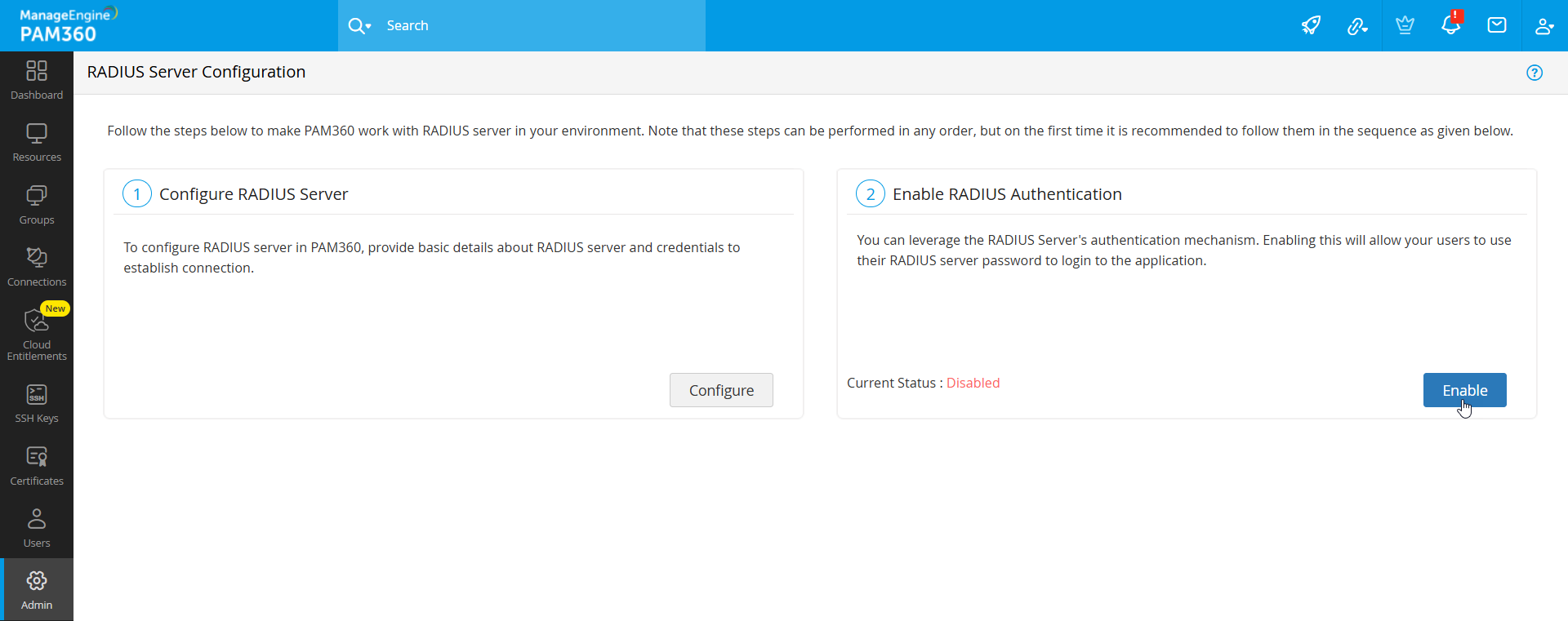
Caution
The users accessing PAM360 with their RADIUS server credentials will have to be added as users in PAM360. When you do so, you need to ensure that the PAM360 username is exactly the same as the username used for accessing the RADIUS server. Here, PAM360 does not store the password used for RADIUS authentication.