Remote Password Reset Using SSH Command Sets
In modern IT environments, organizations often manage a diverse range of custom resources and applications. While PAM360 provides built-in support for resetting passwords of standard resource types such as Windows and Linux, handling custom resources can be complex. Relying on manual password updates for these resources is not only time-consuming but also increases the risk of human error, creating potential security gaps.
The SSH Command Sets feature in PAM360 addresses this challenge by enabling automated password resets for any custom resource type that supports SSH connections. Privileged Administrators can define a sequence of SSH commands required to reset a password and group them into a command set. PAM360 includes a set of default commands that can be used as-is, while also offering the flexibility to create custom commands tailored to meet specific requirements. Once defined, these command sets can be associated with custom resource types to execute password reset operations remotely.
By leveraging SSH Command Sets, organizations can strengthen privileged access security across their entire IT landscape. This feature not only centralizes management of password resets but also accommodates different authentication methods, ensuring consistent security practices across all privileged resources.
This help document covers the following topics in detail:
- Roles and Permissions
- Workflow
- Adding an SSH Command
- Creating a Command Set
- Associating SSH Command Set as Password Reset Method for Custom Resource Type
- Applying Command Sets to Accounts
- Configuring Remote Password Reset using an SSH Command Set
1. Roles and Permissions
By default, users with the Privileged Administrator and Administrator roles can add and manage SSH commands and command sets in PAM360. Additionally, PAM360 allows administrators to configure custom user roles with View Commands and Manage Commands privileges within Admin >> Customization >> Roles >> Add Role >> Password >> Password Reset to add and manage SSH commands and command sets.
2. Workflow
When a password reset operation is triggered for a custom resource type that uses SSH Command Sets, PAM360 follows a defined sequence to complete the reset. First, PAM360 establishes a secure SSH connection to the target resource. It then executes the configured SSH command set in the specified order, where each command plays a role in completing the password reset operation. If the sequence executes successfully, PAM360 updates the password on the remote resource and verifies the change. Finally, the new password is securely stored in the PAM360 repository to ensure synchronization between the resource and PAM360.
3. Adding an SSH Command
Follow these steps to add an SSH command:
- Navigate to Admin >> Password Management >> SSH Command Sets.
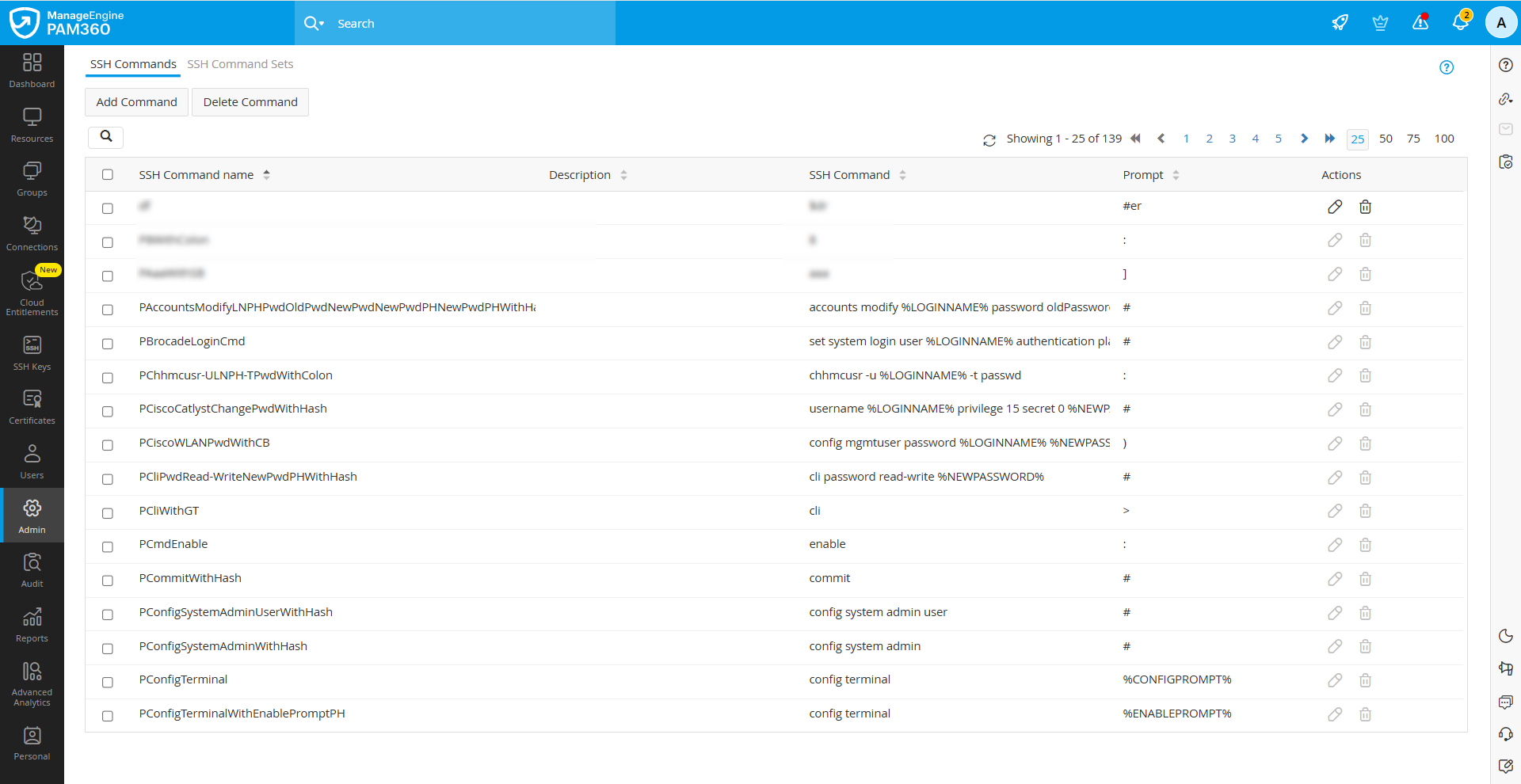
- On the page that appears, under SSH Commands, you can see the list of all the available default commands.
- Click the Add Command button in the top pane.
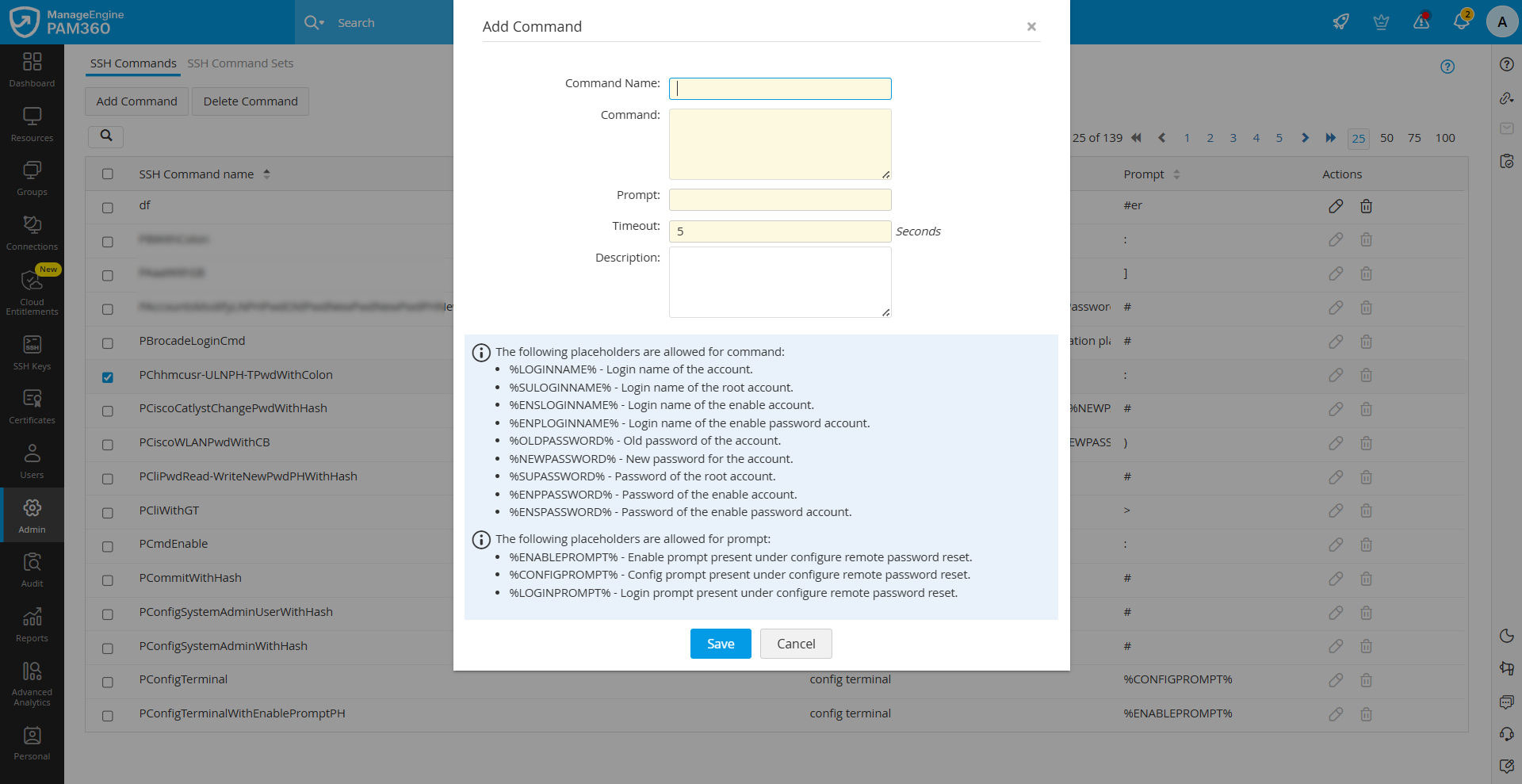
- In the Add Command window that appears, enter the following details:
- Command Name - Enter a name for the SSH command that you are adding.
- Command - Specify the exact command to be executed on the remote resource.
- Prompt - Define the expected prompt string to ensure PAM360 identifies the successful execution of the command. The prompt entered should be the same as in your CLI. For example, if the prompt in the device is a colon and a space, then it should be entered here as such ": ".
- Timeout - Enter the duration for which the PAM360 server should wait for a response from the target resource in this field.
- Description - Enter a brief description of the command in this field.
- After entering the required details, click the Save button to add your command.
To delete an existing SSH command, click the Delete icon under the Actions column beside the desired command you want to delete and click the Delete button in the confirmation pop-up window.
Caution
- The default SSH commands cannot be deleted.
- The SSH commands associated with a custom resource type cannot be deleted.
- When deleting SSH commands in bulk, any default commands or custom commands currently in use will be excluded from deletion. The list of commands deleted will be captured in the Audit Logs for reference.
4. Creating a Command Set
After adding the necessary commands for executing the password reset operation for a custom resource type, you can proceed with adding the command set. Follow these steps to add a command set in PAM360:
- Navigate to Admin >> Password Management >> SSH Command Sets.
- On the page that appears, switch to the SSH Command Sets tab and click the Add Command Set button in the top pane.

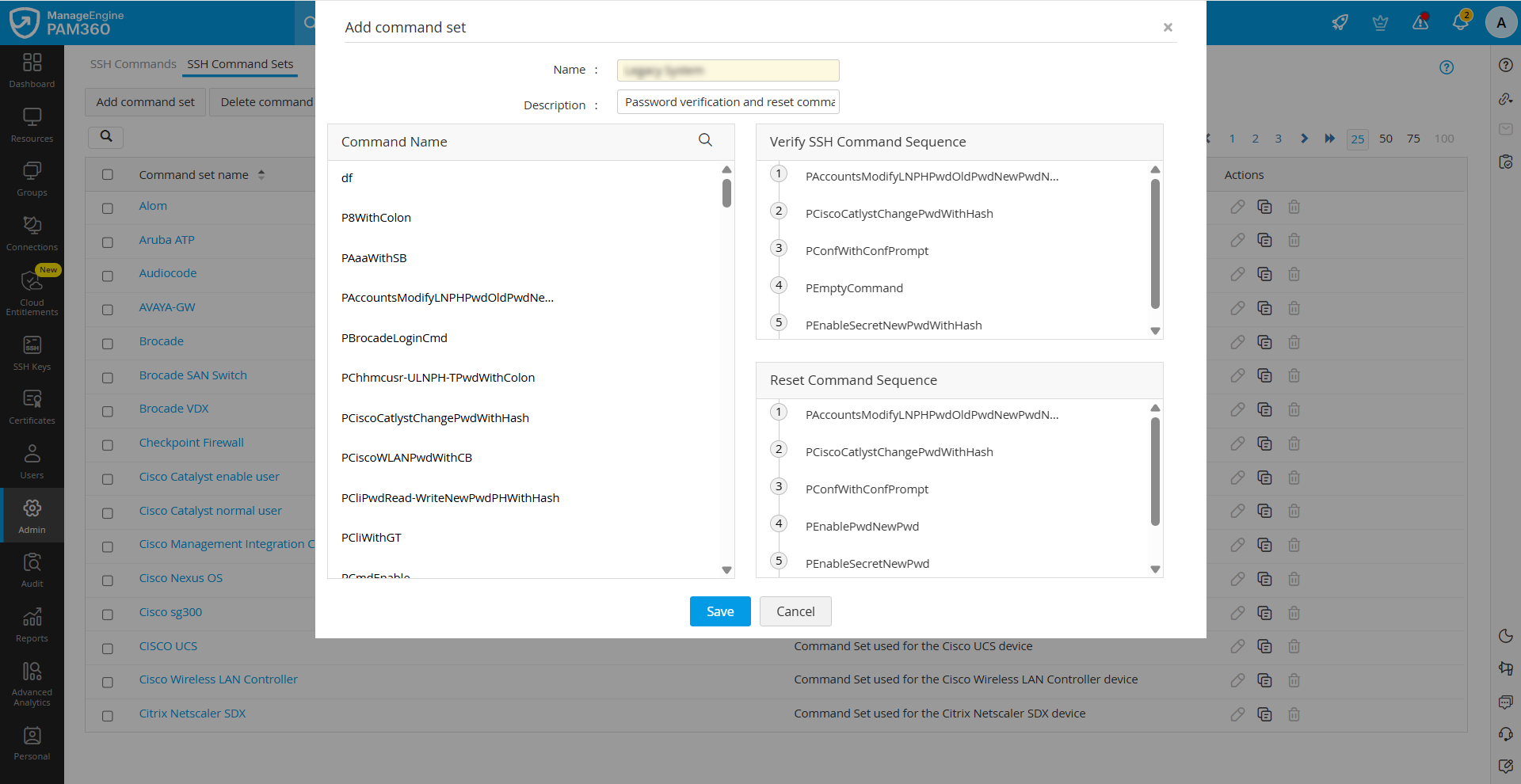
- In the Add Command Set window that appears, enter the following details:
- Name - Enter a name for the SSH command set that you are adding.
- Description - Enter a brief description of the command set in this field.
- On the left side of the Add Command Set window, you will see the list of all the SSH commands available in your environment under the Command Name section. On the right side, you will find two sections: Verify SSH Command Sequence and Reset Command Sequence, where you can view the list of associated SSH commands for password verification and password reset operations, respectively.
- Hover over the desired SSH command and click on the Verify or Reset button displayed beside that SSH command to add it to the respective sequence.
- Repeat the previous step for the required SSH commands, and verify the sequences after adding the required SSH commands.
- Click Save to save the configured changes.
Now, during the password verification and reset operations for the associated custom resource type, SSH commands will be executed in the provided sequence.
5. Associating SSH Command Set as Password Reset Method for Custom Resource Type
Follow these steps to configure an SSH command set as the password reset method for a custom resource type:
- Navigate to the Resources tab and click the Resource Types button in the top pane. If you have not created a custom resource type for the legacy system in your environment, follow the steps provided in this link add a custom resource type.
- On the Resource Types page that appears, click the edit icon under the Edit column beside the desired resource type.
- In the Edit Resource Type window that appears, switch to the Advanced tab, and enable the SSH Command Sets radio button.
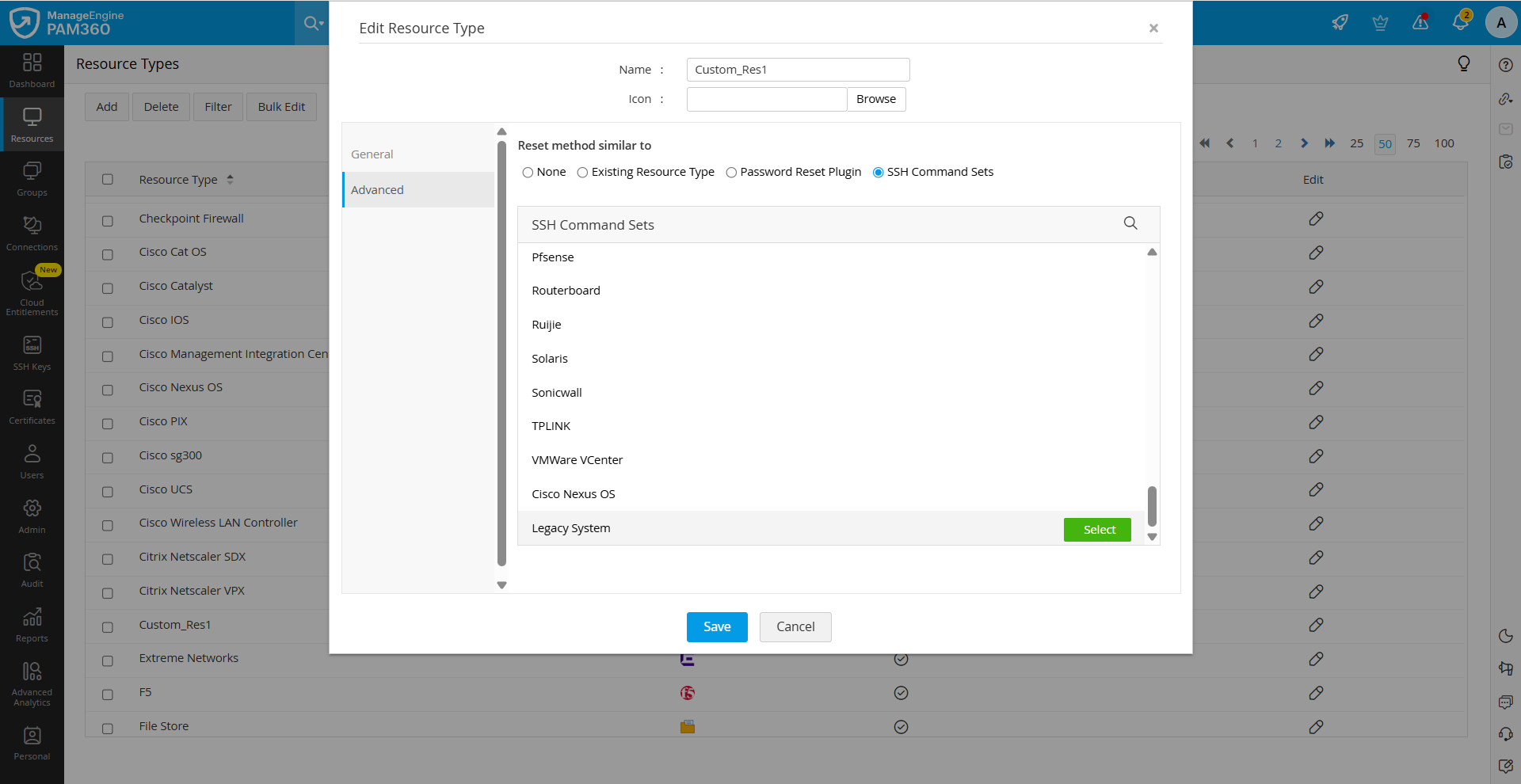
- You will see the list of SSH command sets available in your environment. Hover above the desired command set and click the Select button to associate it as the remote password reset configuration for the selected resource type.
- Click Save to save the configured changes.
6. Applying Command Sets to Accounts
Follow these steps to apply the associated SSH command set to the required accounts:
- Navigate to the Resources tab and click on the desired resource for whose accounts you wish to associate the SSH command set for the password reset operation.
- In the Account Details window that appears, you will see the list of all the accounts available within the selected resource. Tick the checkbox beside the desired accounts and click the Apply Command Set in Bulk button at the top pane.
- In the pop-up form that appears, select the desired SSH command set from the SSH Command Set drop-down field, and click Save.
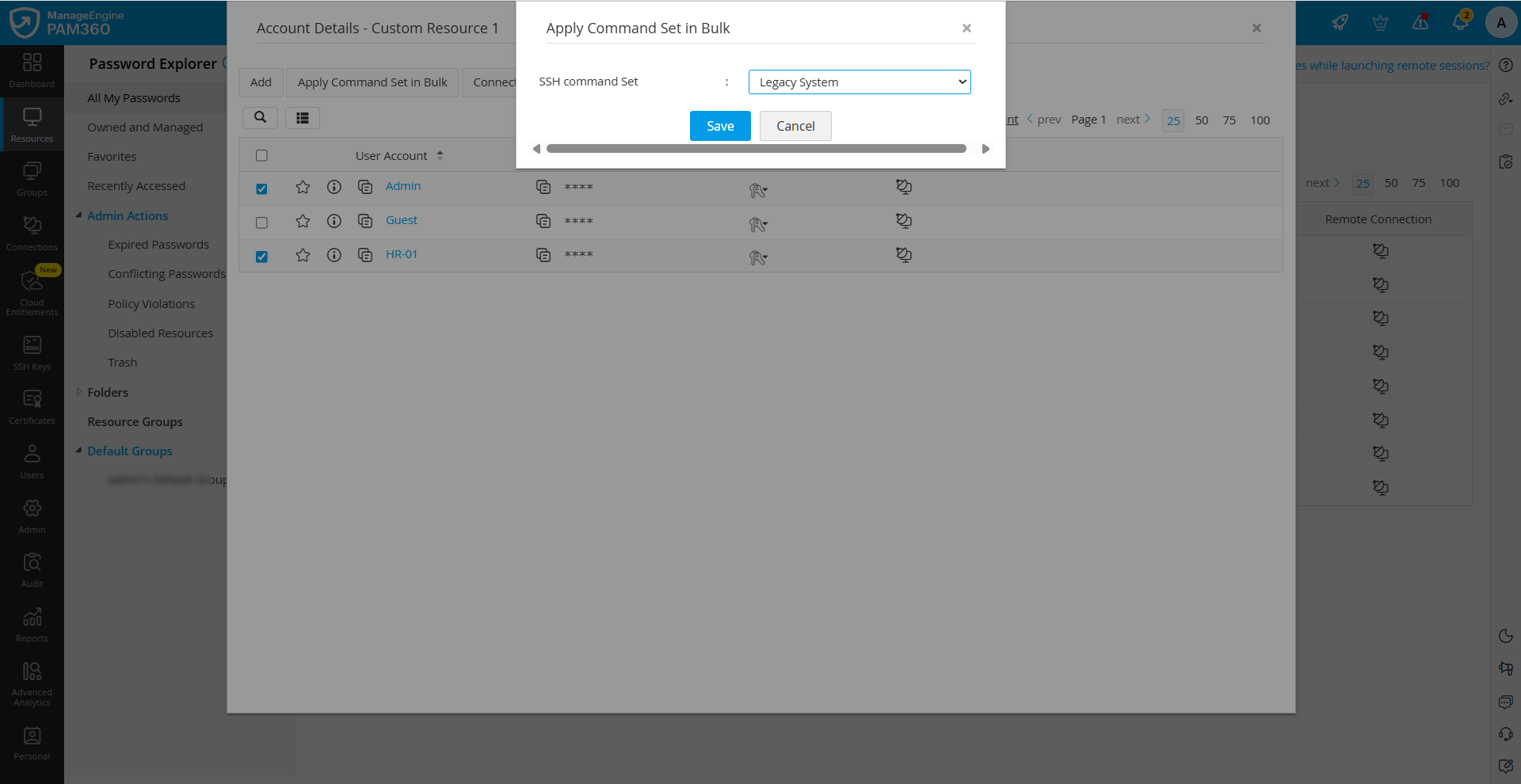
You have successfully applied the SSH command set with the required accounts. Next, complete the remote password reset configuration to ensure the successful execution of the password reset operation.
7. Configuring Remote Password Reset using an SSH Command Set
- Navigate to the Resources tab, click the Resource Actions icon beside the desired resource of the custom resource type for which you wish to configure remote password reset using an SSH command set, and select Configure >> Remote Password Reset from the displayed options.
- In the Configure Remote Login Credentials window that appears, enter the following details:
- Remote Login Method - Choose how PAM360 should connect to the target resource. Enable the radio button beside the desired remote login method.
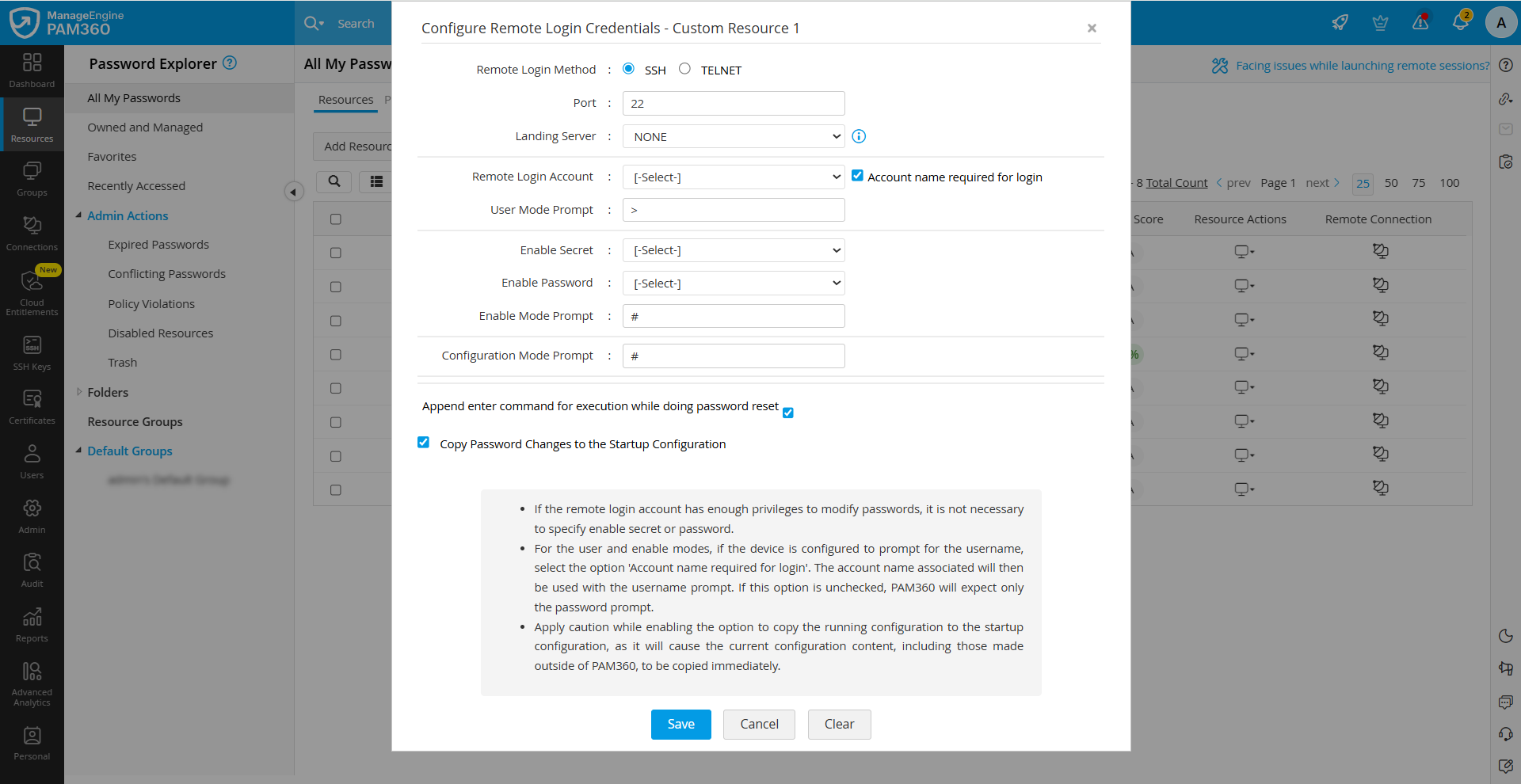
- Port - Enter the port number used for the remote connection. For SSH-based resets, this is typically port 22 unless the target system is configured to use a custom port.
- User Prompt - Specify the prompt string that indicates the resource is awaiting a username input during login. PAM360 uses this to detect and respond at the right step in the session.
- Landing Server - If the resource can be reached only through an intermediate server, select the landing server from the available list.
- Remote Login Account - Select the account with sufficient privileges to log in remotely to the resource and perform the password reset operation. This account should have access to execute the SSH commands required for the reset.
- Root Account - Select the root account from the available options.
- Root User Prompt - Specify the prompt string that indicates the session is awaiting input after switching to the root account. PAM360 uses this to recognize when it has successfully switched to root.
- Remote Login Method - Choose how PAM360 should connect to the target resource. Enable the radio button beside the desired remote login method.
- After entering the required details, click Save to save the configured changes.
You have successfully configured remote password reset for the custom resource using the SSH command set. Whenever a password reset is triggered for accounts of this resource type, PAM360 will execute the reset in the sequence of SSH commands defined in the SSH Command Set associated with the password reset method.