Two-Factor Authentication - One-Time Password
When you choose One time password sent through Email as your Two-Factor Authentication (TFA) method in PAM360, an additional layer of security is added to your login process. Upon completing the first level of authentication using your regular credentials, PAM360 automatically generates a unique, random password and sends it to your registered email address. To proceed with the second level of authentication, you must retrieve this password from your email and enter it in the login interface. This one-time password is valid only for the current login session. If you log out and attempt to log in again, the previously sent password will no longer be valid. You will need to obtain a new password from your email to complete the authentication process.
Caution
Enable One-Time Password as the TFA and enforce it to the PAM360 users post configuring the mail server settings for the users from the PAM360 interface. Refer here for detailed instructions.
Connecting to the PAM360 Web Interface with One-Time Password as TFA
Users for whom TFA is enabled will have to authenticate twice successively. As explained here, the first level of authentication will be through the usual authentication i.e, users have to authenticate through PAM360's local authentication or Active Directory/LDAP/Microsoft Entra ID authentication.
Upon launching the PAM360 web interface with the One time password sent through Email authentication enabled:
- Proceed with the first level of authentication and click Login.
- Now, PAM360 will generate a random password and email it to the user's registered email address.
- Fetch the password from the email and enter it as the second password.
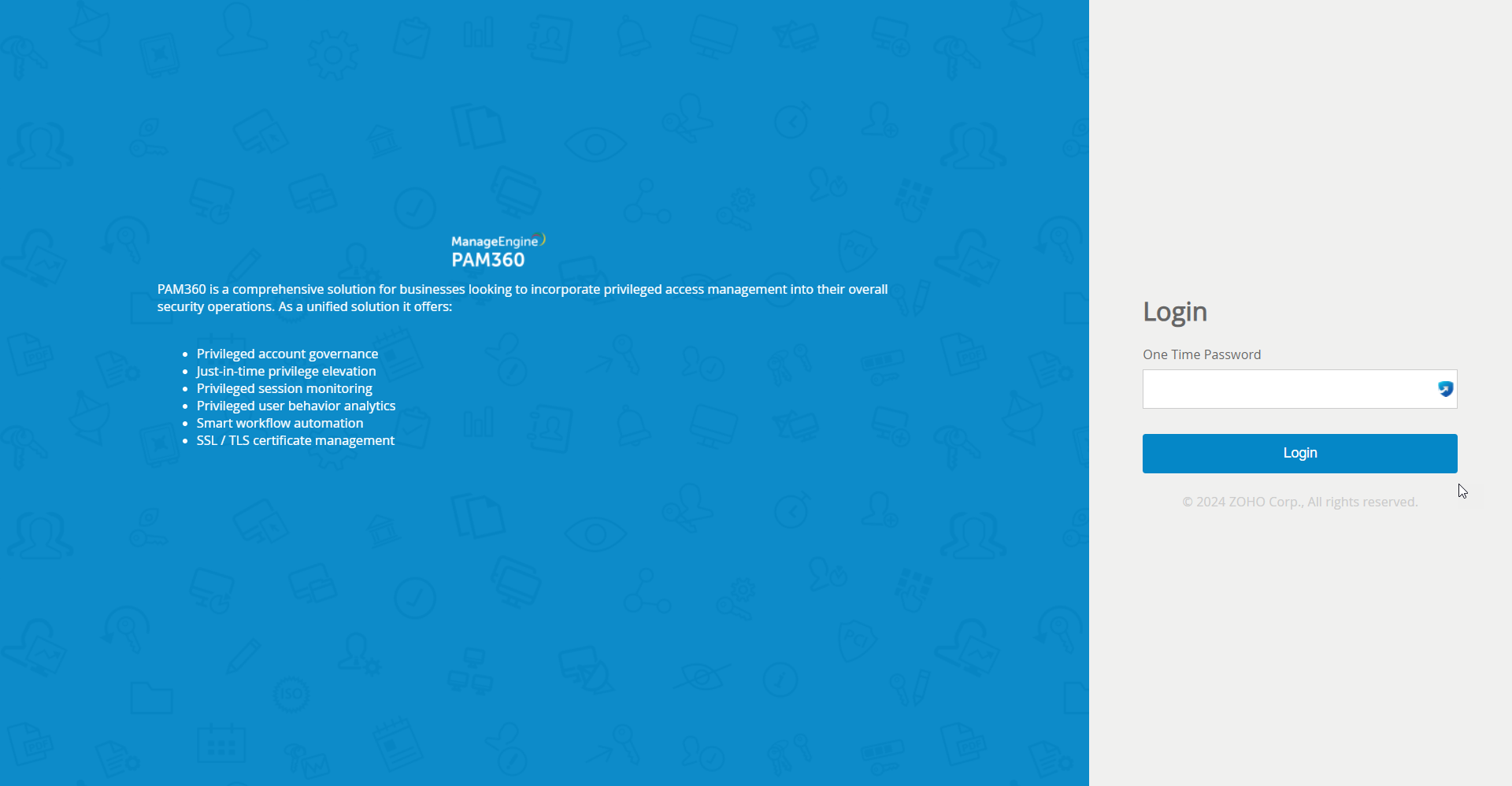
Upon successful authentication, the user will be logged in to the PAM360 web interface.
Caution
- The second level password generated and sent by PAM360 is applicable only for that particular session of the web-interface. If the user logs out and tries to log in again, they will not be allowed to log in with the same password sent by email earlier. When the user logs in again, another new password will be sent to their email, which they must use for authentication.s
- If you have configured High Availability, whenever you enable TFA or when you change the TFA service type, you need to restart the PAM360 secondary server once for it to take effect.