Importing Users from Active Directory
PAM360 seamlessly integrates with Active Directory (AD) within your environment, allowing you to import users directly from AD. This integration also enables users who log into their Windows systems using a domain account to access PAM360 without needing separate credentials.
To begin the integration, navigate to Admin >> Authentication >> Active Directory or Users >> Add user >> Import from Active Directory. This will open the Active Directory Configuration page.
Following are the detailed steps to configure AD in PAM360 and import users into PAM360:
- Importing Users
- Specifying Appropriate User Roles
- Enabling Active Directory Authentication
- Managing Active Directory Schedules
1. Importing Users
The first step in this process is to configure the credentials and import users from Active Directory. PAM360 automatically detects the list of domains available under the Microsoft Windows Network folder on the server where PAM360 is installed. You can then select the desired domain from this list and enter the necessary domain controller credentials to proceed with the user import.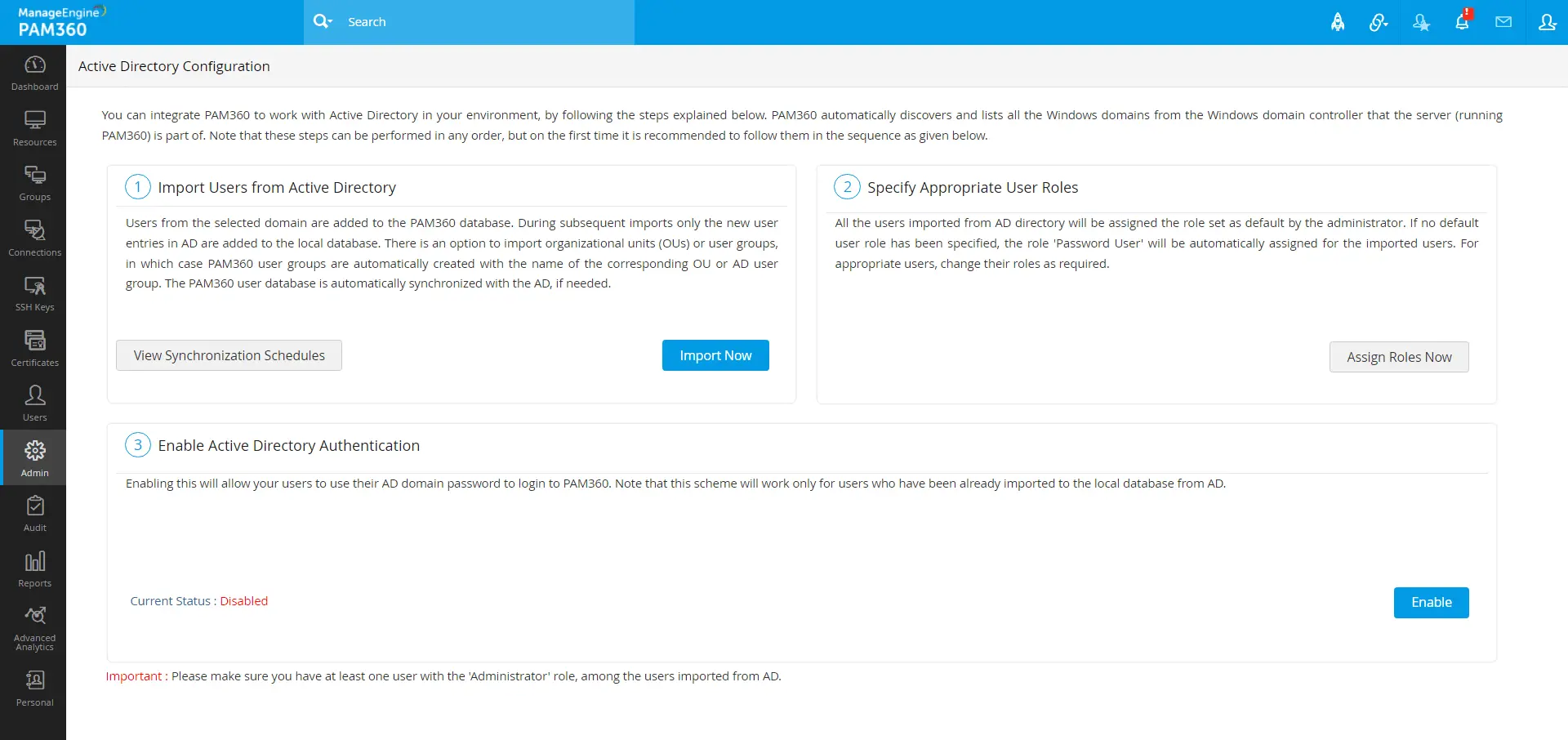
Click the Import Now button from the Active Directory Configuration page. In the dialog box that opens, configure the following sections:
- Domain Controller Configuration - Specify the DNS name of the Primary Domain Controller that will serve as the primary authority. In scenarios where the Primary Domain Controller becomes unavailable, Secondary Domain Controllers can be utilized. If you have Secondary Domain Controllers configured, list their DNS names in a comma-separated format. During an outage, PAM360 will automatically attempt to connect to one of these secondary controllers. When operating in connection mode as SSL, ensure that the DNS name provided here matches the Common Name (CN) specified in the SSL certificate for the domain controller. This is crucial for establishing a secure, encrypted connection.
- User Credentials: Provide valid credentials (username and password) with read permissions on the domain controller. If you intend to import users from multiple domains, format the username as <DomainName>\<username>. For example, to import users from DOMAIN A using credentials from DOMAIN B, the username should be entered as DOMAIN B\username.
- Connection Mode: For each domain, specify whether the connection should be established over an encrypted channel. To enable SSL mode, ensure the domain controller is configured to serve over SSL on port 636. Additionally, import the domain controller’s root certificate into the PAM360 server machine’s certificate store to facilitate this secure connection.
- Role Assignment: By default, users imported from Active Directory (AD) are assigned the Password User role. To change this, select the desired role from the drop-down menu. The selected role will be applied to all users imported from the specified Groups or Organizational Units (OUs) within AD.
Caution
Initial settings applied during import remain consistent in subsequent schedules unless altered.
- Language Settings: You can customize the language settings for imported users by utilizing the Language field.
- Two-Factor Authentication (2FA): 2FA is enabled by default for users imported from AD. If you wish to disable 2FA for these users, toggle the switch next to the Two-Factor Authentication field. Note that if 2FA is globally disabled under the Admin tab, users imported during this period will automatically have 2FA disabled.
- Importing Specific Users, Groups, or OUs: By default, PAM360 retrieves all Organizational Units (OUs) and groups from AD. If you wish to import specific users, enter their usernames in a comma-separated format. Similarly, you can choose to import specific user groups or OUs by listing their names in the respective text fields.
- Synchronization Interval: To ensure the user database in PAM360 remains up-to-date with AD set a synchronization interval. PAM360 will query the AD at this interval to import any new users automatically. The sync interval should be set to at least 3 hours, depending on the number of groups and OUs being imported.
After configuring these settings, click Save to store the domain details. For subsequent imports, only new entries in AD will be added to the local database.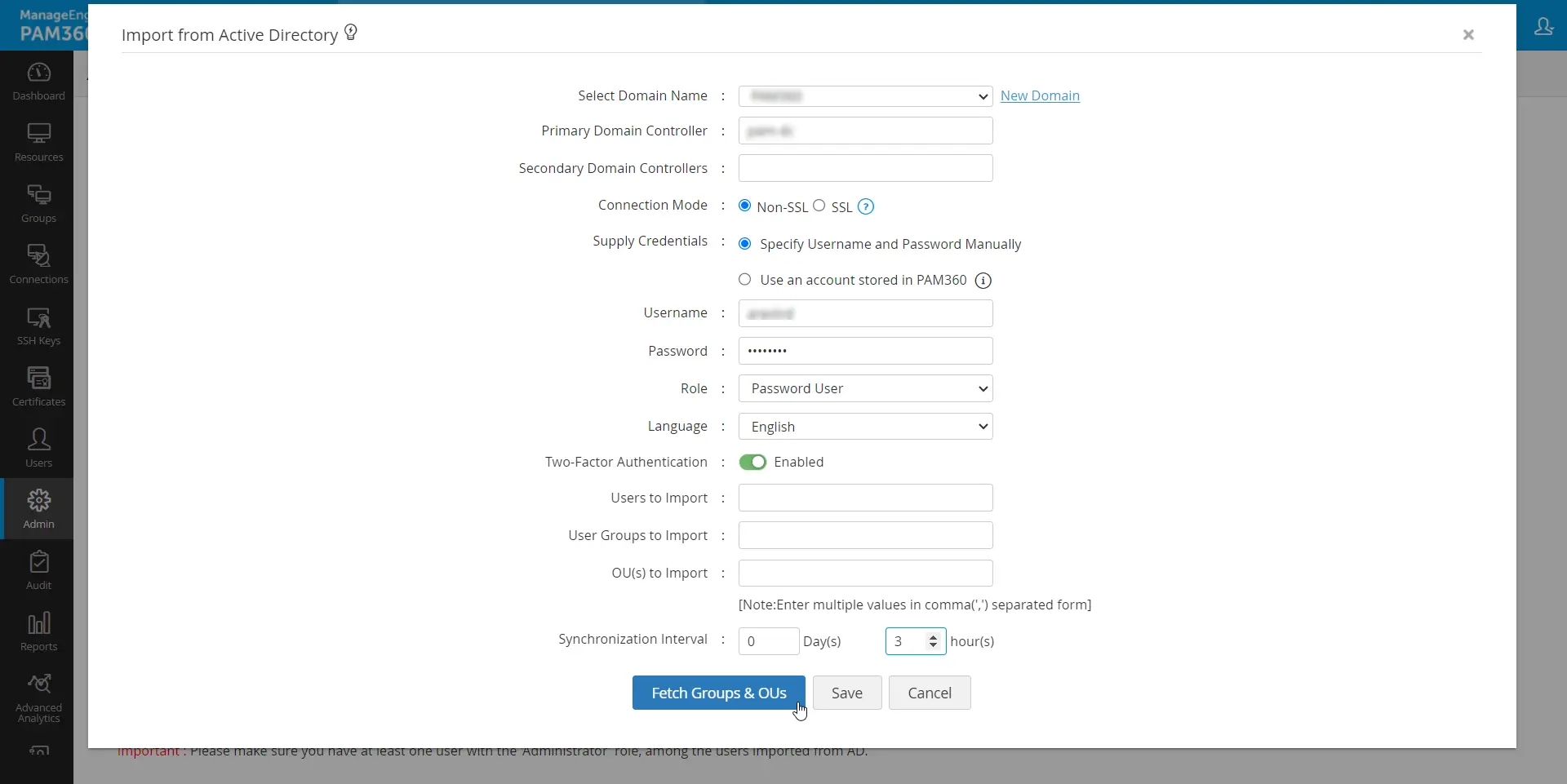
To look out for specific users, user groups, or organizational units, click the Fetch Groups & OUs button and execute the following actions:
- Select either Groups or Organizational Units and choose the required groups/OUs you want to import from Active Directory. You can also specify roles and languages for each group or organizational unit.
- To view the selected groups, click the View Selected Groups link at the top-right corner.
- After selecting the required groups or organizational units, click Import.
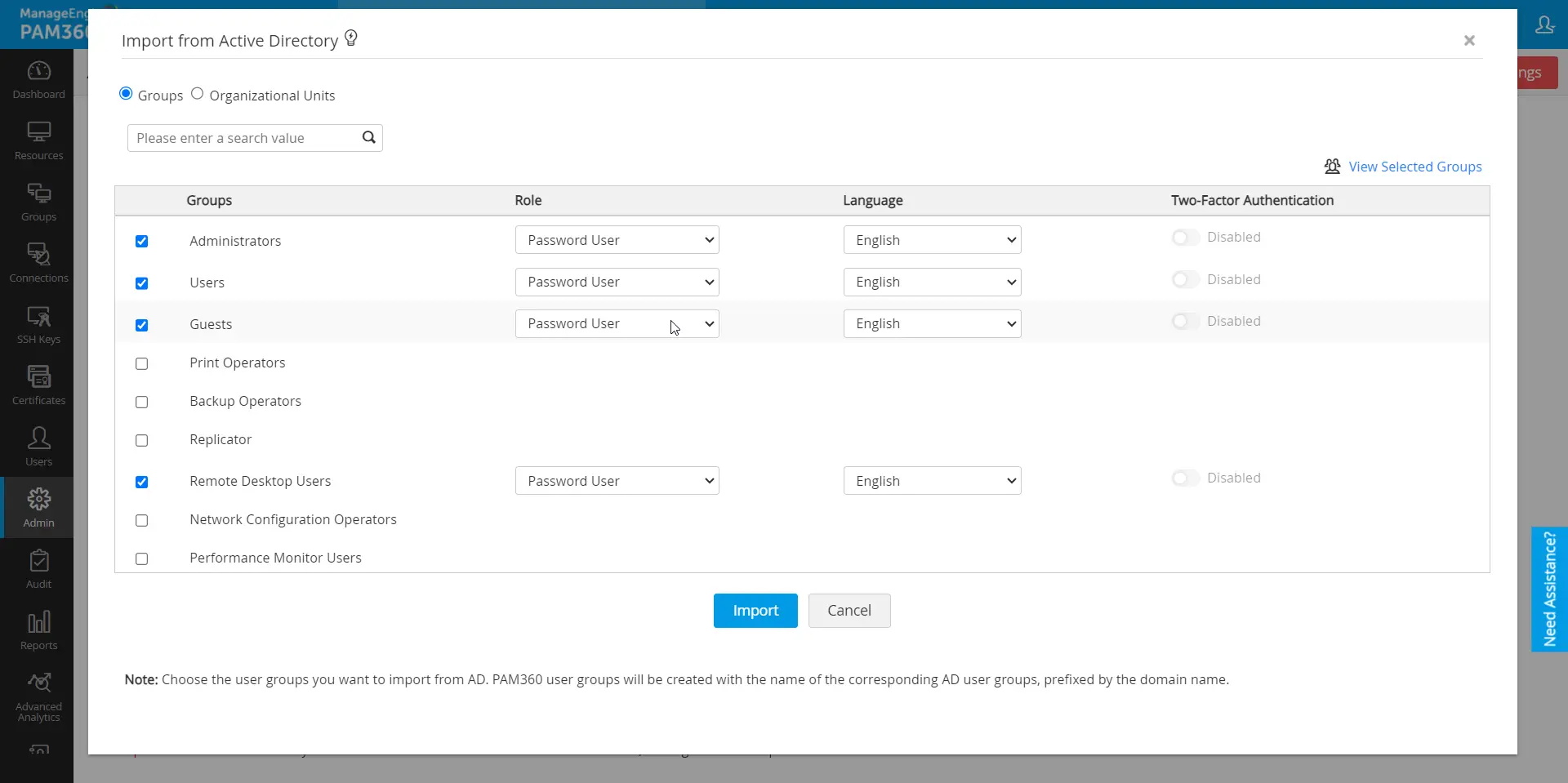
In the case of importing organizational units (OUs) and Active Directory groups, user groups are automatically created with the name of the corresponding OU / AD group.
Caution
As mentioned above, while enabling the connection mode to SSL, ensure that the domain controller is configured to serve over SSL on port 636. This setup is essential for securing communication between PAM360 and the domain controller. If the domain controller's certificate is not issued by a trusted Certificate Authority (CA), you must manually import the certificate into the PAM360 server machine's certificate store. This process includes importing all certificates within the root certificate chain, including the certificate for the PAM360 server machine and any intermediate certificates.
1.1 Importing Domain Controller's Certificate into PAM360
To import the domain controller's certificate into the PAM360 machine's certificate store, you can use any procedure that you normally use to import the SSL certificates to the machine's certificate store. One example is given below.
- Navigate to Control Panel >> Network and Internet >> Internet Options on the machine where PAM360 is installed.
- In the dialog box that opens, click the Content tab, followed by Certificates.
- Click Import, browse to locate the root certificate issued by your CA, and install it using the option Automatically select the certificate store based on the type of certificate.
- Repeat the import process for the domain controller certificate, following the same steps as above.
- After importing all required certificates in the root chain, apply the changes and close the wizard.
2. Specifying Appropriate User Roles
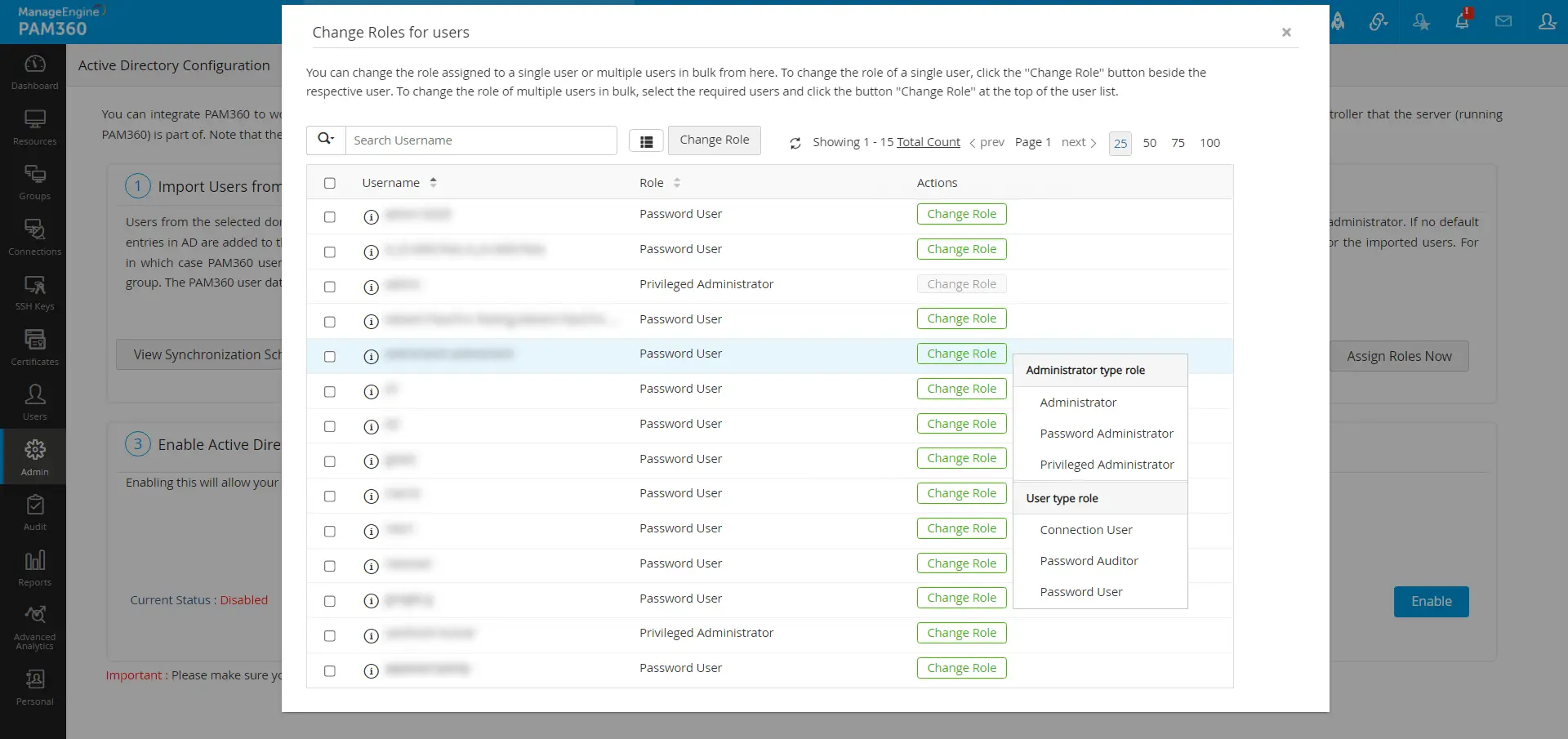
By default, all users imported from Active Directory (AD) are assigned the Password User role unless otherwise specified during the import process. To change specific roles to particular users upon the import process:
- Click Assign Roles Now.
- In the pop-up form that appears, you will see a list of all users imported from AD.
- For each user whose role you wish to change, click the Change Role button, then select the desired role from the dropdown menu.
- Click Save to apply the new roles. This ensures the correct roles are assigned to the appropriate users.
3. Enabling Active Directory Authentication
The third step is to enable AD authentication. This will allow your users to use their AD domain password to login to PAM360. Note that this scheme will work only for users who already been imported to the local database from Active Directory.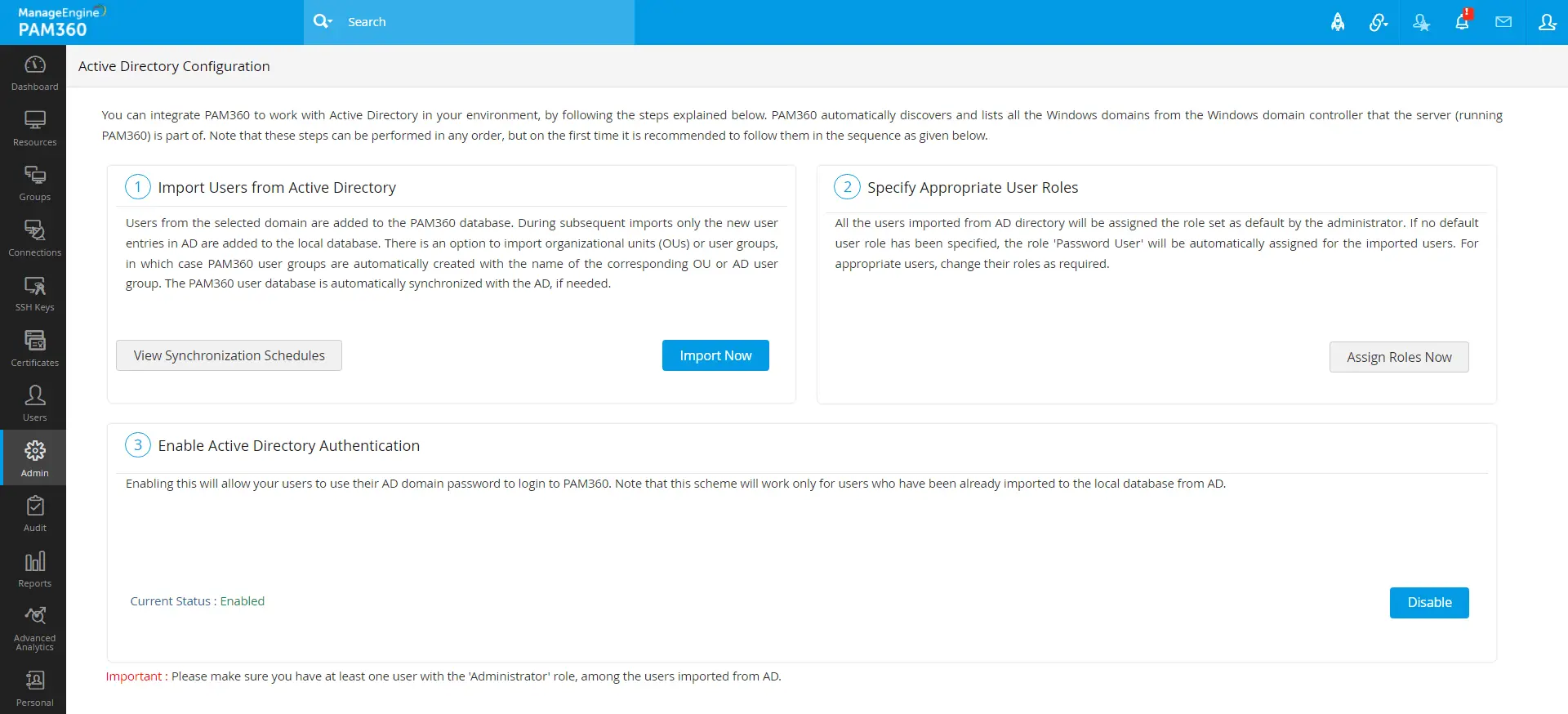
Additional Detail
The browser will keep asking for Domain User credentials on the login page if computer account credentials are incorrect. In that case, cancel the pop-up to access the PAM360 login page.
4. Managing Active Directory Schedules
Refer to this help document to learn more about managing the Active Directory Schedules.