Adding API User Accounts in PAM360
PAM360 allows you to add API users manually. API user accounts are required to configure password management APIs for Application-to-Application password management. You need to create API user accounts in PAM360 for those who will use the password management APIs, where each API user account should be attached to a single endpoint (typically a server or a desktop from which the API is used, so that the user accounts are uniquely identified - for example, as user@hostname).
Creating an API User Account in PAM360
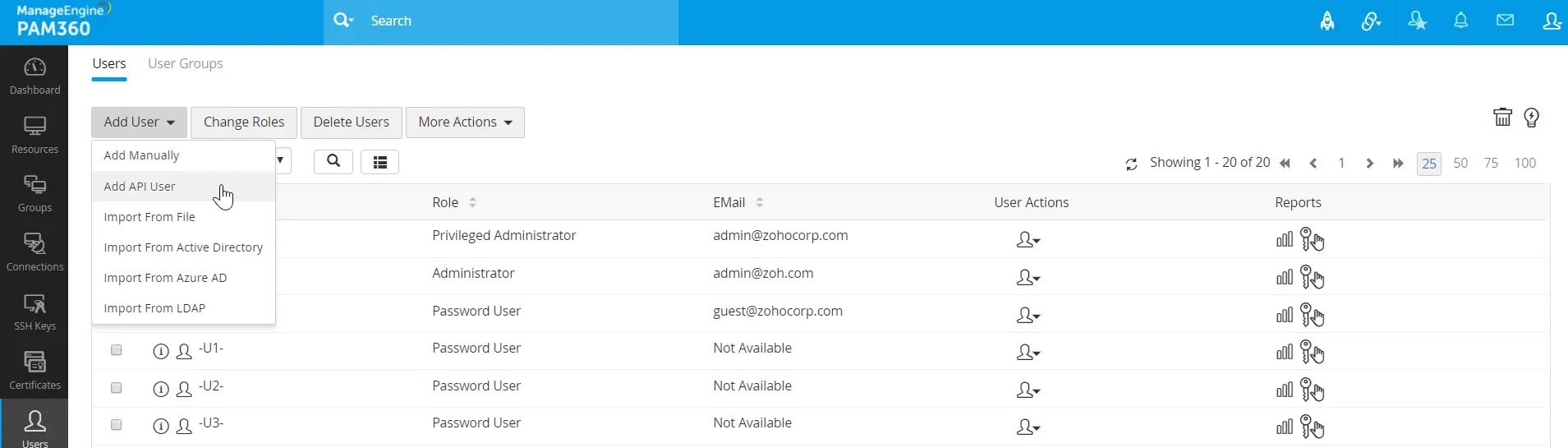
- Click the Users tab and click Add User >> Add API User from the drop-down menu.
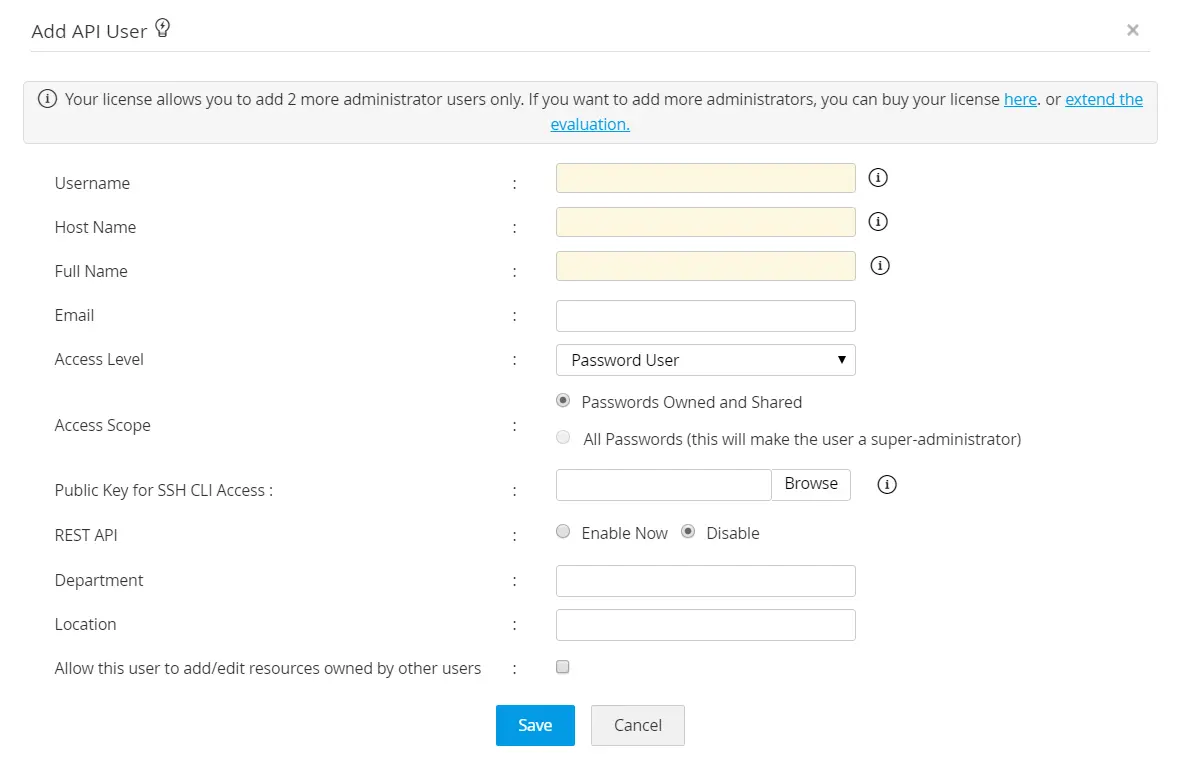
- Enter the Username in the respective text field. This name identifies the API user.
- Enter the name of the host from which the API user would access PAM360 for password management operations.
- Full Name refers to the name with which the API user would be identified in the external world such as reports, audit trails, and other places where activities are traced to users.
- Select an Appropriate Access level for the API user being added - Administrator/Password Administrator/Privileged Administrator/Password User/Custom Roles.
- You can use Access Scope to change an Administrator/Password Administrator/Privileged Administrator into a Super Administrator by choosing the option All Passwords in the system. When you do so, they will be able to access all passwords in PAM360 without any restriction. Conversely, a Super Administrator can be changed to their earlier role of Administrator/Password Administrator/Privileged Administrator by choosing the option Passwords Owned and Shared.
- Upload here the public key of the user machine from where the user accesses the SSH CLI APIs. SSH connects and logs into the specified host with username specified above. The user must prove his identity to the remote machine using public key authentication. If you wish to make use of the SSH CLI access, browse and select the open SSH format public key of the CLI user. If you want to create a new SSH key pair, follow these steps:
- Launch a command prompt and run the following command to generate a new SSH key pair:
ssh-keygen
- By default, the private key is saved in a file named id_rsa, and the corresponding public key is saved in id_rsa.pub. These files are stored in the .ssh directory under your user home directory. If you prefer, you can specify a different directory to store the key files. During key generation, you will be prompted to provide a file path.
For example: Enter file in which to save the key (/home/xyz/.ssh/id_rsa): /home/xyz/.ssh/pam360_identity - For an added layer of security, you can set a passphrase on your SSH key. After entering a passphrase, you will need to provide it every time you use the key. If you choose to use a passphrase, you will be prompted to enter and confirm.
- Once the key pair is generated, you will receive confirmation with the file paths. You will also see the key fingerprint, which provides a unique identifier for the SSH key.
- To use the generated key in PAM360, import the public key (id_rsa.pub). This file needs to be stored in the authorized_keys file under the following directory /home/xyz/.ssh/authorized_keys.
- Now, browse and locate the public key file in the field Public Key for SSH CLI Access.
The above example shows how to generate the key pair using open SSH. You may use any other standard tool to generate the keys as you wish.
- Launch a command prompt and run the following command to generate a new SSH key pair:
- Enable REST API by clicking the button Enable Now beside REST API.
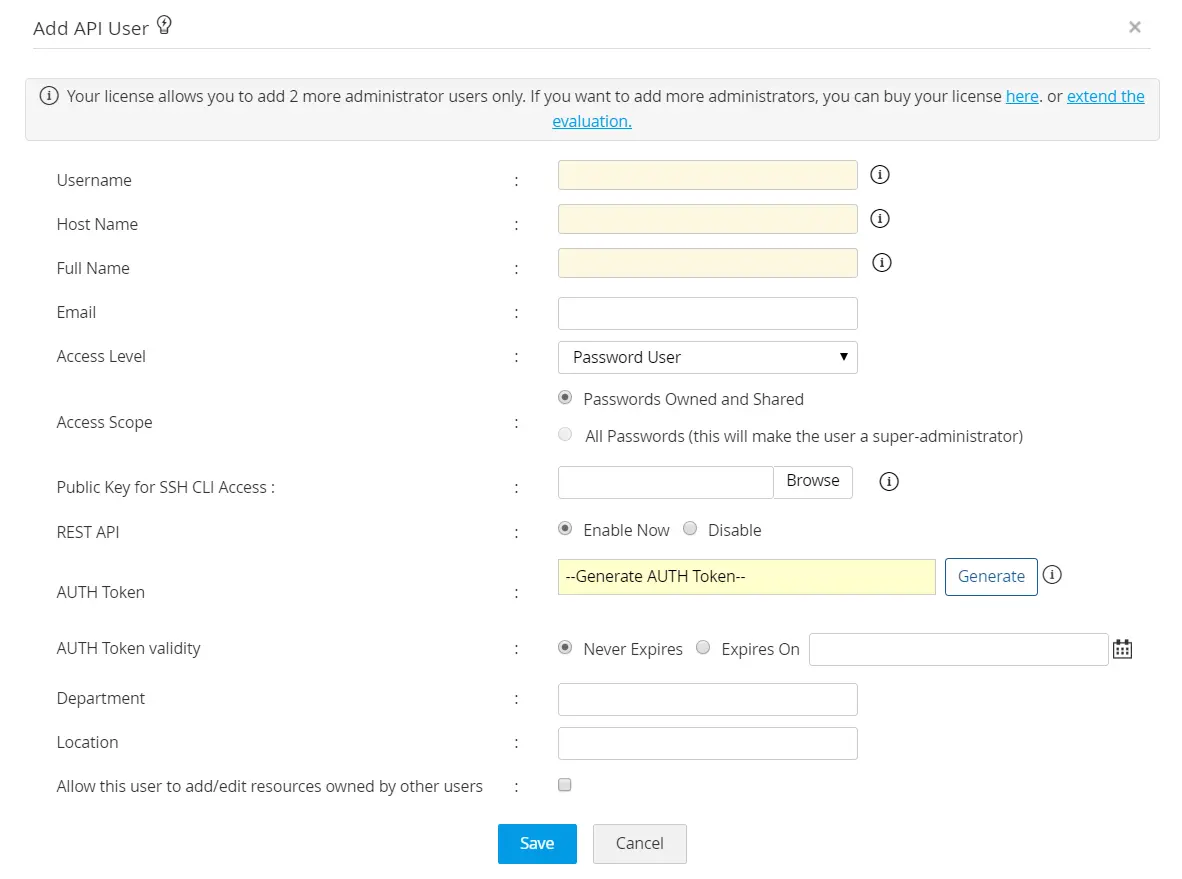
- Once you do this, you will see a text box for the API key. Click on Generate to generate the API key. The API key is the Auth Token for your access purposes. Copy down this key and store it in a secure location for your future reference. This key will be displayed in the GUI only once and if you were to lose it, the key needs to be regenerated from this window.
- You can set a validity period for the API key: by choosing the option Never Expires you can make the key to be valid forever. Otherwise, specify an expiration date.
- Enter the department and location.
- Click Save to add the API user account to the PAM360 repository.
Caution
API user creation is specific to the host from where an application contacts PAM360 for passwords. To use Password Management APIs from more than one host, you need to create as many API users as the number of hosts. Conversely, if you wish to have many users on a single host, then again you need to create as many API users as needed.