Integrating PAM360 with ManageEngine ADSelfService Plus
ManageEngine PAM360 integrates with ManageEngine ADSelfService Plus (ADSSP), an integrated web-based self-service password management and Single-Sign-On solution. ADSSP assists domain users in performing activities such as self-service password reset, self-service account unlock, etc. ADSSP utilizes PAM360 to manage its domain controller passwords, especially the privileged accounts.
Earlier, when remote password reset of the ADSSP privileged domain account was performed in PAM360, the new password had to be manually updated in ADSSP. If not, ADSSP still retains the old password and therefore restricts the AD users from performing domain-related operations. Thus, leading to more help desk calls. With PAM360-ADSSP integration, the privileged domain account details of ADSSP will be mapped with the domain account in PAM360. So, whenever the password of the ADSSP's privileged domain account mapped in PAM360 is updated, PAM360 automatically updates the password of the privileged domain account in ADSSP as well.
This document walks you through the procedure for integrating PAM360 with ADSSP. The following topics are discussed here:
1. Prerequisites
Before commencing the integration, verify if all of the below prerequisites are satisfied:
- PAM360 should be accessible from the server on which ADSSP is running. To verify this, try launching your PAM360 web-client from the ADSSP server.
- For this integration to work, ADSSP should be running in HTTPS mode only.
- As ADSSP is running in the HTTPS mode, the identity of the system needs to be verified through a valid SSL certificate, which has to be imported into the PAM360 certificate store. Follow the steps listed below:
- Stop the PAM360 service.
- Open the command prompt with the administrative privilege, navigate to the <PAM360-Installation-Directory>/bin folder, and execute the following command:
importCert.bat <Absolute-Path-of-the-ADSSP-Certificate>
- Restart the PAM360 service.
2. Integrating ADSSP with PAM360
You can configure the PAM360 - ADSSP integration entirely from within the PAM360 web portal. To establish this integration, you will need to provide specific details about the system where ADSSP is installed, namely, the hostname, port number, and ADSSP user credentials (using local authentication).Once these details are entered and the configuration is saved, PAM360 will initiate a connection with the ADSSP server. Upon successful connection, PAM360 automatically retrieves the domain information from ADSSP and stores it in its database. Follow the below steps to integrate ADSSP with PAM360:
- Navigate to Admin >> Integrations >> ManageEngine.
- On the page that appears, click the Enable button to configure the ADSSP integration. If it is already enabled, and you want to edit it, click Edit.
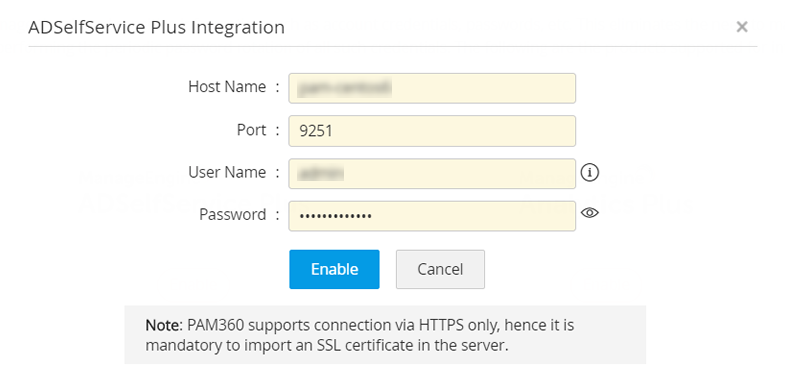
- Configure the following details as follows:
- Enter the ADSSP Host Name.
- Specify the Port at which ADSSP is listening.
- Enter the User Name and Password of an ADSSP user with the administrator privileges (local authentication).
- Click Enable to complete the configuration.
Now, the integration will be enabled, and the domain details fetched from ADSSP will be saved in the PAM360 database. Proceed with mapping the domain account details of ADSSP with PAM360.
3. Mapping Domain Account Details
Caution
Ensure that the respective domain account in ADSSP is mapped with the domain account in PAM360. Only then, the automatic update of the password will be executed as expected with the domain account in ADSSP.
- Navigate to the Resources tab. Click the Resource Actions icon beside the respective resource and select Associate >> ADSelfService Plus. This option is available only for Windows Domain resources and when ADSSP integration is configured.
- In the window that appears, the Domain Name in PAM360 will be displayed by default.
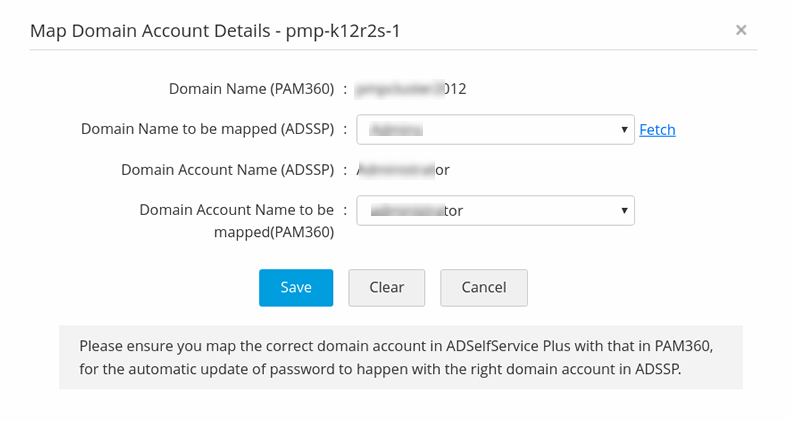
- Choose the Domain Name in ADSSP to be mapped with the Domain Name in PAM360. If you do not find any domain name, click Fetch beside the dropdown and import the domain from ADSSP.
- The Domain Account Name in ADSSP and the Domain Account Name in PAM360 fields will be automatically populated based on the Domain Name in ADSSP selected in step i. You can also select a different account for PAM360.
Caution
You will be prompted with an alert message when a mismatch in the ADSSP-PAM360 domain account details is suspected. In such cases, verify if you have mapped the correct domain account details of ADSSP in PAM360. Only then the automatic password update will happen with the right domain account in ADSSP.
- Click Save to apply the changes.
Once the mapping of domain account details of PAM360 and ADSSP is successfully completed, PAM360 will automatically update the password of the domain account in ADSSP, whenever the password reset for the account is done in PAM360.
4. Troubleshooting Tips
If you encounter any issues with the PAM360 - ADSSP integration, follow the steps below to troubleshoot:
- Ensure that the required certificates have been correctly imported into PAM360 to establish a secure connection.
- Confirm that the network connectivity between the PAM360 and ADSSP servers is functional and bi-directional, as seamless communication is essential for integration.
- Validate the domain details as follows:
- Go to the Resources tab in PAM360 and select the relevant Windows Domain Controller (DC) resource.
- Click Resource Actions >> Associate >> ADSelfService Plus.
- In the popup window, click Fetch to retrieve the domain details. Ensure the fetched information is accurate.
- If domain details fail to load during the configuration process, check the pam0 log file located in the <PAM360-Installation-Directory>/logs folder. This file may contain error messages or diagnostic information to help identify the root cause.