Logs in PAM360
PAM360 systematically records and stores various types of logs that capture critical information related to product-specific events. These logs are essential for maintaining the application's health, as they provide detailed records of error messages, warnings, and informational notes. They play a crucial role in analyzing and troubleshooting any issues that may arise within the application.
The log files are stored locally in text format in the designated directory path <PAM360_Installation_Directory>\logs. The comprehensive logging mechanism ensures the availability of necessary data to perform in-depth analysis and maintain optimal functionality of your PAM360 installation.
This document covers the following topics to help you understand and manage PAM360 logs effectively:
1. Log Level Settings
Log Level Settings in PAM360 allow you to control the amount and type of information recorded in the application's logs. This feature is essential for maintaining system health and diagnosing possible issues. Depending on your needs, you can adjust the log level to record basic operational data or capture more detailed event information. The latter is beneficial for troubleshooting complex issues, such as those related to command-line interface (CLI) operations. Careful management of logs ensures that you have the necessary data for analysis while safeguarding sensitive information.
1.1. Steps to Configure Log Level Settings
Follow the steps detailed below to configure and modify the log levels in PAM360:
- Navigate to Admin >> Server Settings >> Log Level.
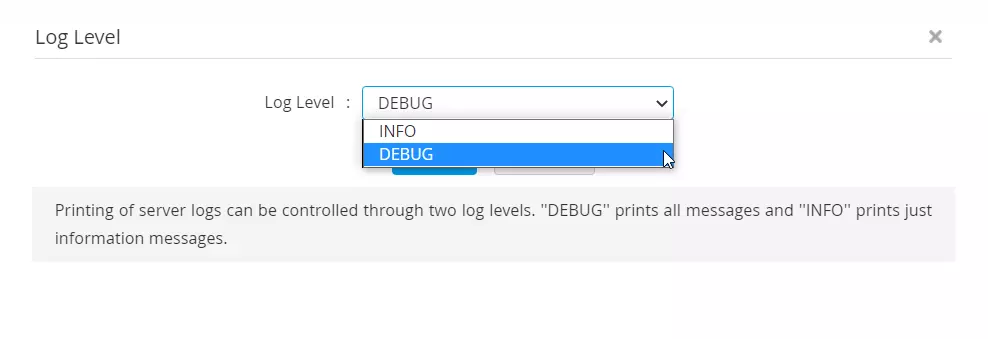
- In the Log level pop-up window, choose between INFO or DEBUG from the drop-down menu and click Save.
- INFO: This is the default log level, which records only essential data, such as the date, time, service name, event, and the event's status
- DEBUG: This log level records detailed information about each event during any operation in PAM360. It is particularly useful for troubleshooting complex issues like import failures or password reset failures. Switching to DEBUG level logs and replicating the issue will help gain a clear picture of the root cause of the issue, making it easier to troubleshoot and resolve the problem.
The DEBUG log level is particularly useful for troubleshooting issues related to CLI-based connections and CLI command syntax errors. In such scenarios, the PAM360 support team may request detailed logs for a thorough investigation.
However, it is important to note that sensitive information, such as IP addresses, will be recorded in plain text within these logs. Therefore, it is strongly recommended that you remove or mask any sensitive information before sharing the logs with the support team.
1.2. Steps to Enable CLI-Level Debug Prints
Follow the steps detailed below to enable CLI-level debug prints for troubleshooting issues related to CLI-based connections and CLI command syntax errors:
- Navigate to the <PAM360_Installation_Directory>\conf folder.
- Open the wrapper.conf file.
- Locate the line that reads "Dcli.debug=false".
- Change the value from false to true.
- Reproduce the issue and capture the necessary log files.
- After capturing the logs, revert the Dcli.debug setting back to false to disable CLI-level debug prints.
2. Types of Logs in PAM360
2.1. PAM360 Application-Related Logs
- serverout0.txt - This is the primary log file for the PAM360 web application. It includes log entries related to the loading of application XML files during startup, establishing connections with the database, loading encryption and decryption modules, executing and tracking the status of scheduled operations, authentication responses, and other product operation activities.
- pam0.txt - This file contains additional application logs, primarily focusing on CLI connections, such as SSH connections to Linux/Unix-based devices or network devices. This log file also includes entries for scheduled database backups, remote connection activities for AD Sync and other remote operations, and troubleshooting details for password reset issues on SSH-based devices. Additionally, this log captures information related to high availability (HA) replication issues.
- updatemanager.log - The updatemanager.log file records logs related to upgrades initiated using the <PAM360_Installation_Directory>/bin/UpdateManager.bat or UpdateManager.sh commands. A new log file is created for each upgrade operation. These logs are essential for troubleshooting any upgrade failures. It is recommended to save a copy of these logs before reverting to a backup of the PAM360 directory.
- sysenvout.txt - This file logs information related to the server environment where the application is deployed, including environmental variables. This file records OS-specific settings such as date and time zone configurations, OS-level command shortcuts, and system variables.
2.2. Startup-Related Logs
- wrapper.log - It is the service startup log that records each service startups and provides a list of all modules populated during the startup process. This log is essential for identifying the root cause of any startup-related issues.
- pamdetails.txt - The pamdetails.txt file contains detailed information about the product version, build number, product architecture, database details, and product edition. This log file is only populated upon a successful service startup.
- catalina.log - This log file includes logs related to the Tomcat web server startup. It is particularly useful for troubleshooting issues related to the SSL certificate of the web server or when the product UI fails to load, even after a successful service startup.
- pamstartup_log.txt - This log file records the status of the PAM360 service and indicates whether it is the primary or secondary instance, which is relevant if High Availability (HA) is enabled.
2.3. Database-Related Logs
- pglog.log - This file contains logs related to the Postgres database bundled with the product. This file remains empty unless there are issues with the database, making it a critical resource for troubleshooting database-related problems.
- sqlconsole.log - The sqlconsole.log file records SQL database errors that may occur when using an MS SQL database as the backend database. It is essential for diagnosing issues related to SQL queries and database interactions.
- changeDB.log - By default, the product comes bundled with a Postgres SQL database. However, users can set up their MS-SQL instance as the backend database using the PAM360/bin/ChangeDB.bat command. During the ChangeDB operation, this log file is generated to capture the process details. This log is essential for troubleshooting any issues that may arise when connecting to a new SQL database backend.
- startDB.log - This log file is created when the database is started independently of the product using the <PAM360_Installation_Directory>/bin/startDB.bat command. Any failures that occur during the database startup, along with the corresponding error messages, are recorded in this log file, aiding in troubleshooting startup issues.
- PAM360\pgsql\data\pg_log - It contains error logs related to database startup and operations, as generated by the default PostgreSQL database. If you encounter startup issues or errors such as "Trying to start Postgres failed," this log file will provide the root cause of the failure.
2.4. Access and Authentication-Related Logs
- access_log.txt - This log file records entries related to accessing PAM360 from different machines using various web browsers and mobile applications. This log is particularly useful for troubleshooting issues where the product UI fails to load or when "page not found" errors occur.
- smartcard0.txt - This log file contains logs related to SmartCard/PKI-based authentication, provided this feature is enabled. It is essential for monitoring and troubleshooting errors related to authentication processes involving SmartCards.
2.5. SSH CLI API Operations Logs
- sshd.txt - The sshd.txt file logs activities related to the SSH daemon that comes bundled with PAM360, primarily used for SSH CLI API operations. This log file contains entries related to the SSH server, making it crucial for diagnosing SSH server-related issues.
2.6.Active Directory-Related Logs
- AD_IMPORT_USERS_RESOURCES.txt - This file captures log entries for operations performed with Active Directory integration, such as importing users, resources, and groups from AD.
2.7. Security Issue-Related Logs
- security-log.txt - The security-log.txt file captures all security errors identified in PAM360. PAM360 includes built-in security measures to block XSS, CSRF, and DoS scripting attacks, so any script injection attempts or other security breaches will be recorded in this log. This log file is crucial for monitoring and addressing security issues
3. Log Retention and Storage
Log files are primarily used to identify the root cause of errors and troubleshoot issues. The Audits tab in PAM360 records extensive log trails about user and system-related operations and are securely stored in the PAM360 database, accessible via the PAM360 web interface. Therefore, it is safe to delete these log files periodically. When you encounter an issue, it is recommended to delete or rename the existing logs and then reproduce the issue, allowing a fresh set of logs to be created for easier analysis and quicker troubleshooting.
By default, the log files are stored in the <PAM360_Installation_Directory>\logs folder. If you need to move some of the main logs to a remote location for security reasons, follow the steps outlined below:
- Navigate to <PAM360_Installation_Directory>\conf folder and open the wrapper.conf file.
- In the wrapper.conf file, locate the wrapper.java.additional.24=-Duser.home=E:\PAM360Logs line and change the directory path. For example, wrapper.java.additional.24=-Duser.home=<Remote Directory>
The following log files can be stored in remote locations:
- AD_IMPORT_USERS_RESOURCES0.txt
- catalina0.txt
- pam0.txt
- pamdetails0.txt
- pglog_0.log
- pkilog0.txt
- smartcard0.txt
- sqlconsole0.log
- security-log-0.txt
- sysenvout0.txt
- serverout0.txt
All primary log files are designed to roll over into separate files automatically, with a number appended to the filename. For instance, you may find log files named pam0, pam1, pam2 in the directory. However, certain logs, such as AD_IMPORT_USERS_RESOURCES.txt and access_log.txt, do not roll over and continue logging in the same file. Since the size of these log files increases slowly over a period of time, it is safe to delete them if necessary.
Caution
Ensure that you stop the PAM360 service before deleting any log files.