Sharing SSL Certificates with Users and User Groups
PAM360 allows you to share your certificates or certificate groups with users and user groups. When you share a certificate, all the details of that certificate will be shared and in general, every user will have access to the certificates they own and also to those that are shared with them.
A user with whom a certificate is shared can also export and access its private key, but only after raising a request for the same with the certificate's owner and getting approval. However, the approval grants the permission only for export; any other operation involving the private key will not be available for the user.
Additional Detail
SSL certificates owned by the users with the administrative privilege can be shared with users and user groups as needed.
At the end of this document you will have learned about the following topics:
- Sharing a Certificate with Users or User Groups
- Sharing a Certificate Group with Users or User Groups
- Certificates Sharing Permission
- Requesting a Certificate's Private Key from the Owner of the Certificate
1. Sharing a Certificate with Users or User Groups
- Navigate to the Certificates tab and select the certificate that to be shared.
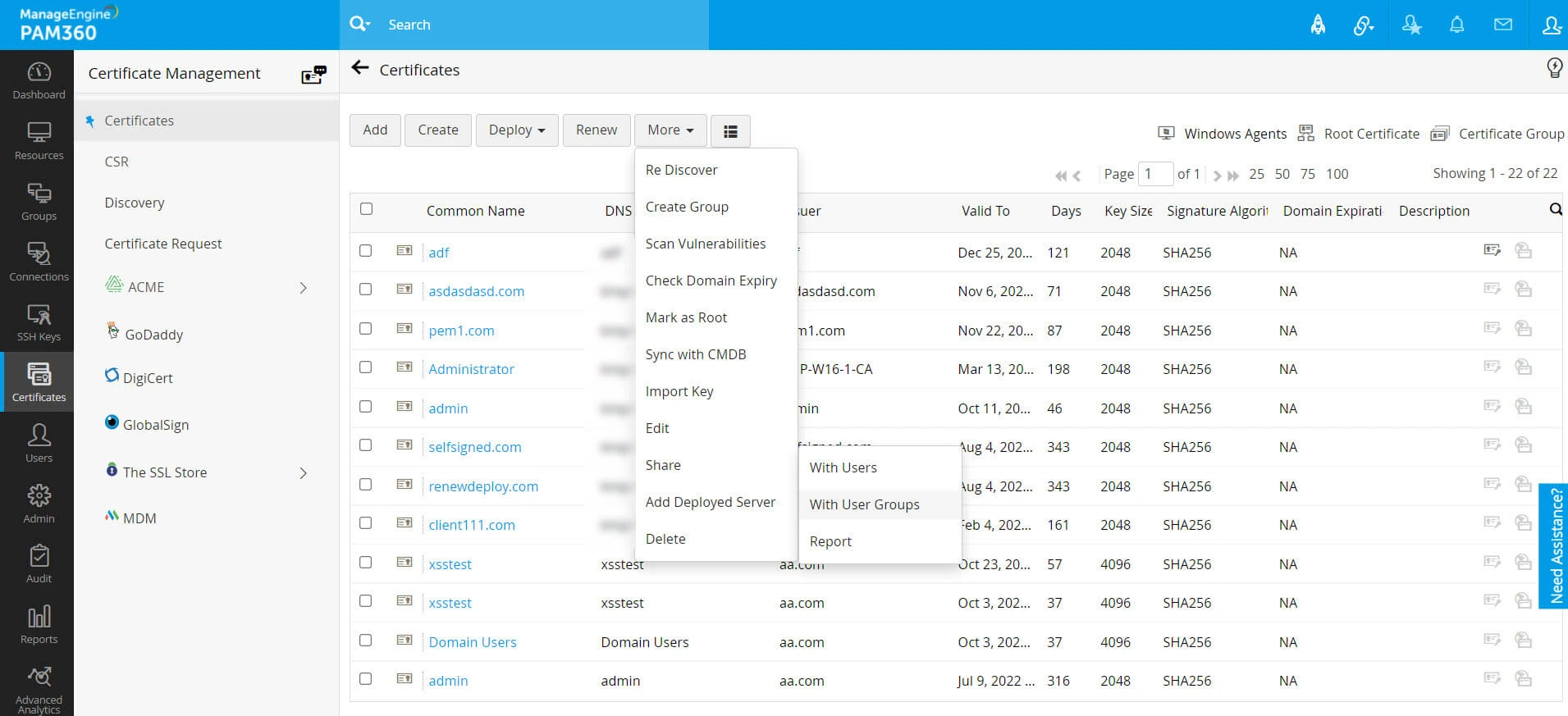
- Click on the More action button at the top and select the required option from the drop-down menu—either Share With Users or Share With User Groups, depending on your need.
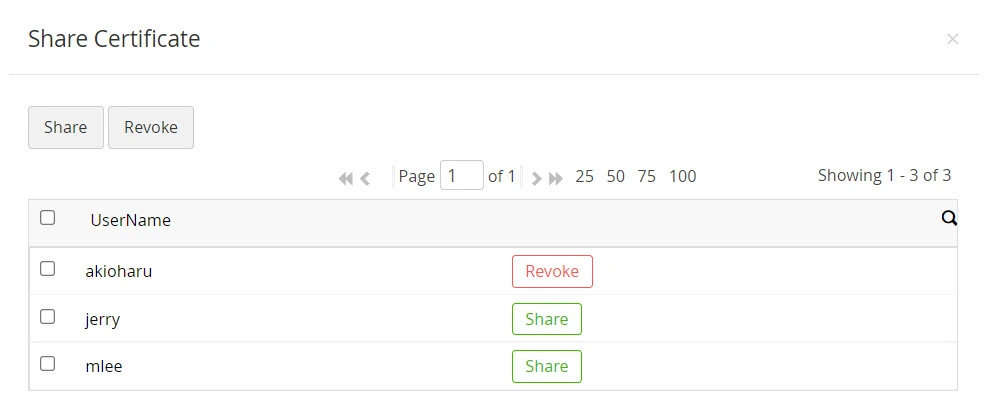
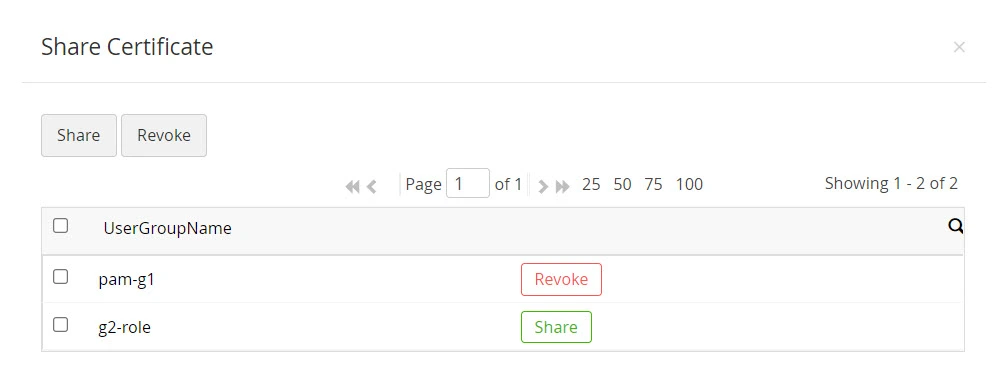
- In the new window that opens, choose the user(s) or user group(s) whom you want to share the certificate with and click Share. Once shared, the access to the certificates can be revoked any time from the same window.
Additional Detail
When you share a particular certificate with a user group, it will be visible to all members of that user group, provided that their role includes the privilege to access SSL certificates.
2. Sharing a Certificate Group with Users or User Groups
- Navigate to the Certificates tab.
- Click on Certificate Group on the top right corner and select the required certificate group that you want to share.
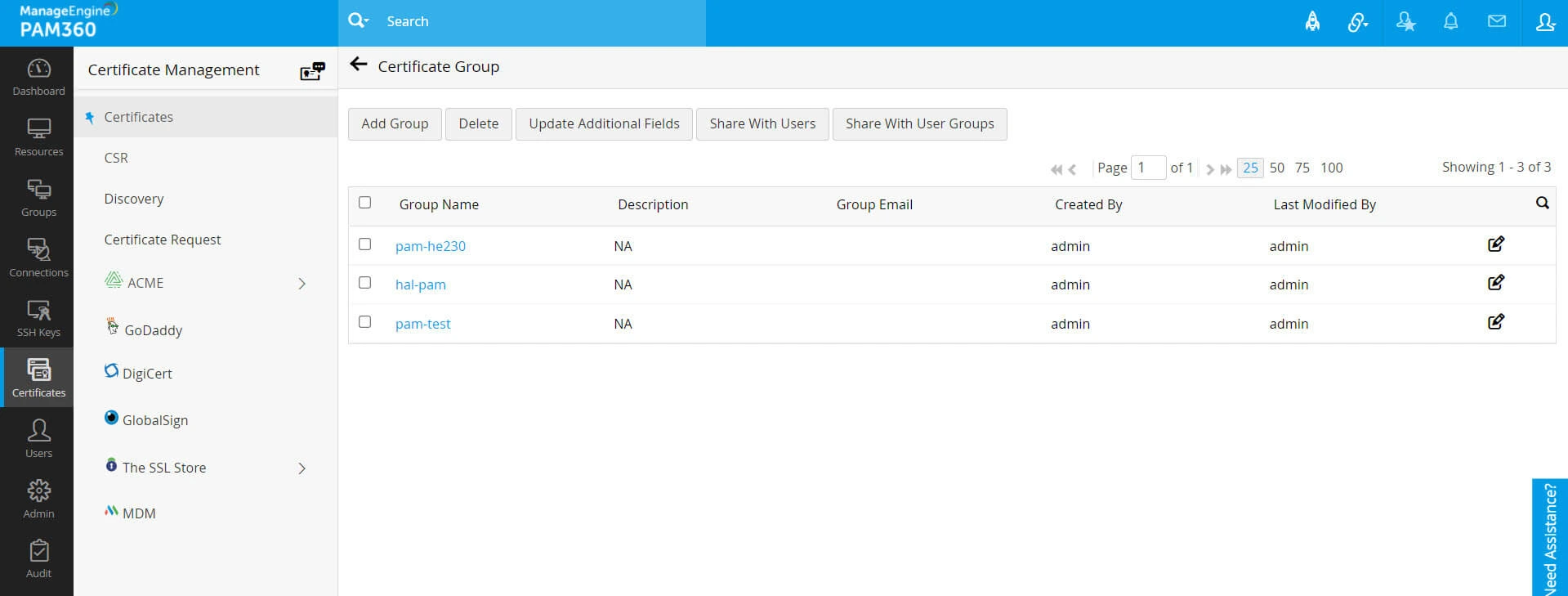
- Depending on whether you need to share the certificate group with user(s) or user group(s), select the required option—either Share With Users or Share With User Groups.
- In the new window that opens, choose the user(s) or user group(s) whom you want to share the certificate with and click Share. Once shared, the access to the certificates can be revoked any time from the same window.
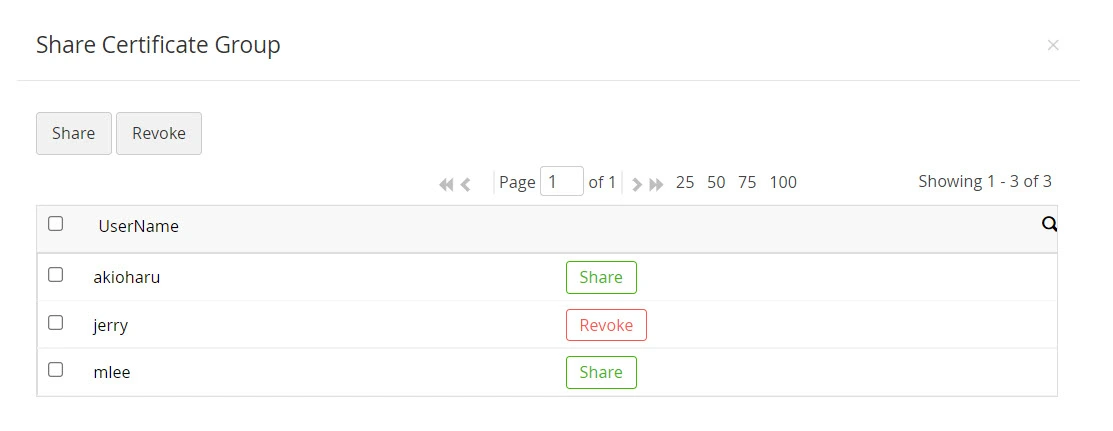
Additional Detail
Since only owned certificates can be shared, certificate groups can be created only with owned certificates. When you share a particular certificate group with a user group, the details of all respective certificates belonging to the certificate group would be visible to all the members of the user group, provided that their role includes the privilege to access SSL certificates.
3. Certificates Sharing Permissions
PAM360 allows users to modify the access level to the shared certificates globally. This allows the user to give view/ modify permission to the users under the selected roles with whom the certificates are shared. To do this,
- Navigate to Admin >> SSL Configuration >> Certificate Sharing.
- In the Certificate Sharing window, move the user roles accordingly to grant View or Manage permission to certificates for those user roles.
- Select the checkbox to Share the renewed certificate with users who have access.
- Click Save.
Now, the users to whom the certificates are shared will have the appropriate permission.
4. Requesting a Certificate's Private Key from the Owner of the Certificate
When a certificate is shared with you, you can carry out the operations that does not involve the private key of the certificate. These include:
- View certificate details like expiry, key size, algorithm, length, and DNS name
- Scan vulnerabilities
- Check domain expiry
- Edit
- Sync with CMDB, and
- Export the certificate
In addition to these, you can request the certificate's private key from the owner of the certificate. To do so, perform the following steps:
- Navigate to Certificates, select the shared certificate from the list, and click on Request key from certificate's owner from the Keystore icon beside the certificate.
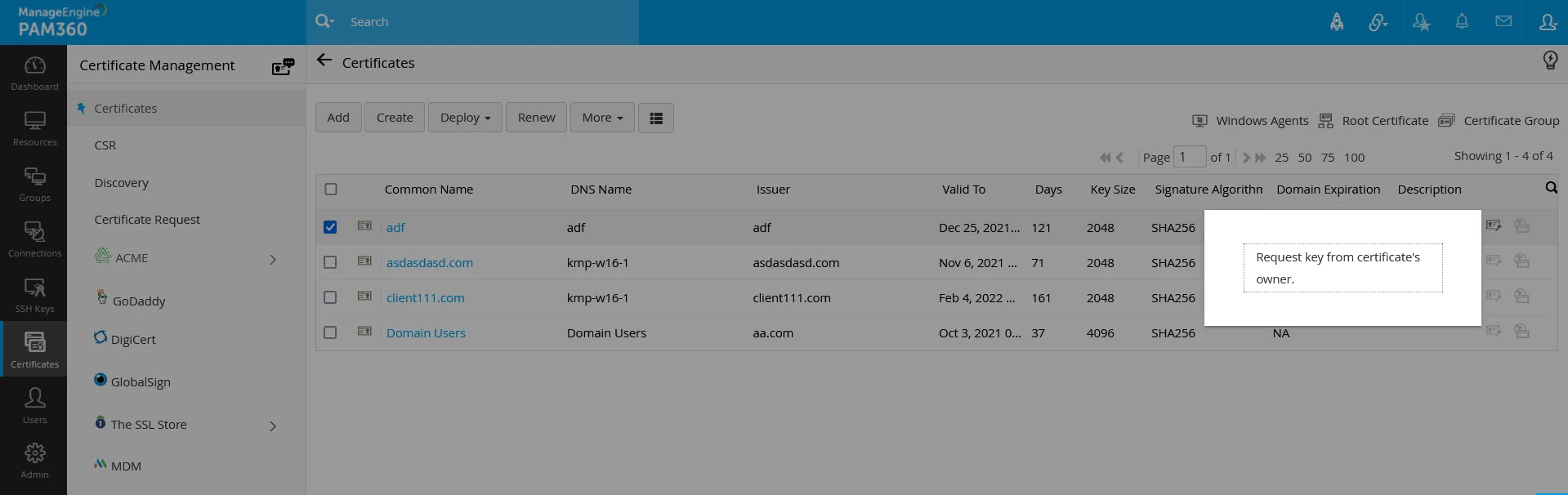
- You can also request the private key by clicking on the shared certificate, and then clicking on Request key from certificate's owner from the 'Certificate Details' window.
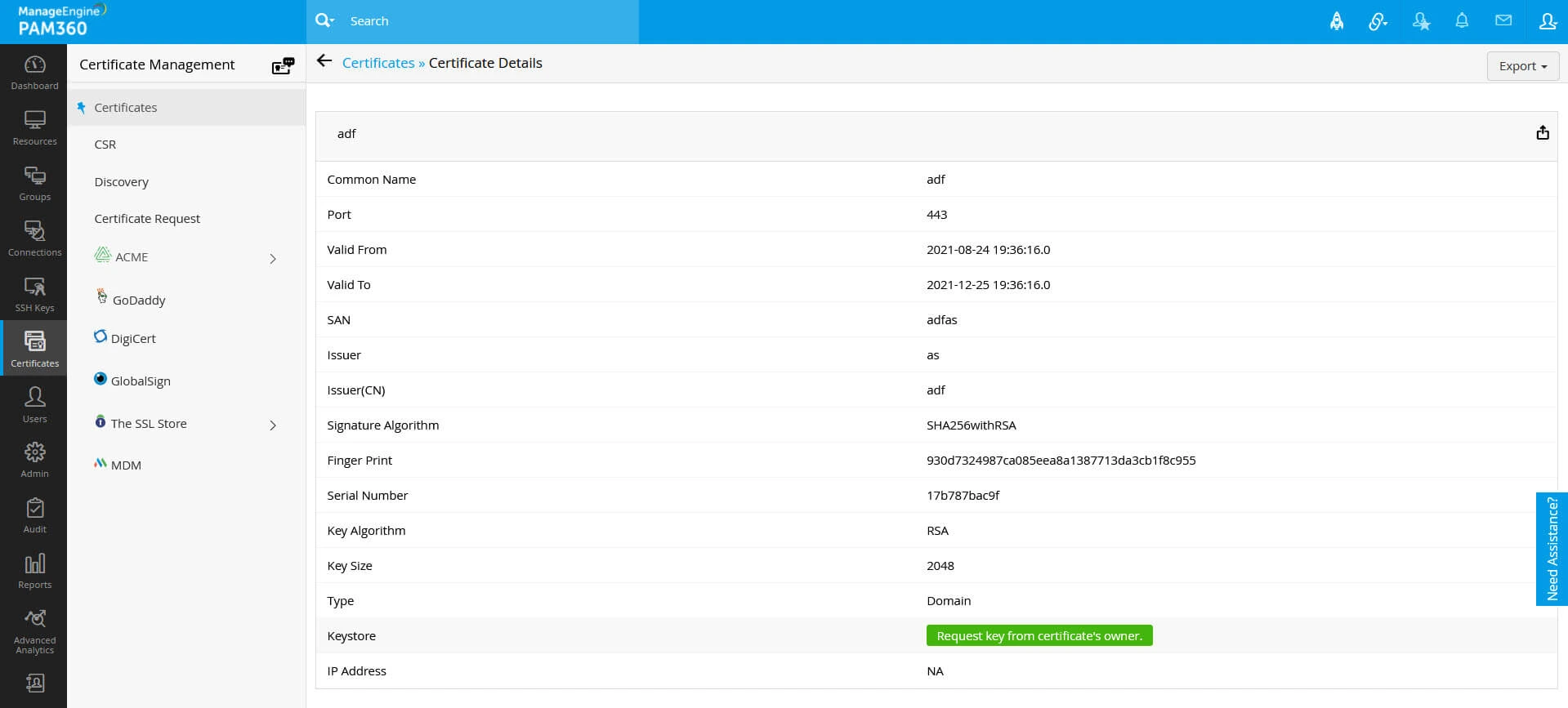
- The owner of the certificate will be notified of the request through PAM360 and email. Upon approval, you can export the private key from the Certificates tab only once.
- To export the private key, navigate to Certificates, select the shared certificate, and then click on Export Private Key from the 'Keystore' icon beside the certificate.
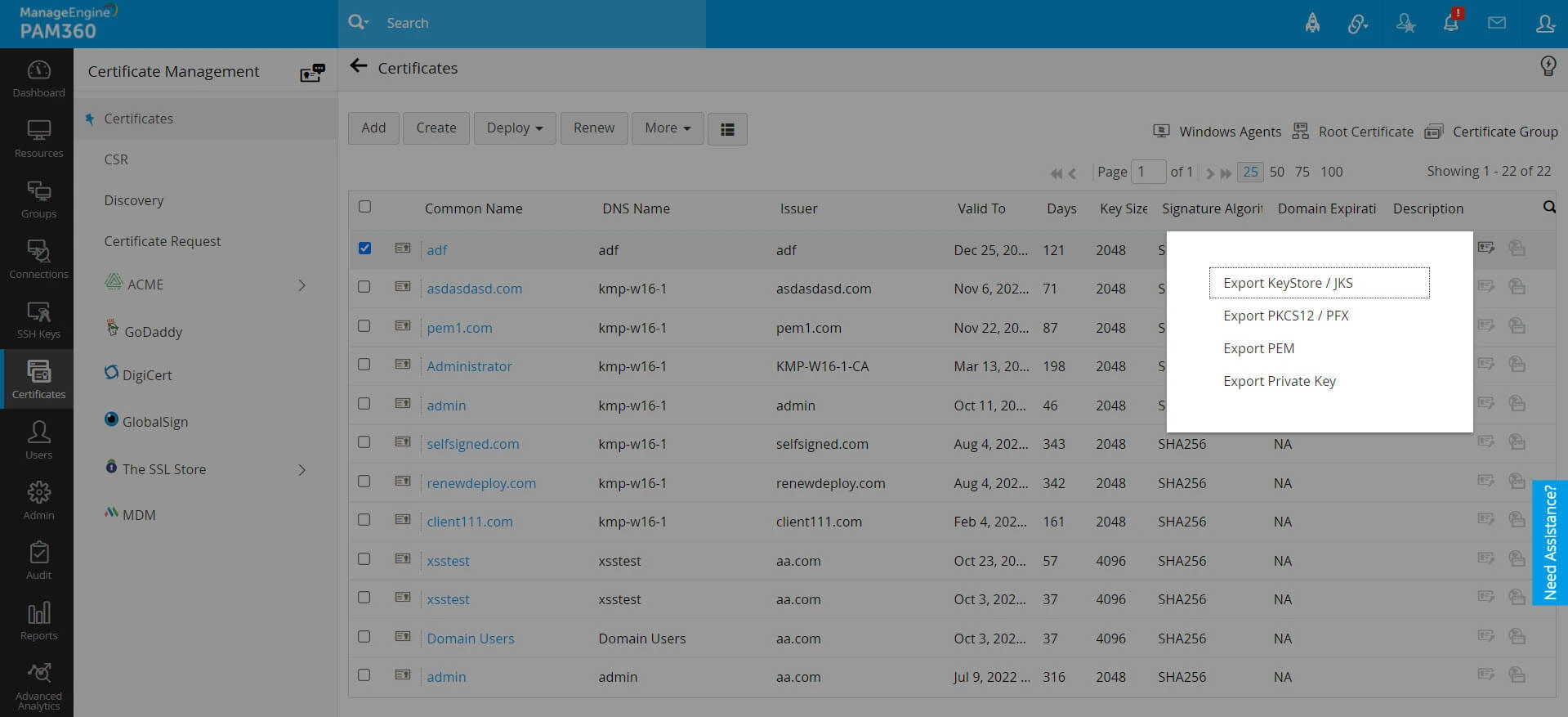
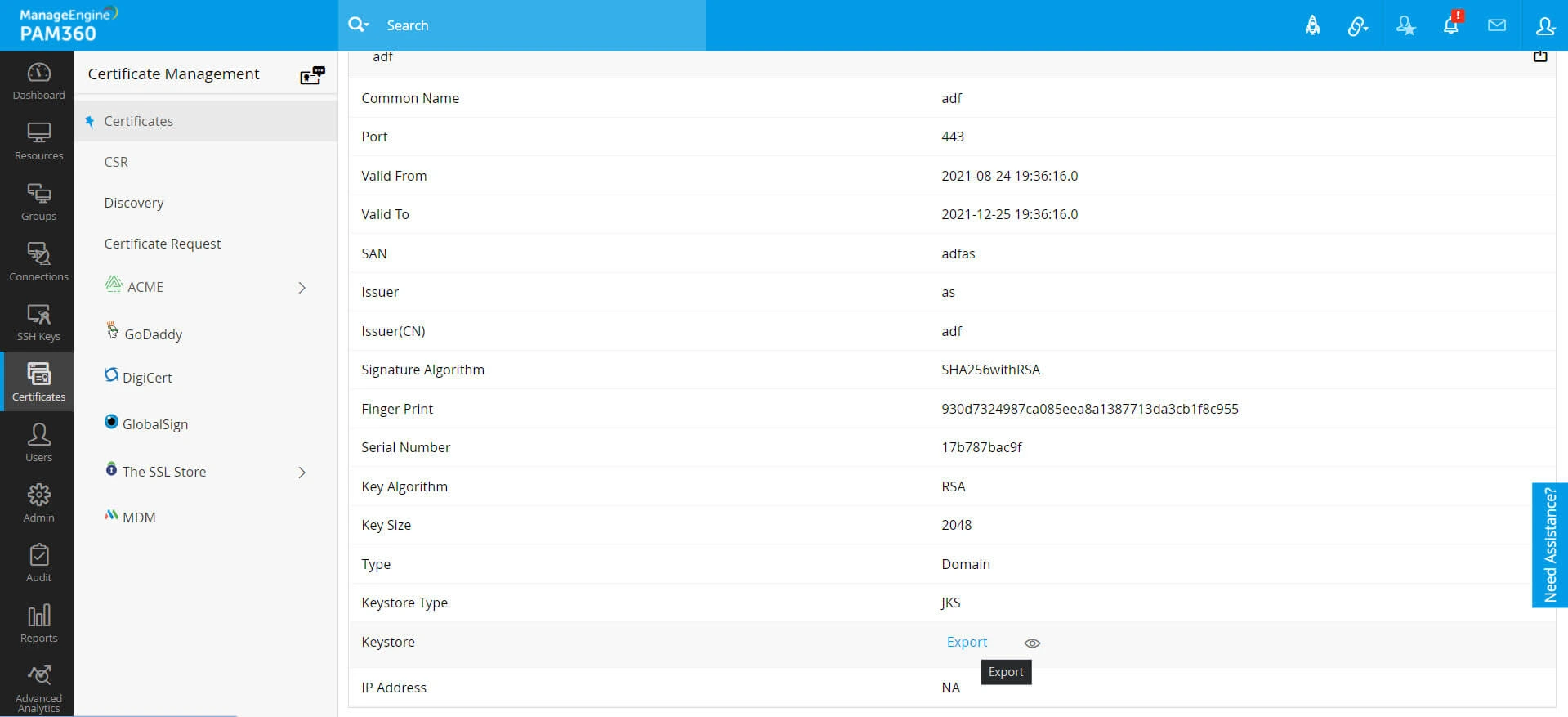
- Alternatively, you can export the private key by clicking on the shared certificate, and then clicking on the Export button beside Keystore from the 'Certificate Details' window.
Additional Detail
As mentioned above, you can export the private key of a shared certificate only once after approval from its owner. You need to request the private key from the certificate's owner if you want to export it again.