PAM360 Plugins for Chef and Puppet
Chef is a ruby-based configuration management tool that provides a way to define infrastructure as code (IAC) wherein managing infrastructure is made simple through writing code rather than using manual processes. Chef operates using a Client-Server architecture. The PAM360 lookup plugin developed for Chef helps improve security and ease of Password Management in an organization's DevOps pipeline. Once imported into Chef, the PAM360 plugin can fetch credentials and account information directly from the PAM360 vault during Chef cookbook runtime, thus eliminating the need to use hard-coded credentials. Upon secure retrieval, the credentials can then be used for actions such as connecting to a remote host. The credentials stored in PAM360 are regularly rotated in the vault and also updated in the respective remote device; this ensures that only the latest passwords or keys are retrieved from the vault when the Chef plugin is invoked.
Puppet is a ruby-based configuration management tool similar to Chef. Puppet also operates using a Client-Server architecture in which the Master and Slave communicate through a secure encrypted channel with the help of SSL. Puppet is mainly used for deploying, configuring and managing servers. Similar to Chef, the PAM360 lookup plugin can retrieve passwords from PAM360's vault when invoked.
Click on the respective links to learn more about Chef and Puppet.
At the end of this document, you will have learned about the following topics:
1. Setting Up the PAM360 Plugin for Chef
The following are the steps to set up and manage sensitive credentials in Chef with PAM360.
1.1 Enabling Chef Integration in PAM360
- Log into PAM360 and navigate to Admin >> DevSecOps >> CI/CD Platform.
- Click the Chef option.
- In the CI/CD Platform Integration window, click Generate to populate an AUTH Token automatically. This will be required later while invoking the plugin in the Chef cookbooks. Once set up, all incoming connections from Chef will be validated by PAM360 using this AUTH token.
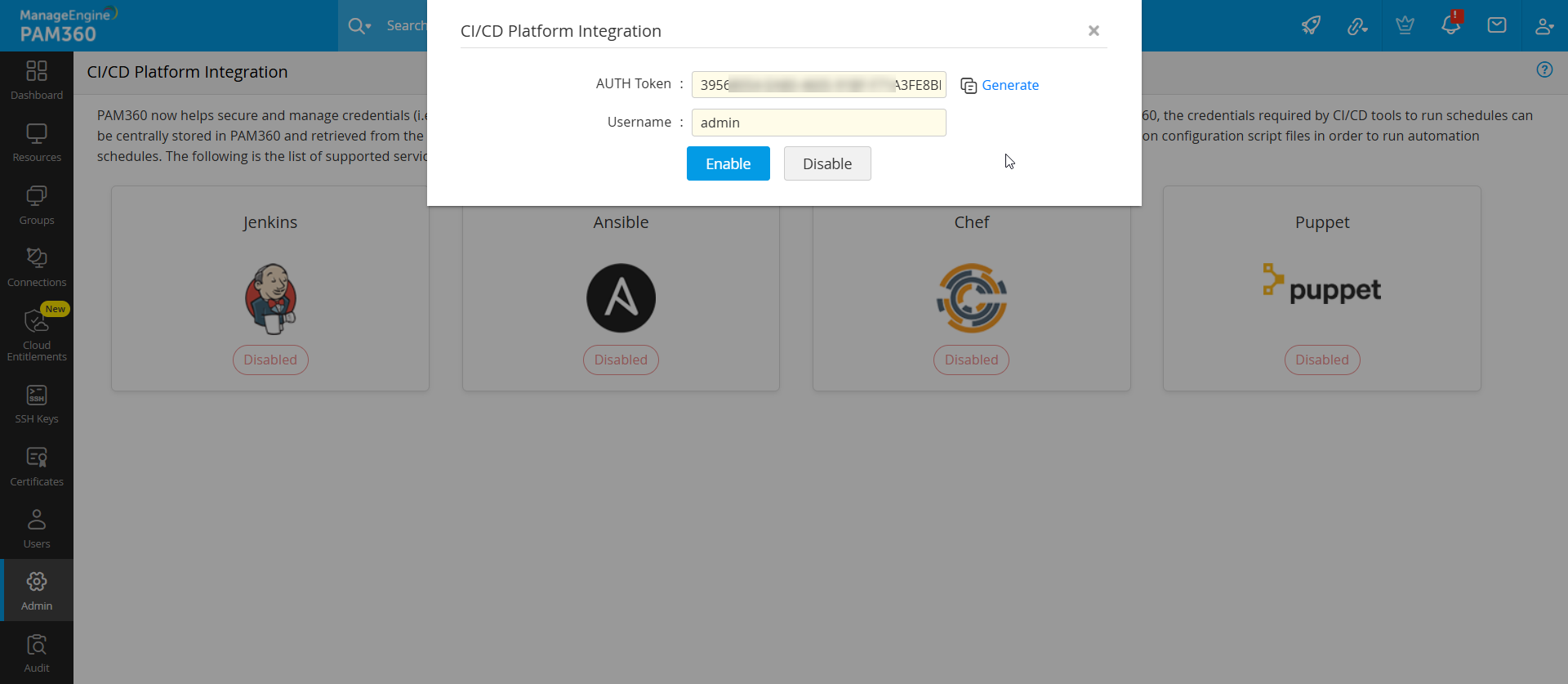
- Enter the username of an active PAM360 user. PAM360 will map the auth token to this user account and it will be used to retrieve required passwords from PAM360's vault. Once PAM360 maps the auth token to this user, the resources owned/shared to this user can also be accessed using this auth token.
- Click Enable.
Caution
Ensure that the PAM360 user account you provide has the minimum required permissions for this workflow i.e. privilege to view/retrieve the passwords of resources which Chef has to connect to. The passwords of resources owned by and shared to this user are the only credentials that Chef will have access to in PAM360.
1.2 Invoking the PAM360 Plugin in Chef
Import PAM360's ruby gem into your Chef cookbooks by executing the following steps:
- Initialize the PAM360 class object with the credentials.Wherein,
syntax:gemData = PAM360Gem.new("Hostname","Auth token",Path,port number)- Hostname:The PAM360 hostname of the account whose username was provided in step 1.1.
- Auth Token: The respective auth token generated in step 1.1.
- Path: Path to SSL certificate of the PAM360 server.
- Port number: The port number used for your PAM360 server. You need to specify this only if the port used is not the default PAM360 port 8282.
- The following are the methods to be applied to the Chef Cookbook to invoke the PAM360 plugin:This method fetches the account password as a string.
gemData.getAccountPassword("resource name","account name")This method returns the resource and account details in the array of JSON format.gemData.getAccountDetails("resource name","account name")
2. Setting Up the PAM360 Plugin for Puppet
The following are the steps to set up and manage sensitive credentials in Puppet with PAM360.
2.1 Enabling Puppet Integration in PAM360
- Log into PAM360 and navigate to Admin >> DevSecOps >> CI/CD Platform.
- Click the Puppet option.
- In the CI/CD Platform Integration window, click Generate to populate an AUTH Token automatically. This will be required later while invoking the plugin in Puppet. Once set up, all incoming connections from Puppet will be validated by PAM360 using this AUTH token.
- Enter the username of an active PAM360 user. PAM360 will map the auth token to this user account and it will be used to retrieve required passwords from PAM360's vault. Once PAM360 maps the auth token to this user, the resources owned/shared to this user can also be accessed using this auth token.
- Click Enable.
Caution
Ensure that the PAM360 user account you provide has the minimum required permissions for this workflow i.e. privilege to view/retrieve the passwords of resources which Puppet has to connect to. The passwords of resources owned by and shared to this user are the only credentials that Puppet will have access to in PAM360.
2.2 Invoking the PAM360 Plugin in Puppet
Import the PAM360's ruby gem into Puppet by executing the following steps:
- Initialize the PAM360 class object with credentials.Wherein,
syntax:gemData = PAM360Gem.new("Hostname","Auth token",Path,port number)- Hostname: The PAM360 hostname of the account whose username was provided in step 2.1.
- Auth Token: The respective auth token generated in step 2.1.
- Path: Path to SSL certificate of the PAM360 server.
- Port number: The port number used for your PAM360 server. You need to specify this only if the port used is not the default PAM360 port 8282.
- The following methods are to be applied to the Puppet to invoke the PAM360 plugin:This method fetches the account password as a string.
getAccountPassword(resourceName,AccountName)
This method returns the resource and account details in the array of JSON format.getAccountDetails(resourceName,AccountName)
3. Sample Codes
3.1 Fetching Resource and Account Details using PAM360 Plugin
The following are the sample input and output codes and the corresponding sample responses to fetch the account details using the PAM360 plugin. The sample codes remain the same for both Chef and Puppet.
Sample Input
	gem 'PAM360_Gem'
	require 'PAM360_Gem' gemData = PAM360Gem.new("localhost","060CCDB8-71A0-4B8B-AC57-XXXXX","/home/local/user/servercertificate")
	# resourcename = Windows accountname = useraccount1
	puts("resourcedetails\n")
	result = gemData.getAccountDetails("Windows ","useraccount1"))
	puts(result[0])
	puts("accountdetails\n")
	puts(result[1])
Sample Output
	resource details
	{"RESOURCE_ID":1,"RESOURCE_NAME":"Windows","RESOURCE_DESCRIPTION":"","OPERATINGSYSTEM":"Windows","DNSNAME":"","DEPARTMENT":"","LOCATION":"","RESOURCE_URL":""}
	account details
	{"ACCOUNTNAME":"useraccount1","PASSWORD":"Test@123"}
3.2 Fetching Password using the PAM360 Plugin
The following are the sample input and output codes and the corresponding sample responses to fetch the password using the PAM360 plugin. The sample codes remain the same for both Chef and Puppet.
Sample Input
	gem 'PAM360_Gem'
	require 'PAM360_Gem'
	gemData = PAM360Gem.new("localhost","060CCDB8-71A0-4B8B-AC57-XXXXX","/home/local/user/servercertificate")
	# resourcename = Windows accountname = useraccount1
	puts("accountpassword\n")
	puts(gemData.getAccountPassword("Windows ","useraccount1"
Sample Output
	accountpassword
	Test@123