Landing Servers for Data Centers
Data centers typically restrict direct remote access to devices via SSH, Telnet, and RDP connections. As a result, administrators working remotely must first connect to a landing server before accessing target systems. Depending on their access requirements, administrators can take a single hop (for RDP) or multiple hops before reaching the target devices. At each stage of this remote access process - whether connecting to the landing server, subsequent hops, or the final destination, administrators must provide credentials (username and password) and know the landing server's IP address.
PAM360 simplifies data center remote access management by enabling seamless, direct connections (TELNET, SSH, RDP, SFTP) to IT infrastructure while complying with data center access protocols and overcoming network segmentation barriers. Additionally, PAM360 provides comprehensive password management for remote devices, ensuring secure and efficient access.
At the end of this document, you will have learned the following topics:
- How Does It Works?
- Supported Connection Types
- Adding the Landing Servers as Resources
- Creating Identities for Landing Servers
- Associating Resources with Landing Servers
1. How Does It Works?
- Configure Landing Servers - Set up multiple landing servers to enable remote access to IT assets in your data center.
- Associate with Managed Resources - Link these landing servers to the resources managed within PAM360.
- Establish Seamless Access - Once configured, users can initiate direct connections to remote resources with a single click. PAM360 automatically manages intermediate hops, eliminating the need for manual credential entry at each step.
2. Supported Connection Types
PAM360 supports landing server configurations for the connection types inclding, SSH, Telnet, RDP and SFTP.
Caution
- If the landing server relies solely on an RDP connection (e.g., a Windows Domain server), install and configure the ME_AMP_REMOTEAPP program on the endpoint to ensure an optimal remote connection.
- RDP support is available starting from PAM360 build 5000.
- SFTP support is available starting from PAM360 build 6530.
3. Adding Landing Servers as Resources
In PAM360, landing servers function as resources, forming the initial point of connection for remote access to data centers. Therefore, the first step is to add the required landing servers as resources using the standard resource addition process. Landing servers typically have both primary and secondary configurations. To ensure seamless failover and uninterrupted access, add both primary and secondary servers as resources in PAM360.
4. Creating Identities for Landing Servers
Once the landing servers have been added as resources, the next step is to create a unique identity for each landing server. This identity helps in easy identification and management. Follow the below steps to create landing server identities:
- Navigate to Admin >> PAM360 Gateways >> Landing Servers.
- Click Add Landing Server available on the top-left corner.
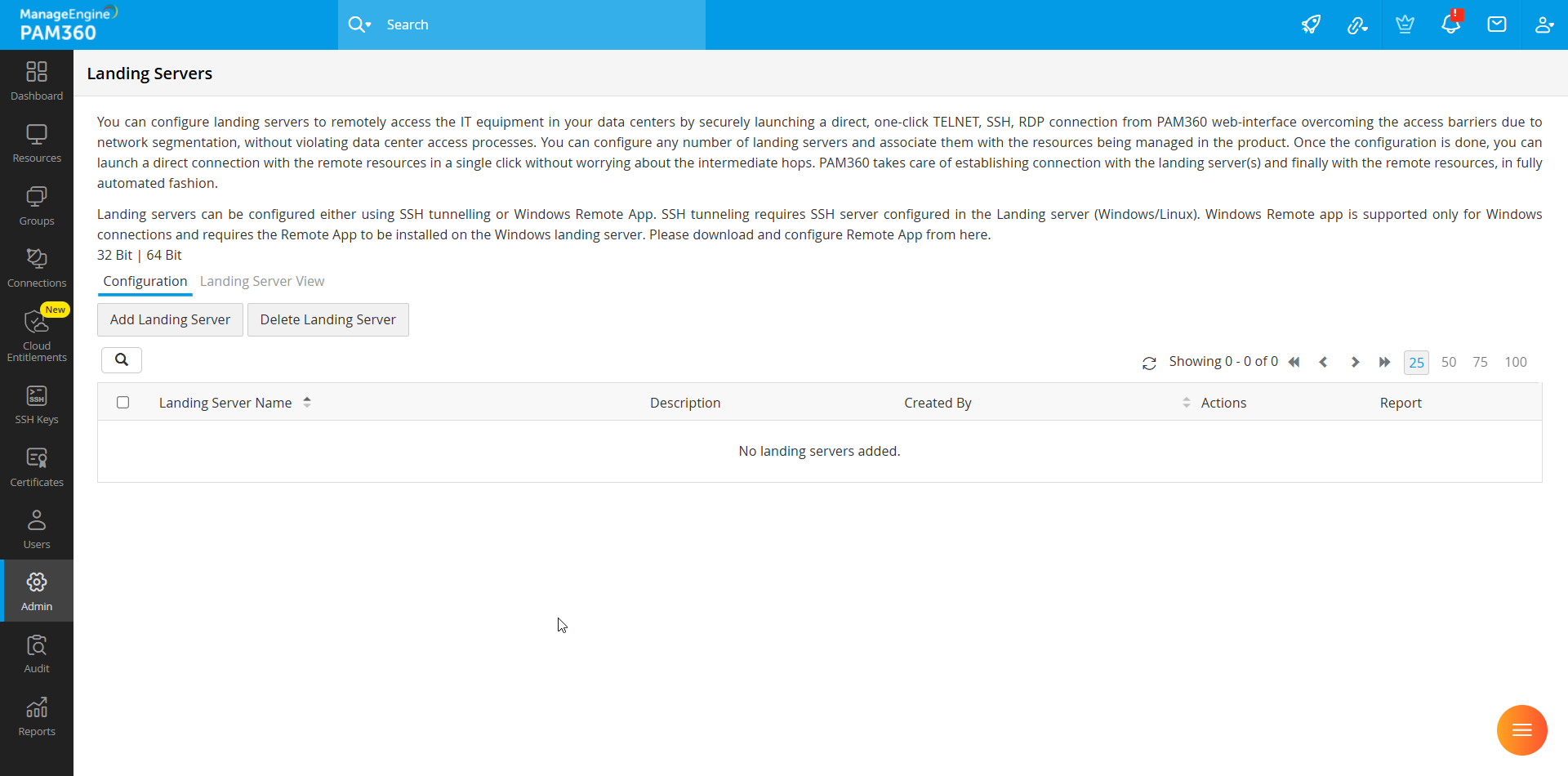
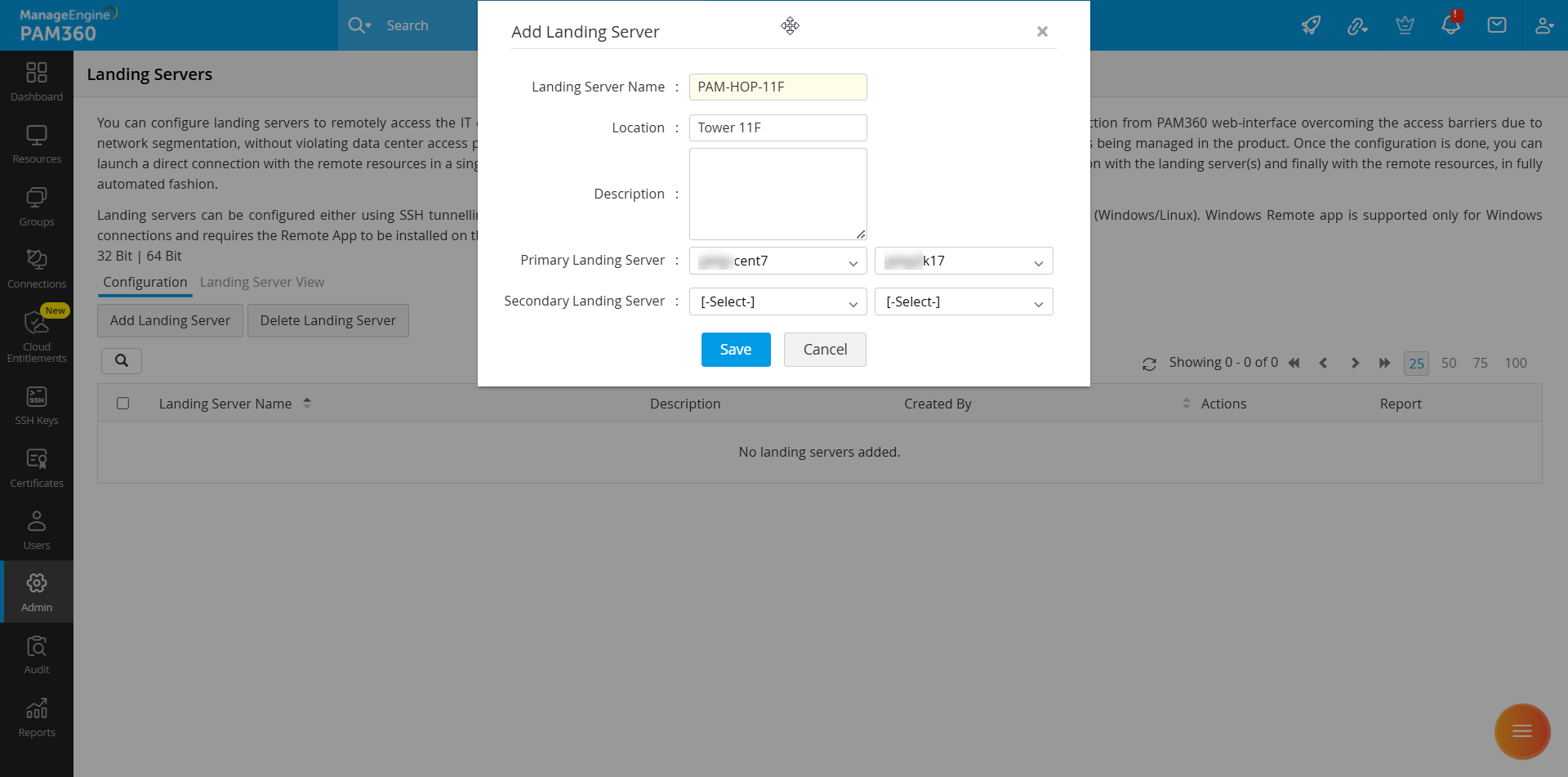
- In the pop-up form that opens:
- Enter a unique Landing Server Name.
- Provide additional details such as Location and descriptive Notes.
- If there are primary and secondary instances, select the corresponding landing server resources (as added in Section 3) from the dropdown.
- Choose the account used for logging into the landing server.
- Click Save.
Repeat the process to create identities for additional landing servers as needed.
5. Associating Resources with Landing Servers
After configuring the landing servers, the next step is to associate them with the relevant resources. This is crucial as it defines the connection path between the resources and their respective landing servers.
Different resources may require different landing servers and connection paths. Some setups may involve multiple landing servers (hops) before reaching the final resource. PAM360 allows seamless association and automation of these connection pathways.
For example, assume that you want to connect to your corporate mail server, which is hosted on a Linux machine within a data center. To establish the connection, you must first hop through Landing Server A. In this case, the mail server must be associated with Landing Server A in PAM360.
5.1 Sample Configuration: Multi-Hop Access
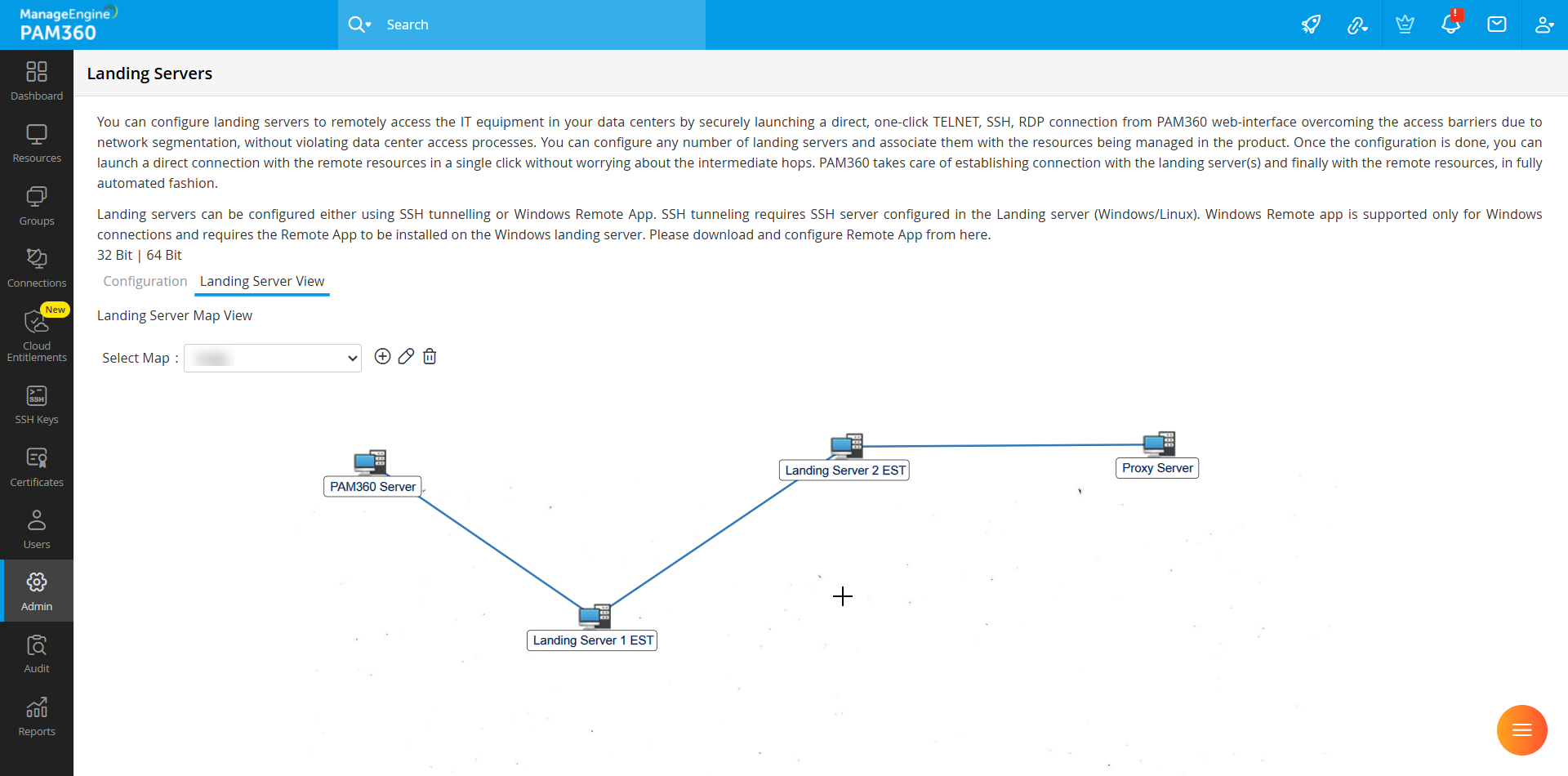
Consider the following access path: PAM360 Server >> Landing Server 1 >> Landing Server 2 >> Proxy Server (Data Center)
To connect to the proxy server in the data center from PAM360, establish a connection with Landing Server 1, hop to Landing Server 2 and then finally, access the proxy server in the data center. Follow the steps below to associate landing server resources with target servers:
- Navigate to Admin >> PAM360 Gateways >> Landing Servers.
- Click the Configure Resourcesto use this Landing Server icon under the Actions dropdown of the desired landing server.
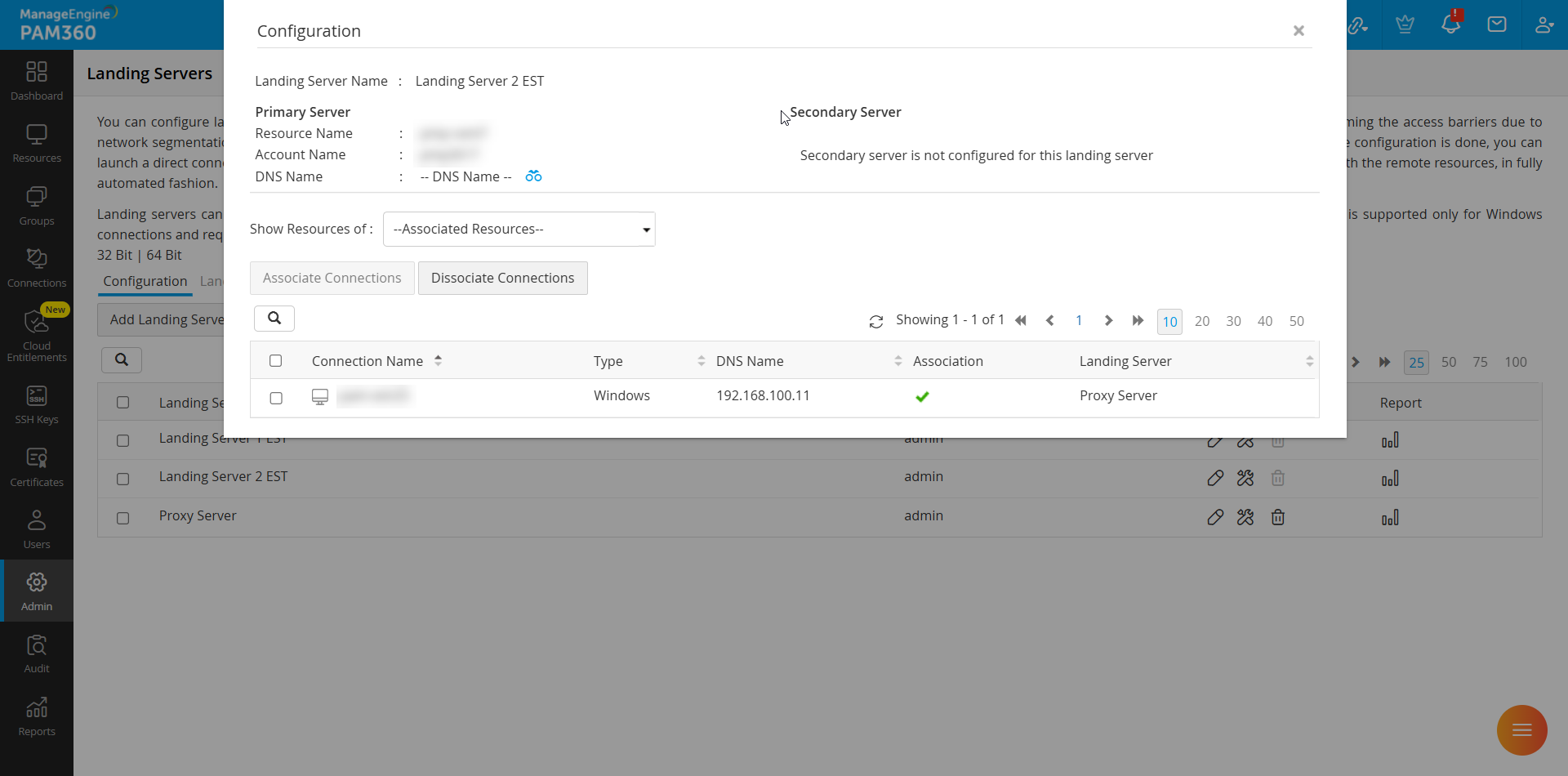
- In the configuration window, select the required resources/connections.
- Click Associate Connections.
- Establish sequential associations: Landing Server 1 with Landing Server 2 and Landing Server 2 with Proxy Server.
Once configured, PAM360 automatically determines the optimal connection path and establishes a seamless, direct connection to the target resource.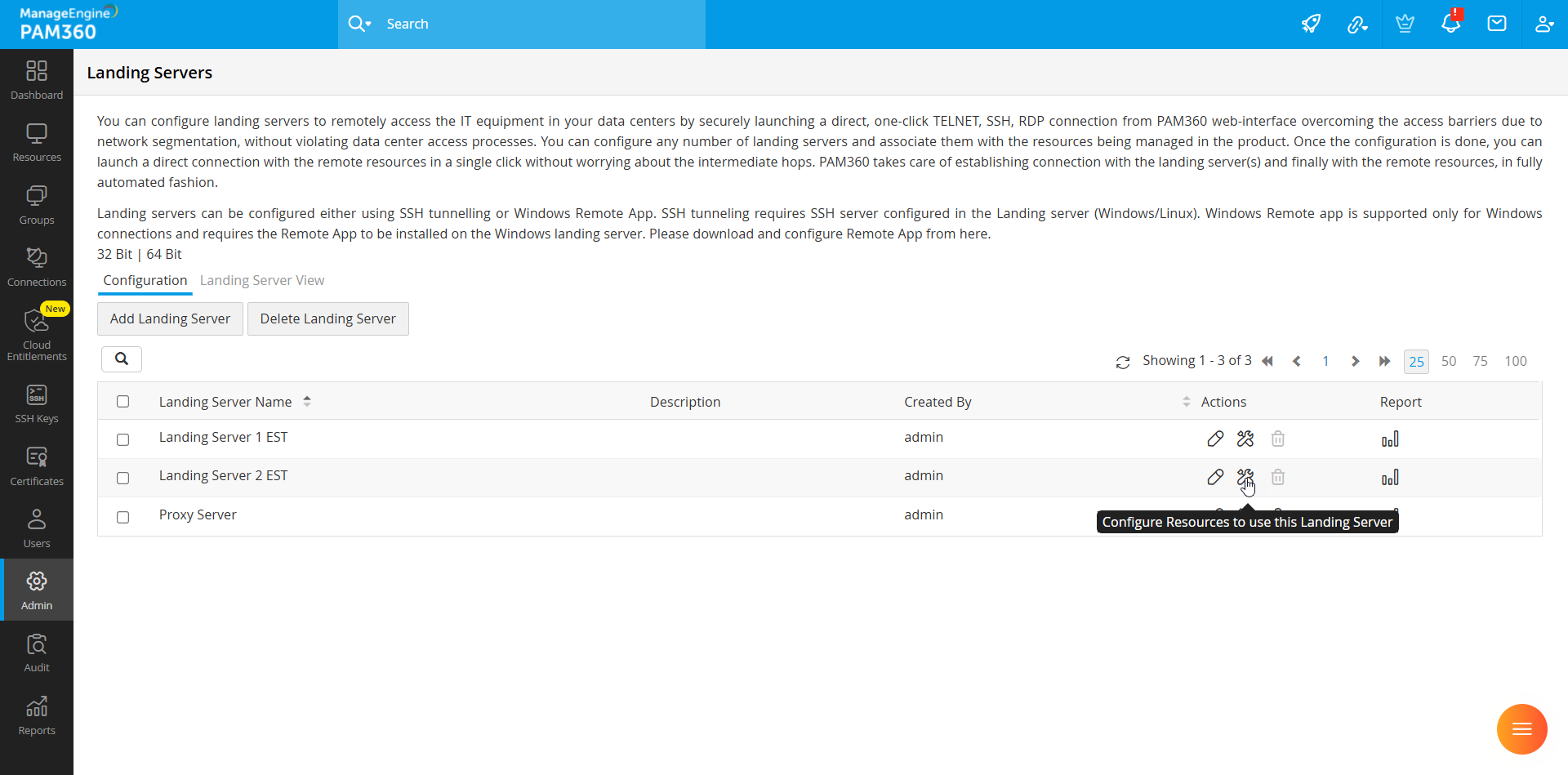
5.2 Associating Landing Servers During Resource Addition
If the landing servers and their identities were configured as in section 3 and 4, you can associate them directly during the resource addition process:
- When adding a new resource, select Resource Type as Landing Server. Alternatively, you can also associate by editing the existing resources.