Password Reset Listener
Password reset is one of the critical functions performed by PAM360 to secure the sensitive data within an organization from unauthorized access. When passwords of critical systems are reset, they should be updated in the dependent services and systems that utilize this password to prevent service disruptions.
The Password Reset Listener in PAM360 is a post-reset mechanism that automatically synchronizes updated credentials with external applications and services. It helps administrators securely inject the new passwords across their environment, ensuring consistency across systems, applications, and databases. By doing so, it minimizes downtime caused by password mismatches and simplifies credential management.
This help document covers the following topics in detail:
- Roles and Permissions
- Workflow
- Follow-Up Actions Supported by PAM360
- Adding a Password Reset Listener
- Approving a Password Reset Listener
- Implementing a Custom Password Reset Listener
- Frequently Asked Questions
1. Roles and Permissions
By default, users with the Privileged Administrator and Administrator roles can add, manage, and configure password reset listeners in PAM360. Additionally, PAM360 allows administrators to configure custom user roles with the Manage Password Reset Listener privilege within Admin >> Customization >> Roles >> Custom Settings to add, manage, and approve password reset listeners.
2. Workflow
Whenever the password of an account stored in the PAM360 repository is rotated, the configured Password Reset Listener in PAM360 invokes a script or executable to update the passwords on dependent services and systems. The listener scripts can be invoked when the local account passwords are rotated and when the passwords of resource types for which remote password reset is not natively supported by PAM360 are rotated. Administrators can configure password reset listener scripts individually for each resource type, including the custom (i.e., user-defined) resource types.
- The listener scripts are executed in the same way as they would be executed from the operating system’s command prompt.
- If the scripts require another program to run (for example, cscript c:\scripts\changepassword.vbs old_password new_password), it can be specified as a Pre-Command.
- By default, PAM360 passes parameters such as the resource name, DNS name, account name, old password, and new password as arguments to the script.
- Additional arguments can also be configured through the Additional Parameters field.
For security reasons, the password reset listener scripts run with the same privilege as the user account running the PAM360 server, and a dual control mechanism ensures that any add, edit, or delete operation on password reset listeners is approved by another administrator. PAM360 will not invoke the script until it has been reviewed and approved.
The password reset listeners are invoked from a separate thread, so it does not affect the password reset process itself. Listener scripts are stored securely in the PAM360 database, ensuring that they benefit from existing database security and backup configurations.
3. Follow-Up Actions Supported by PAM360
PAM360 allows administrators to execute a range of follow-up actions via listener scripts immediately after a password reset. These actions help ensure that dependent services and processes remain synchronized with the updated credentials, minimizing disruptions. The supported follow-up actions include:
- Restarting dependent services immediately after password reset to ensure continuity without any service disruptions.
- Updating the credentials of Windows scheduled tasks and other associated processes to prevent authentication failures.
- For services that use accounts whose passwords are reset in PAM360, listener scripts can automatically update the stored credentials in the service’s Logon property.
- If accounts of network devices are added as resources in PAM360, their passwords can first be reset locally in PAM360, and then a custom listener script can be triggered to connect to the devices and apply the updated passwords directly on them.
4. Adding a Password Reset Listener
Caution
The Execution Order and Execution Mode fields while adding a Password Reset Listener are available only after builds 5710.
Follow these steps to set up a new password reset listener:
- Navigate to Admin >> Password Management >> Password Reset Listener.
- In the Password Reset Listener window that appears, click the Add Listener button in the top pane.
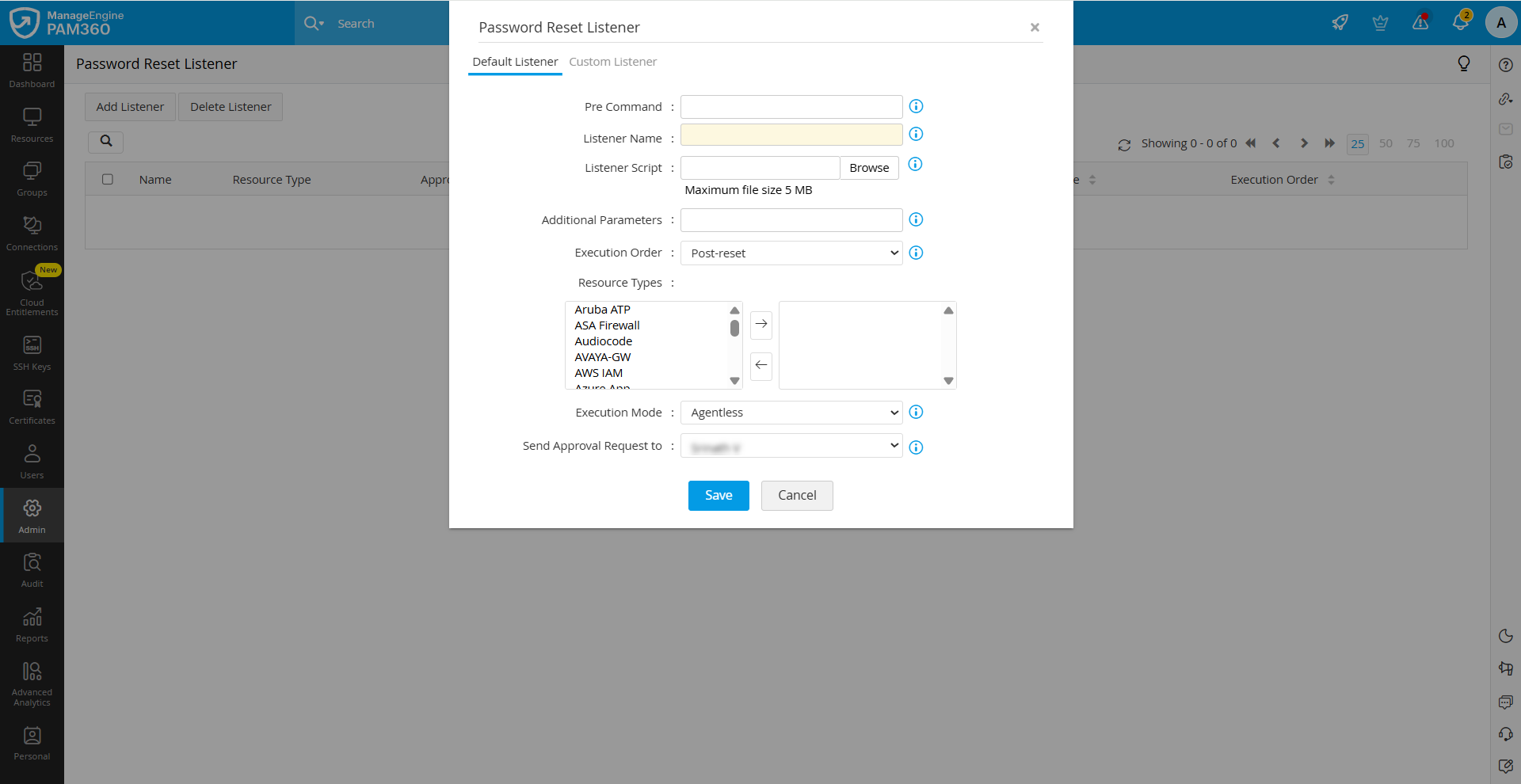
- In the pop-up window that appears, enter the following details:
- Pre Command - If the script you are adding requires another program to run (for example, cscript c:\scripts\changepassword.vbs old_password new_password), specify it in this field.
- Listener Name - Enter a name for the password reset listener you are creating.
- Listener Script - Click the Browse button and upload the listener script from your machine. The allowed maximum file size is 5 MB.
- Additional Parameters - If you want to pass additional parameters to the script, specify them in this field. These parameters will be passed as arguments to the script during execution in the specified order.
- Execution Order - Select the execution order of the script. This allows administrators to execute the script before or after the password reset operation.
- Resource Types - Click on the desired resource type in the left column and click the right arrow button to select that resource type. Repeat this step for all the required resource types for which you are configuring this password reset listener.
- Execution Mode - Click on the drop-down menu and select the desired execution mode from the given options, such as Agentless, Agent, and Agentless & Agent.
- If you choose the Agentless mode, the script will be executed in the PAM360 server.
- If you choose the Agent mode, the script will be executed on the agent machine.
- If you choose the Agentless & Agent mode, the script will be executed first in the PAM360 server, and if it fails, it will then be executed in the agent machine.
- After adding the necessary details, select an administrator from the drop-down option beside the Send Approval Request to field and click Save. An email will be sent to the selected administrator intimating the approval request.
- The listener script will be added successfully once it is approved by the selected administrator.
5. Approving a Password Reset Listener
By default, users with the administrator type user role can add the password reset listeners in PAM360. Additionally, all the password reset listeners added by an administrator should be approved by another administrator to ensure that only authorized and necessary scripts or programs are being invoked. Follow these steps to approve the addition of a password reset listener:
- Navigate to Admin >> Password Management >> Password Reset Listener.
- On the Password Reset Listener page, you will see the list of all the listeners added in your environment.
- Click the Approve button located under the Approval Status column beside the desired listener you want to approve.
All the events related to password reset listeners are audited in PAM360.
6. Implementing a Custom Password Reset Listener
In addition to the default password reset listeners, PAM360 allows you to implement your own custom listeners. A custom listener provides the flexibility to define and execute any post-password-reset follow-up action beyond the standard listener scripts. This can be achieved by writing your own implementation class that integrates with PAM360 through the provided interface.
The following is a sample implementation of steps that execute PowerShell scripts with a reset listener:
- Write your own implementation class that implements the PAM360ListenerInterface.java interface to define your custom listener as shown below:
	public interface PAM360ListenerInterface {

	static final Logger LOG = Logger.getLogger(PAM360ListenerInterface.class.getName());

public String executeListener(Properties resourceProps, Properties accountProps, String listenerFilePath, String oldPassword) throws Exception;} - Implement your class in such a way that resource or account properties are passed as arguments. You can pass various resource and account properties as arguments to your implementation class. For example, to access the Resource Name, you can use the resourceProps.get("RESOURCENAME") syntax.
- Add your implementation class as a custom listener in PAM360. To do so, navigate to Admin >> Password Management >> Password Reset Listener >> Add Listener.
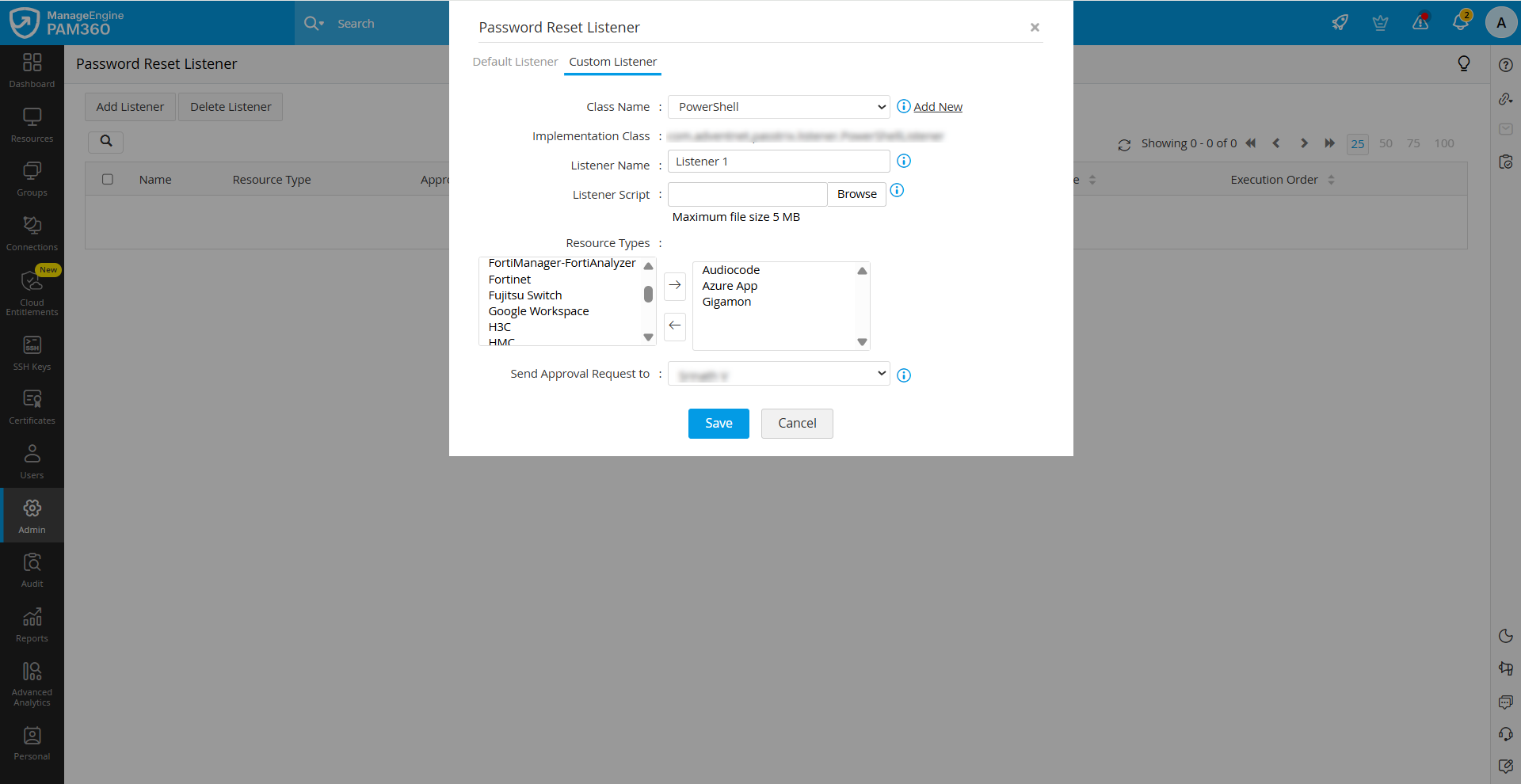
- In the window that appears, switch to the Custom Listener tab and enter the following details:
- Class Name - Select the desired implementation class from the available options. Click the Add New button to add a new implementation class.
- New Class Name - Enter the name for your implementation class in this field.
- Implementation Class - Enter your implementation class in this field.
- Description - Enter a brief description for the custom listener you are adding in this field.
- Listener Name - Enter a name for the password reset listener you are creating.
- Listener Script - Click the Browse button and upload the listener script from your machine. The allowed maximum file size is 5 MB.
- Resource Types - Click on the desired resource type in the left column and click the right arrow button to select that resource type. Repeat this step for all the required resource types for which you are configuring this custom reset listener.
- After adding the necessary details, select an administrator from the drop-down option beside the Send Approval Request to field and click Save. An email will be sent to the selected administrator intimating the approval request.
- Class Name - Select the desired implementation class from the available options. Click the Add New button to add a new implementation class.
- Convert your implementation class into a .jar file and move the .jar file to the <PAM360-Installation-Directory>/bin folder.
- Restart the PAM360 service for the changes to take effect.
You can retrieve the value of any property using the keys listed below.
| Resource Properties (resourceProps) | |
|---|---|
RESOURCENAME | Name of the resource added in PAM360. |
IPADDRESS | DNS name or IP address of the resource. |
RESOURCEURL | Resource URL configured for the resource. |
DOMAINNAME | Domain name for Windows Domain resources. |
SSHPORT | SSH port number if the device supports SSH connections. |
RESOURCEDESC | Description of the resource. |
LOCATION | Location of the resource. |
DEPARTMENT | Department to which the resource belongs. |
Custom Resource Columns | The label name of each custom column will serve as the key. Returns the respective account parameter details. |
| Account Properties (accountProps) | |
DESCRIPTION | Description of the account. |
LOGINNAME | Login name of the user account added in PAM360. |
PASSWORD | Password of the user account. |
DOMAINNAME | Domain name for Windows Domain resources. |
COMPLIANTSTATUS | Whether the password complies with the password policy configured in PAM360. |
COMPLIANTREASON | Provides the reason if the password does not comply with the policy. |
EXPIRYSTATUS | Status of password expiry for the account. |
PASSWRDSYNCSTATUS | Whether the password is in sync with the password set on the remote resource. |
Custom Account Columns | Returns the respective account parameter details. The label name of each custom column will serve as the key. |
| Other Arguments | |
listenerFilePath | Path to the script or file to be invoked as the listener. You can also specify this file while configuring the listener in PAM360. |
oldPassword | Old password passed to the implementation class to facilitate the password reset operation. |
Below is an example of a custom implementation class designed to execute a PowerShell script using the listener mechanism:
public class PowerShellListener implements PAM360ListenerInterface {

	public String executeListener(Properties resourceProps, Properties accountProps, String listenerFilePath, String oldPassword) throws Exception {

	String message = "Executed Successfully";// used for audit reason

	// got the properties

	// call the powershell script}}
7. Frequently Asked Questions
1. What are the Execution Modes available in the Password Reset Listener?
Two execution modes are available: Pre (executes the script before the password reset) and Post (executes the script after the reset).
2. Are there any reports for resources configured with the Password Reset Listener?
Yes. Navigate to Reports >> Query Reports >> Resources and search for Password Reset Listener. The report lists resources configured with the listener.
3. After upgrading to PAM360 build 5710, what mode will be applied to the existing listeners?
By default, all existing listeners will be set to Agentless mode with Post as the execution order.