Remote Connection to SSH-Based Devices Using SSH Keys
PAM360 enables seamless remote connections to SSH-based systems directly through its web interface using SSH keys. This functionality complements its existing capability of launching remote sessions via user account credentials. To establish a connection using SSH keys, they must first be associated with the relevant accounts. This guide outlines the steps required to accomplish this.
- Associating SSH Keys with Accounts
- Enabling Private Key Login for an Existing Account
- Enabling PKI Authentication for Remote Password Reset
Best Practices
- One SSH key can be associated with multiple user accounts using Key Actions >> Associate Keys, but as a best practice, we recommended to associate only one SSH key per account to preserve data security.
- Map private key locally, if remote key association fails is recommended to use only when the target system is accessible exclusively through a jump server.
- Before proceeding, ensure that the Private Key option is enabled for Linux resources. Else, follow the steps below to enable it:
- Navigate to Admin >> Resource Management >> Resource Types.
- Click the edit icon next to Linux.
- Under Account Attributes, enable the Private Key option and click Save.
1. Associating SSH Keys with Accounts
PAM360 allows remote connections via SSH keys through the option Use Private Key for Login when creating or editing an account or SSH key. However, before enabling private key login, the SSH keys must be properly associated with the relevant accounts. There are three methods to achieve this:
- Creating a New SSH Key and Associating It with an Existing Account
- Associating an Existing Key with a New Account
- Associating an Existing Key with an Existing Account
1.1 Creating a New SSH Key and Associating It with an Existing Account
To create a new SSH key, follow these steps:
- Navigate to the Resources tab and select the resource where the required account exists.
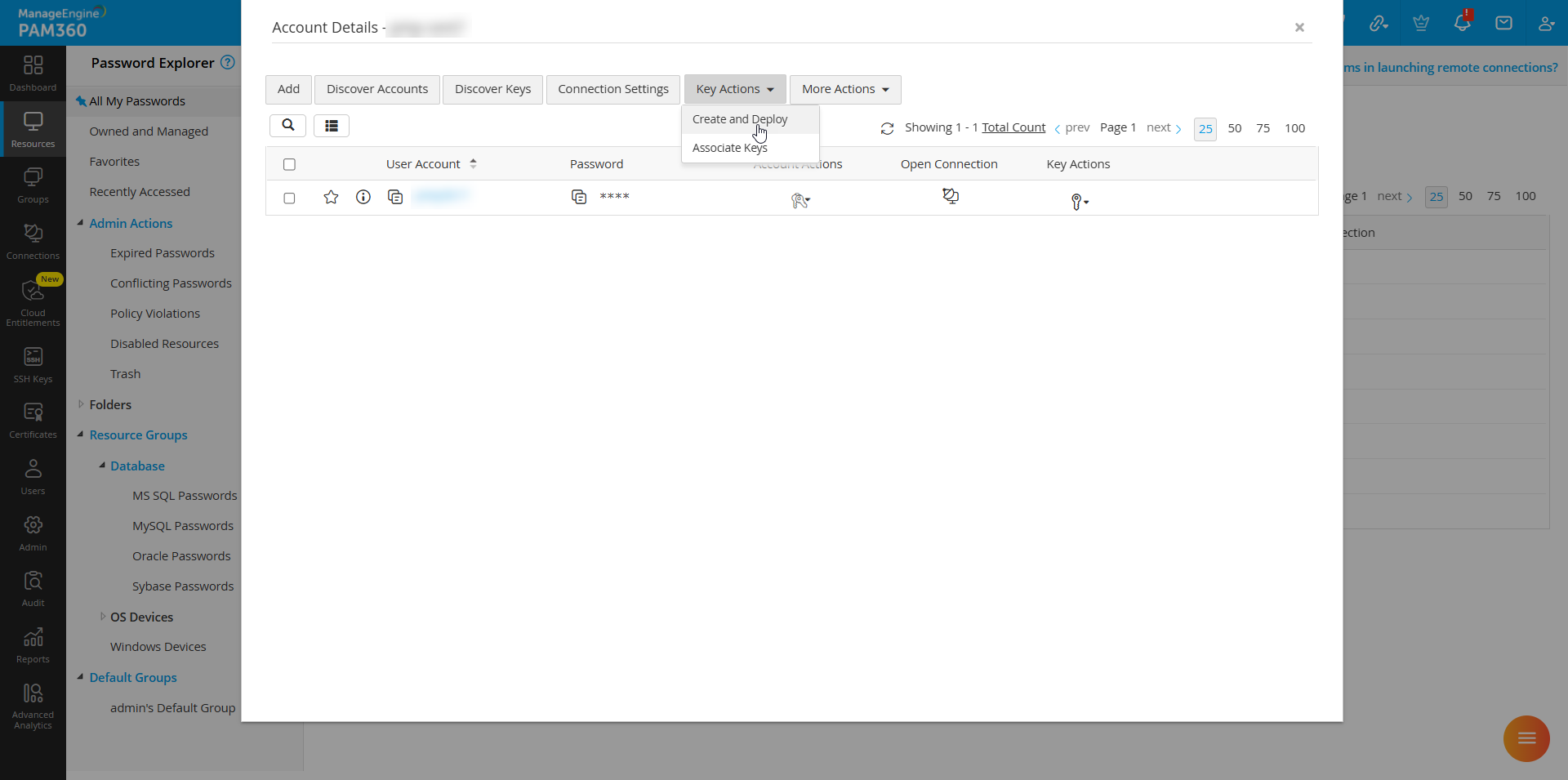
- Choose the account and click Create and Deploy from the Key Actions drop-down menu.
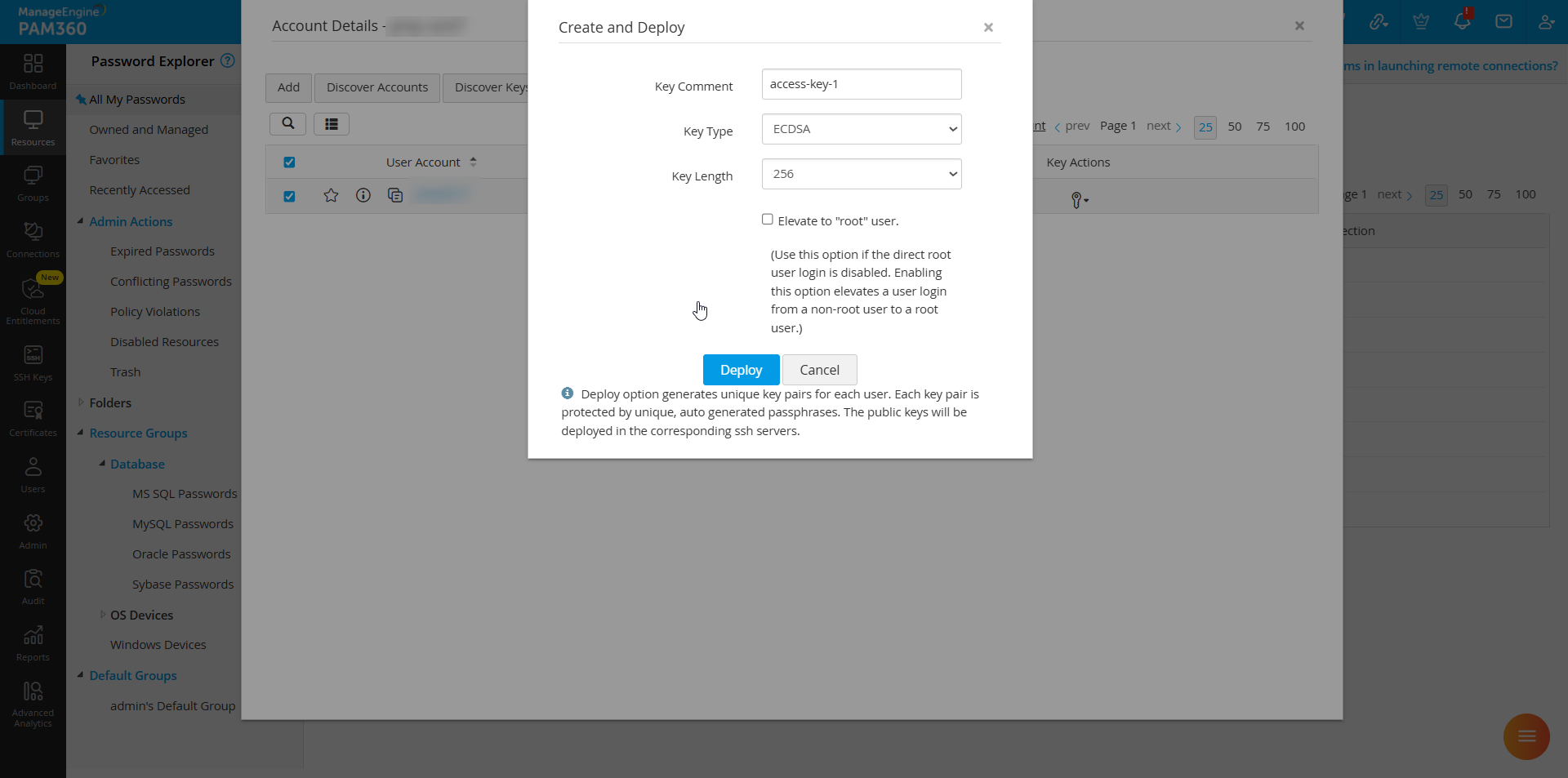
- In the pop-up form, enter the necessary details such as Key Comment, Key Type, and Key Length.
- Click Deploy to save the changes. The newly created key will be deployed to the selected account.
To associate the key with the account for further login purpose, follow these steps:
- Select the required account and navigate to Key Actions >> Associate Keys to choose the key.
- Check the box Use private key to login to this account instead of password to authorize SSH key-based authentication.
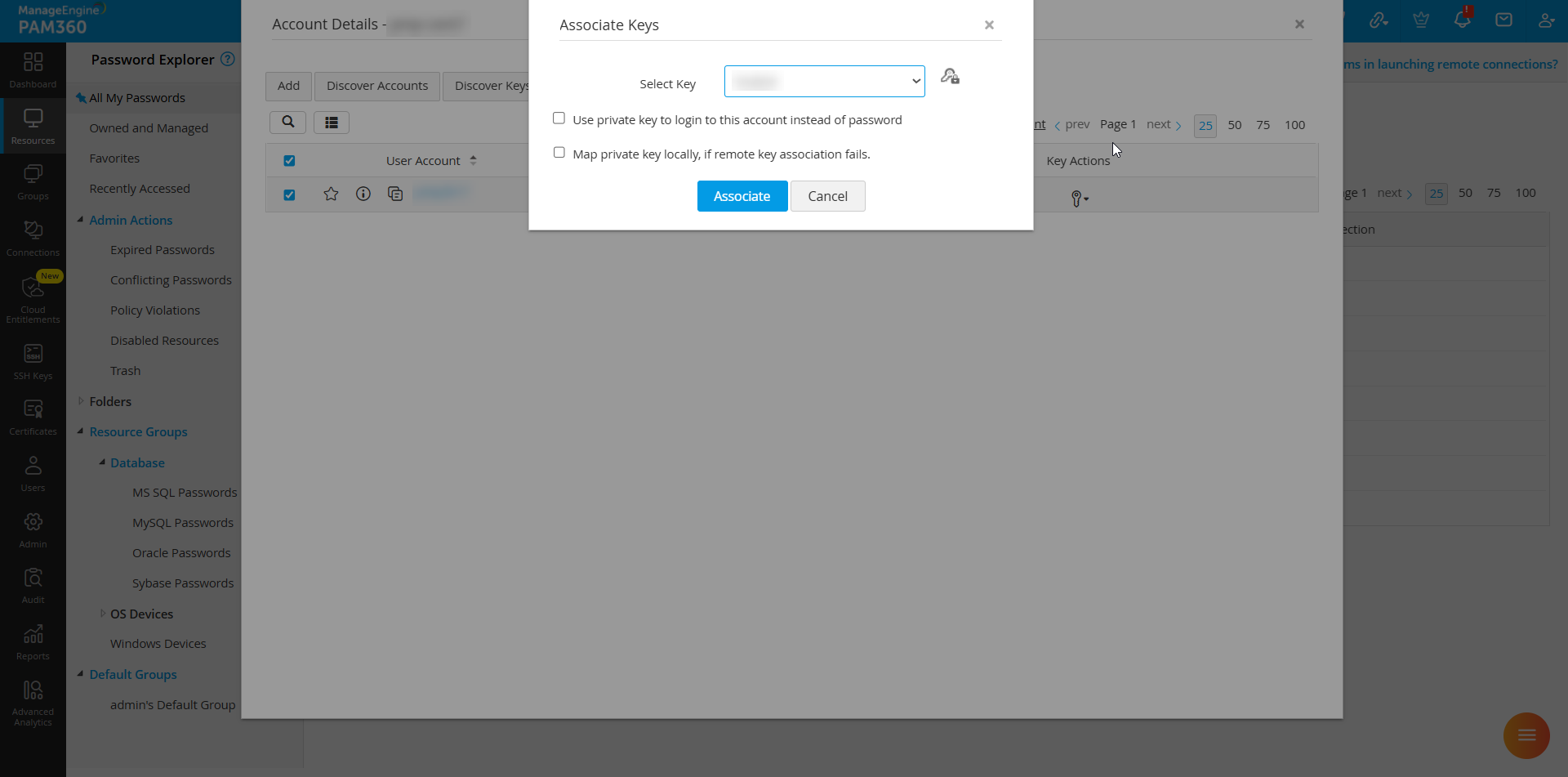
- Check Map private key locally, if remote key association fails to force-map SSH keys to accounts when target systems are unreachable.
- Click Associate to apply the changes.
Additional Details
Learn how to create an SSH key from the SSH Keys tab before associating it with an account.
1.2 Import and Associate an Existing Key with a New Account
If you have an existing SSH key generated outside of PAM360, you can import it and associate it with a new account:
- While creating a new account, browse and import the SSH key in the SSH Key field, and select the checkbox Use private key to login to this account instead of password.
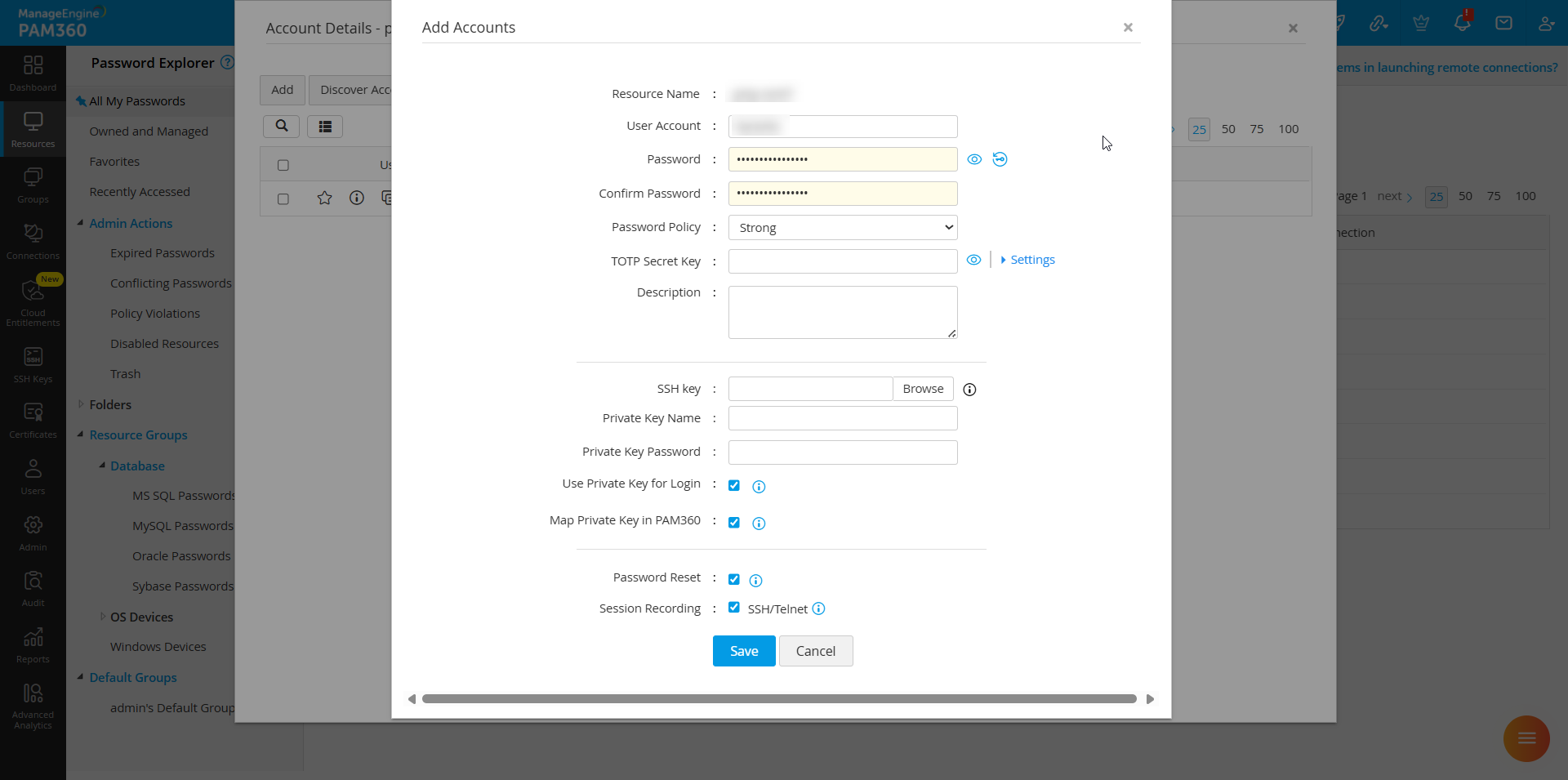
- Check Map private key locally, if remote key association fails to enforce key mapping when the target system is unreachable.
- Click Save to add the account.
Caution
The User Account and Password fields cannot be left empty, even with private key authentication enabled. You can generate a random password using the built-in password generator.
1.3 Import and Associate an Existing Key with an Existing Account
To add an existing key outside of PAM360 to an account available in PAM360, follow these steps:
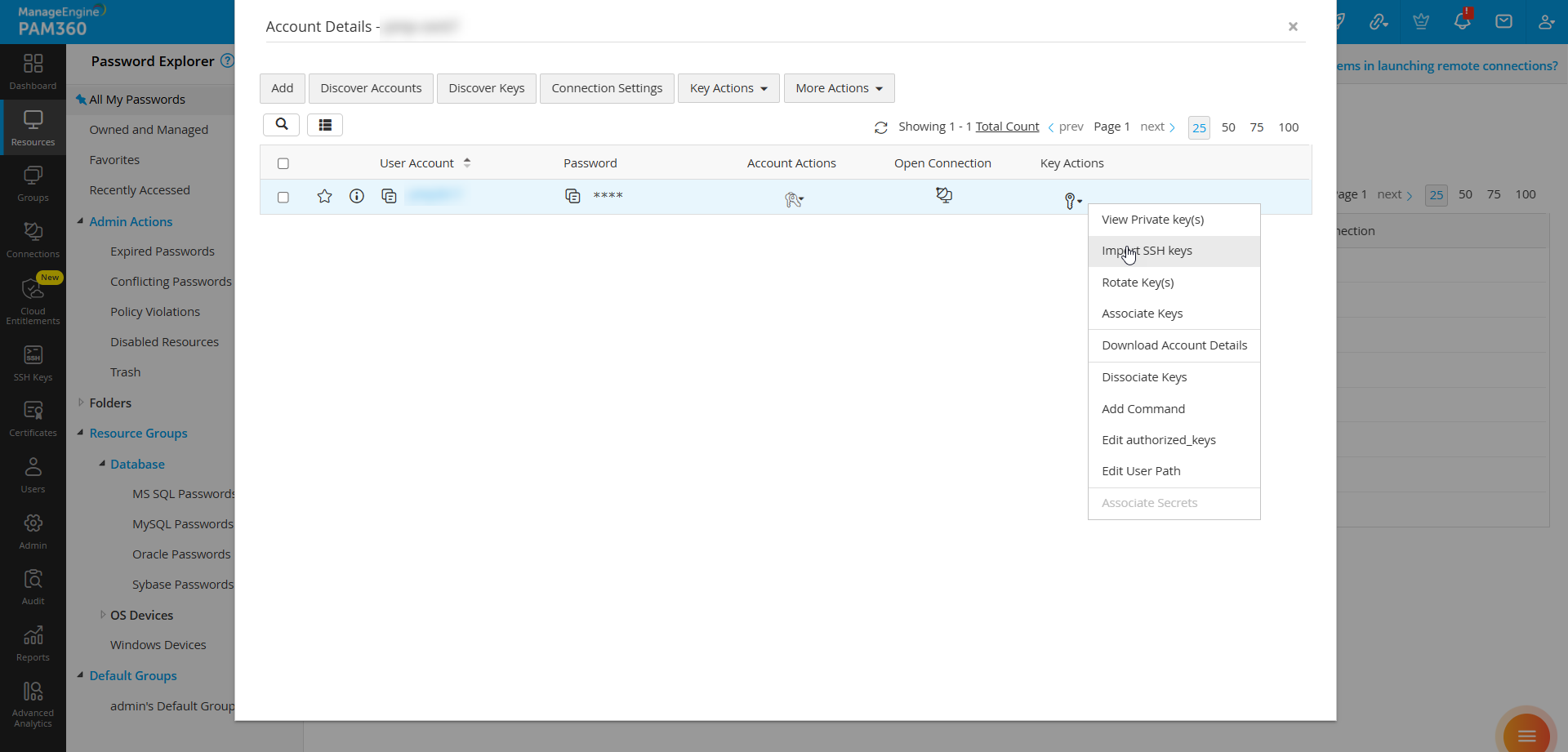
- Navigate to the Resources tab and select the relevant resource. In the Account Details pop-up, choose the required account.
- Click Key Actions >> Import SSH Keys and browse for the SSH key file.
- Enter the Key Name and a Passphrase and enable Map private key locally, if remote key association fails.
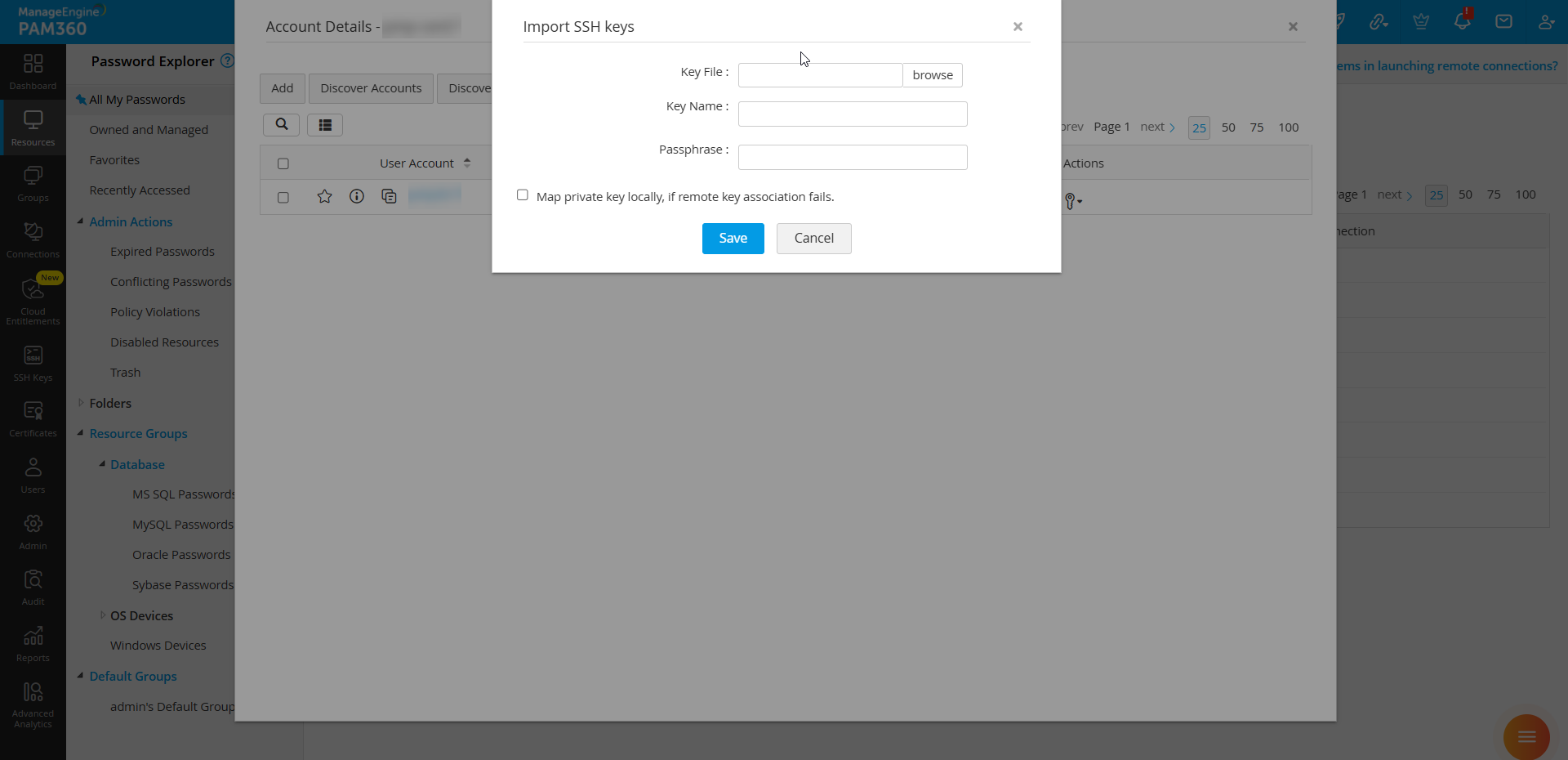
- Click Save to import the SSH key into PAM360.
2. Enabling Private Key Login for an Existing Account
If private key login was not enabled during account creation or key association, follow these steps:
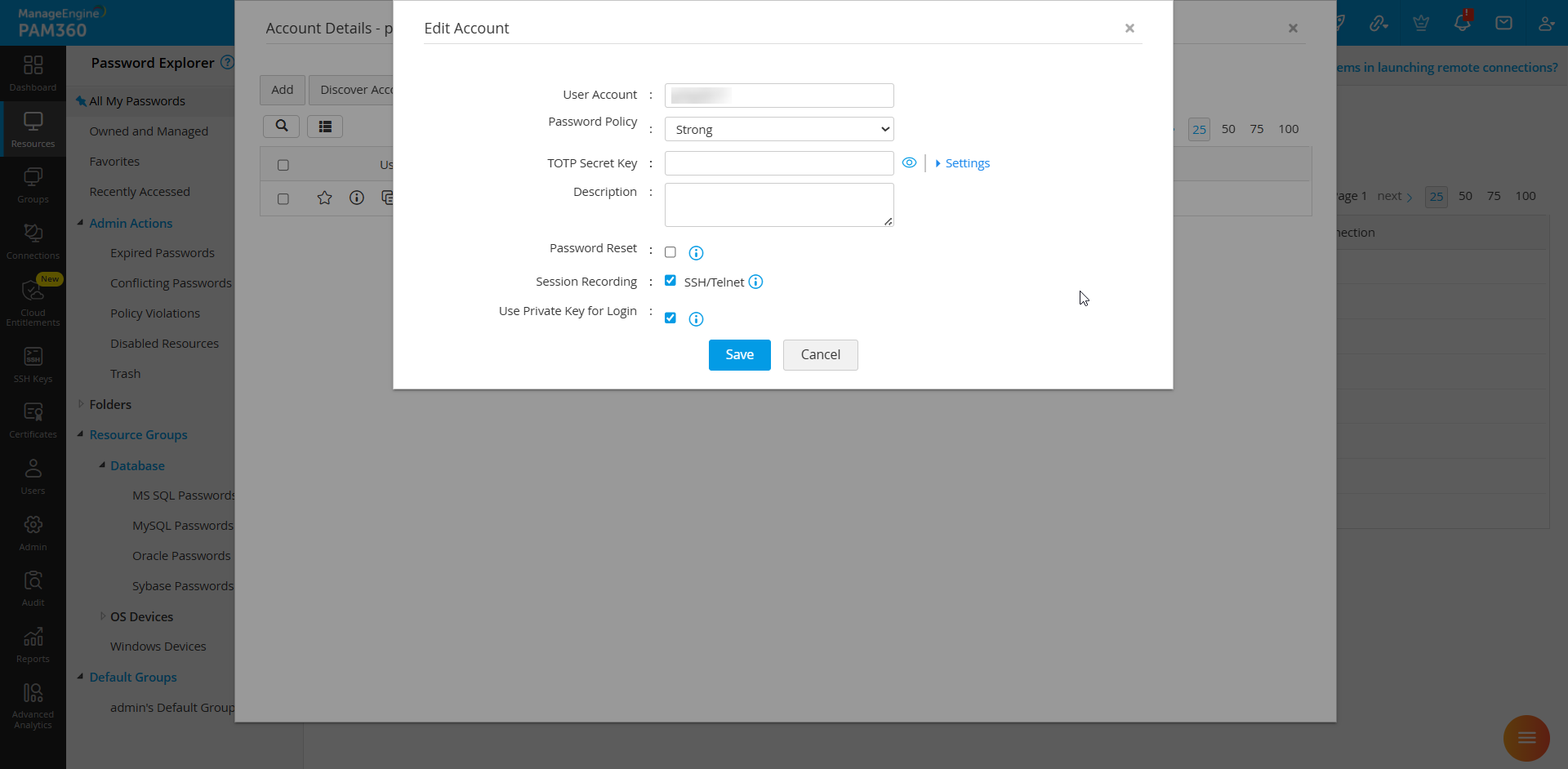
- Edit the existing account settings.
- Select the checkbox Use private key to login to this account instead of password.
- Save the changes to authorize SSH key-based authentication.
3. Enabling PKI Authentication for Remote Password Reset
Caution
This step is required only if you intend to use a specific account for remote password resets. If you only need to initiate SSH sessions using SSH keys, enabling PKI authentication is unnecessary.
To configure PKI authentication for remote password resets, follow these steps:
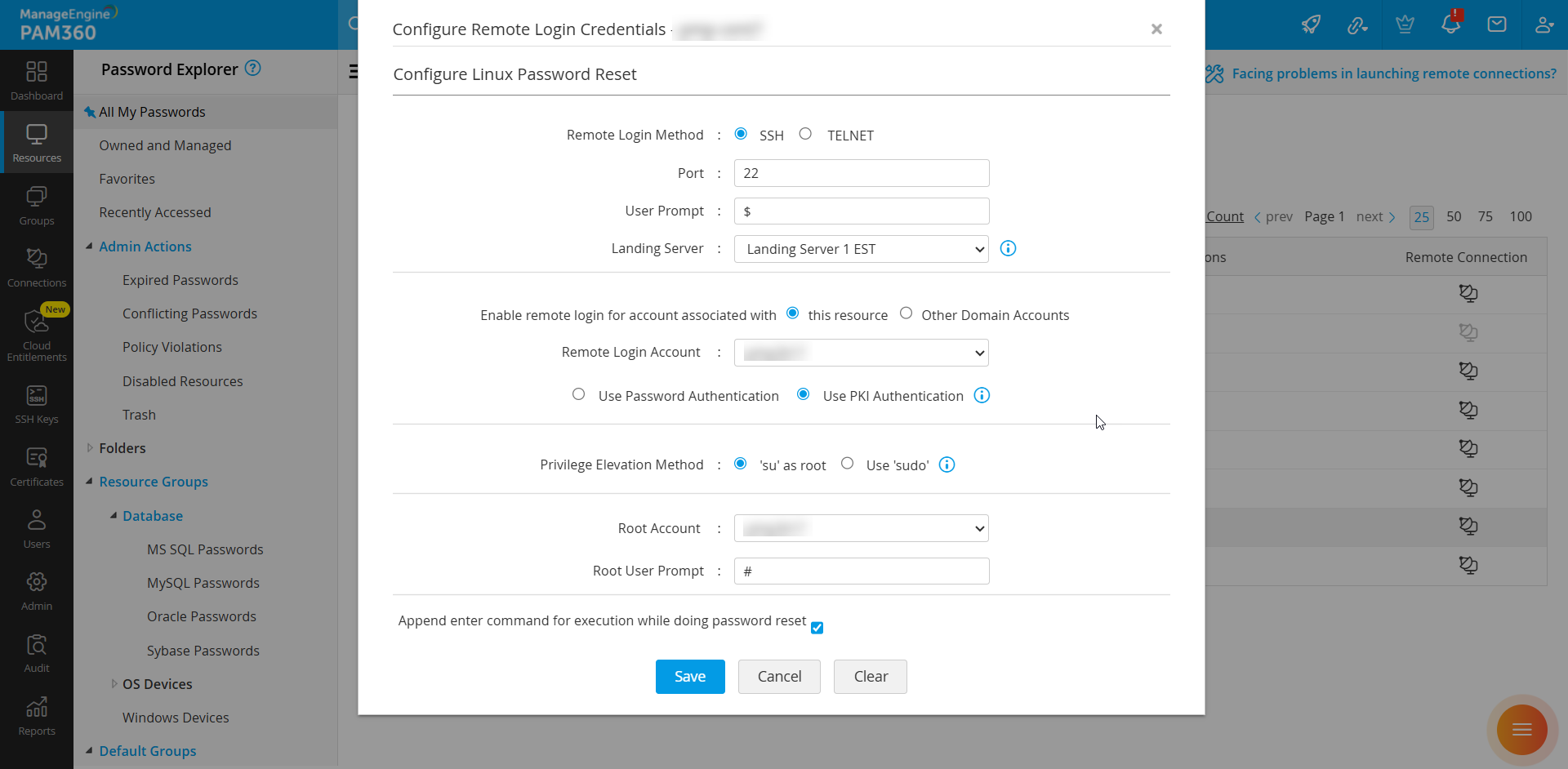
- Navigate to the Resources tab and click Resource Actions >> Configure Remote Password Reset beside the relevant resource.
- Under Configure Linux Password Reset, select the account with private key authentication enabled as the Remote Login Account.
- Choose Use PKI Authentication and click Save.
By following these steps, you can successfully configure SSH key-based authentication in PAM360, enabling secure and efficient remote connections to SSH-based devices.