Setting Up Two-Factor Authentication With RSA SecurID
You can set up Two-Factor Authentication (TFA) with RSA SecurID in PAM360 if you have RSA Authentication Manager and RSA SecurID Appliance in your environment. This will help you leverage RSA SecurID's authentication factor as the second layer of security for your login.
Following are the steps to set up TFA with RSA SecurID in PAM360:
Caution
Enable RSA SecurID as the TFA and enforce it to the PAM360 users prior configuring it from the RSA interface. Refer here for detailed instructions.
1. Integrating RSA SecurID with PAM360
You can integrate RSA SecurID with PAM360 by following the below steps:
- Register the PAM360 server as an Agent Host in the RSA Authentication Manager.
- Generate RSA Authentication Manager configuration file, or sdconf.rec in RSA manager.
- Copy and paste the sdconf.rec to the <PAM360-Installation-Directory>\bin folder. In addition, if a node secret file (securid) exists, copy and paste that as well.
- In the RSA Authentication API configuration file (rsa_api.properties), edit the RSA_AGENT_HOST property value as PAM360's server hostname or IP address. This file will be located in the default application folder (<PAM360-Installation-Directory>\bin).
Additional Details
If you are using PAM360's high availability feature, you need to perform the above steps in the secondary server installation as well.
1.1 Mapping PAM360 Users to RSA Authentication Manager
Before the second factor authentication can take place, use the RSA Security Console to enter all desired PAM360 users into RSA Authentication Manager, assign tokens to them and activate them on the appropriate Agent Host.
Ensure that the user name in RSA Authentication Manager and the corresponding user name in PAM360 are the same. For an already existing RSA user, in case there is a user name mismatch between PAM360 and RSA Authentication Manager, you can map the correct user name in PAM360 by editing the user properties.
For example, if you have imported a user by the name 'ZYLKER\rob' from Active Directory into PAM360 and in RSA Authentication Manager, the username is recorded as 'rob', there will be a mismatch. To avoid that, you can edit the user name in PAM360 and get the name 'ZYLKER\rob' mapped to 'rob')
The following sequence describes the authentication process between PAM360 and RSA SecurID:
- When user first tries to access PAM360, authentication is done through AD or LDAP or locally.
- PAM360 prompts the user for a username and the RSA SecurID passcode, both of which are sent to the RSA Authentication Manager through the RSA Runtime API.
- RSA Authentication Manager then authenticates the user and returns a message to PAM360.
- PAM360 grants the user access to the requested resource.
2. Connecting to the PAM360 Web Interface with RSA SecurID as TFA
The users who have TFA enabled for their accounts will have to authenticate twice successively during login. As mentioned above, the first level of authentication will be through PAM360's local authentication or AD/Entra ID/LDAP authentication. Depending on the type of TFA chosen by the administrator, the second level of authentication will differ as explained below:
- On the PAM360 login page, proceed with the first level of authentication and click Login.
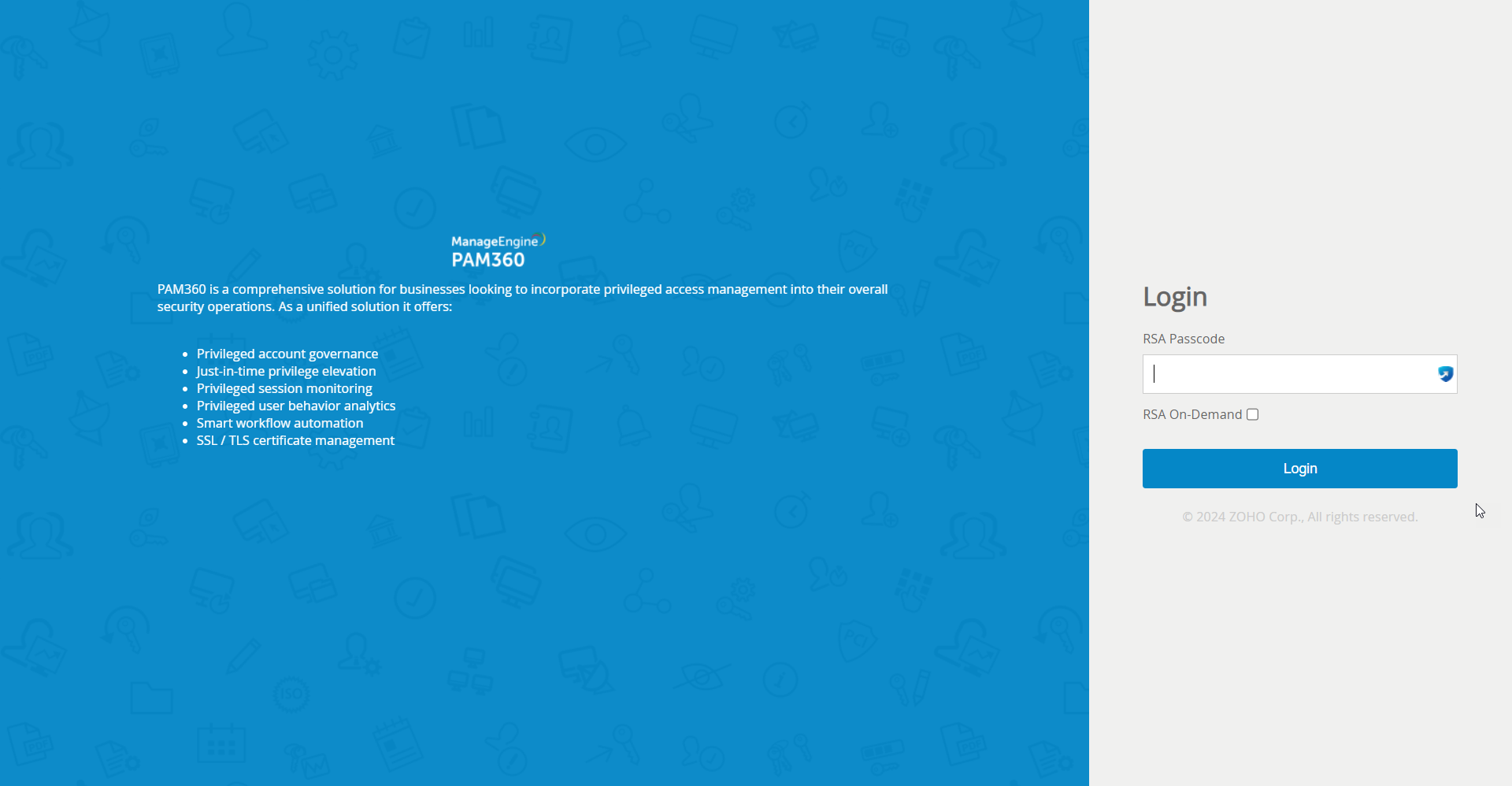
- Against the text field RSA Passcode, enter the RSA SecurID passcode. The passcode could be a combination of PIN and tokencode or just the tokencode alone or the On-Demand PIN depending on the configuration done in RSA Authentication Manager.
- If you want to leverage the RSA On-Demand authenticator, select RSA On-Demand and proceed with the tokencode. For this to work, the administrator should have opted for it while enabling RSA SecurID as the TFA in PAM360.
2.1 Log In Scenarios Using RSA SecurID
Case 1: Entering User Generated or System Generated PIN
As mentioned above, the RSA passcode could be a combination of PIN and tokencode or just tokencode alone or a password depending on the configuration done in RSA Authentication Manager. If the settings in RSA Security Console demands the users to create a PIN on their own or use a system generated PIN, the following options will be shown to the users after step 2 (i.e., after entering the first password and RSA tokencode to log in to PAM360).
- User Generated PIN: In the case of a user-created PIN, users will get the option to enter the PIN on their own. The PIN should contain numeric characters - a minimum of 4 and a maximum of 8 characters. After entering the PIN, the user will have to wait for a while until the RSA tokencode changes to a new value. Then, in the next screen, enter the new PIN and the RSA tokencode to authenticate.
- System Generated PIN: In the case of a system created PIN, PAM360 itself will randomly generate a PIN and it will be displayed on the screen. Users will have to note down the new PIN and wait for a while until the RSA tokencode changes to a new value. Then, in the next screen, the users will have to enter the new PIN as generated by the system and the RSA tokencode to authenticate.
Case 2: Using New Tokencode Mode
If a user attempts to log in to PAM360 using a random RSA passcode or by guesswork for a specified number of times, the RSA Authentication Manager will turn the screen to the New Tokencode mode to verify whether the user possesses the token. In that case, PAM360 prompts for next tokencode during the login. That means, the user will have to wait until the RSA device shows a new tokencode and the new code to proceed with logging into PAM360.
Caution
If the new tokencode entered by the user is wrong, PAM360 will revert to the initial login screen. Users will have to start again by entering the username.
Case 3: Using Tokencode Mode
When RSA On-Demand authenticator is configured, you need to supply the tokencode to log into PAM360. Tokencode will be sent to the registered email id or mobile number as configured in the RSA On-Demand authentication system.
Caution
If you have configured High Availability, whenever you enable TFA or when you change the TFA service type, you need to restart the PAM360 secondary server once for it to take effect.