Integration with SafeNet Luna PCIe Hardware Security Module (HSM)
PAM360 offers robust encryption methods to secure sensitive data. By default, PAM360 employs AES-256 bit encryption to protect the passwords. However, integrating with a Hardware Security Module (HSM) is recommended for organizations requiring heightened security. Specifically, PAM360 supports integration with the SafeNet Luna PCIe HSM, which handles all the encryption and decryption operations directly within the hardware. This approach not only strengthens data protection but also allows for the encrypted key to be securely stored within the hardware module, providing an additional layer of security against unauthorized access.
This document guides you through the integration process of SafeNet Luna PCIe HSM with PAM360.
1. Workflow
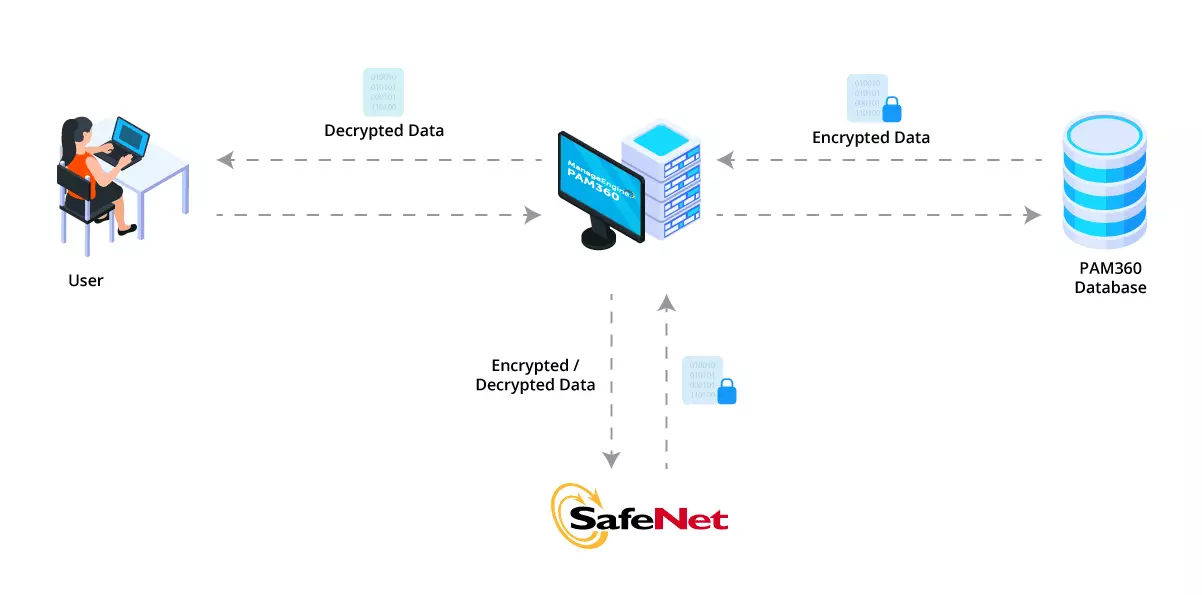
Integrating PAM360 with SafeNet Luna PCIe HSM involves several steps, starting with configuring the HSM to align with your network requirements and ending with migrating from the default encryption method to utilizing SafeNet Luna PCIe HSM. The following image details the complete integration workflow.
2. Configuring SafeNet HSM for PAM360
- Before migrating to the SafeNet HSM encryption method, you must configure the HSM device to meet your network's specific needs. The SafeNet installation guide provides detailed steps for setting up the HSM.
- Once the HSM device setup is complete, you should use the command prompt to select a slot number and set a password for the HSM. This configuration step is crucial as the chosen slot number and password are required to switch from the default encryption method to HSM.
- After successfully testing the HSM connection, you can proceed to the migration phase.
3. Migrating to SafeNet HSM Encryption Method
To migrate your existing encryption method to SafeNet HSM, follow these steps:
- Stop the PAM360 service.
- Open the command prompt as administrator, navigate to the <PAM360-Installation-Directory>\bin folder and execute the appropriate command based on your operating system:
Windows:
SwitchToHSM.bat
Linux:
sh SwitchToHSM.sh
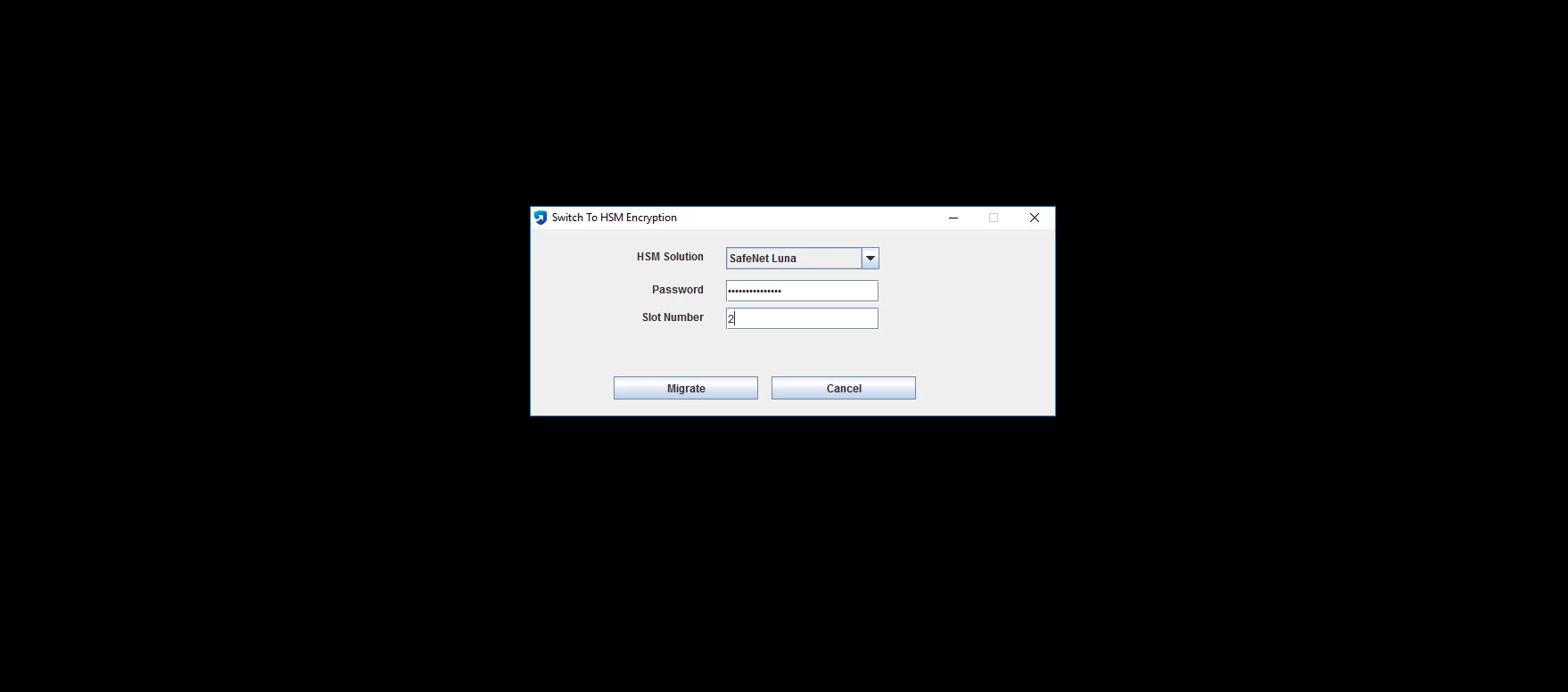
- In the Switch to HSM Encryption window, enter the SafeNet HSM password and slot number in the respective fields and click Migrate.
- Restart the PAM360 service to complete the migration process.
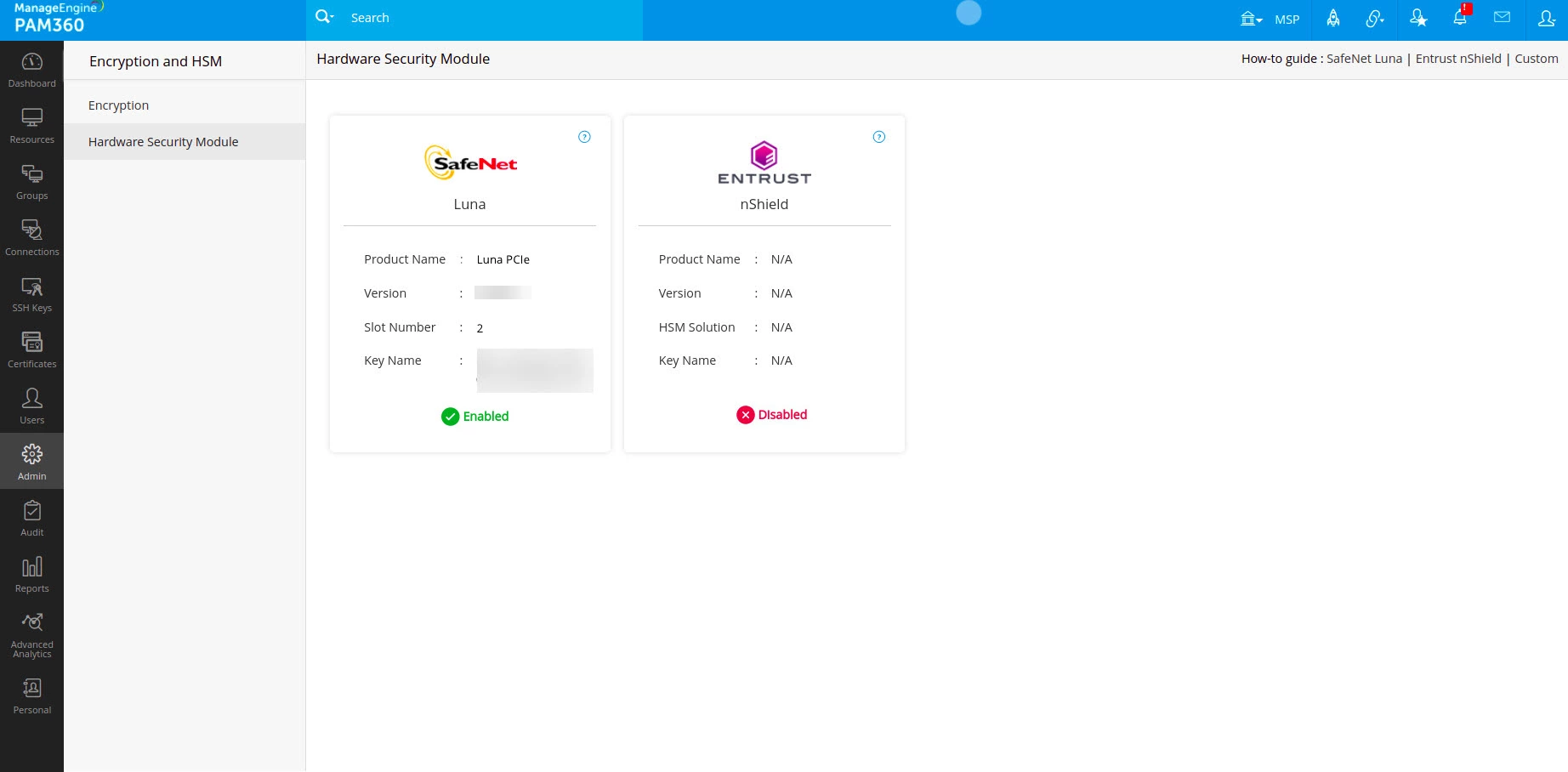
To verify which encryption method is currently applied, navigate to the PAM360 interface and go to Admin >> Server Hardening >> Encryption and HSM. This section will display the current encryption method, confirming the successful integration and migration to SafeNet Luna PCIe HSM.