FolderTimeUpdate is a freeware tool for the Windows operating system from Nirsoft. It scans all the folders and subfolders selected by a user, and updates the time the folders were last modified. It also allows users to monitor the time at which the most recent change has been made to a folder and can help IT administrators in forensic analysis in case of any mishap.
How to use FolderTimeUpdate
FolderTimeUpdate doesn't require an extensive installation process or the download of additional DLL files.
- Download the zip file.
- Extract the file and run FolderTimeUpdate.exe tool.
When you first open TaskSchedulerView, this is what you'll see:

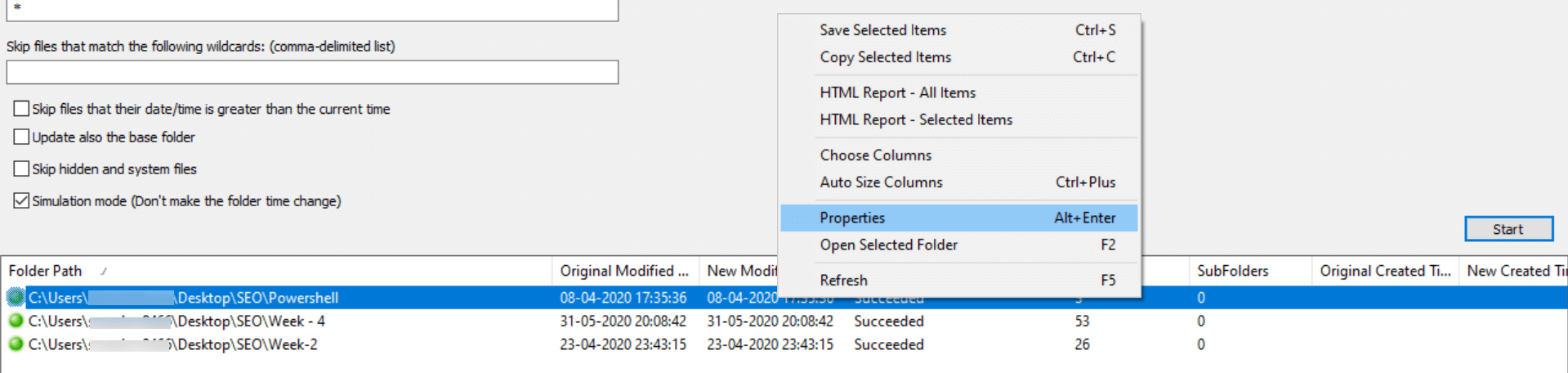
- To update the modified time of the folders, in the Base Folder field, enter the path of the desired folder and select appropriate options in the remaining fields.
- Press Start for update to begin.
- Tick the Simulation mode if you want to view the last modified time but not apply the changes to the selected folders.
- Right-click on any of the displayed results and select properties to view more details about the modified folder.
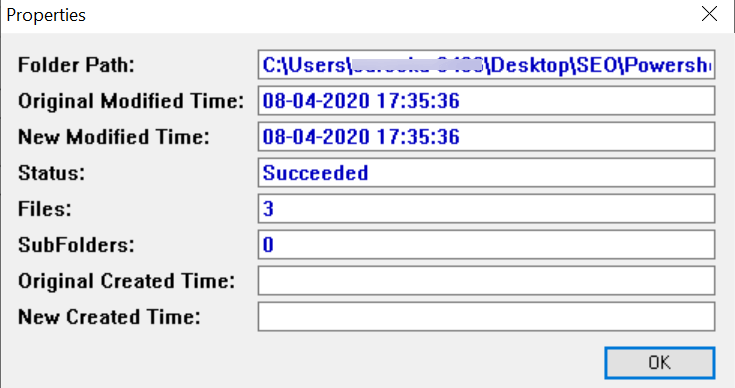
- The following are some of the details that can be found on Properties dialog box:
- Folder Path - The location of the modified folder.
- Original Modified Time - The actual time at which the folder or subfolders have been modified.
- New Modified Time - The time of modification that has been updated last. (In the below image, The Original Modified Time and New Modified Time are the same, since folder modified has been updated immediately.)
- Files - The number of files in the folder.
- Status - Status of file modification.
- The results displayed on the FolderTimeUpdate dialog box can be saved in any preferred format (CSV, TXT, HTML or XML) or copied to clipboard.
Technical Specifications
- The freeware can be downloaded:
- Here, for 32 bit systems.
- Here, for 64 bit systems.
- Size: Less than 100KB.
- Can be saved on USB or any storage device and run on any machine.
- Supported Windows versions:
- Windows 10 32/64 bit
- Windows 8 32/64 bit
- Windows 7 32/64 bit
- Windows Vista 32/64 bit
- Windows XP
- Windows 2K
Auditing files and folders with ADAudit Plus
Auditing changes made to files and folders is essential to identify unauthorized accesses in the network and take corrective action to prevent attacks. ADAudit Plus simplifies monitoring of folder changes by offering predefined File or Folder Changes reports along with intuitive graphical representation of the same for the ease of comprehension.
Steps to audit changes made to files or folders
Once ADAudit Plus has been installed, it can automatically configure audit policies required for Active Directory auditing. To enable this:
Log in to the ADAudit Plus web console → Domain Settings → Audit Policy: Configure.
File or folder changes can be monitored by following the below mentioned steps:
- Login to ADAudit Plus.
- Select the required Domain from the dropdown list.
- Go to the File Audit tab.
- Navigate to Server Based Reports.
- Select All File or Folder Changes by Server.


The following are some of the details that can be found on the All File or Folder Changes by Server report:
- File/Folder Name - Name of the file or folder that has been modified.
- Location - The path of the modified folder.
- Time Accessed - The time at which the file or folder was modified.
- Accessed By - The user who modified the folder.
- Message - A description of the folder modification that has been carried out.
ADAudit Plus comes bundled with more than 300 predefined reports that make your AD auditing easier. The solution also sends real-time alerts for critical events and thereby helps you to secure your network from threats and boosts your IT security posture. Check out the capabilities of ADAudit Plus here.
Simplify folder changes auditing and reporting with ADAudit Plus.
✕
Native auditing becoming a little too much?
Try ADAudit Plus login monitoring tool to audit, track, and respond to malicious login and logoff actions instantaneously.
Try ADAudit Plus for free
 Free Edition










