Configuring App Filters in .NET Agent
APM Insight includes an option to exclude select applications from being monitored. Users can use this to enhance the performance of the applications they require and avoid monitoring unnecessary ones.
Follow the steps given below to monitor select .NET applications with APM Insight:
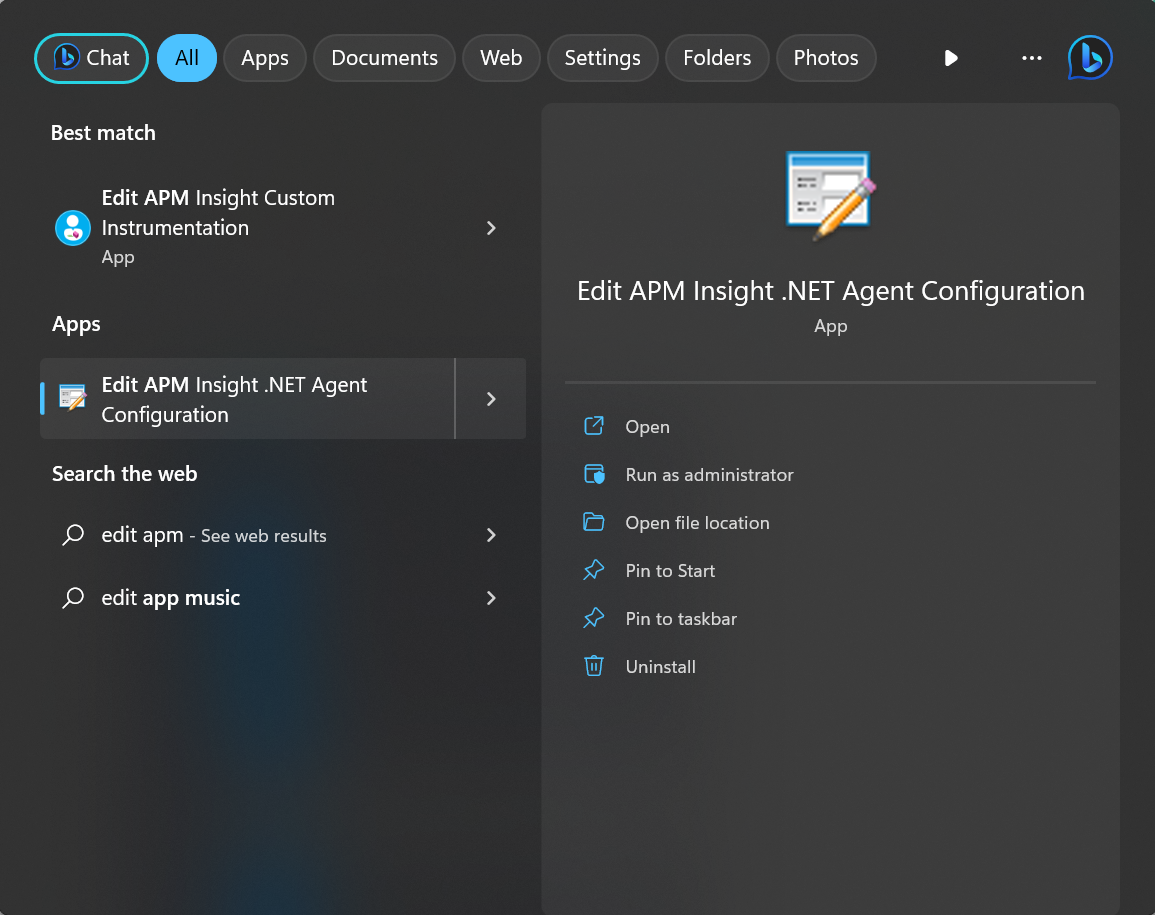
- Go to Start and click the Edit APM Insight .NET Agent Configuration tool to launch it.
Note: The Edit APM Insight Configuration tool is automatically installed when you install your APM Insight .NET agent.
- Once the tool is launched, go to the Applications tab.
Note: This dialog box is launched automatically during the APM Insight .NET agent installation.
- Click on the Use Application Filterscheck box.
Note: All the IIS-hosted applications will be listed in the Applications tab. Only the selected applications will be monitored.
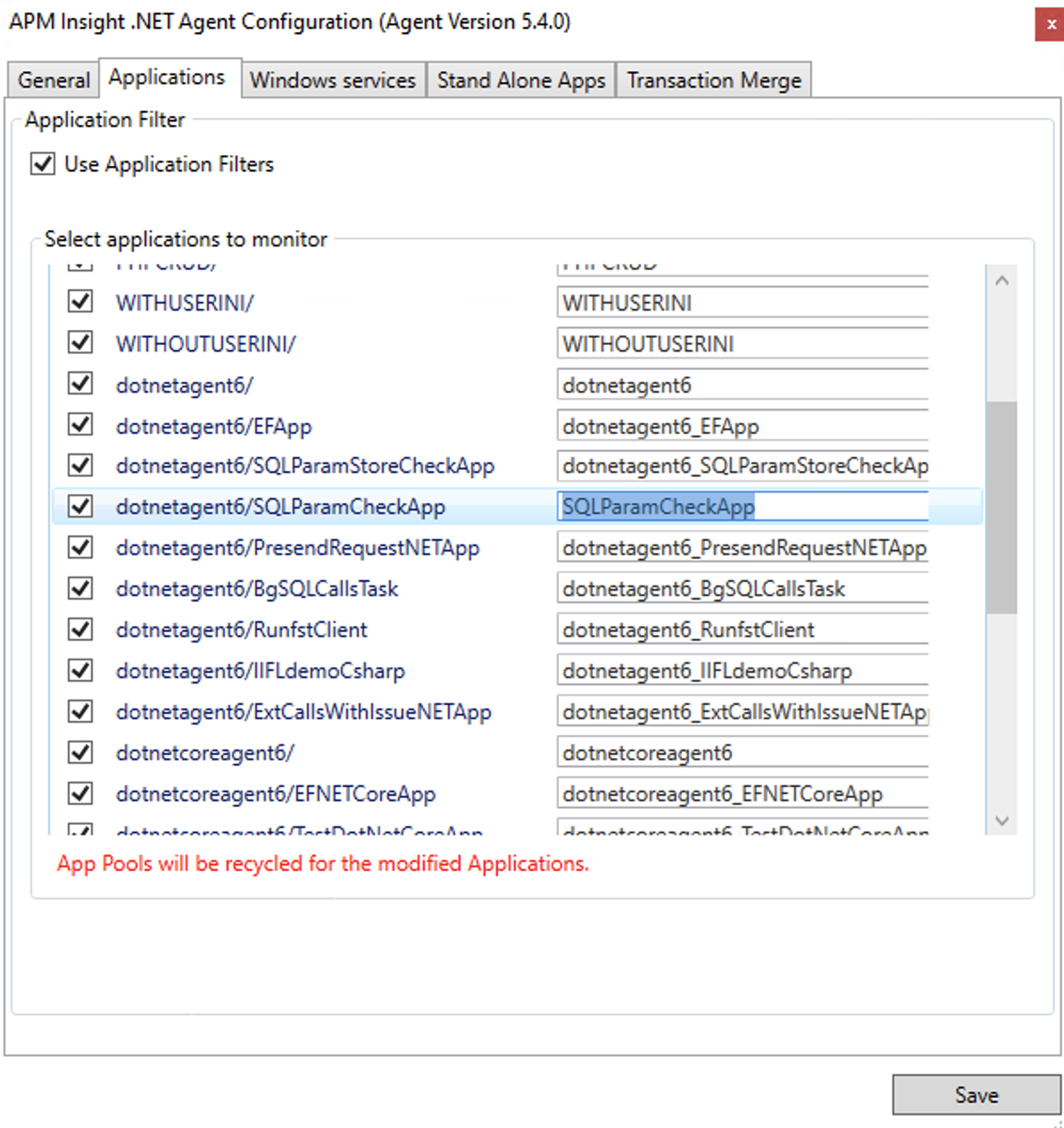
- Select the applications you want to monitor.
Note: By default, all applications will be selected for monitoring.
- Provide a unique name for each one of the applications selected in the text box present under the APM Insight key column.
Note: This will not affect the IIS.
- Click Save.
Note: Application pools will be recycled immediately for the modified applications.
Thank you for your feedback!
