

Request Tags
Add tags such as engineering, development, printer, router, network issues, and the like to requests. You can search requests by their tags in the global search. Request tags also enable you to draw up a list of similar requests, including service and incident requests. For example, a service request raised for printer configuration in your computer and an incident request for replacing printer cartridges can be tagged as 'printer'. This helps the admin view all printer-related requests in one search.
You can add up to 10 tags for each request. To tag requests, you need Request Edit permissions.
Adding Tags
Go to Requests and click the required request.
In the right panel, hover over Tags and click Add Tags.
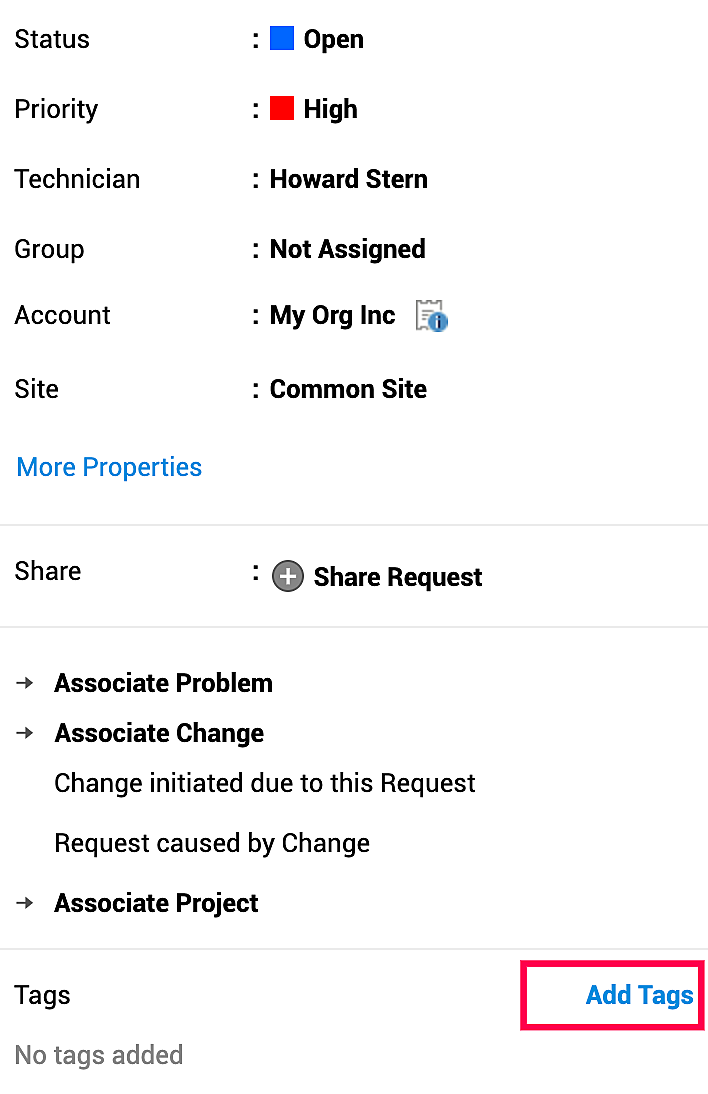
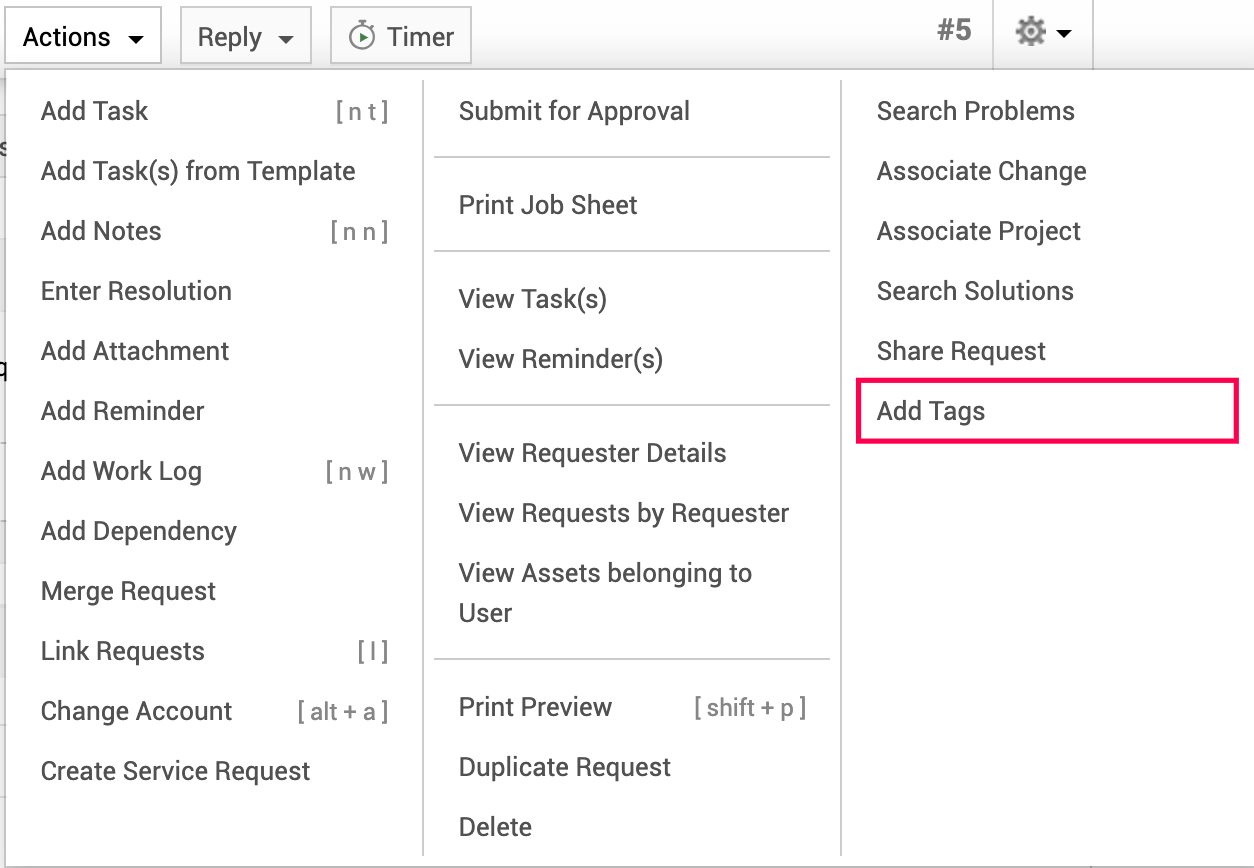
Alternatively, you can go to Actions > Add Tags.
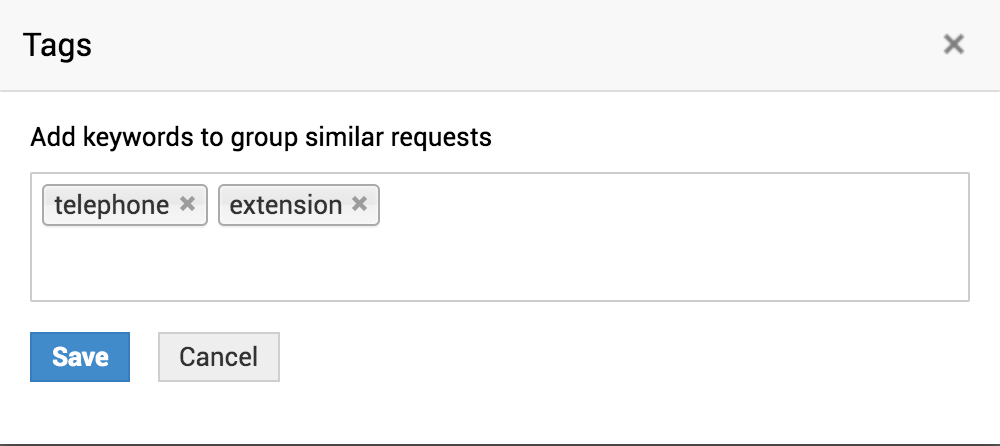
Type in your tags. Press Enter after you type in each tag. Click Save.
Removing Tags
Go to Requests and click the required request.
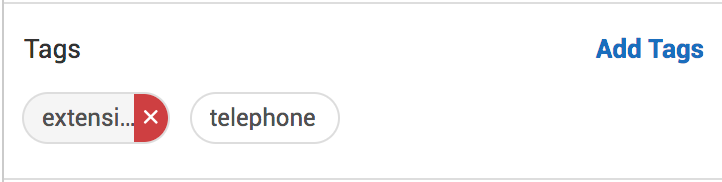
Navigate to the Tags section on the right panel. Hover over any tag and click the Remove icon displayed. You can alternatively go to Actions > View Tags.
Searching Requests by Tags
Use tags in the global search under Requests to search requests. You can optionally choose Tag as the search field under global search.
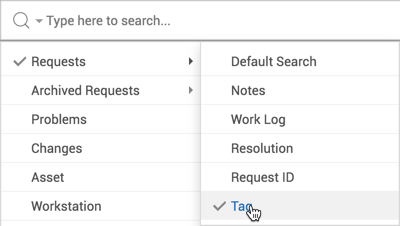
Let's say you want to pull up all telephone-related requests, including configuration requirements, repair, maintenance, and more. Tag all these requests with a common term say 'telephone', so the admin can pull up these requests in one search.