Installing PAM360 Agent on Remote Devices
The PAM360 agent can be deployed on remote devices to facilitate PAM360-related operations or to collect device data for implementing a Zero Trust security model, depending on the installation option selected. This guide offers comprehensive instructions for installing the PAM360 agent on remote devices that are not directly connected to the PAM360 server. By the end of this guide, you will be able to install, manage, and uninstall the agent on Windows, Windows Domain, and Linux systems, as well as configure the required agent settings.
Ensure you have an account with sufficient administrative privileges on the target system for installation and further modifications. After downloading the PAM360 agent, extract the files onto the target machine where the agent will be installed.
Additional Detail
The PAM360 agent can also be installed in bulk using SCCM, GPO, or Endpoint Central. Refer to this document for more details.
At the end of this document, you will have will have learned the following topics in detail:
- Configuring the PAM360 Agent Settings
- Installing the Windows/Windows Domain Agent
- Installing the Linux Agent
- Installing the macOS Agent
Caution
1. Configuring the PAM360 Agent Settings
While installing the PAM360 Windows agent, the agent properties are displayed on the agent installation wizard, allowing you to modify the parameters during installation. For Linux and macOS agents, the agent properties can only be updated by editing the agent.conf or agent.json file.
Open the agent.conf / agent.json file from the downloaded agent package. Below are the parameters listed in the agent file, many of which can be customized to meet your specific requirements:
- AgentType: This denotes the type of agent i.e., agent with PAM360 features.
- ServerName: This is the server/IP Address that the PAM360 agent will try to reach to contact the PAM360 server.
- ServerPort: This indicates the port in which the PAM360 server is running. If you have changed the default port of PAM360 to any other port such as 443, the same port number must be updated here.
- ScheduleInterval: By default, the agent pings the server once every 60 seconds. To configure the time interval at which the agent should ping the PAM360 web server, modify the time interval value in seconds.
- UserName: This is the admin user account under which the agent server will be added as a resource.
- OSType: Denotes the OS to which the agent belongs - Windows/Windows Domain/Linux.
- TrustedCertifcate: If you do not have a valid SSL certificate for the PAM360 server update this value to 'no'.
- IncludeDisabledAccounts: This parameter indicates whether disabled accounts on the resource should be included during account discovery. Set this value to False if you do not wish to include disabled accounts during the discovery process. This parameter is only applicable to the Mac agent.
Additional Detail
Starting from build 7500, the settings for Windows, Windows Domain, and Linux agents that are downloaded from PAM360 can be customized from the web interface post-installation. Once installed, navigate to Admin >> Agents >> Manage Agents, and click Edit under Agent Actions next to the corresponding agent to update its settings. For more details, refer to this document.
1.1 Filtering Accounts by Agent
PAM360 allows the restriction of user accounts that are added via agents (C# and Go) during account discovery, using regex patterns. To do the same, use the below UserQuery and accountFilter commands:
- UserQuery: To filter the accounts in Linux (Go Agent).*/To discover accounts that starts with admin/*
UserQuery = "awk -F: '$1 ~ /^admin.*/ {print$1}' /etc/passwd" - accountFilter: To filter accounts in Windows/Windows Domain (C# Agent).*/To discover accounts that starts with admin/*
accountFilter = ^admin.*
Caution
Windows Domain agent will not automatically add user accounts unless you specify the pattern in the account filter.
- fetchDisabledAccount: To fetch disabled accounts in Windows/Windows Domain (C# Agent).
fetchDisabledAccount = True
The commands UserQuery, accountFilter, and fetchDisabledAccount are applicable only for build 5301 and later. After modifying any of these parameters, restart the agent service.
2. Installing the Windows/Windows Domain Agent
2.1 Installation using Agent Installer
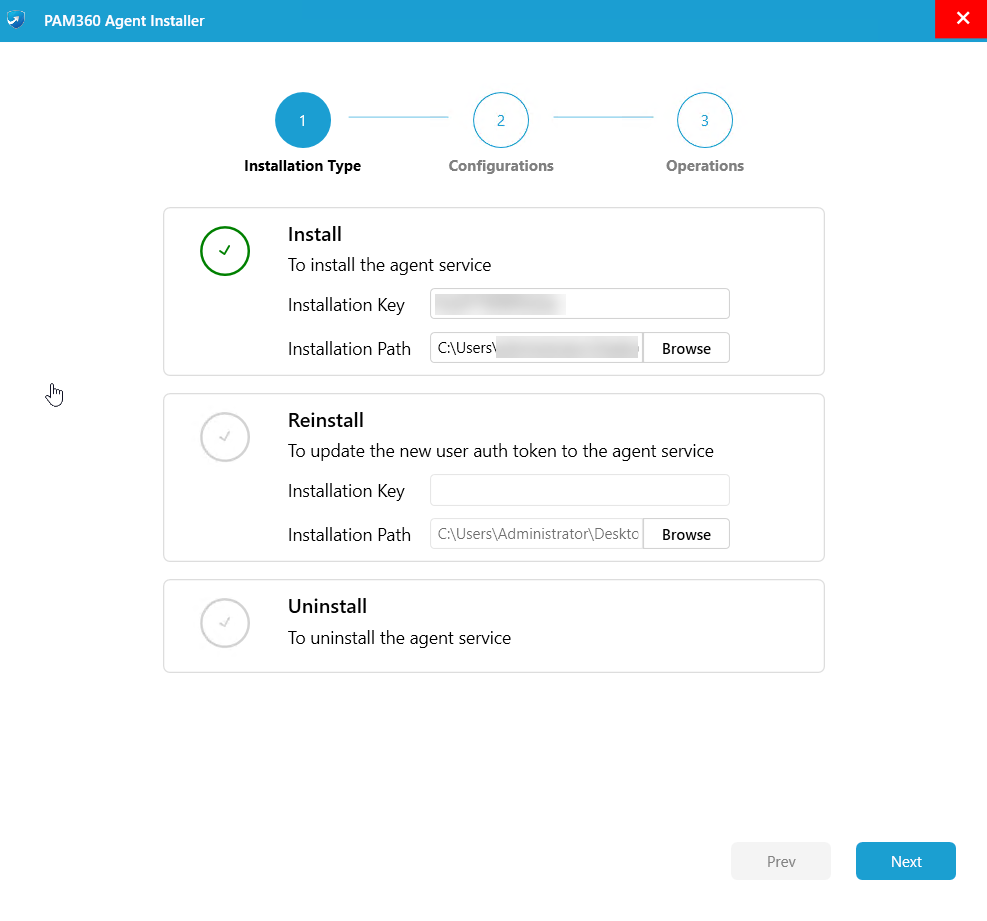
To install the Windows/Windows Domain agent, navigate to the agent folder and run the AgentInstaller.exe with the administrator privilege. On the PAM360 Agent Installer wizard that opens,
- Select the Install option, enter the Installation Key and verify the Installation Path. Click Next.
- Enter or modify agent setting fields such as Resource Type, Server Name, Port, Schedule Interval, and Resource Owner based on your installation requirements. Enabling the Include Disabled Accounts field will include all the disabled accounts in the resource for the operations performed from PAM360.
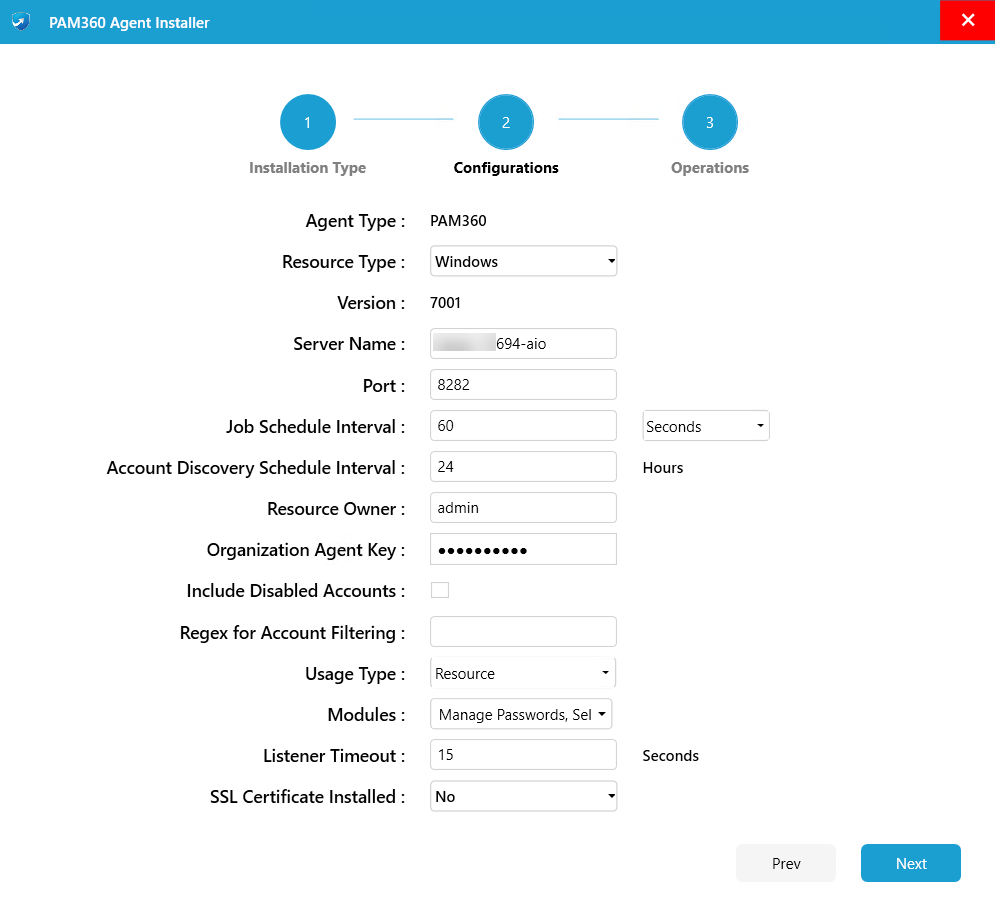
- Choose the appropriate Usage Type. For fetching device data for user trust score calculation, select User Device and enter the PAM360 username associated with the device. For fetching device data for resource trust score calculation or to perform PAM360 related operations, select Resource.
Caution
If you choose User Device as the Usage Type, the Modules section will automatically select Zero Trust by default. Any device that has the PAM360 agent installed with Usage Type - User Device will not be added as a resource in PAM360. The operations such as Self-Service Privilege Elevation and Password Management will not apply to those devices.
- If you have selected Usage Type as Resource, enable the required modules by checking the corresponding boxes for Manage Passwords, Self-Service Privilege Elevation, Zero Trust, SSL Management, System Events Logging and/or Keystroke Logging:
- Manage Passwords: When enabled the agent can verify or reset the account passwords.
- Self-Service Privilege Elevation: Includes a module for self-service privilege elevation, allowing you to configure privilege elevation for the remote resource.
- Zero Trust: when enabled the agent periodically requests system data from devices or resources for resource trust score validation.
- SSL Management: When enabled, the agent can perform certificate management operations on the target machine.
- System Event Logging: When enabled, the agent can monitor system events on the target machine for auditing and review.
- Keystroke Logging: When enabled, the agent can record user keystrokes on the target machine.
- By default, the SSL Certificate Installed is set to Yes. If there is no valid SSL certificate installed in PAM360, change thisfield to No and click Next.
Caution
If the SSL Certificate Installed field is set to Yes without a valid SSL certificate installed in PAM360, the Test Server Connection will fail.
- On the Operations page, check if the first two conditions are met and click Install.

You have now successfully installed the Windows/Windows Domain agent in a remote resource.
Additional Details
- By default, all files and applications (.exe, .msc, .msi, .cmd, and .bat) will have the "Run as PAM360 Privilege Account" option in the right-click menu. However, privilege elevation only functions for those files and applications that are configured in PAM360.
- When Self-Service Privilege Elevation is enabled, the agent information will not be displayed in the services console.
In the Operations section of the PAM360 Agent Installer wizard, you can Start, Stop, or Restart the installed PAM360 agent.
To update the installed PAM360 agent, follow the installation procedure, selecting Reinstall as the Installation Type section.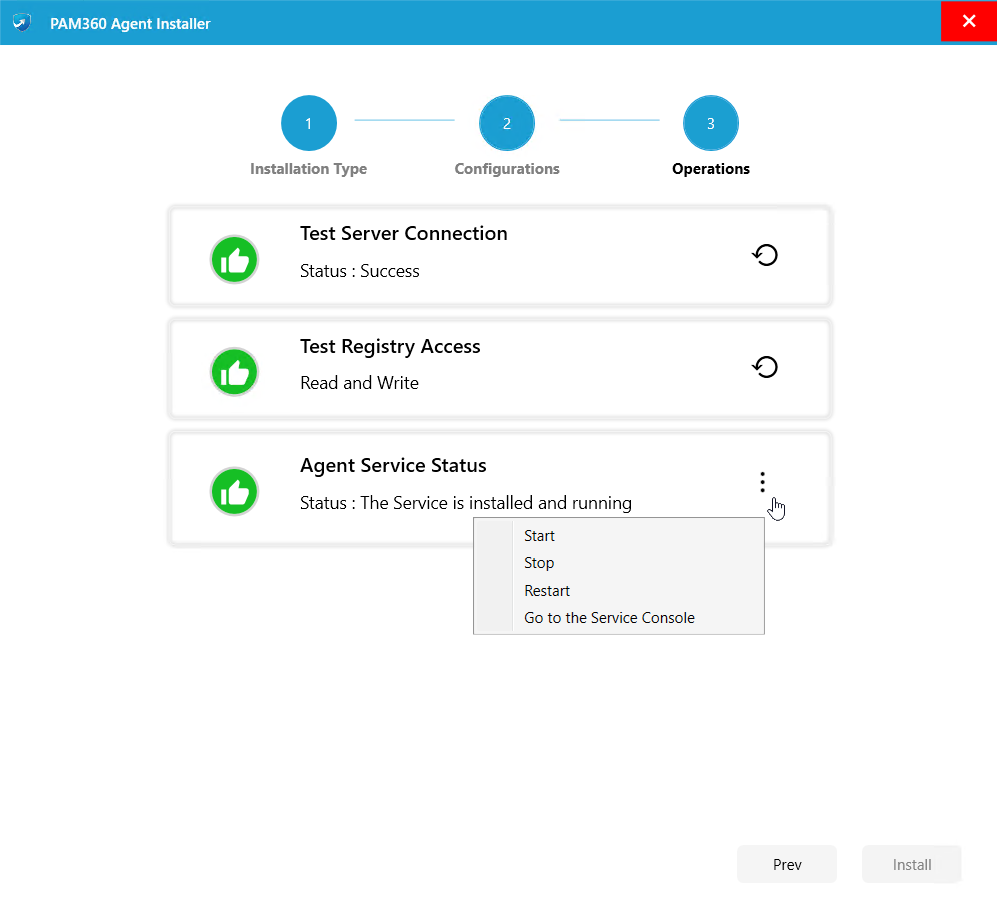
2.2 Installation using Command prompt
Caution
- Before proceeding with the agent installation, ensure that the agent.conf file contains correct values for settings such as server port, schedule interval, username, etc., as they are set to default values initially.
- If you do not have a valid SSL certificate for the PAM360 server, update the TrustedCertificate field in the agent.conf file to no.
To install the Windows/Windows Domain agent,
- Open the command prompt in the respective resource with the administrator privileges.
- Navigate to the agent installation directory or the executable downloaded directory and execute any one of the following command as required based on your agent installation requirements.To install the agent as a service for password management, self-service privilege elevation, zero trust implementation, SSL management, system events logging and keystroke logging.
AgentInstaller.exe install <Agent Key copied from the PAM360 UI> 1,2,3,4,5,6
To install the agent as a service for password management.AgentInstaller.exe install <Agent Key copied from the PAM360 UI> 1
To install the agent as a service for self-service privilege elevation.AgentInstaller.exe install <Agent Key copied from the PAM360 UI> 2
To install the agent as a service for resource trust score calculation.AgentInstaller.exe install <Agent Key copied from the PAM360 UI> 3
To install the agent as a service for SSL management.AgentInstaller.exe install <Agent Key copied from the PAM360 UI> 4
To install the agent as a service for system event logging.AgentInstaller.exe install <Agent Key copied from the PAM360 UI> 5
To install the agent as a service for keystroke logging.AgentInstaller.exe install <Agent Key copied from the PAM360 UI> 6
To install the agent in the user device for user trust score calculation.AgentInstaller.exe install <Agent Key copied from the PAM360 UI> userdevice <PAM360 username>
Upon execution, the Windows/Windows Domain agent will be installed and the respective PAM360 agent service will start automatically.
Additional Detail
Starting from build 7500, the PAM360 agent is installed by default in the following directory: C:\Program Files (x86)\ManageEngine
To update the agent installation, use the above-desired command with the term update instead of install.
To start or stop the PAM360 agent service in the resource or user device, execute the following commands as required:
AgentInstaller.exe start
AgentInstaller.exe stop
3. Installing the Linux Agent
Caution
- Before proceeding with the agent installation, ensure that the agent.conf file contains correct values for settings such as server port, schedule interval, username, etc., as they are set to default values initially.
- If you do not have a valid SSL certificate for the PAM360 server, update the TrustedCertificate field in the agent.conf file to no.
Additional Details
- PAM360 agents (32bit, 64bit) support the Linux flavors with the default OpenSSL library only.
- Linux agent works well with any flavor of Linux operating systems.
To install the Linux agent, follow these steps:
- Open the command prompt in the respective resource with the administrator privileges.
- Navigate to the agent installation directory and execute any one of the following command as required based on your agent installation requirements. (Use bash instead of sh for )
Caution
Starting from build 7500, go to the directory where the agent file is downloaded. Then run the following commands to make the installer executable and extract the agent installation directory. After that, continue with the installation steps.
- If the downloaded agent file is PAM360GOAMD64LinuxAgent.bin, execute the following commands:
chmod a+x PAM360GOAMD64LinuxAgent.bin
chmod a+x PAM360GOAMD64LinuxAgent.bin
- If the downloaded file is PAM360GOARM64LinuxAgent.bin, execute the following commands:
chmod a+x PAM360GOARM64LinuxAgent.bin
sudo ./PAM360GOARM64LinuxAgent.bin
To install the agent as a service for password management, self-service privilege elevation, and zero trust implementation.sh installAgent-service.sh install <Agent Key copied from the PAM360 UI> 1,2,3
To install the agent as a service for password management.sh installAgent-service.sh install <Agent Key copied from the PAM360 UI> 1
To install the agent as a service for self-service privilege elevation.sh installAgent-service.sh install <Agent Key copied from the PAM360 UI> 2
To install the agent as a service for resource trust score calculation.sh installAgent-service.sh install <Agent Key copied from the PAM360 UI> 3
To install the agent in the user device for user trust score calculation.installAgent-service.sh install <key> userdevice <PAM360 username>
- If the downloaded agent file is PAM360GOAMD64LinuxAgent.bin, execute the following commands:
Upon execution, the Linux agent will be installed and the respective PAM360 agent service will start automatically.
To update the agent installation, use the above desired command with the term update instead of install.
To start or stop the PAM360 agent service in the resource or user device, execute the following commands as required:
sh installAgent-service.sh start
sh installAgent-service.sh stop
4. Installing the macOS Agent
Caution
- Before proceeding with the agent installation, ensure that the agent.json file contains correct values for settings such as server port, schedule interval, username, etc., as they are initially set to default values.
- If you do not have a valid SSL certificate for the PAM360 server, update the TrustedCertificate field in the agent.json file to no.
Follow these steps to install the PAM360 macOS agent on the remote resource:
- Access the remote resource with root privileges and extract the contents of the agent package zip file at any location on the system.
- Open the terminal, navigate to the agent package extracted folder and execute the following command to install the agent as a service.The PAM360 agent will be installed on your Mac device.
sh installMacAgent-service.sh install <Agent Key copied from the PAM360 UI>
- Upon installation, navigate to the Library >> ManageEngine >> macOS Agent folder on your device to access the agent.
To start or stop the PAM360 agent service, execute the following commands as required:
sh installMacAgent-service.sh start
sh installMacAgent-service.sh stop
To uninstall the agent, execute the following commad:
sh installMacAgent-service.sh uninstall
To reinstall the agent, execute the following commad:
sh installMacAgent-service.sh reinstall <Agent Key copied from the PAM360 UI>