Integration with the Entrust nShield Hardware Security Module (HSM)
PAM360 provides robust encryption methods to secure sensitive data. While the default encryption method is AES-256-bit encryption, which secures personal passwords and privileged digital identities in the database, organizations that require enhanced security can benefit from integrating with a Hardware Security Module (HSM).
PAM360 offers seamless integration with Entrust nShield HSM, enabling advanced security through hardware-based data encryption. This integration allows you to utilize hardware-based encryption for the privileged digital identities and personal passwords stored in the PAM360 database. By securing your data encryption key within the HSM, you can safeguard it locally in your environment and achieve FIPS 140-2 compliance, ensuring enhanced data security for privileged identities.
PAM360 supports two modes of encryption with the Entrust nShield HSM:
- Module Only Key
- Softcards
This documentation will guide you through the detailed configuration process for these encryption modes and the steps for migrating to Entrust nShield HSM encryption. The following topics are covered in this document:
- Workflow diagram
- Configuring the Entrust nShield HSM
- Migrating to the Entrust nShield HSM Encryption
- Troubleshooting Tips
1. Workflow Diagram
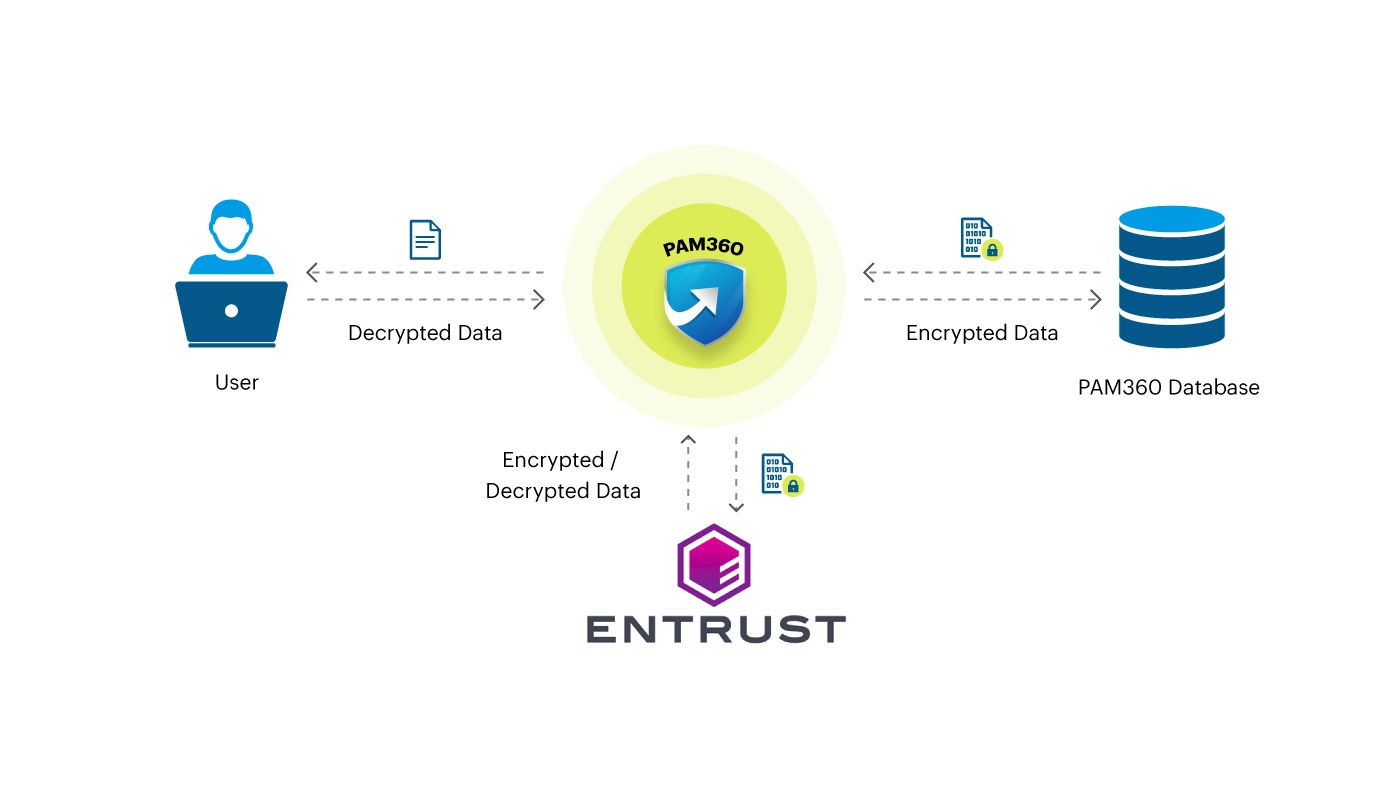
The integration with Entrust nShield HSM involves several crucial steps. The process begins with installing the HSM and Security World software and concludes with configuring and verifying secure communication between PAM360 and the HSM. Refer to the image below for the complete integration workflow.
2. Configuring the Entrust nShield HSM
2.1 Prerequisites
Ensure you have the following prerequisites before proceeding with the integration:
- A working instance of PAM360.
- An nShield Connect HSM.
- Good connectivity between the PAM360 instance and nShield's Security World.
Additional Detail
The Security World software should be installed and configured on the same server where PAM360 is running. The Entrust nShield HSM setup can reside on any machine reachable by the PAM360 server to facilitate communication between them.
2.2 Steps to Install the Security World Software
- Install and configure the Security World software. Refer to the HSM's Installation Guide and the User Guide for detailed instructions.
- Add the Security World utilities path C:\Program Files\nCipher\nfast\bin to the Windows system path.
- Check the connectivity between the machine where PAM360 is running and the nShield Security World.
- Run the anonkneti <Unit IP> command to verify connectivity.
- The output of this command is <Unit ESN> <Unit KNETI HASH>
- Here, ESN refers to the Electronic Serial Number.
- Run the nethsmenroll <Unit IP> command to configure PAM360 to access the nShield HSM.
- Run the following enquiry utility to ensure the HSM is configured properly.
- Extract and place the world and module files in the following path to complete the configuration:
- Windows - C:\ProgramData\nCipher\Key Management Data\local
- Linux - kmdata/local
- You can run the local bench-marking tests, such as: perfcheck -m1 signing:287, on the machine with the nShield HSM software to verify and optimize the performance of the HSM.
- Create a Security World for your nShield HSM setup using the new-world -i -m <module_number> -Q >K/N< command based on your organization's security policies. As a precaution, create extra ACS cards for each person with access privileges and a few spares.
Additional Detail
Once created, an ACS card set cannot be duplicated.
- Run the nfkminfo utility to confirm that the Security World is operational.
	C:\Users\Administrator>enquiry
	Server

	enquiry reply flags none
	enquiry reply level Six
	serial number ####-####-####
	mode operational
	...

	Module #1

	enquiry reply flags none
	enquiry reply level Six
	serial number ####-####-####
	mode operational
	...
	C:\Users\Administrator>nfkminfo
	World
	generation 2
	state 0x37270008 Initialised Usable ...
	...
	Module #1
	generation 2
	state 0x2 Usable
	...
	Module #1 Slot #0 IC 0
	generation 1
	phystype SmartCard
	...
	error OK
	...
	Module #1 Slot #1 IC 0
	generation 1
	phystype SoftToken
	...
	error OK
	...
Additional Details
- The Softcard key is stored as an environmental variable in the path C:\ProgramData\nCipher\Key Management Data\local and not saved in the PAM360 database.
- It is recommended to save a copy of the Module-only key or the Softcard and its key securely, depending on the selected encryption mode.
3. Migrating to the Entrust nShield HSM Encryption
Follow these steps to migrate from PAM360's default encryption to the Entrust nShield HSM encryption.
- Stop the PAM360 service.
- Open the command prompt and navigate to <PAM360_SERVER_HOME>\bin folder.
- Execute the following command on the command prompt:
- Windows - SwitchToHSM.bat
- Linux - sh SwitchToHSM.sh
- In the Switch To HSM Encryption window that appears, select Entrust nShield from the HSM Solution drop-down menu.
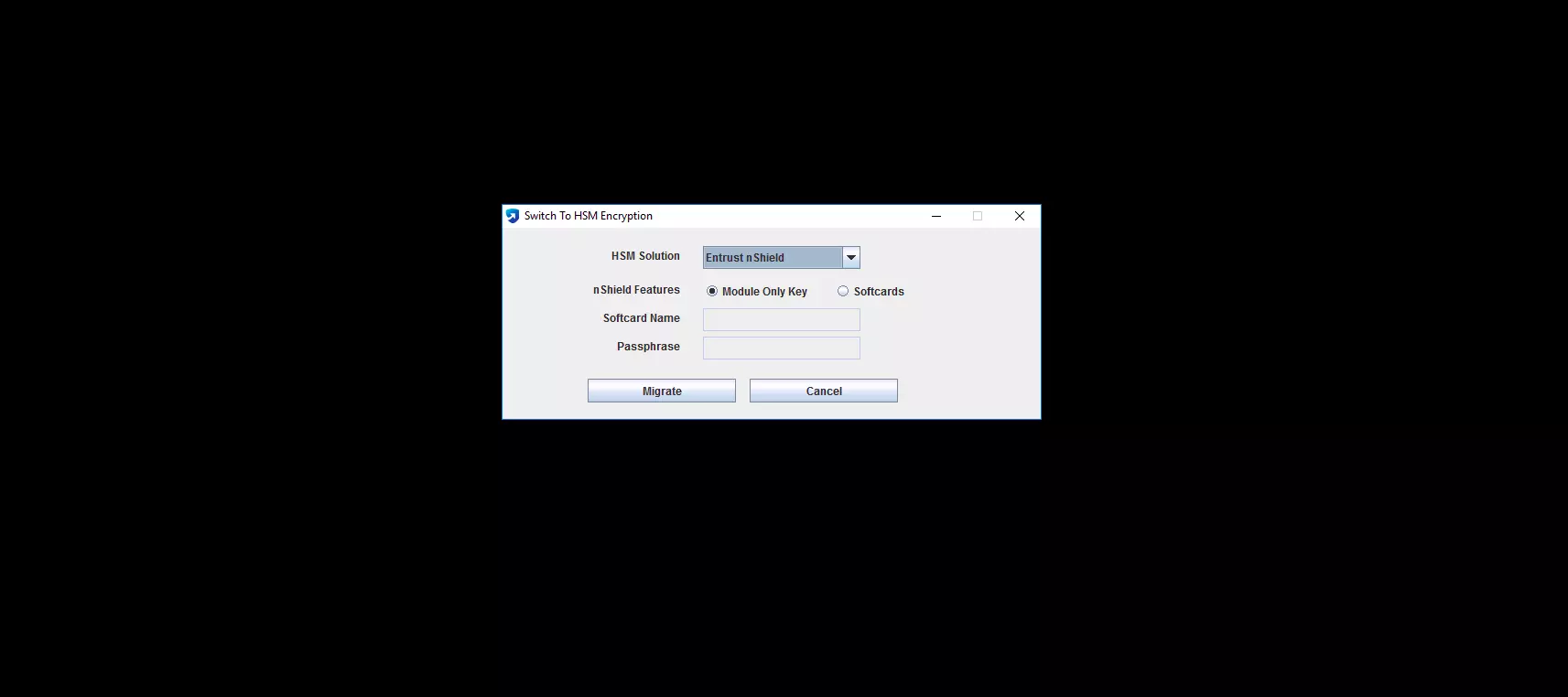
- For the nShield Features field, choose either Module Only Key or Softcards.
- If Module Only Key is selected, no passphrase is required.
- If Softcards is selected, enter the Softcard Name and its passphrase in the respective fields.
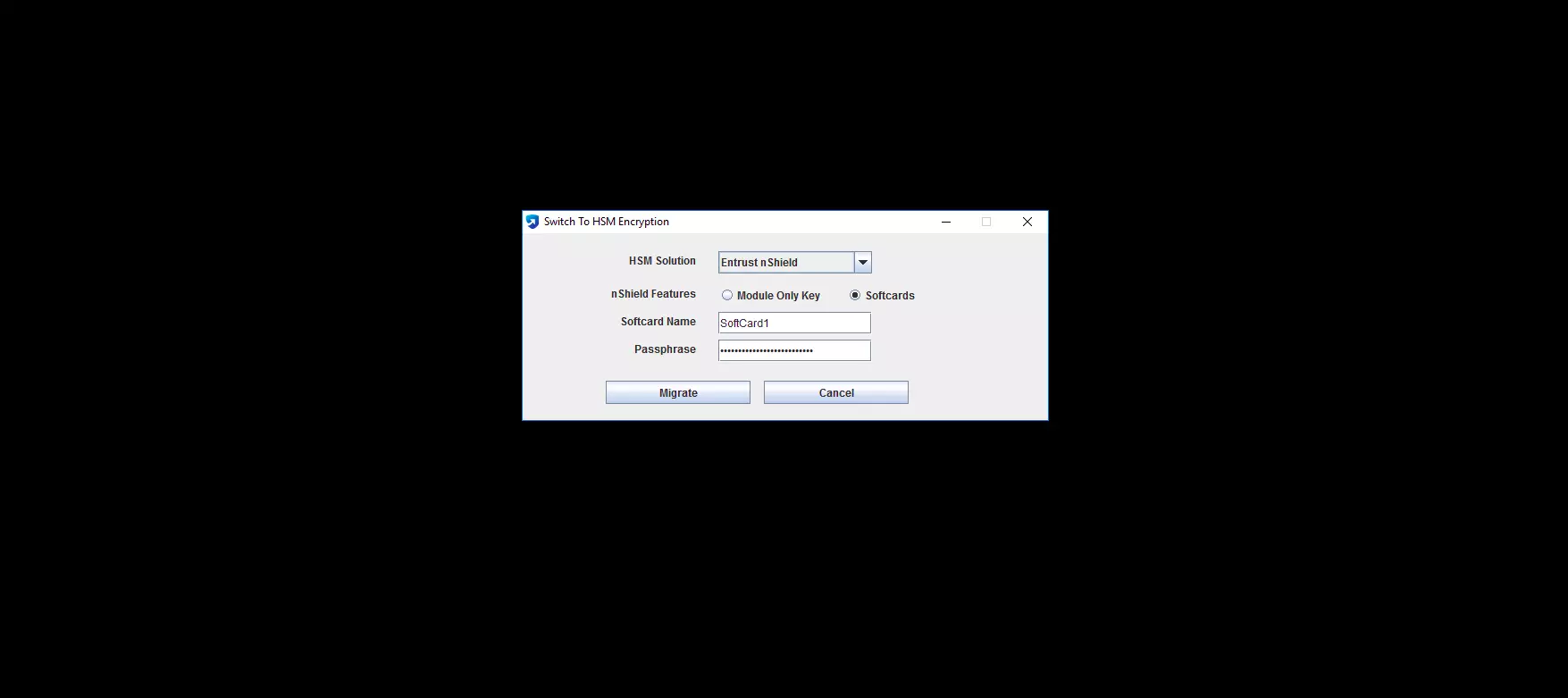
- Verify the details and click Migrate.
- Copy the nCipherKM.jar file from the nShield installation folder and paste it into the <PAM360_Installation_Directory>\lib folder
- Restart the PAM360 service to complete the HSM migration.
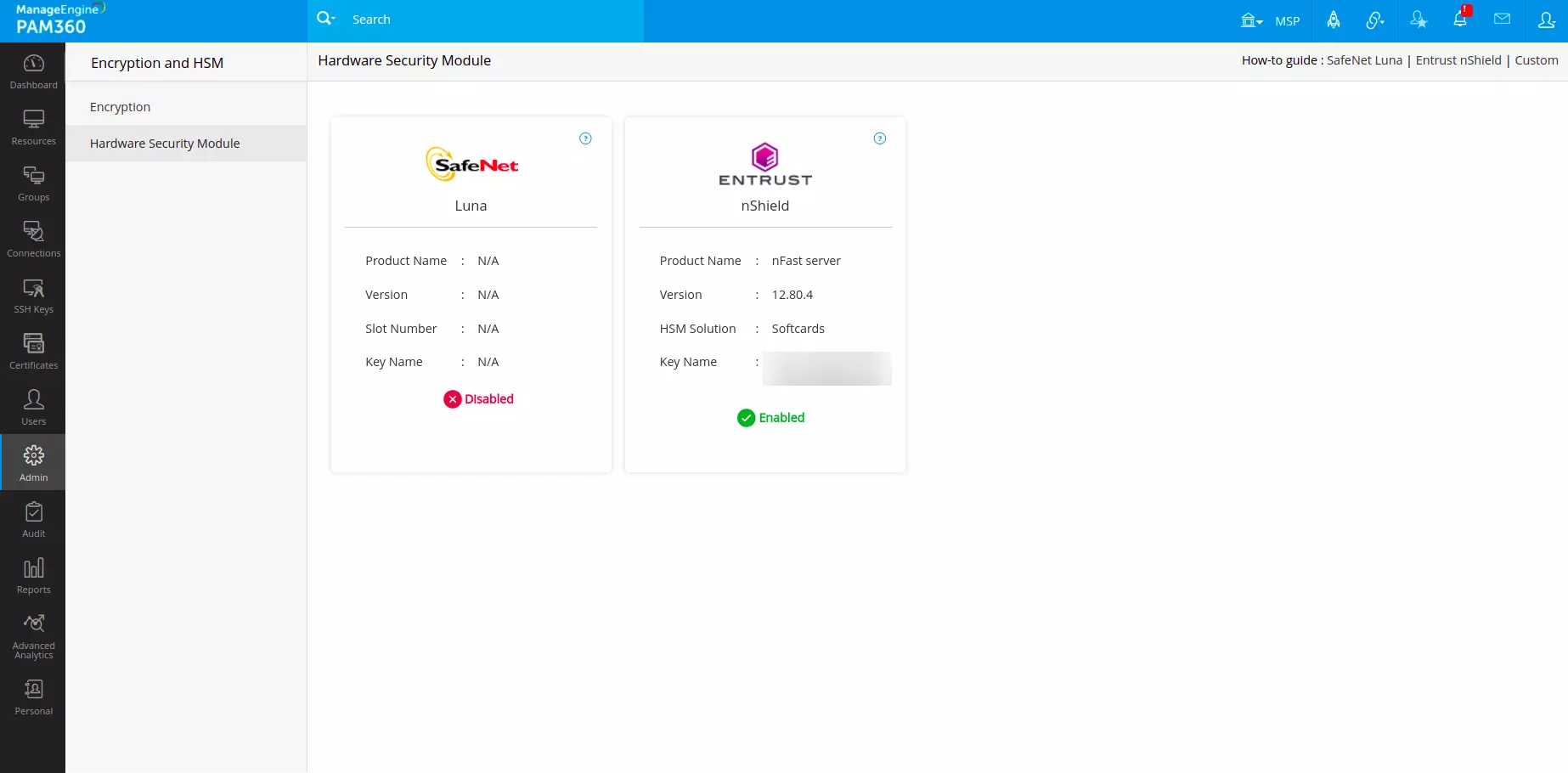
- To verify the encryption method applied, go to the Admin tab in the PAM360 interface and select Configuration >> Encryption and HSM.
Additional Details
- Once Entrust nShield HSM is configured as the primary encryption method, reverting to PAM360 encryption will require a complete reconfiguration of PAM360.
- To switch back to PAM360 encryption and recover data from the old build, you have two options:
- Export and Reinstall: Export all resources and their passwords from the PAM360 build that uses HSM encryption as a backup. Uninstall the existing PAM360 build and perform a fresh installation without HSM encryption. Reinstalling will erase existing data but will allow you to import the previously exported resources and passwords.
- Restore Backup: Uninstall the current version and restore an older backup of PAM360 that uses the PAM360 encryption key.
- Modifying encryption modes after initial configuration is not possible.
- Direct transition from SafeNet Luna HSM to Entrust nShield HSM is not possible without a complete reconfiguration of PAM360.
3.1 Steps to Configure the Entrust nShield HSM in a High Availability Setup
When transitioning to the Entrust nShield HSM as your primary encryption method in your environment with High Availability (HA) configuration, you should reconfigure your HA setup to ensure proper synchronization and functionality across your servers. This process involves installing and configuring the nShield HSM on primary and secondary servers and updating the HSM setup to work seamlessly in the high-availability environment.
- Install and configure the nShield HSM on both the primary and secondary servers. Follow the specific instructions provided for your database type (PostgreSQL or MS SQL) to set up high availability.
- Complete the HSM configuration in the HA setup based on your encryption mode.
- Module Only Key: Locate the key file in the directory C:\ProgramData\nCipher\Key Management Data\local on the primary server. Copy this key file and place it in the same directory on the secondary server.
- Softcards: The directory C:\ProgramData\nCipher\Key Management Data\local will contain two softcard key files. Copy these files from the primary server and place them in the same directory on the secondary server.
- After copying the files to the secondary server, run the primary and secondary servers to complete the configuration process.
Caution
- Ensure both the servers in the HA setup are running PAM360 build 5550 or above.
- After configuring the Entrust nShield HSM, reconfigure the Application Scaling and Failover Service similar to the HA configuration.
3.2 Steps to Rotate the HSM Key
As a security best practice, it is recommended to rotate encryption keys periodically. To rotate the HSM key, follow the same procedures for rotating the PAM360 encryption key. Click here for the instructions to perform key rotation in HA and non-HA setups.
4. Troubleshooting Tips
If you encounter issues during the integration process, the following errors might appear in the SwitchToHSM_log.txt log file in the <PAM360_Installation_Directory>\logs folder.
4.1 Exceptions
Exception #1: java.lang.NoClassDefFoundError: com/ncipher/provider/km/nCipherKM
Problem: The nCipherKM.jar file is unavailable in the <PAM360_Installation_Directory>\lib folder.
Solution: To resolve this issue, place the nCipherKM.jar file in the lib folder as specified in the setup instructions.
Exception #2: error (st=DecryptFailed) : NFKM_checkpp
Problem: The Softcard passphrase provided during migration is incorrect.
Solution: Repeat the migration steps outlined in section 3 with the correct Softcard passphrase.
4.2 Error
Problem: PAM360 service fails to start with the following error in Wrapper.log: Error - Exception while initializing ManageEngine PAM360 Cryptography. java.lang.Exception: Exception occurred while decrypting.
Solution: Verify if the HSM key is available in the directory C:\ProgramData\nCipher\Key Management Data\local, as outlined in step 3.1.