HTTPS Gateway Server
PAM360 now supports the configuration of a secure HTTPS Gateway Server that acts as an intermediary proxy to enable privileged access to web-based resources that are otherwise inaccessible from user devices. This gateway server facilitates the launch of HTTPS-based connections to both internal and external URLs, including intranet sites and sensitive web consoles. All connections routed through the gateway are fully encrypted, monitored, and audited, ensuring end-to-end security, compliance, and visibility. This capability is particularly advantageous for remote administrators, third-party vendors, and teams managing critical web interfaces.
Administrators can easily set up the HTTPS Gateway Server within PAM360 to securely bridge the user device and the target web application. The gateway effectively tunnels HTTPS traffic, allowing seamless, secure access to essential resources, without exposing them directly to end-user networks, thus reducing attack surfaces and simplifying privileged session management.
- Roles and Privileges
- Configuring HTTPS Gateway Server
- Configuring Resources for HTTPS Gateway Connections
- Functional Behavior in Multi-Server Environment
- Limitations of HTTPS Gateway Server
Caution
If session recording is enabled for HTTPS gateway connections, users should have an active PAM360 extension session to initiate an HTTPS gateway session from the PAM360 web interface.
1. Roles and Permissions
By default, users with the administrator roles can configure the HTTPS gateway server, and users with the administrator and connection user roles can launch HTTPS gateway connections to the configured resource URLs from the PAM360 web interface. Additionally, PAM360 allows the administrators to configure custom user roles with the following privileges to configure the HTTPS Gateway server and launch HTTPS Gateway connections:
- HTTPS Gateway Server - Enabling this privilege in a custom role will allow the users to configure the HTTPS gateway server.
- HTTPS Gateway Connection - Enabling this privilege in a custom role will allow the users to launch HTTPS connections through the configured gateway server.
2. Configuring HTTPS Gateway Server
By default, the HTTPS gateway server will be configured and running in PAM360 post-installation. Follow these steps to modify the HTTPS gateway server configuration based on your requirements.
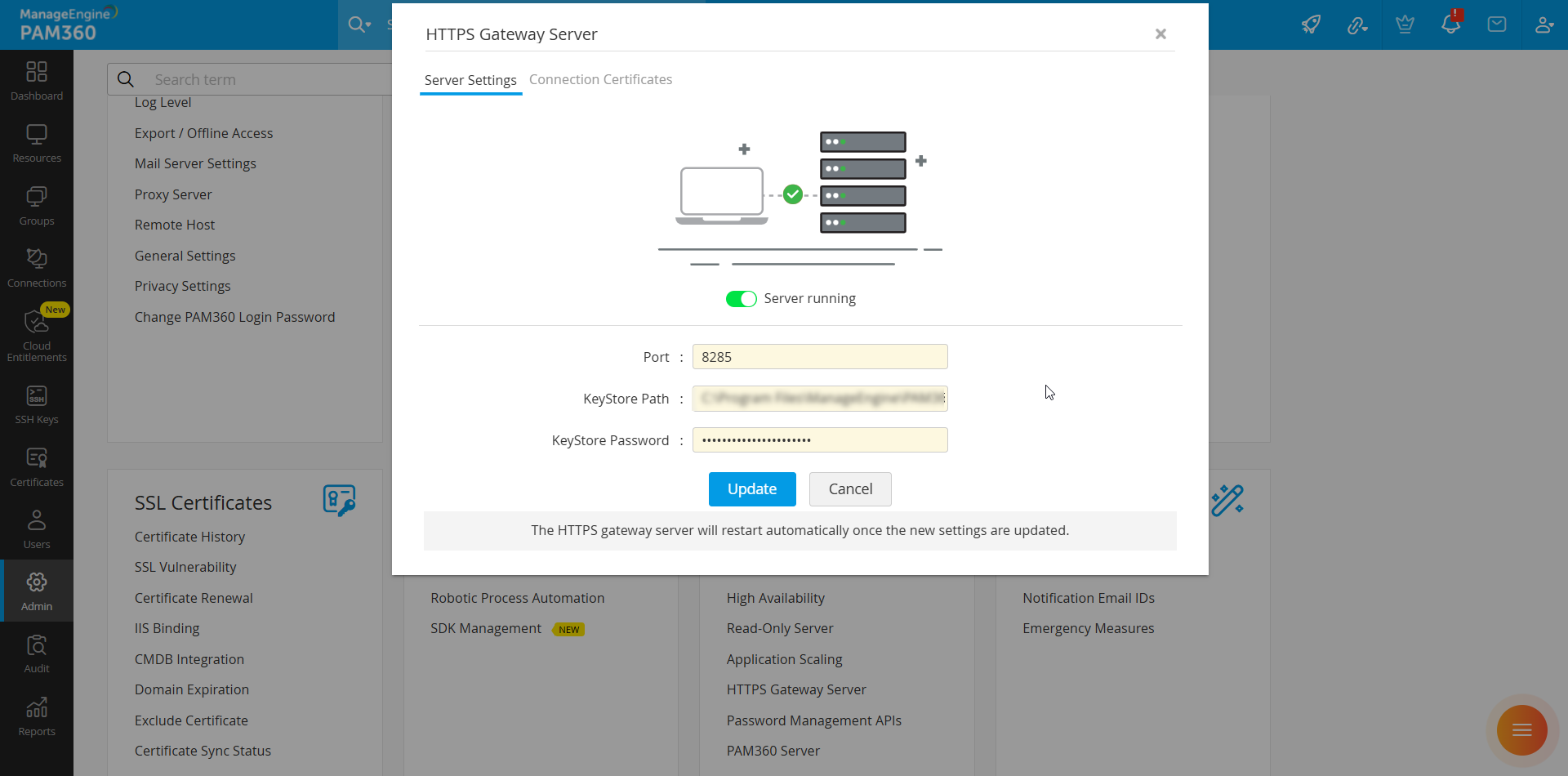
- Navigate to Admin >> PAM360 Gateways >> HTTPS Gateway Server and enter the following details:
- Port - The HTTPS gateway server is configured with port 8285 by default. If port 8285 is configured for another application/instance in your organization, update the available port number in this field.
- KeyStore Path - By default, a keystore file named "httpsCerts.keystore" will be available in the conf folder within the PAM360 installation directory to save all the HTTPS connection-related certificates. You can create a new KeyStore file of type .keystore and specify its file path in this field if you wish to use a unique KeyStore file to store your HTTPS connection-related certificates to improve the security of the HTTPS Gateway connections.
- KeyStore Password - Enter the KeyStore password of the custom KeyStore file available in the specified KeyStore path.
- Click Update to save the configured changes and start the HTTPS gateway server with the updated configuration.
Most HTTPS connections will work securely through the HTTPS gateway server. However, certain HTTPS connection URLs require their respective root certificates to establish a secure connection through the gateway. To ensure these URLs work securely, you must import their root certificates into the HTTPS Gateway Server's KeyStore.
Follow these steps to import the root certificates into the KeyStore file:
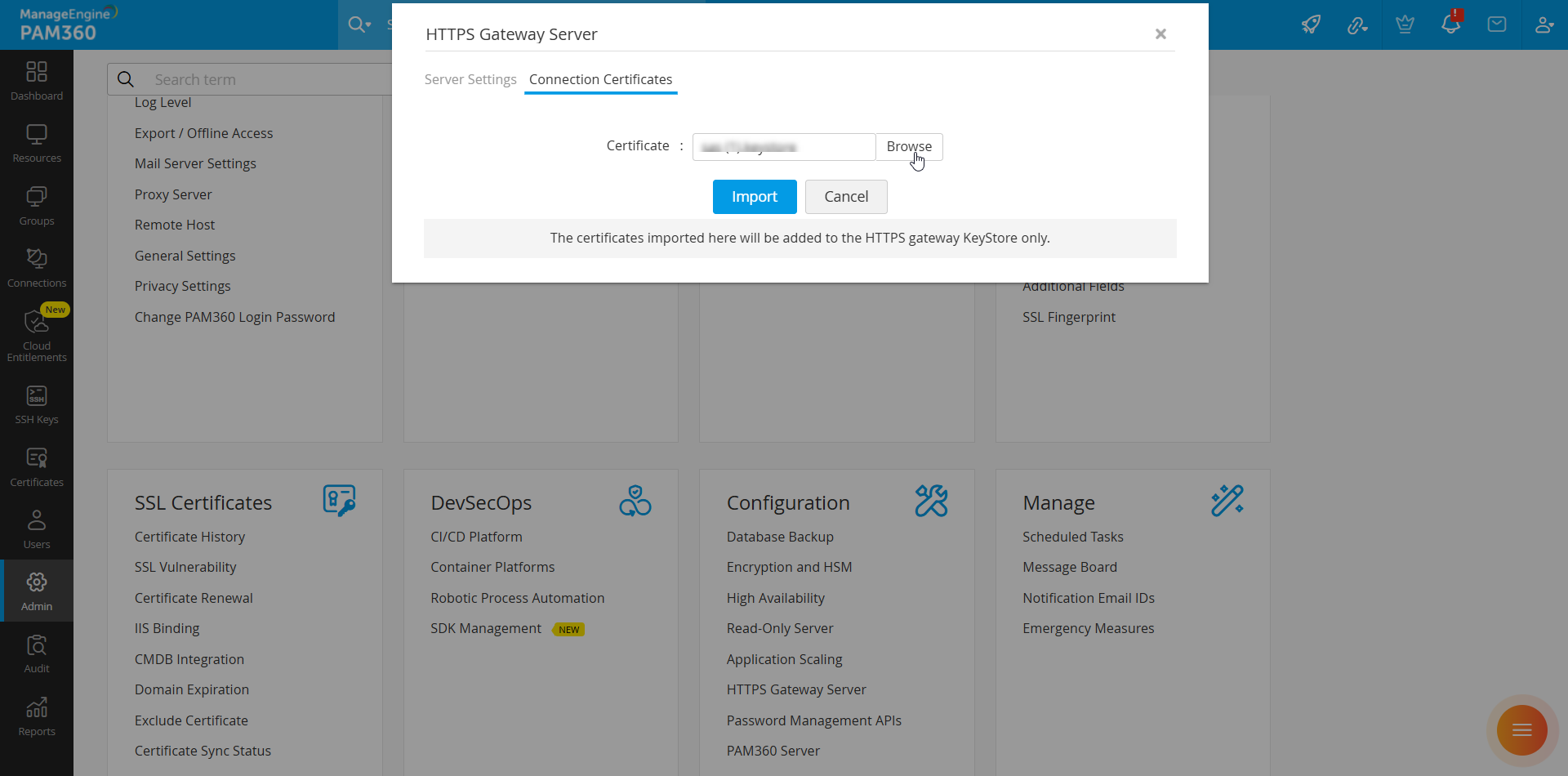
- Navigate to Admin >> HTTPS Gateway Server and switch to the Connection Certificates tab on the HTTPS Gateway Server pop-up window that appears.
- Click the Browse button beside the Certificate field, select the root certificate from your machine, and click Import to add the root certificate to the configured KeyStore file.
- You should restart the HTTPS Gateway server every time you add a root certificate to the KeyStore file. Switch to the Server Settings tab and restart the HTTPS Gateway server.
In organizations with load balancers configured for the PAM360 web interface, the following configurations should be updated:
- Configure the remote host feature in PAM360 by following the steps detailed in the provided link.
- Navigate to <PAM360 Installation Directory>/conf folder and open the system_properties.conf file using Notepad.
- Scroll down to the end of the page and add a new entry as https.gateway.server.loadbalancer.enabled=true.
Caution
Without the configured remote host feature and system property, the server will receive the load balancer IP address for all the received requests instead of the actual device that accessed the configured access URL, which allows the IP address to reach the maximum HTTPS gateway threshold than the permitted value.
3. Configuring Resources for HTTPS Gateway Connections
To enable users to launch HTTPS Gateway connections to web applications and services seamlessly, you should configure the auto logon helper for the supported resource types and configure the URLs of the web applications and services in the relevant resources via the Resources tab.
3.1 Configuring Auto Logon Helper
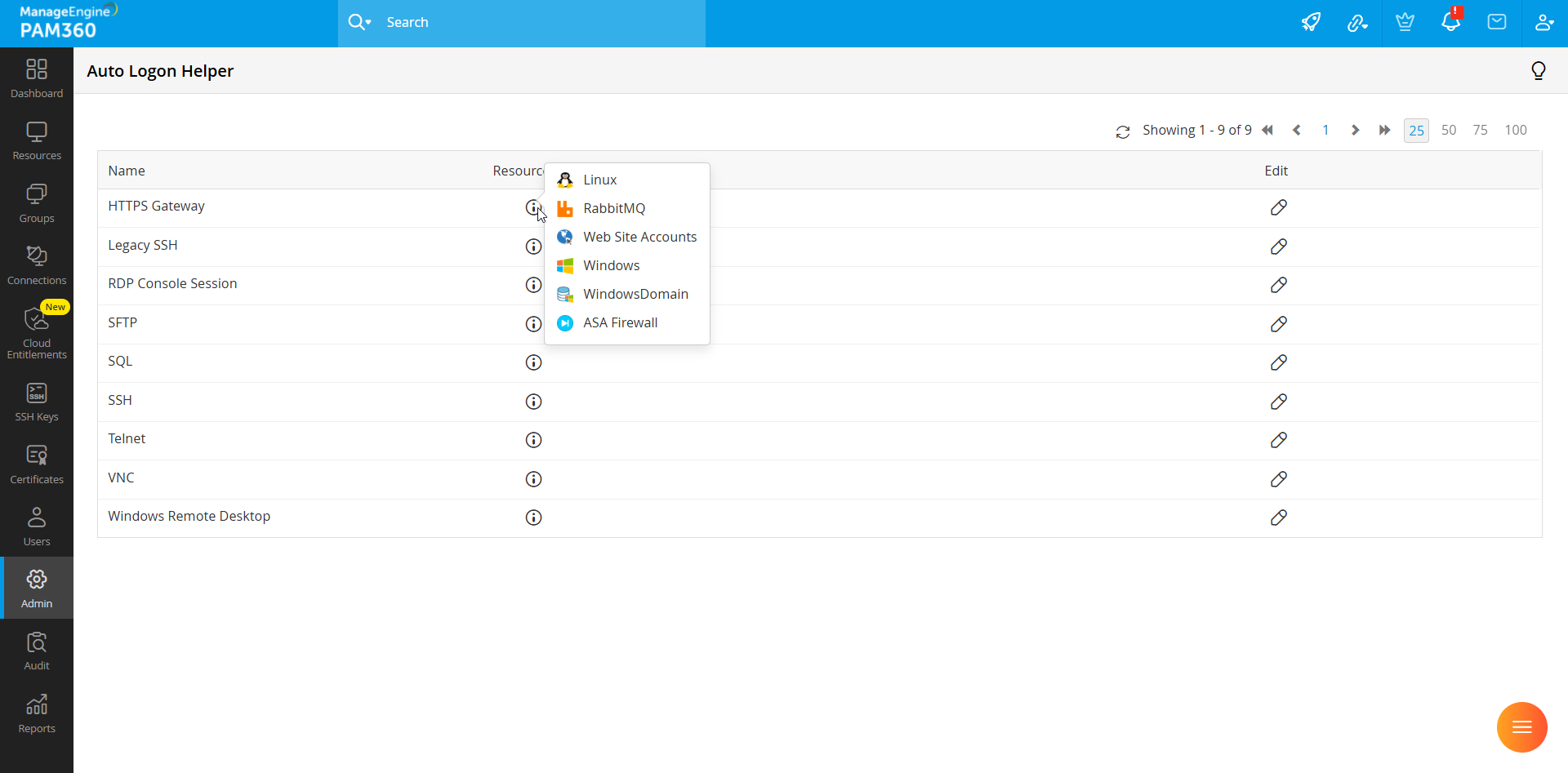
By default, the HTTPS Gateway connections are supported for the following resource types: Web Site Accounts, Windows, Windows Domain, Linux, and RabbitMQ. If you wish to use the HTTPS Gateway feature for other resource types that support web-based URLs, you should enable auto logon helper for HTTPS Gateway connections for these resource types.
- Navigate to Admin >> Privileged Session >> Auto Logon Helper.
- Click the edit icon beside HTTPS Gateway.
- Select the resource type for which you wish to configure web-based URLs to allow HTTPS Gateway connections on the left side and click the right arrow button. Repeat this step for each resource type.
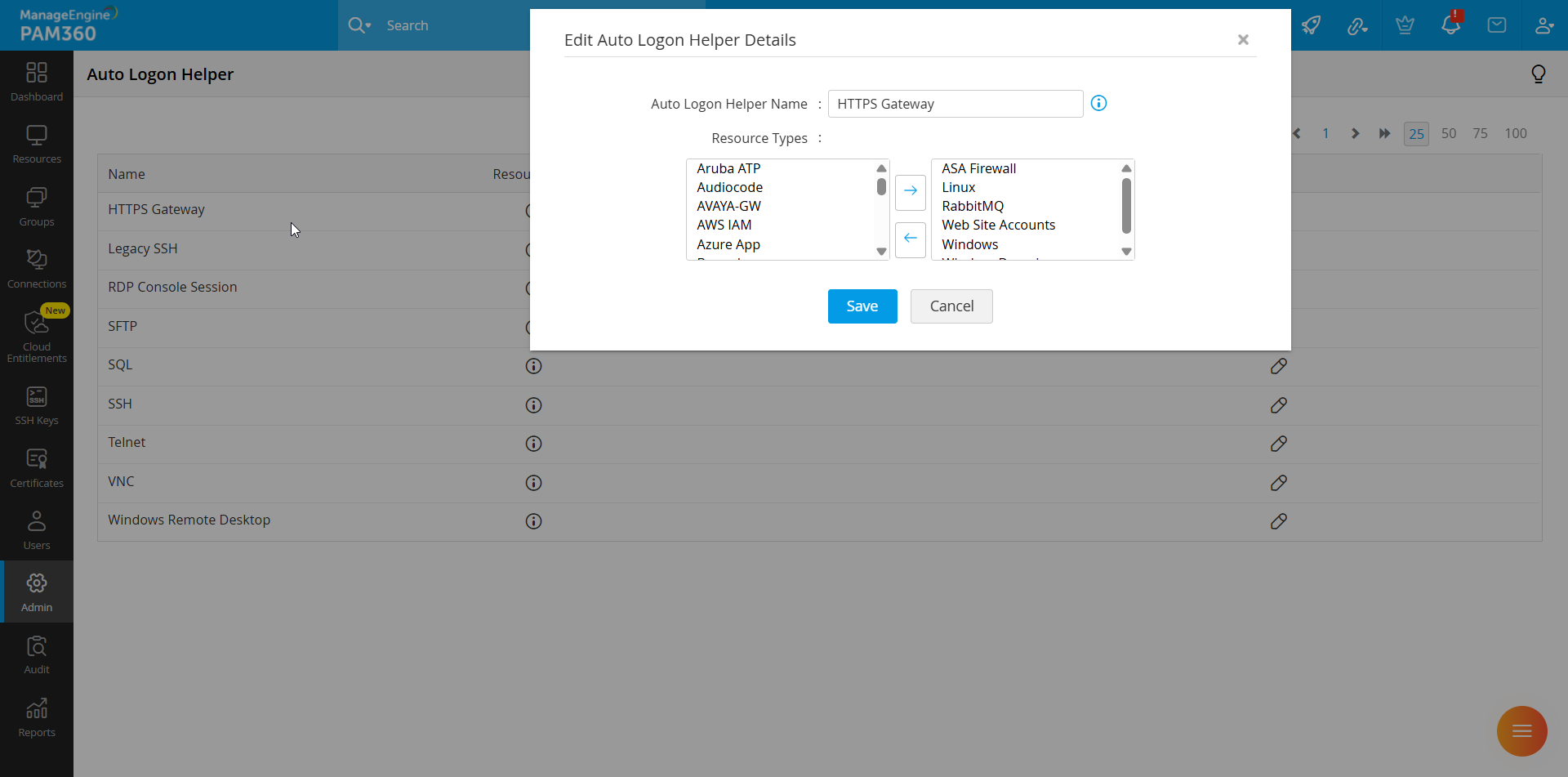
- Click Save to update the configured changes.
You can now configure HTTPS-based web URLs to the resources and share them with the required users, enabling them to launch HTTPS Gateway connections with auto logon support.
3.2 Adding URL (HTTPS-Based) to the Resources
You can add URLs to the resources in PAM360 either while adding a new resource or by editing an existing resource using the edit resource option. Follow these steps to add a resource URL to existing resources in PAM360:
- Navigate to the Resources tab.
- Click the Edit Resource icon under the Resource Actions column beside the desired resource for which you wish to configure a URL.
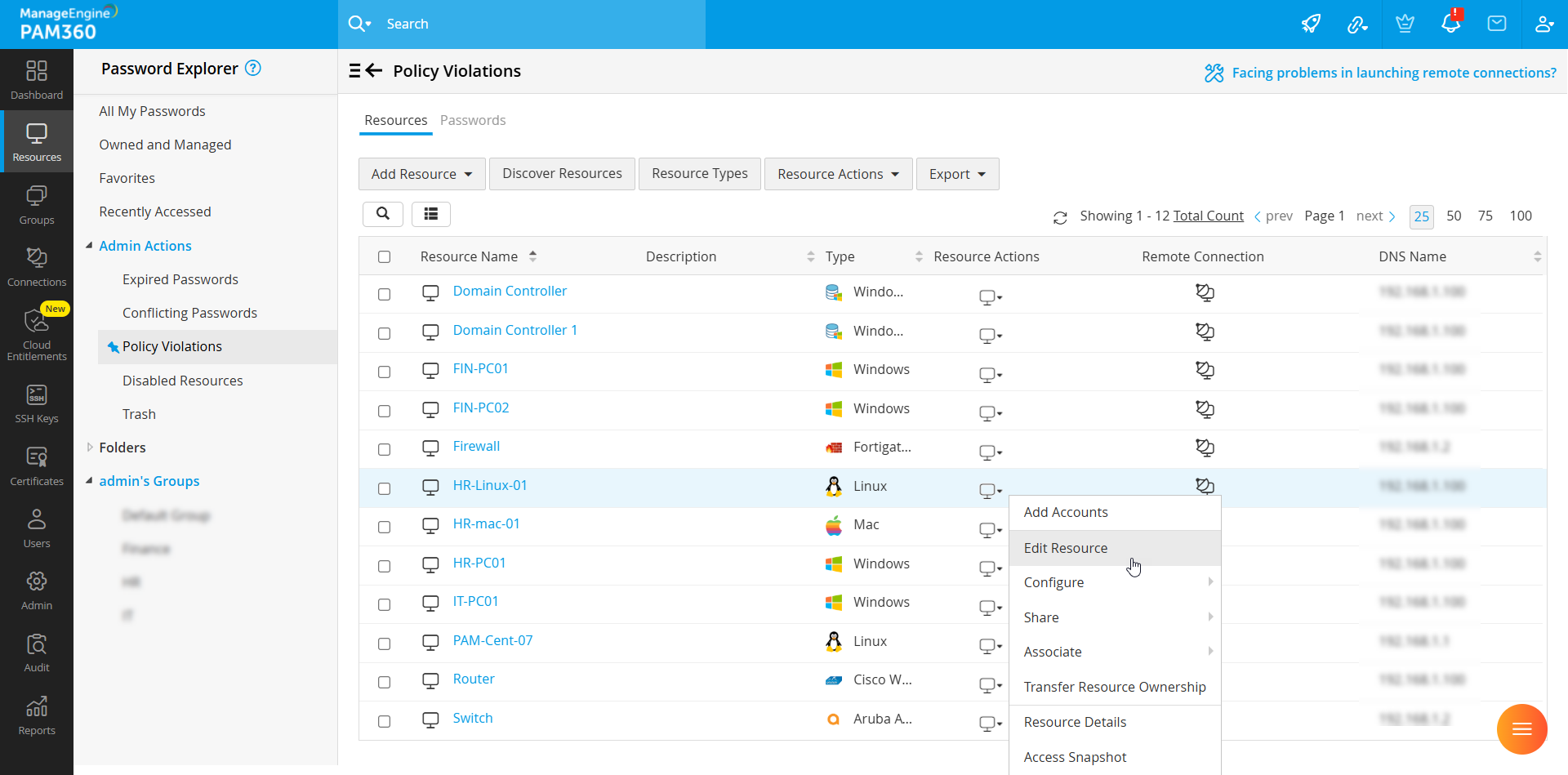
- In the pop-up that appears, enter a valid URL of type HTTPS web link in the Resource URL field.
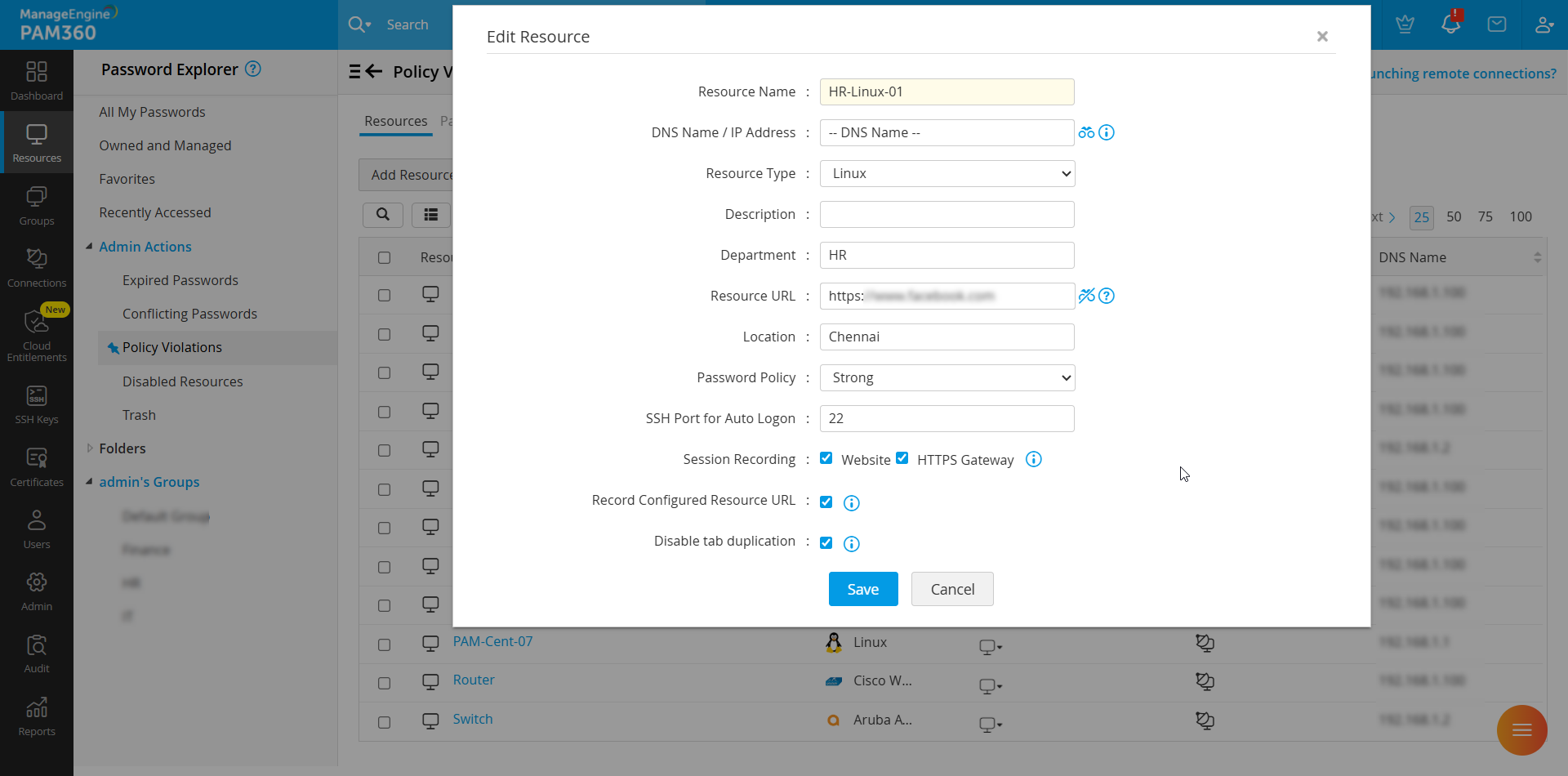
- Click Save to update.
You can share this resource with the users in your environment. Users with the HTTPS Gateway Connection privilege can launch an HTTPS gateway connection to the configured URL from the Connections and Resources tab. The resource will have the HTTPS gateway connection as a connection type for website sessions.
Caution
- From build 7400 onwards, PAM360 allows you to launch HTTPS gateway sessions for not just URLs but also URIs. Therefore, you can configure a resource with a URI while adding or editing a resource and allow users to launch an HTTPS gateway session to the configured URI.
- The HTTPS Gateway server is limited to configuration only in the MSP organization and is unavailable for client organizations. However, resources in client organizations can be configured with resource URLs to utilize the HTTPS Gateway server configured at the MSP organization for HTTPS Gateway connections.
- Adjust the PAM360 cookie settings to authenticate a session to the ManageEngine products through the HTTPS gateway server. This update is necessary as ManageEngine application services like ADMP and ADFS have cookie names similar to those in PAM360. Refer to Question 16 in General section of the FAQ for more details.
4. Functional Behavior in Multi-Server Environment
- Disabling the HTTPS Gateway server on one PAM360 server does not stop the HTTPS Gateway server entirely on environments with application scaling configuration. Restart the PAM360 service on all remaining active servers to stop the HTTPS Gateway server.
- For HTTPS gateway connection functions to operate seamlessly across multiple servers (both primary and secondary), a common UNC path should be provided as the KeyStore path, and the port number should be consistent across all servers.
- The HTTPS gateway server cannot be set up on a Read-Only server.
5. Limitations of HTTPS Gateway Server
- Only HTTPS-based web links can be added as connections in PAM360.
- If users navigate to sites other than the configured target URLs, their actions will no longer be routed through the HTTPS gateway server.
- If a website uses external services for authentication processes, such as login, user credential validation, or single sign-on (SSO), these actions will not be routed through the HTTPS gateway server.
- We do not support HTTPS Gateway connections to websites that contain absolute css and js source paths.
- We do not support websites that allow requests only from trusted domains.
- Connections to other ManageEngine product URLs, such as Password Manager Pro, ServiceDesk Plus, etc., can lead to session tracking conflicts due to shared cookie names, potentially leading to unexpected logouts. Therefore, certain website functions may not work as expected.
- Users can launch only one HTTPS gateway connection per browser session.
- We do not support HTTPS gateway connections to websites that support web socket connections.