Password Reset Plugin
Securing all the privileged resources and accounts in an IT environment is a crucial step in preventing unauthorized access and cyber threats. PAM360 supports remote password reset for a wide range of commonly used resource types in an IT environment, such as Windows, Windows Domain, Linux, macOS, etc.
However, in a complex IT environment, organizations often use various custom-built, legacy, or proprietary systems that may not employ standard authentication mechanisms, making it difficult to schedule password resets through conventional means. To address this gap, PAM360 provides Password Reset Plugins, which allow you to add your own implementation class and enforce automatic password resets for resource types that are not natively supported by PAM360, which may include the following:
- Legacy systems: Older applications or servers that use non-standard authentication methods.
- In-house applications: Custom-built applications that need their service accounts or administrator passwords managed.
- Proprietary devices: Hardware or software that requires a specific, unique method to change credentials.
Furthermore, administrators can leverage the access control workflow for legacy resources and enable automatic password reset upon usage. This help document covers the following topics in detail:
- Roles and Permissions
- How does a Password Reset Plugin Work?
- Creating a Custom Implementation Class
- Adding a Password Reset Plugin
- Approving a Password Reset Plugin
- Associating Password Reset Plugin as Reset Method for Custom Resource Type
1. Roles and Permissions
By default, users with the Privileged Administrator and Administrator roles can add, manage, and configure password reset plugins in PAM360. Additionally, PAM360 allows administrators to configure custom user roles with the Manage Password Reset Plugin privilege within Admin >> Customization >> Roles >> Custom Settings to add, manage, and approve password reset plugins.
2. How Does a Password Reset Plugin Work?
Password Reset Plugin is primarily an implementation class that an administrator can add manually in PAM360. The plugin can be invoked from the PAM360 server to execute a password reset operation on a remote resource. Password reset plugins can be individually configured for resources belonging to custom resource types.
When the password reset is triggered for resources belonging to a custom resource type for which a password reset plugin has been associated, PAM360 will invoke the interface methods of that plugin. Once invoked, the plugin will first connect to the remote resource to reset the password. If the password reset is executed successfully using the plugin, PAM360 will subsequently update the new password in its repository. The plugin also supports password verification for remote resources, ensuring the password is in sync with the password locally saved in PAM360's repository.
3. Creating a Custom Implementation Class
Write a Java class by implementing the RemotePasswordReset interface:
	public interface RemotePasswordReset
	{
	public boolean changeRemotePassword(Properties resetPropsprop) throws Exception;
	public String getErrorMessage() throws Exception;
	public boolean verifyRemotePassword(Properties verifyProps) throws Exception;
	public boolean isDeviceAvailable(Properties verifyProps) throws Exception;
	public Pattern getDbNamePattern()
	}
3.1 Implementation description
	// This class provides the methods to implement password reset plugin. You need to implement the interface
	public interface RemotePasswordReset
	{
	/**
	* Used to display the error message while doing the password reset and verification operations. The output gets reflected in audit trails.
	* @return Error message, if password reset is successful, return null. Otherwise, return a proper error message.
	*/

	public boolean changeRemotePassword(Properties resetProps) throws Exception;
	/** Actual function that will be called whenever "change remote password" functionality is triggered
	*@param resetProps will contain all the details regarding the account for which password reset is triggered.
	* @return Final output that will be sent to PAM360 server.
	* {@value true} Success case - Allows the operation to proceed.
	* {@value false} Failure case - Denies the operation to proceed.
	**/

	public String getErrorMessage() throws Exception;
	/*** Used to display the error message while doing the remote password reset and verification operations. The output gets reflected in audit trails.
	* Return a proper error message.
	*/

	public boolean verifyRemotePassword(Properties verifyProps) throws Exception;
	/** This function will be called whenever "verify remote password" functionality is triggered.
	*@param verifyProps will contain all the details regarding the account for which "verify remote password" was triggered.
	*@return Final output that will be sent to PAM360 server.
	*{@value true} Success case - Allows the operation to proceed.
	*{@value false} Failure case - Denies the operation to proceed.
	**/

	public boolean isDeviceAvailable(Properties verifyProps) throws Exception; }
	/** This function will be called before "verify remote password" function to check the accessibility of the device for which verify password was triggered.
	*@param verifyProps will contain all the details regarding the account for which verify remote password was triggered.
	*@return Final output that will be sent to PAM360 server.
	*{@value true} Success case - Allows the operation to proceed.
	*{@value false} Failure case - Denies the operation to proceed.
	**/

	public Pattern getDbNamePattern();
	/** This method is used to validate the database name used for connection in SQL resources when launching a SQL session.
	*@return the regular expression to validate the database name
	(or)
	*@return null if not a SQL resource and no validation needed **/
3.2 Compilation
Utilize the following jar files located within the <PAM360-Installation-Directory>\lib folder duirng compilation
- AdventNetPassTrix.jar;
- json_simple-1.1.jar;
For example:
- Windows - javac -d . -cp AdventNetPassTrix.jar;json_simple-1.1.jar; JiraServerResetImplementation.java
- Linux - javac -d . -cp AdventNetPassTrix.jar:json_simple-1.1.jar; JiraServerResetImplementation.java
3.3 Implementation Tips
You can design your implementation class so that the required resource and account parameters are passed as arguments and accessed directly within the class.
| Arguments | Description |
|---|---|
resetProps.get("RESOURCEID"); | Returns a Long object representing the resource ID. |
resetProps.get("ACCOUNTID"); | Returns a Long object representing the account ID. |
resetProps.get("OLDPASSWORD"); | Returns a String object containing the account’s old password. |
resetProps.get("NEWPASSWORD"); | Returns a String object containing the new password set for the account. |
resetProps.get("RESOURCENAME"); | Returns a String object containing the resource name. |
resetProps.get("DNSNAME"); | Returns a String object containing the DNS name of the resource. |
resetProps.get("ACCOUNTNAME"); | Returns a String object containing the account name. |
resetProps.get("OSTYPE"); | Returns a String object containing the OS type of the resource. |
resetProps.get("NOTES"); | Returns a String object containing the notes added under the account details. |
resetProps.get("LOGINNAME"); | Returns a String object containing the login name of the user who initiated the password reset. |
resetProps.get("IPADDRESS"); | Returns a String object containing the IP address of the resource. |
resetpresetPropsrops.get("RESOURCEDETAILS"); | Returns a ResourceDetails object that includes all other details of the resource. |
4. Adding a Password Reset Plugin
Follow these steps to add a password reset plugin in PAM360:
- Navigate to Admin >> Password Management >> Password Reset Plugin.
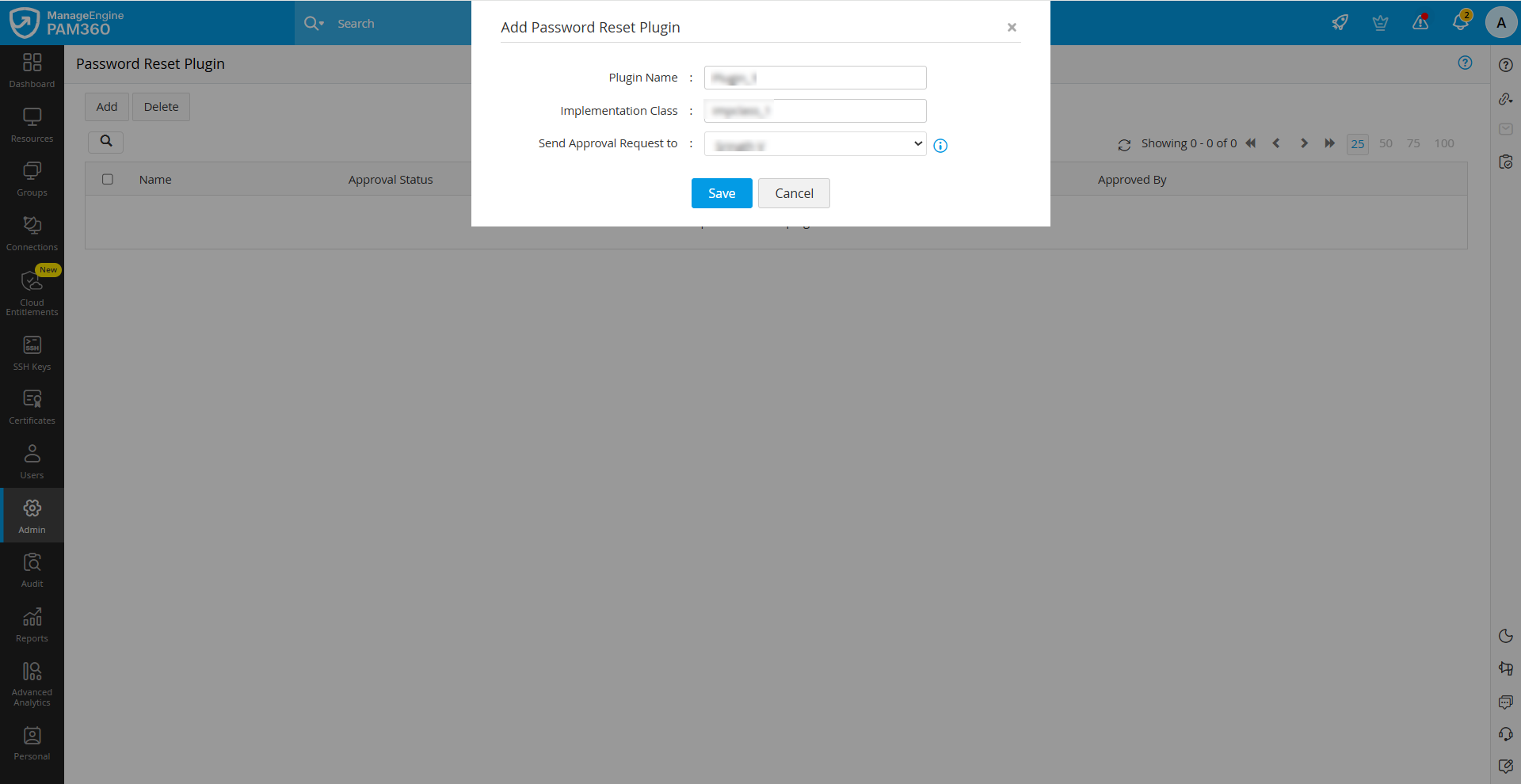
- On the Add Password Reset Plugin page that appears, enter the following details:
- Plugin Name - Enter a name for the plugin you are adding in this field.
- Implementation Class - Specify the name of your implementation class in this field. Ensure that you add the package name while specifying the class name. For example, "com.manageengine.helpdesk.JIRASecretResetPlugin".
- Send Approval Request to - Choose an approval administrator from the drop-down. An approval request will be sent to the selected administrator, and the plugin will be added post approval.
- Click Save to save the configured changes.
- When you click Save, an email will be sent to the selected administrator regarding the request to add the password reset plugin. Additionally, all the administrators in your environment will be notified about the request. Any user with the administrator privilege can approve the request.
5. Approving a Password Reset Plugin
By default, users with the administrator type user role can add the password reset plugins in PAM360. Additionally, all the password reset plugins added by an administrator should be approved by another administrator to ensure that only authorized and necessary scripts or programs are being invoked in the reset plugin. Follow these steps to approve a password reset listener request:
- Navigate to Admin >> Password Management >> Password Reset Plugin.
- On the Password Reset Plugin page, you will see a list of all plugins added in your environment.
- Click the Approve button located under the Approval Status column beside the desired plugin you want to approve.
After the request is approved by an administrator, you can use it as the password reset method to reset the passwords of custom resource type.
6. Associating a Password Reset Plugin as Reset Method for Custom Resource Type
Follow these steps to configure the password reset plugin with the custom resource type to execute remote password reset.
- Navigate to the Resources tab and click the Resource Types button in the top pane.
- On the Resource Types page that appears, click the Edit icon beside the desired custom resource type. Explore this link for detailed steps to add a custom resource type in PAM360.
- In the Edit Resource Type window that appears, switch to the Advanced tab, enable the Password Reset Plugin radio button, and select the desired plugin from the Reset method similar to drop-down field. All the approved password reset plugins will be available.
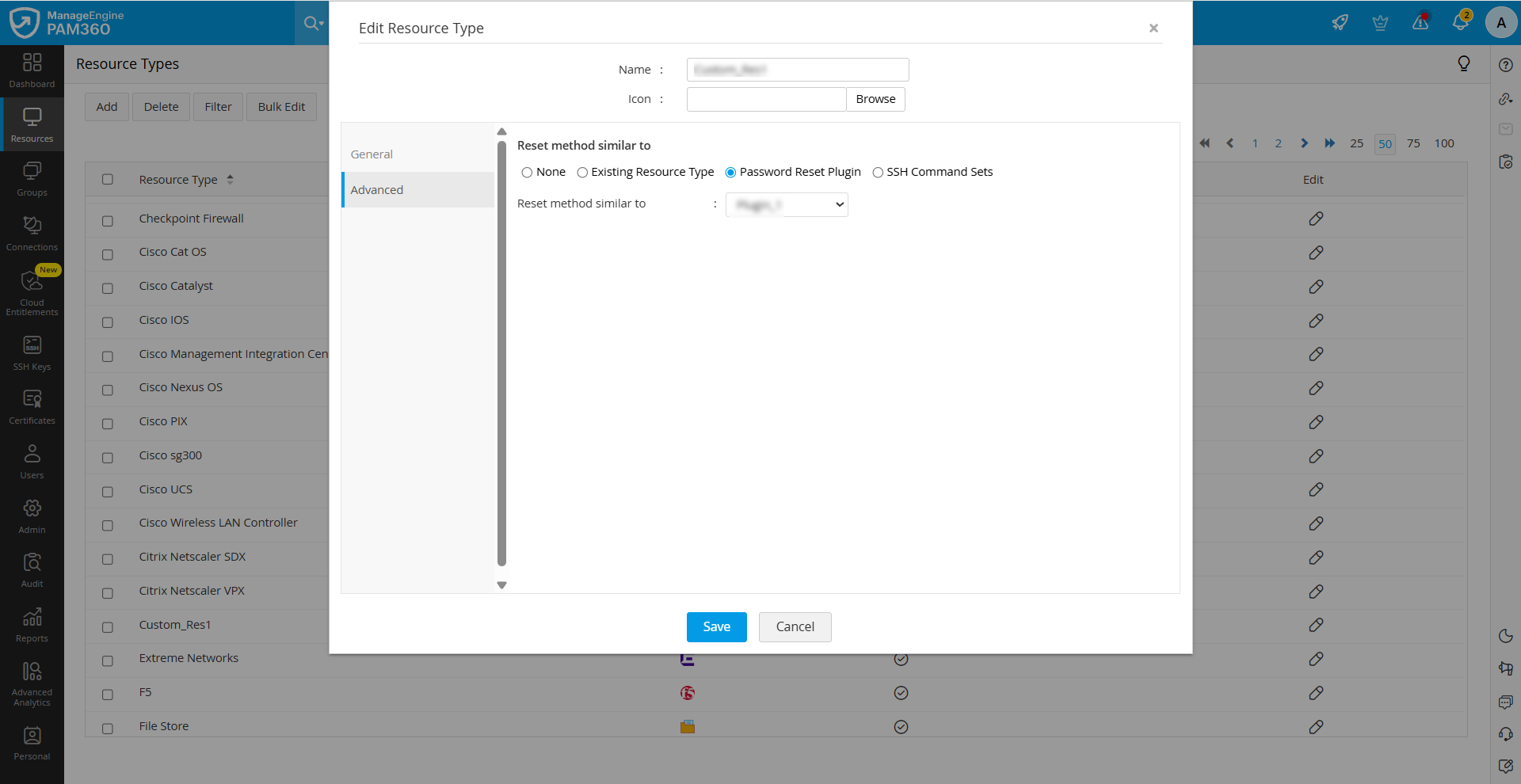
The configured Password Reset plugin is automatically invoked whenever a password reset action is triggered, provided that a valid remote password reset configuration is in place. Refer to the sample implementation class provided in this link, created to reset user account passwords of Jira Service Desk. You can use this code within the Password Reset Plugin to enable automatic password resets for Jira Service Desk accounts.
Caution
After downloading the file, verify its integrity by confirming that the SHA256 checksum value matches the one provided below:d72f5f4c76418597426a5590ea800204ce4e510e290f51985202ec1c372ccd0b