Query Reports
PAM360 supports creating query-based reports, allowing users to extract specific data from the database by either writing custom SQL queries or modifying existing ones. This functionality empowers users to fetch information from various tables and format it into actionable reports. For example, you can create reports for scenarios like:
- Identifying passwords that have not been changed after being used for auto-login
- Finding passwords that have never been changed since resource creation
- List of user groups with identical members
- List of users with identical email addresses
PAM360 provides pre-defined query reports organized by categories such as:
- Recorded Sessions
- Resource Group
- Resources
- Self-Service Privilege Elevation
- SSH Command Control
- User Groups
- Users
- Zero Trust
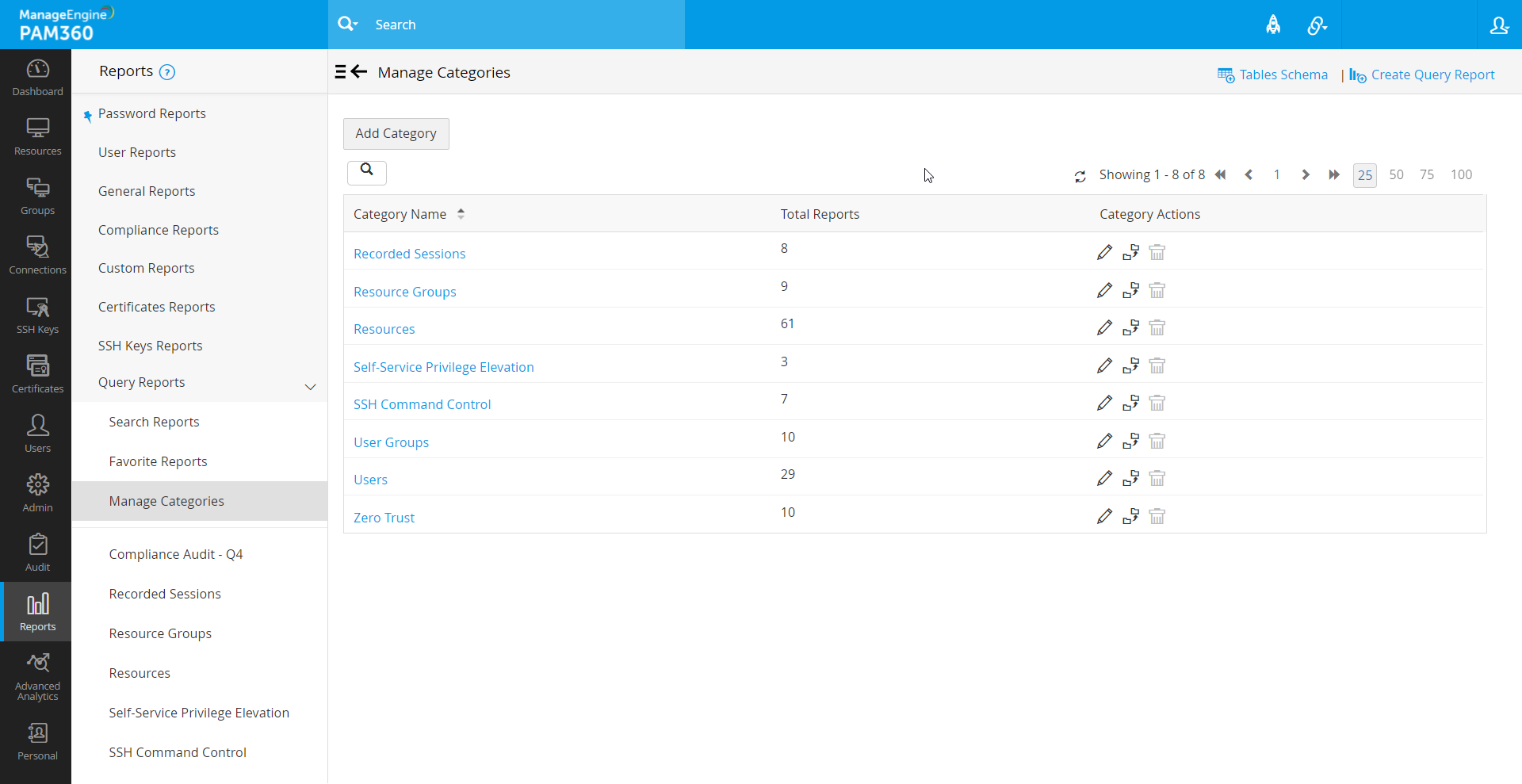
Each category consists of multiple query reports, and users can add new reports or create custom categories. To create a new custom query report category, navigate to Reports >> Query Reports >> Manage Categories and click Add Category. In the pop-up that opens, enter the category name and click Save.
This document will walks you through the following topics:
1. Creating Query Reports
You can generate query-based reports in two ways:
- Use default query reports found in predefined categories like Resource Groups, Resources, User Groups, and Users.
- Create custom reports by writing your own SQL queries using the table schema provided in the product interface.
While creating a new query report, you can use the default reports as such or edit the queries and save them as new reports. Or, to create a new query from scratch using your own SQL query, follow the steps given below:
- Navigate to Reports >> Query Reportsand click Create Query Report available on top right corner.
- In the interface that opens, enter the Report Name and Report Description for easier identification.
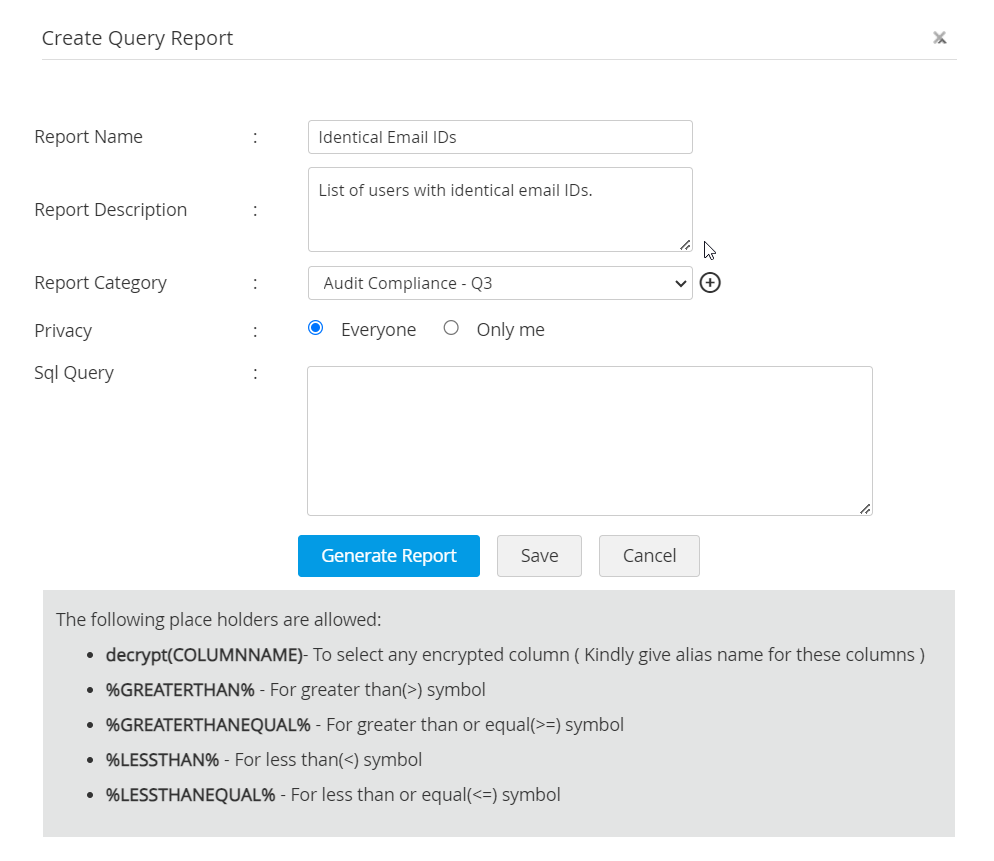
- Choose a Report Category from the predefined list or create a new category by clicking Add New.
- Set the report's Privacy to either Everyone or Only Me, depending on the data's sensitivity.
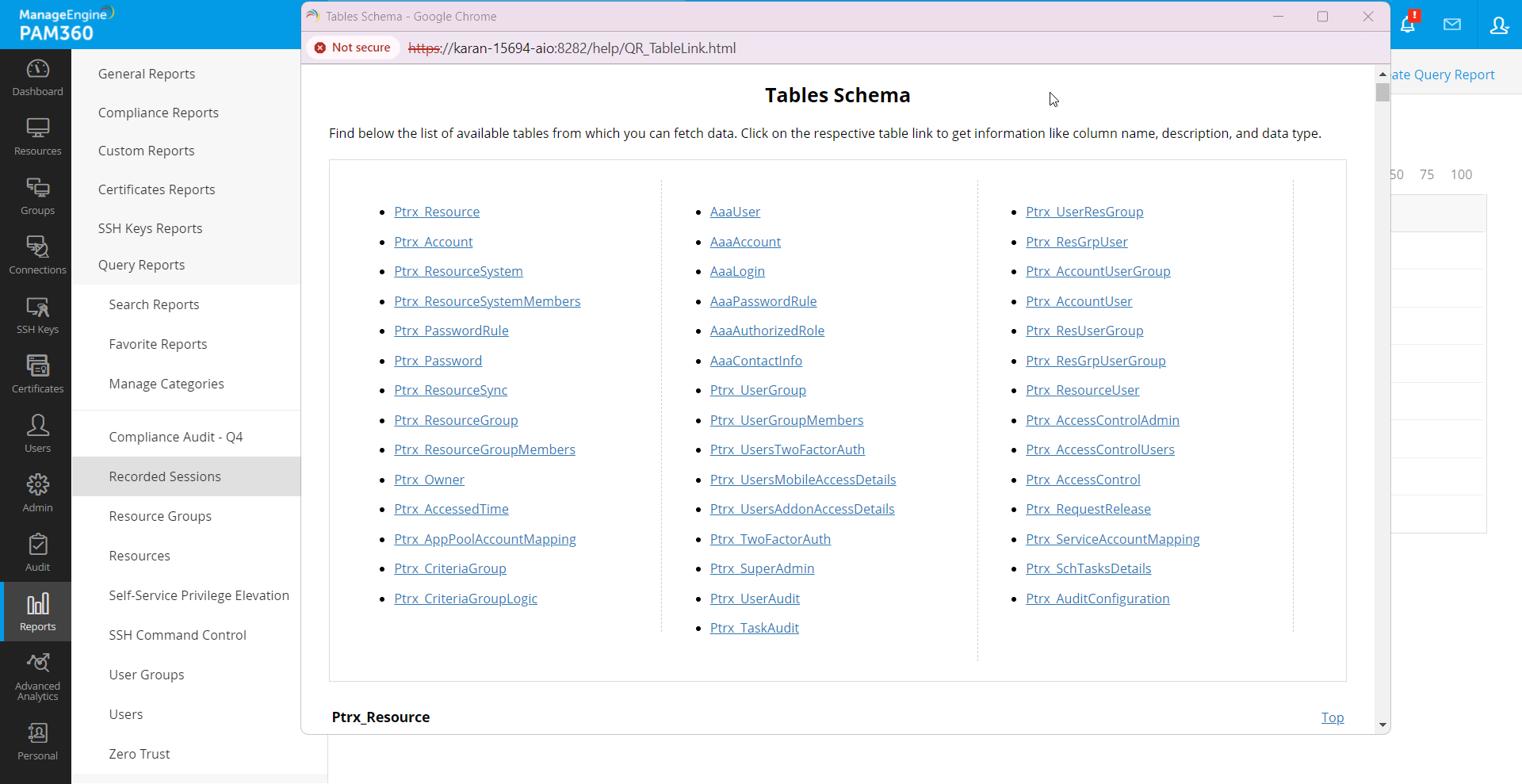
- Write your SQL query to extract the required data. You can refer to the Tables Schema at the top left corner of the UI to understand the database structure.
- Once the query is written, click Generate Report or Save for future use.
SQL Placeholders for Custom Queries
While writing your own SQL query, following are the placeholders that can be used:
- `decrypt(COLUMNNAME)`: To decrypt encrypted columns. Alias names should be provided when decrypting.
Additional Detail
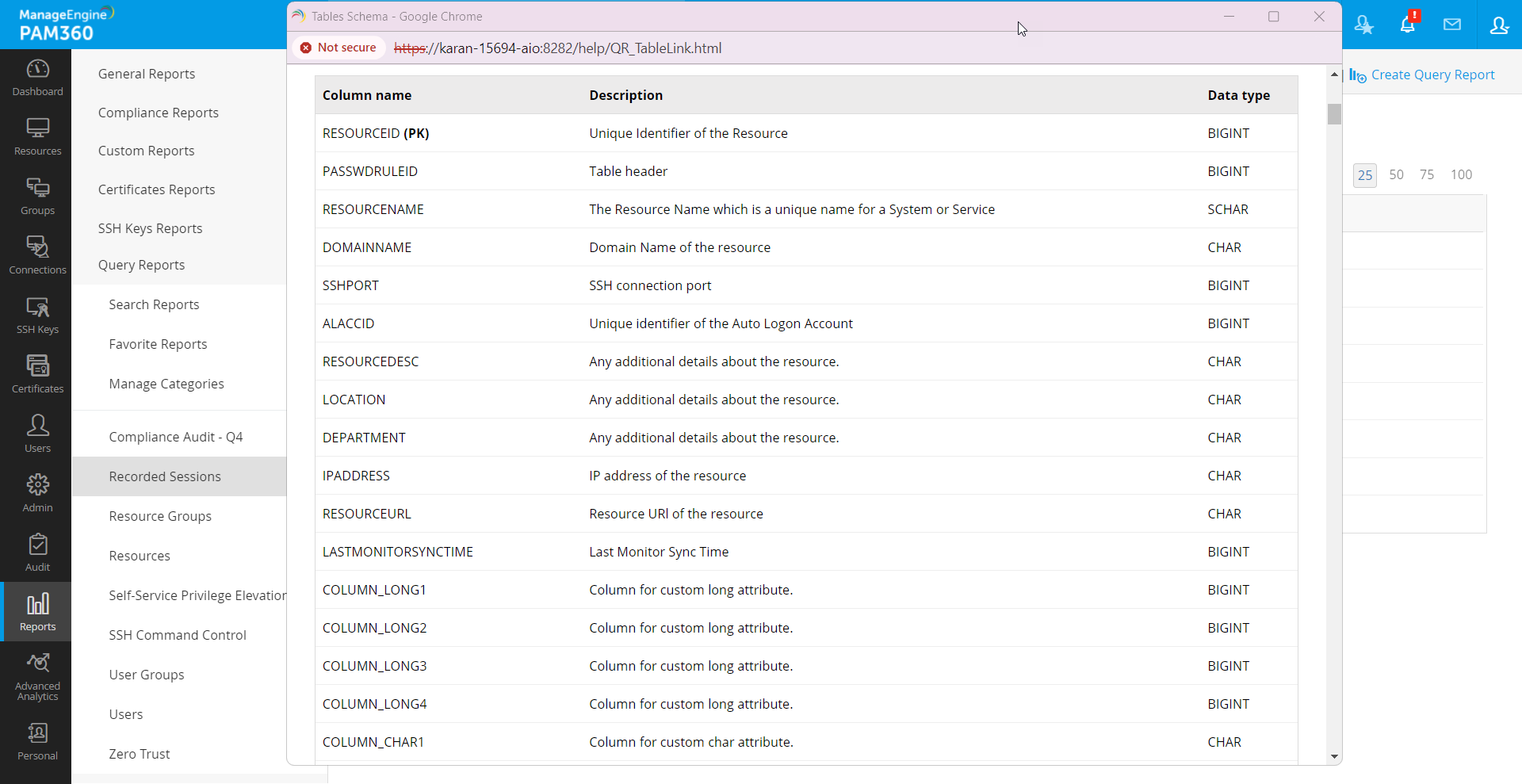
Encrypted columns can be identified by the SCHAR data type, which is visible in the Tables Schema.
- Use `%GREATERTHAN%`, `%GREATERTHANEQUAL%`, `%LESSTHAN%`, and `%LESSTHANEQUAL%` for comparison operators.
2. Sample Query Report Scenarios
Here are some SQL queries for common use cases:
Scenario 1 - Passwords Not Changed After Auto-Logon
This query report identifies passwords that have not been rotated after being used for auto-logon to a target system. Regular password resets after auto-login are critical for security.
	SELECT
		Ptrx_Resource.RESOURCENAME              AS "Resource Name",
		Ptrx_Account.LOGINNAME                 AS "Account Name",
		Ptrx_DummyPwdNotChan.retrievedtime     AS "Lastaccessedtime",
		Ptrx_ResourceSystem.OPERATINGSYSTEM    AS "Type",
		Ptrx_Resource.LOCATION                 AS "Location",
		Ptrx_Resource.RESOURCEDESC             AS "Description"
	FROM
	(
		SELECT
			accountid,
			retrievedtime
		FROM
		(
			SELECT
				Ptrx_DummyPwdRetr.accountid      AS accountid,
				Ptrx_DummyPwdRetr.accessedtime   AS retrievedtime,
				Ptrx_DummyPwdChanged.time        AS time
			FROM
			(
				SELECT
					RESOURCEID,
					ACCOUNTID,
					MAX(LASTACCESSEDTIME) AS accessedtime
				FROM
					Ptrx_UserAudit
					INNER JOIN Ptrx_AuditConfiguration
						ON Ptrx_AuditConfiguration.CONF_ID =
						   Ptrx_UserAudit.OPERATIONTYPE
				WHERE
					Ptrx_AuditConfiguration.OPERATION_TYPE = 'Password Retrieved'
					AND REASON LIKE '%auto logon helper reason%'
				GROUP BY
					RESOURCEID,
					ACCOUNTID
			) Ptrx_DummyPwdRetr
			LEFT JOIN
			(
				SELECT
					ACCOUNTID,
					MAX(LASTACCESSEDTIME) AS time
				FROM
					Ptrx_UserAudit
					INNER JOIN Ptrx_AuditConfiguration
						ON Ptrx_AuditConfiguration.CONF_ID =
						   Ptrx_UserAudit.OPERATIONTYPE
				WHERE
					Ptrx_AuditConfiguration.OPERATION_TYPE = 'Password Changed'
				GROUP BY
					ACCOUNTID
			) Ptrx_DummyPwdChanged
				ON Ptrx_DummyPwdRetr.accountid = Ptrx_DummyPwdChanged.accountid
			   AND Ptrx_DummyPwdChanged.time %GREATERTHAN%
				   Ptrx_DummyPwdRetr.accessedtime
		) AS Ptrx_DummyPwdRetrAndChan
		WHERE
			Ptrx_DummyPwdRetrAndChan.time IS NULL
	) AS Ptrx_DummyPwdNotChan
	INNER JOIN Ptrx_Account
		ON Ptrx_DummyPwdNotChan.accountid = Ptrx_Account.ACCOUNTID
	INNER JOIN Ptrx_Resource
		ON Ptrx_Resource.RESOURCEID = Ptrx_Account.RESOURCEID
	INNER JOIN Ptrx_ResourceSystemMembers
		ON Ptrx_ResourceSystemMembers.RESOURCEID =
		   Ptrx_Resource.RESOURCEID
	INNER JOIN Ptrx_ResourceSystem
		ON Ptrx_ResourceSystem.OSID =
		   Ptrx_ResourceSystemMembers.OSID
	ORDER BY
		Ptrx_Resource.RESOURCENAME;
Scenario 2 - Passwords Never Changed Since Resource Creation
This query helps you track resources whose passwords have not been changed even once since their creation. Periodic password resets are important and this report helps track all the resources that have outdated passwords.
You can also rewrite the following query to find out the passwords have not been changed for resources, added during a particular period.
	SELECT
		Ptrx_Resource.RESOURCENAME           AS "Resource Name",
		Ptrx_Account.LOGINNAME              AS "Account Name",
		Ptrx_ResourceSystem.OPERATINGSYSTEM AS "Type",
		Ptrx_Resource.LOCATION              AS "Location",
		Ptrx_Resource.RESOURCEDESC          AS "Description"
	FROM
	(
		SELECT
			Ptrx_Account.ACCOUNTID AS accountid,
			Ptrx_Resource.RESOURCEID
		FROM
			Ptrx_Account
			INNER JOIN Ptrx_Resource
				ON Ptrx_Resource.RESOURCEID =
				   Ptrx_Account.RESOURCEID
		WHERE
			accountid NOT IN
			(
				SELECT
					Ptrx_UserAudit.ACCOUNTID
				FROM
					Ptrx_UserAudit
					FULL OUTER JOIN
					(
						SELECT
							accountid,
							lastaccessedtime,
							OPERATION_TYPE
						FROM
							Ptrx_UserAudit
							INNER JOIN Ptrx_AuditConfiguration
								ON Ptrx_AuditConfiguration.CONF_ID =
								   Ptrx_UserAudit.OPERATIONTYPE
						WHERE
							Ptrx_AuditConfiguration.OPERATION_TYPE
								LIKE 'Account Added'
					) AS Ptrx_DummyAccAdded
						ON Ptrx_UserAudit.ACCOUNTID =
						   Ptrx_DummyAccAdded.accountid
					   AND Ptrx_UserAudit.lastaccessedtime %GREATERTHAN%
						   Ptrx_DummyAccAdded.lastaccessedtime
				WHERE
					Ptrx_DummyAccAdded.OPERATION_TYPE
						LIKE 'Password Changed'
					AND Ptrx_UserAudit.lastaccessedtime BETWEEN
						Ptrx_DummyAccAdded.lastaccessedtime
						AND
						(
							Ptrx_DummyAccAdded.lastaccessedtime
								::timestamp::date
							+ INTERVAL '5' day
						)
			)
	) AS Ptrx_DummyPwdNotChan
	INNER JOIN Ptrx_Account
		ON Ptrx_DummyPwdNotChan.accountid =
		   Ptrx_Account.ACCOUNTID
	INNER JOIN Ptrx_Resource
		ON Ptrx_Resource.RESOURCEID =
		   Ptrx_Account.RESOURCEID
	INNER JOIN Ptrx_ResourceSystemMembers
		ON Ptrx_ResourceSystemMembers.RESOURCEID =
		   Ptrx_Resource.RESOURCEID
	INNER JOIN Ptrx_ResourceSystem
		ON Ptrx_ResourceSystem.OSID =
		   Ptrx_ResourceSystemMembers.OSID
	ORDER BY
		Ptrx_Resource.RESOURCENAME;
3. Scheduling Query Reports
You can schedule an existing query report or a new query report for automatic generation. Here is how:
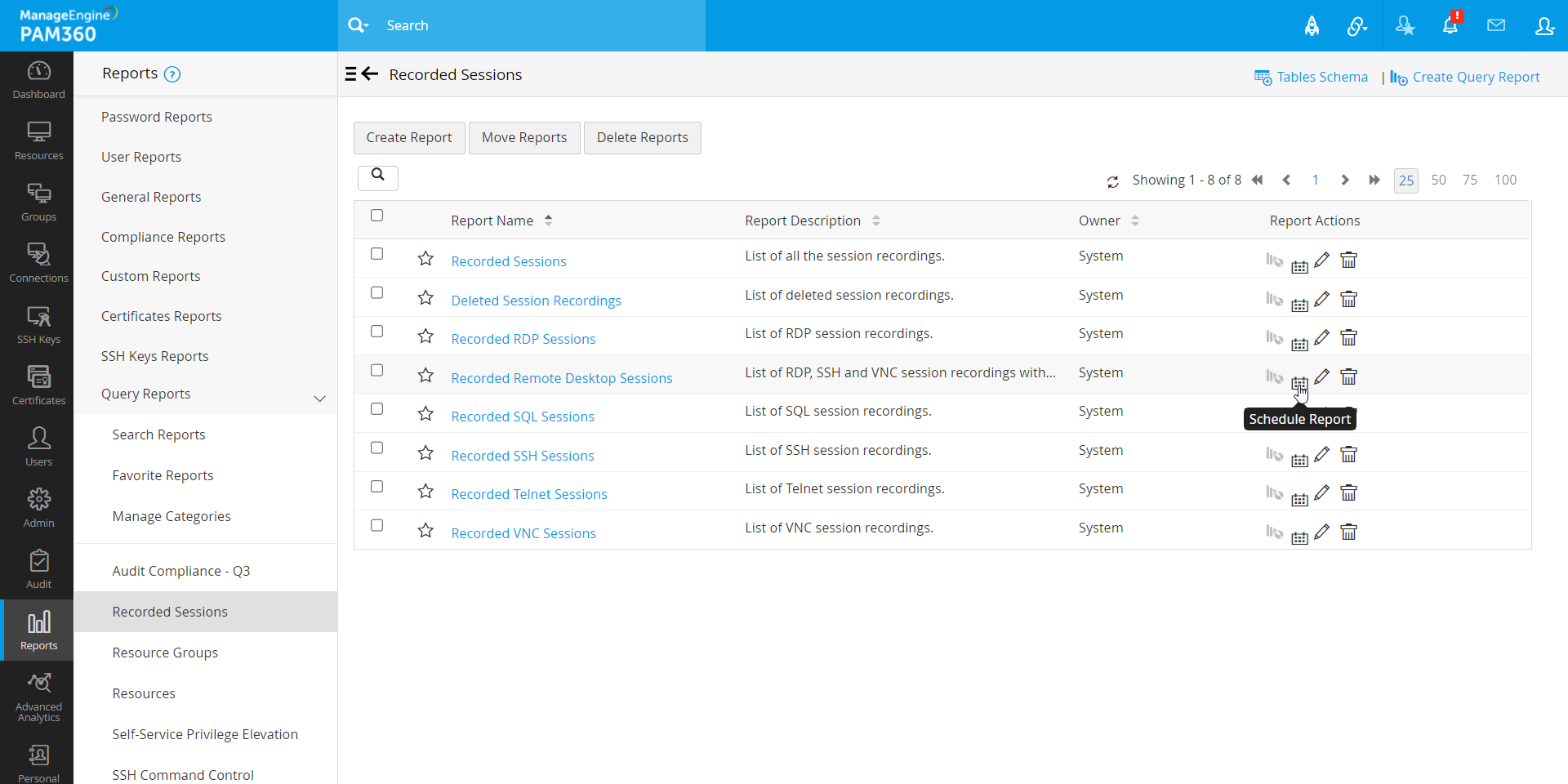
- Navigate to Reports >> Query Reports and then to the respective category.
- Click the Schedule Report icon next to the desired report for which the schedule has to be configured.
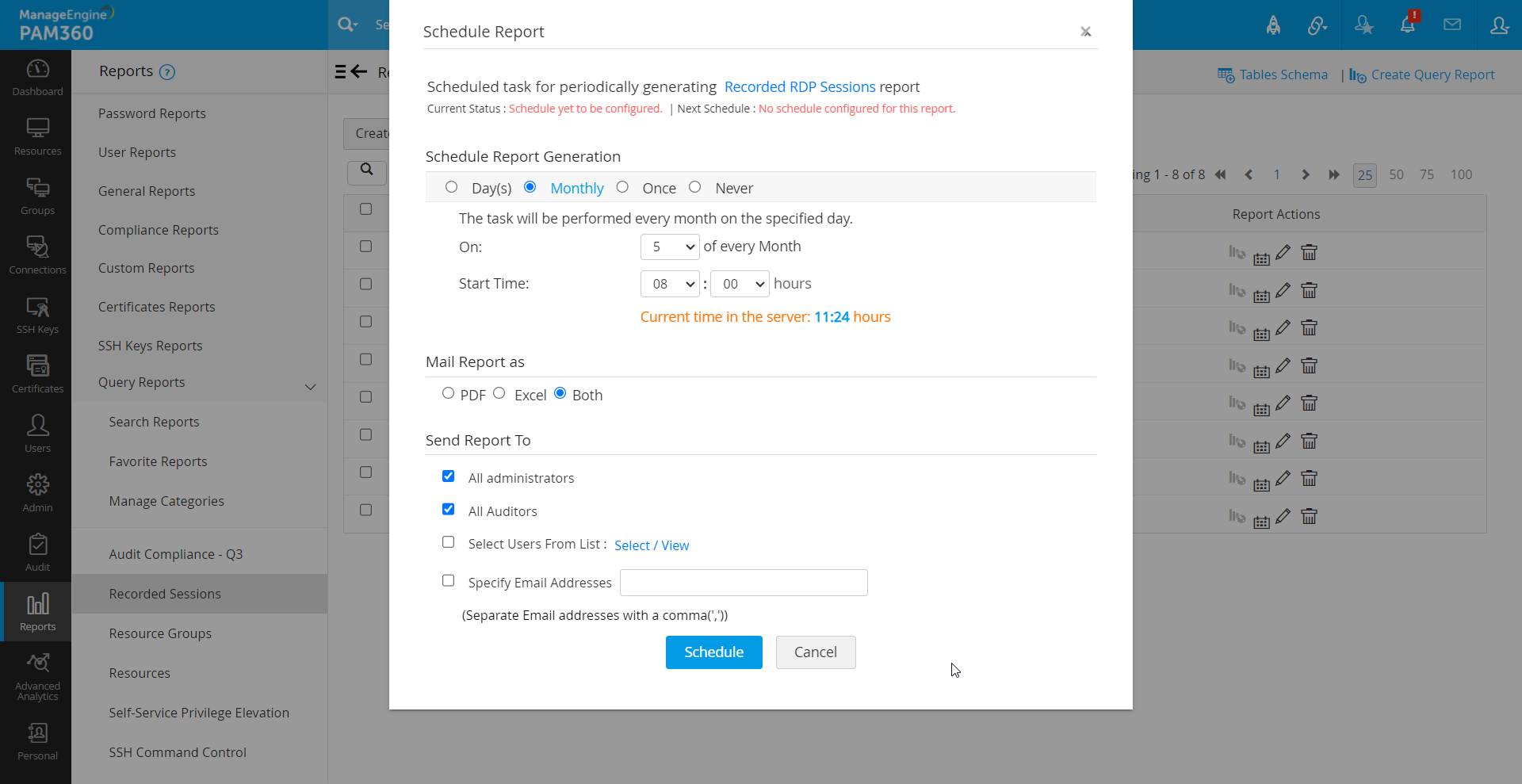
- In the pop up form that opens, set the desired schedule (daily, monthly, etc.) and specify the start time.
- Next, choose the format in which the report has to be mailed to the recipients, PDF or Excel or Both.
- Select the recipients to whom the report should be mailed to, from the given options. You can also provide a custom list of email ids instead.
- Click Schedule.
To cancel an existing schedule, follow the below steps:
- Click on the Schedule Report icon under Report Actions column beside the desired report.
- In the pop-up form that opens, select the option Never and click Schedule.
4. Managing Categories
To manage categories, go to Reports >> Query Reports >> Manage Categories.
- To edit a category, click the Edit Category icon beside the category. In the popup, modify the name and click Save.
- To delete a category, click the Delete Category icon beside the desired category and confirm the deletion.
Additional Detail
In order to delete a category, you have to first ensure that no reports exist under it. If there are reports, you can move them to another category.
- To move reports between categories, click the Move Reports icon beside the desired category, choose the target category, and click Save.