Rebranding PAM360
PAM360 offers a range of customization options to help you tailor the user experience to your organization’s needs. For instance, you can easily replace the default PAM360 logo on the login screen and web interface with your own. Additionally, PAM360 provides the flexibility to add legal and/or privacy policies to the login page, requiring users to accept them before logging in. This feature can be configured, enabled, or disabled at any time through the web interface.
Best Practices
While customizing the PAM360 logo, adhere to the following sizing guidelines to ensure optimal visual quality:
- The recommended dimensions for the PAM360 logo for the web interface is 210 * 50 pixels.
- The recommended dimensions for the PAM360 mobile logo is 500 * 140 pixels.
To begin customizing your PAM360 installation, navigate to Admin >> Customization >> Rebrand. A pop-up window will appear, offering two customization options: Logo and Theme and Login Page Text. This document discusses how to customize these aspects of PAM360 to better suit your organization’s branding and compliance requirements.
1. Customizing Logo and Theme
Follow these steps to customize your PAM360 logo and theme:
- Under the Logo and Theme section in the Rebrand window, click the Browse button beside the New Logo field to upload a new logo from your machine. The recommended dimensions are 210 x 50 pixels.
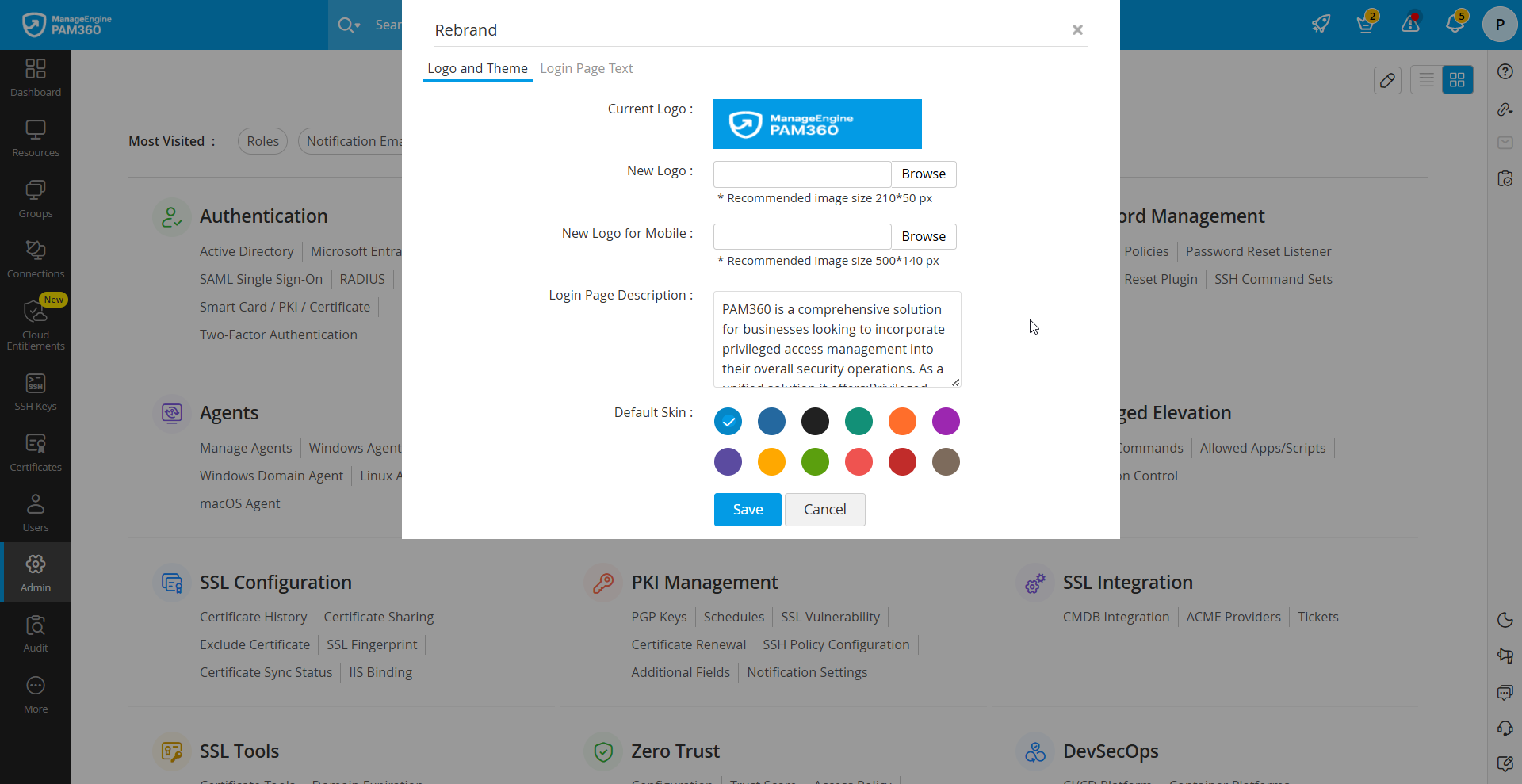
- You can also choose to have a different logo for the mobile version of PAM360. To select a logo for mobile devices, click the Browse button beside the New Logo for Mobile field to upload a new logo from your machine. The recommended dimensions are 500 x 140 pixels.
- In the Login Page Description field, enter the text you would like to display on the login page. This could include a welcome message, company motto, or any other information that represents your organization.
- In the Default Skin tab, select a new skin color that best matches your organization's branding. This color will be applied to the overall interface, ensuring a cohesive and visually appealing user experience.
- Click Save to apply the changes.
2. Customizing Login Page
Follow these steps to customize the login page of your PAM360 installation:
- In the Rebrand window, switch to the Login Page section to access the customization options for the login page.
- Legal Banner:
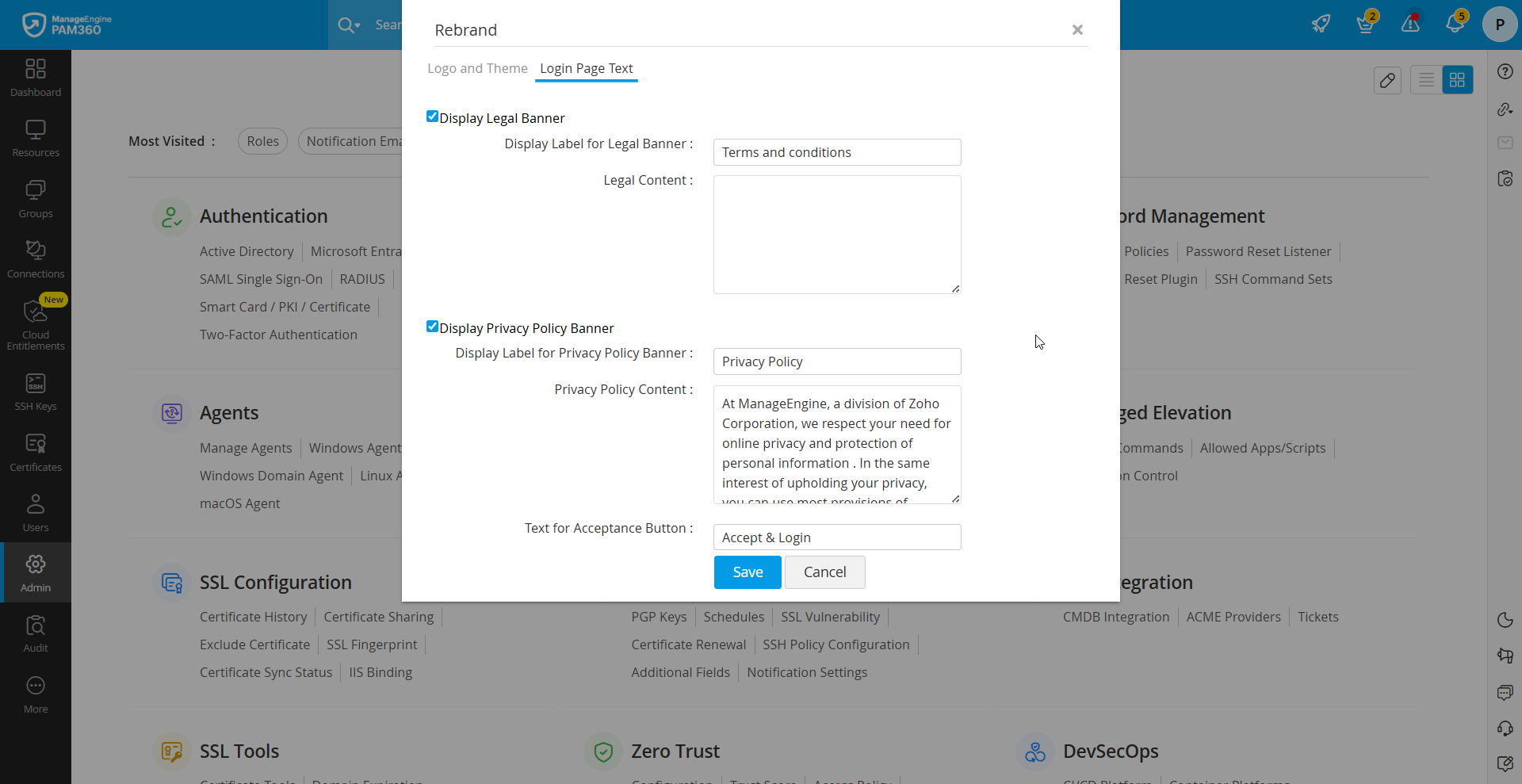
- To display a legal notice, tick the Display Legal Banner checkbox.
- In the Display Label for Legal Banner field, enter a title for the legal banner, such as "Terms of Service" or "Legal Notice."
- In the Legal Content field, provide the detailed legal text to be displayed on the login page.
- Privacy Policy:
- To include a privacy policy on the login page, tick the Display Privacy Policy Banner checkbox.
- In the Display Label for Privacy Policy Banner field, provide an appropriate title, such as "Privacy Policy".
- In the Privacy Policy Content field, enter the detailed privacy policy content.
- In the Text for Acceptance Button field, specify the text you want to appear on the acceptance button, such as "Agree and Continue" or "Accept and Continue".
- Click Save to apply these changes and update the login page accordingly.
Additional Detail
The legal and privacy policy banners will only appear on the login page if their respective content fields are filled out. If these fields are left empty, the settings cannot be saved.
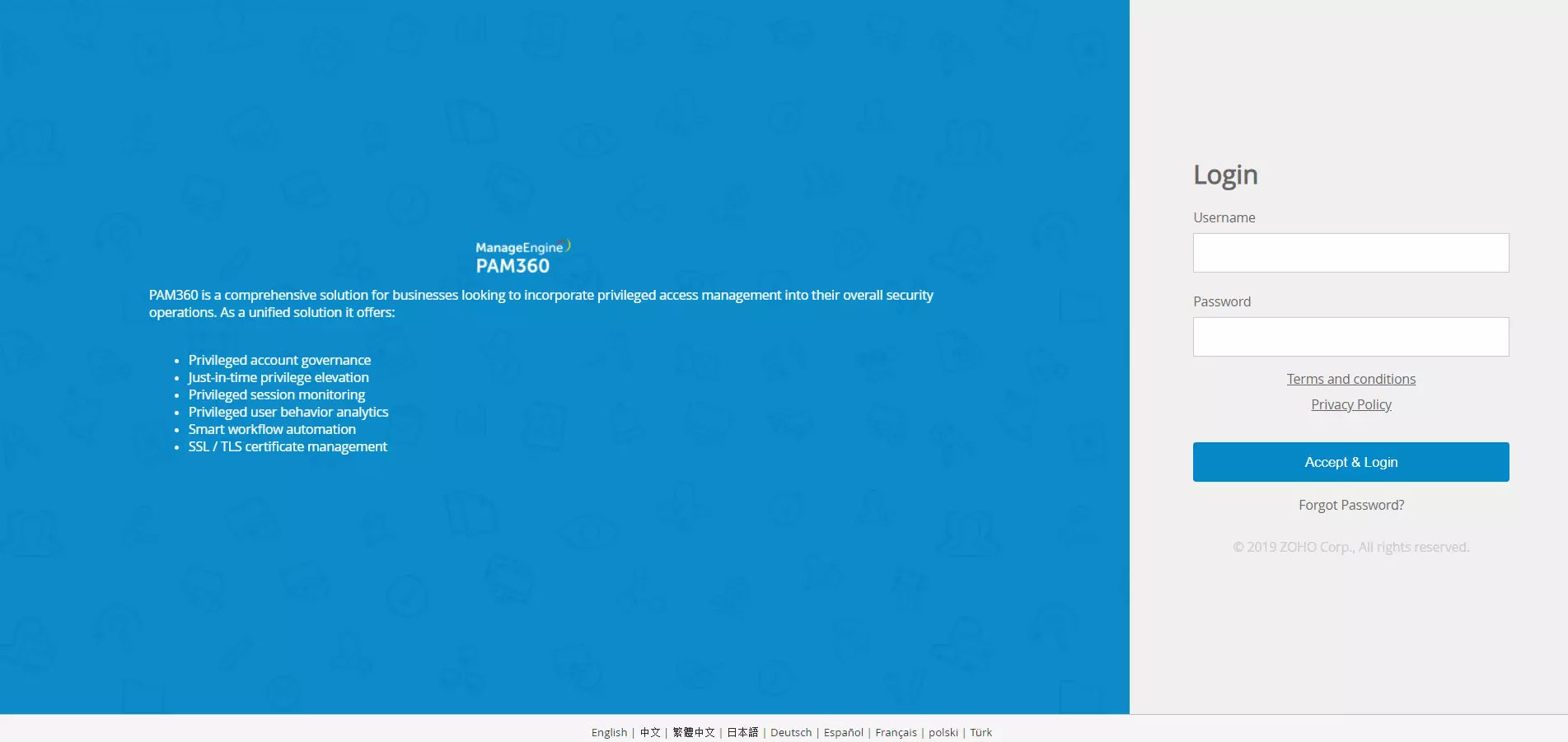
Upon subsequent logins, these configurations will be reflected on the login page as shown in the image below: