Setting up Two-Factor Authentication
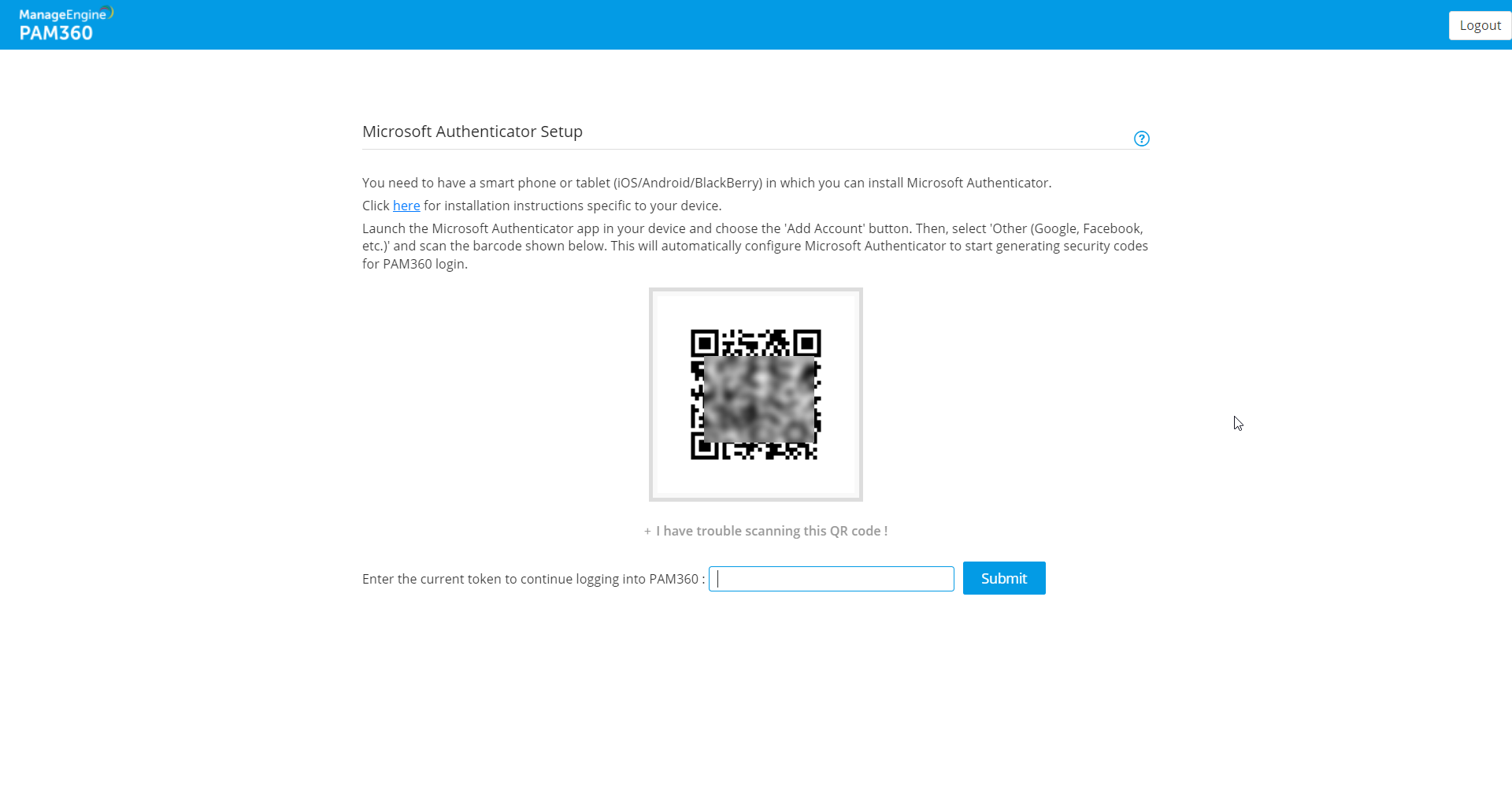
PAM360 securely stores sensitive administrative passwords of enterprise resources in the database as encrypted data. Previously, access to this data relied on a single level of authentication, such as PAM360's local authentication or third-party identity stores like Active Directory (AD), Microsoft Entra ID, or LDAP. Besides the single level of authentication, PAM360 supports Two-Factor Authentication (TFA) to enhance security by requiring users to pass two consecutive authentication stages to access the web interface. The first stage involves native authentication or AD/Entra Id/LDAP verification, while the second stage can be configured using one of the authentication methods detailed in section 1.
How does Two-Factor Authenticators Work with PAM360?
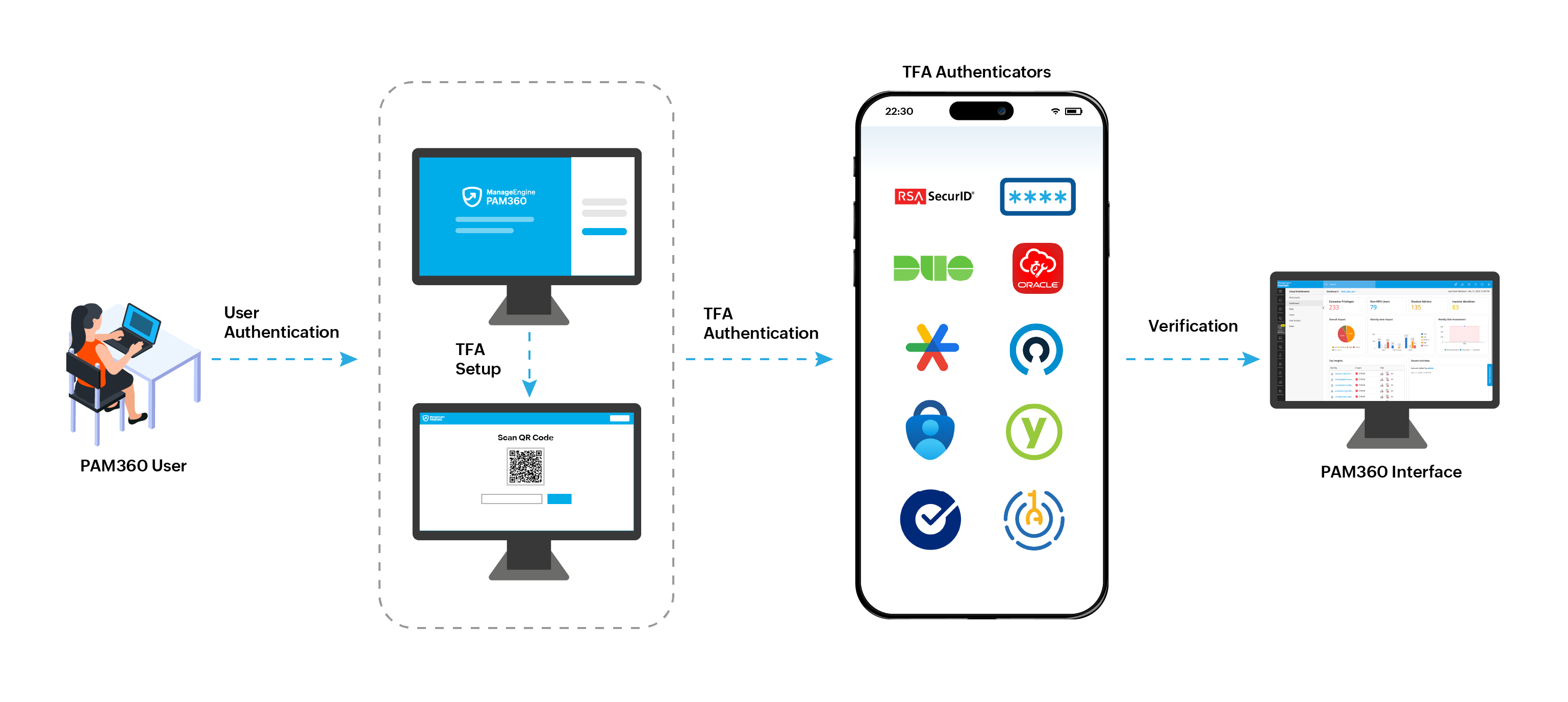
- A user tries to access the PAM360 web interface.
- PAM360 authenticates the user through the first factor of authentication ire, the local authentication, RADIUS authentication, smart card authentication or AD/Microsoft Entra ID/LDAP authentication.
- Once the initial authentication is successful, PAM360 prompts the user for the second authentication factor through the configured TFA Authenticator.
- The user approves the authentication request via the authenticator app or enters the six-digit code generated by the app.
- Upon successful verification of the second factor, PAM360 grants the user access to the web interface for further operations.
At the end of this document, you will have learned the following topics:
- Two-Factor Authentication Methods in PAM360
- Enabling Two-Factor Authentication in PAM360
- Enforcing Two-Factor Authentication for PAM360 Users
- Resetting Two-Factor Authentication in PAM360
1. Two-Factor Authentication Methods in PAM360
Before enabling the TFA, decide on the authentication method you wish to use. At present, PAM360 supports TFA through the following methods:
- RSA SecurID
- Okta Verify
- RADIUS Authenticator
- Duo Security
- YubiKey
- Google Authenticator
- Microsoft Authenticator
- Oracle Authenticator
- Zoho OneAuth Authenticator
- One-Time Password via Email
Click the respective links to learn more and proceed with setting up the required TFA from the respective interface.
2. Enabling Two-Factor Authentication in PAM360
To enable TFA and configure an authentication method (RSA SecurID, Duo, Microsoft, Google, or One-Time Password) as the second factor of authentication in PAM360, follow these steps:
- Navigate to Admin >> Authentication >> Two-Factor Authentication.
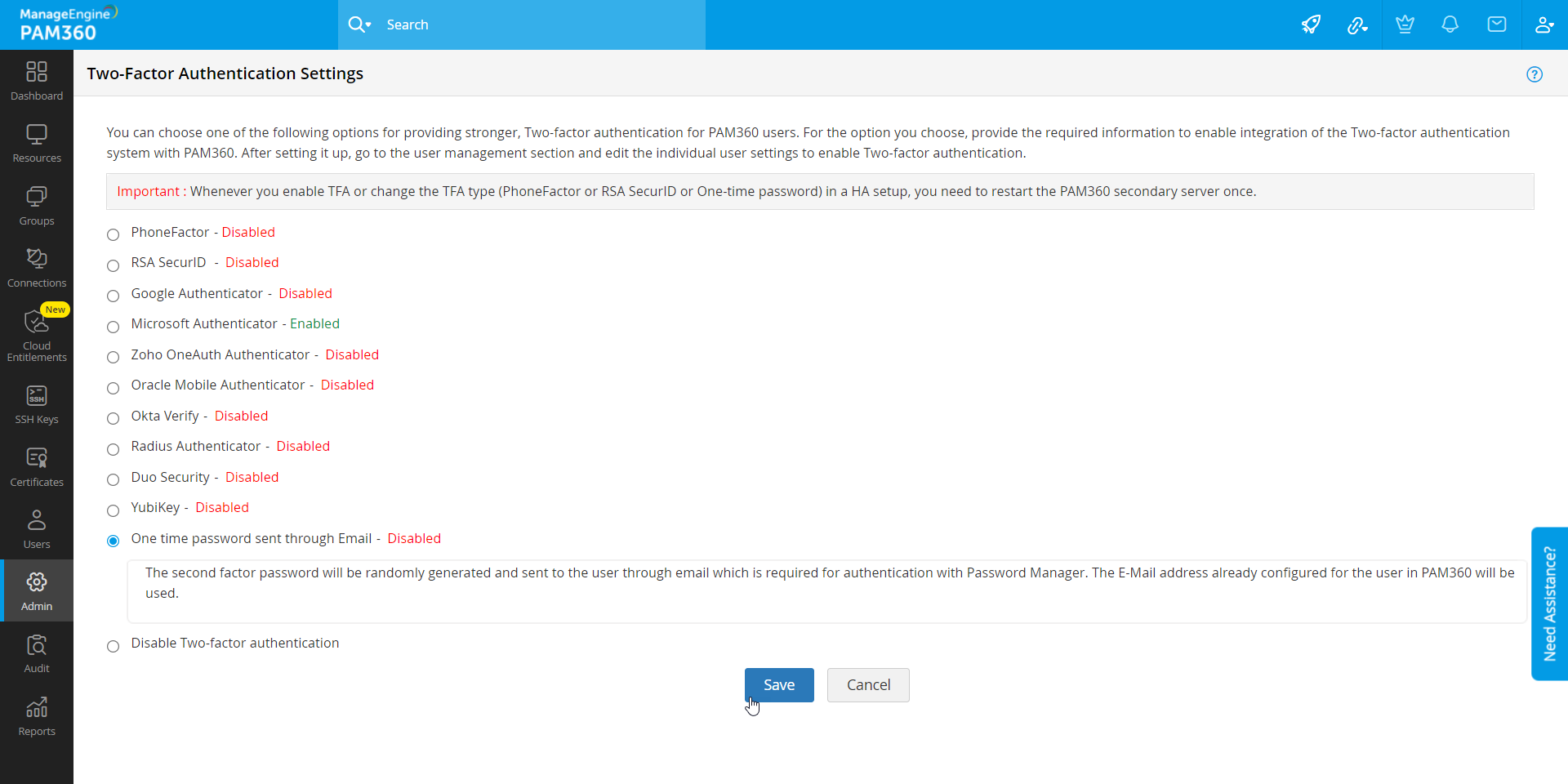
- Select the authentication method that you want to use and click Save.
- In the pop-up box that appears, click Confirm to acknowledge the data transfer that happens during the authentication.
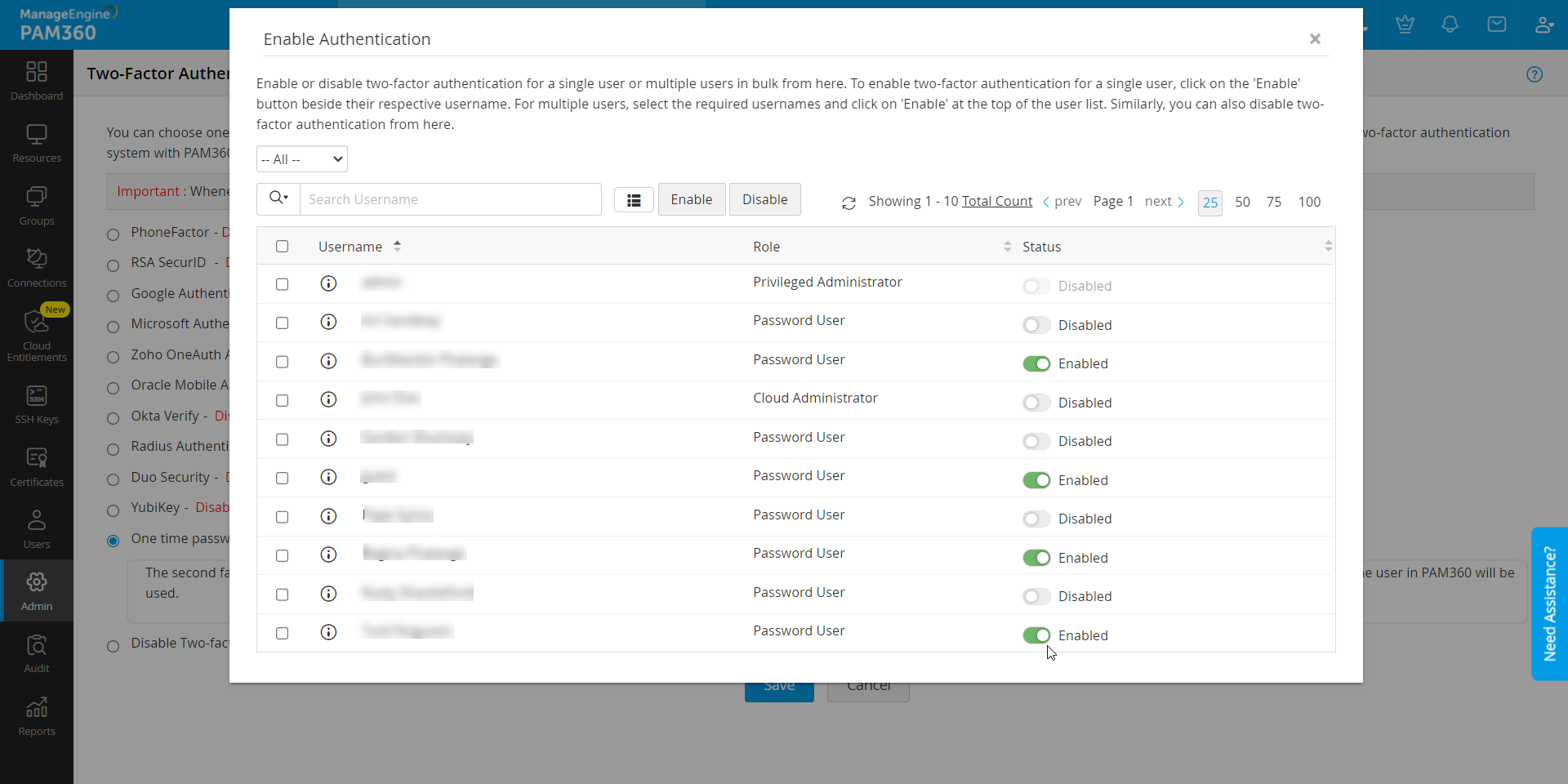
- In the Enable Authentication window that appears, select the users for whom you want to enable TFA.
Additional Details
You can also enforce TFA to the users directly from the Users tab. Refer to the upcoming section for instructions.
You have now successfully enabled TFA for users in PAM360.
Caution
Two-Factor Authentication will be applicable only for the users for whom it is enforced through Step 2. All other users will be allowed to login to PAM360 through the usual way.
3. Enforcing Two-Factor Authentication for PAM360 Users
With an enabled TFA method, you can enforce it to the users as required or when desired using the following steps:
- Navigate to the Users tab and select More Actions >> Configure >> Two-Factor Authentication.

- In the window that appears, you can enable or disable TFA for a single user or multiple users in bulk.
- To enable TFA for a single user, click on the Enable button beside their respective username.
- To enable TFA for multiple users, select the required usernames and click the Enable button at the top of the user list. Similarly, you can also Disable TFA for users from here.
4. Resetting Two-Factor Authentication in PAM360
PAM360 allows administrators and users with appropriate permissions to reset TFA. Below are the sections with instructions about resetting TFA in PAM360.
Caution
This feature is available only for Google Authenticator, Microsoft Authenticator, Oracle Authenticator, Zoho OneAuth Authenticator, YubiKey and Okta Verify authentication methods.
4.1 Resetting Two-Factor Authentication for a Specific User
- Log in to PAM360 as an administrator and navigate to the Users tab.
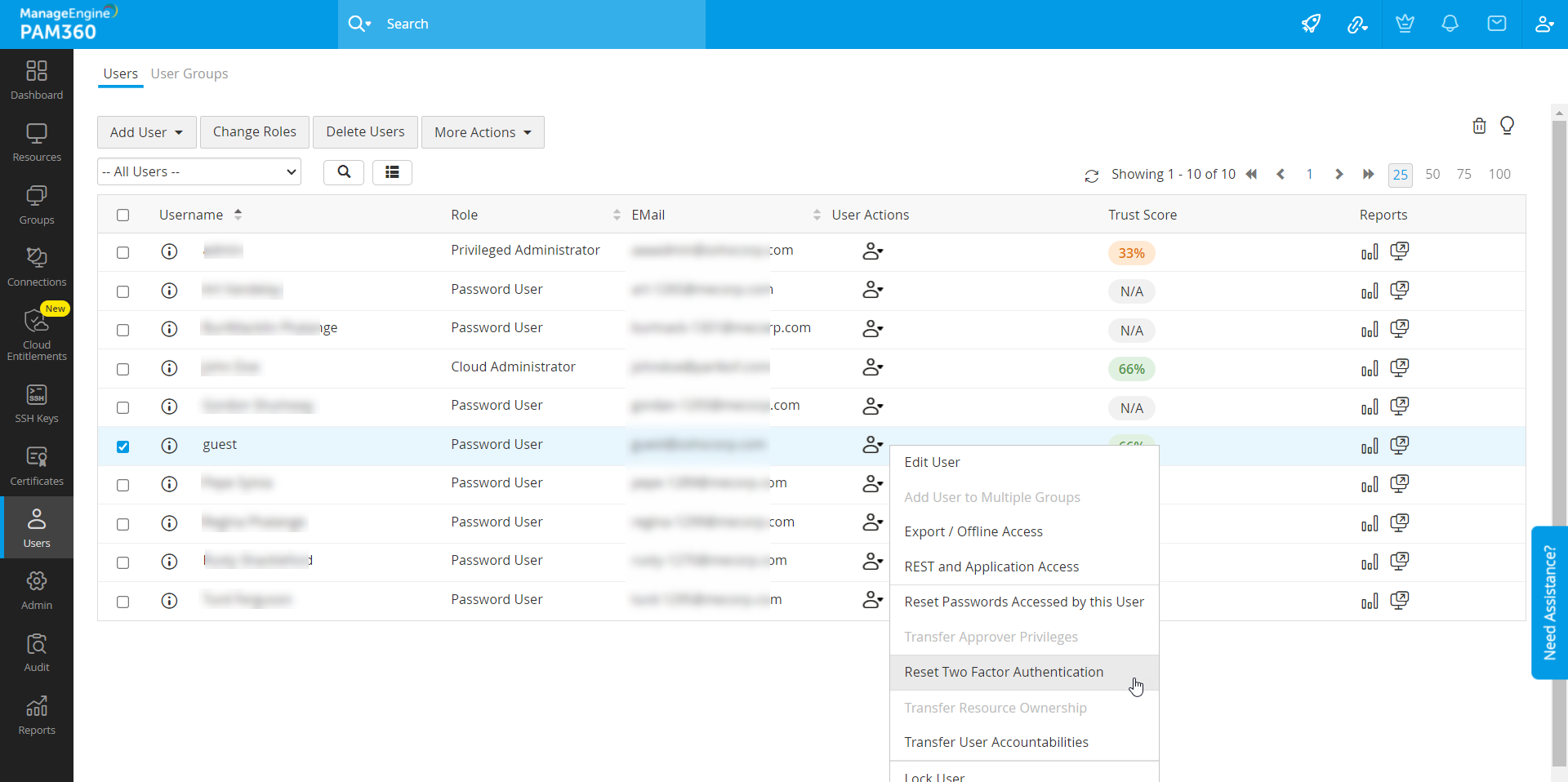
- Click the User Actions icon beside the desired user and click Reset Two Factor Authentication.
- Click Reset in the pop-up that appears.
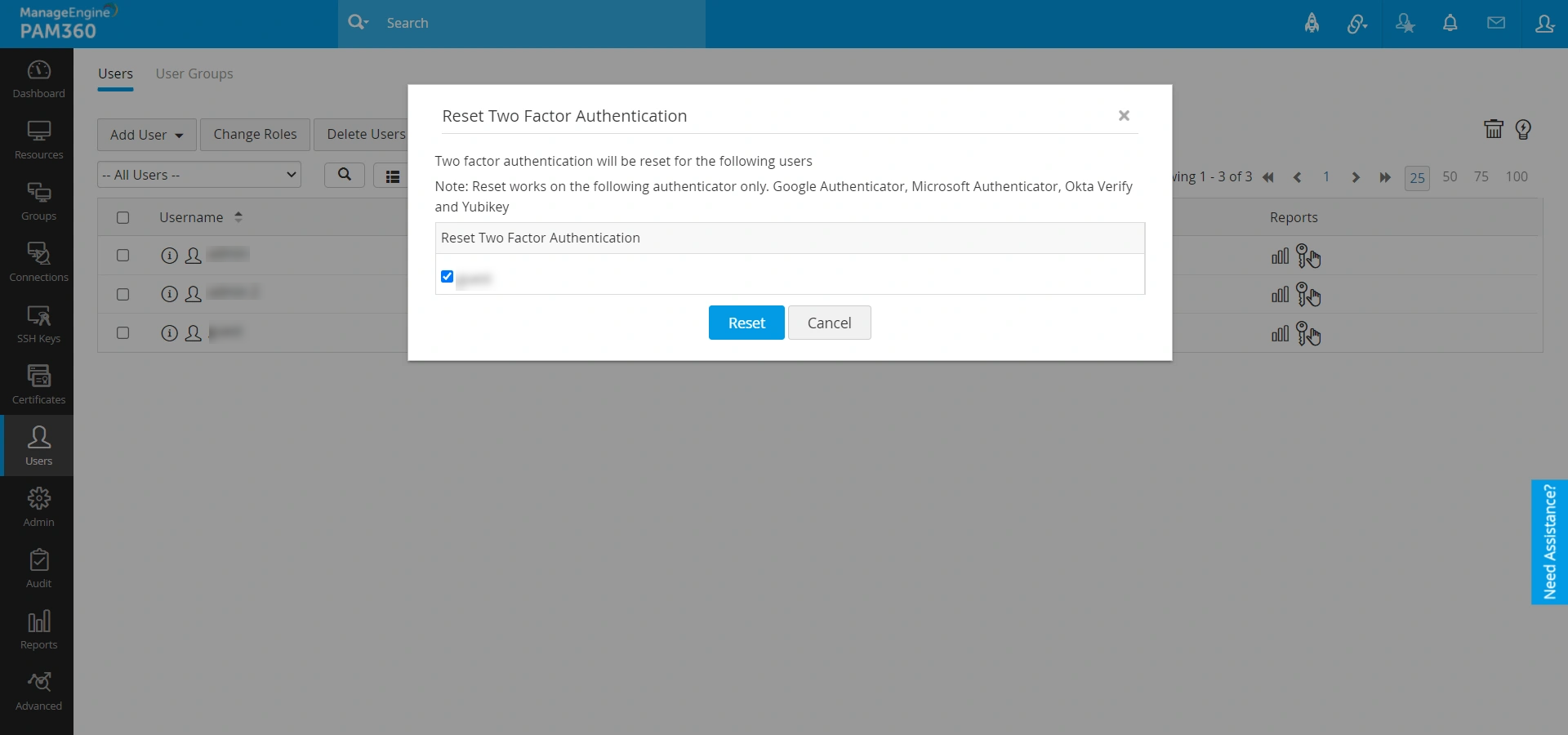
Now, the user will be able to reconfigure TFA while logging in to PAM360.
4.2 Allowing Users to Reset Two-Factor Authentication
- Log in to PAM360 as an administrator and navigate to Admin >> Customization >> General Settings >> User Management.
- Tick the Allow users to reset TFA authentication checkbox and click Save.

This allows the users to reset and reconfigure TFA by themselves.
4.3 Resetting Two-Factor Authentication as a Password User
- Specify the Username and Password to log in to PAM360.
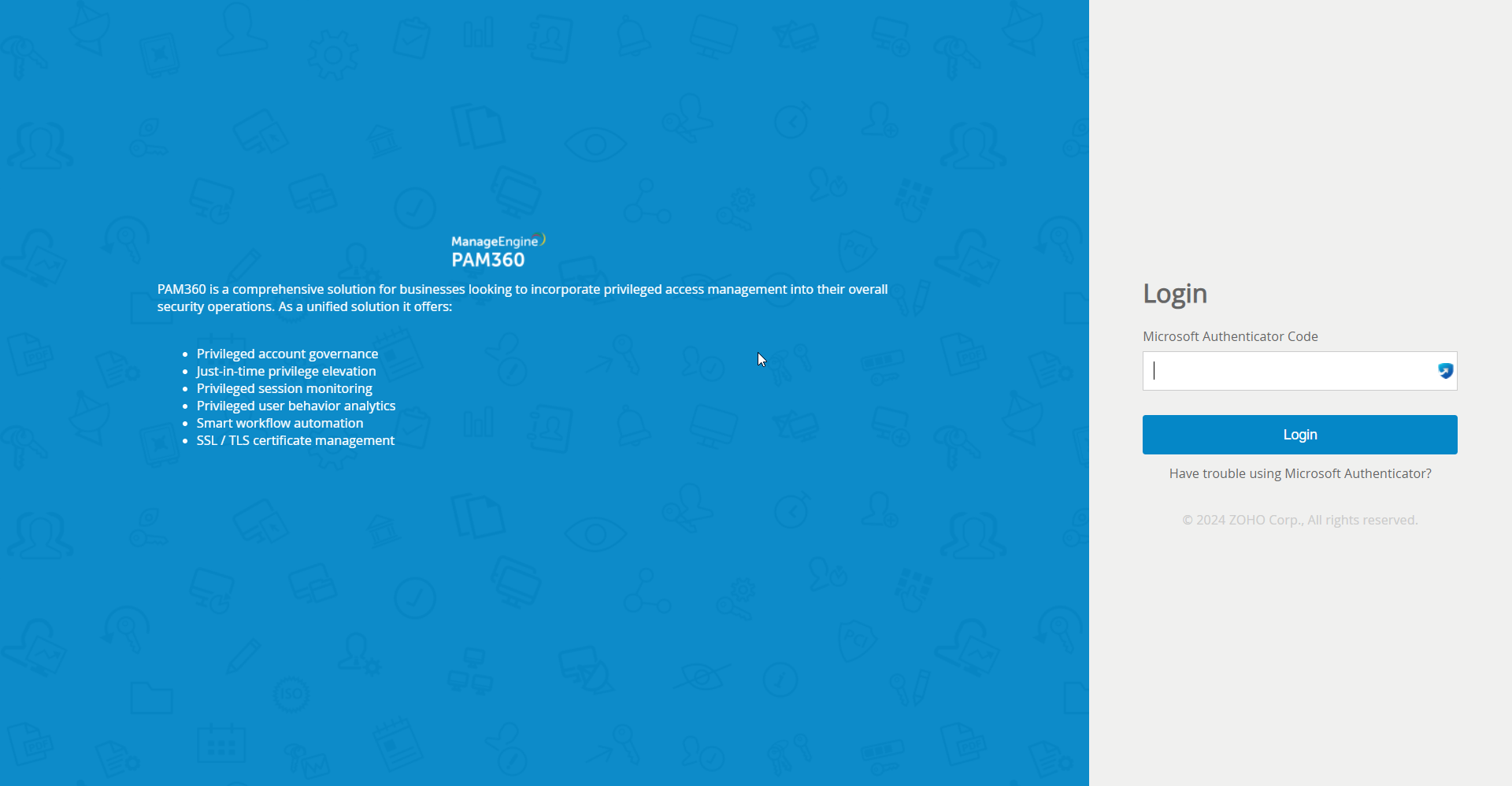
- Click Have trouble using <enabled TFA>? (Example: Have trouble using Microsoft Authenticator?)
- In the pop-up that appears, specify the User Name and E-mail, and click Send.
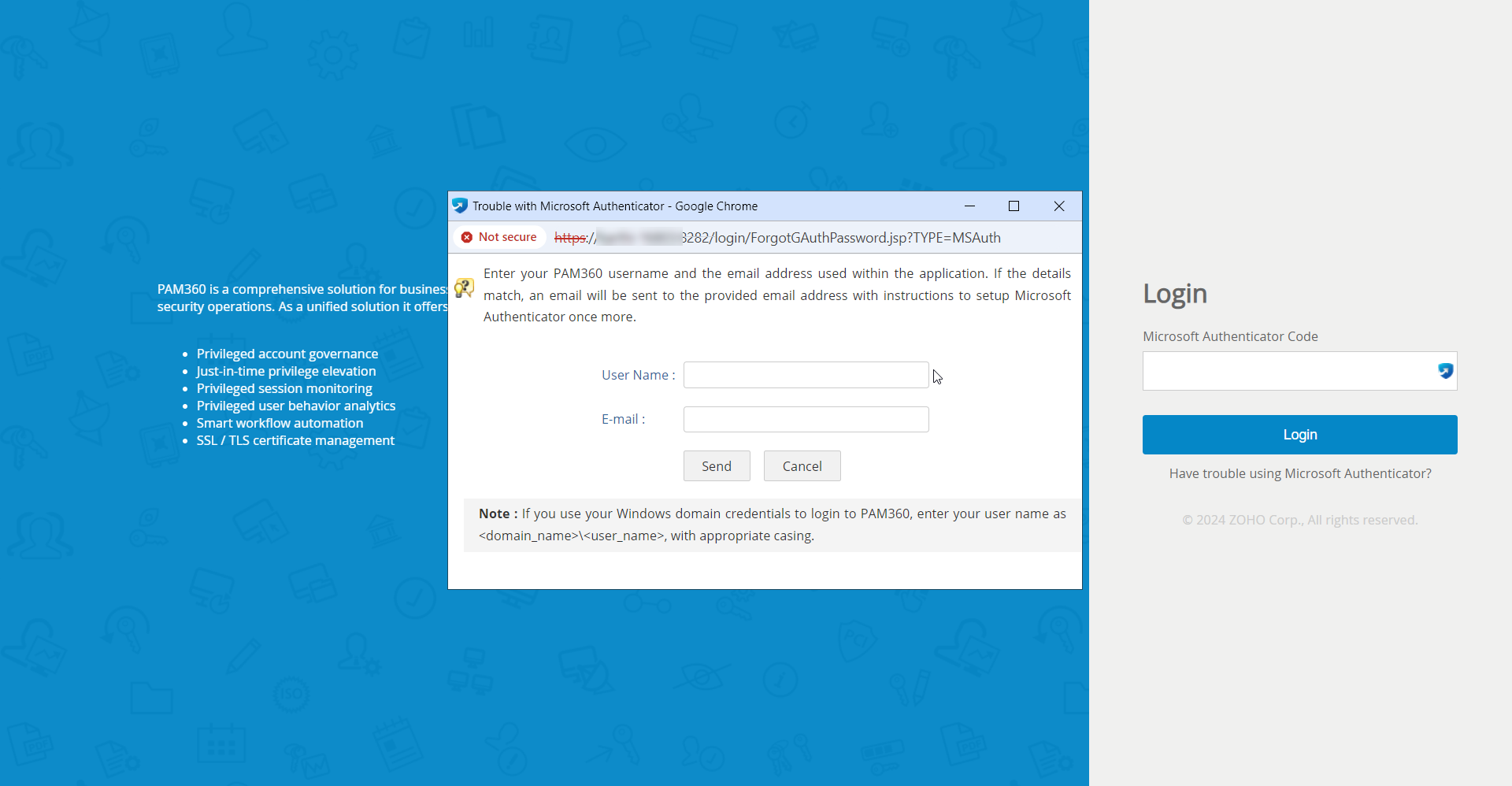
- A link to set up TFA will be sent to the above-mentioned email ID.
- Open the email and click the link to reset TFA. A success message appears on the screen once TFA has been reset.
- Now, log in to the PAM30 web interface and you will be able to reconfigure your TFA.