Application Scaling Model using PostgreSQL Server
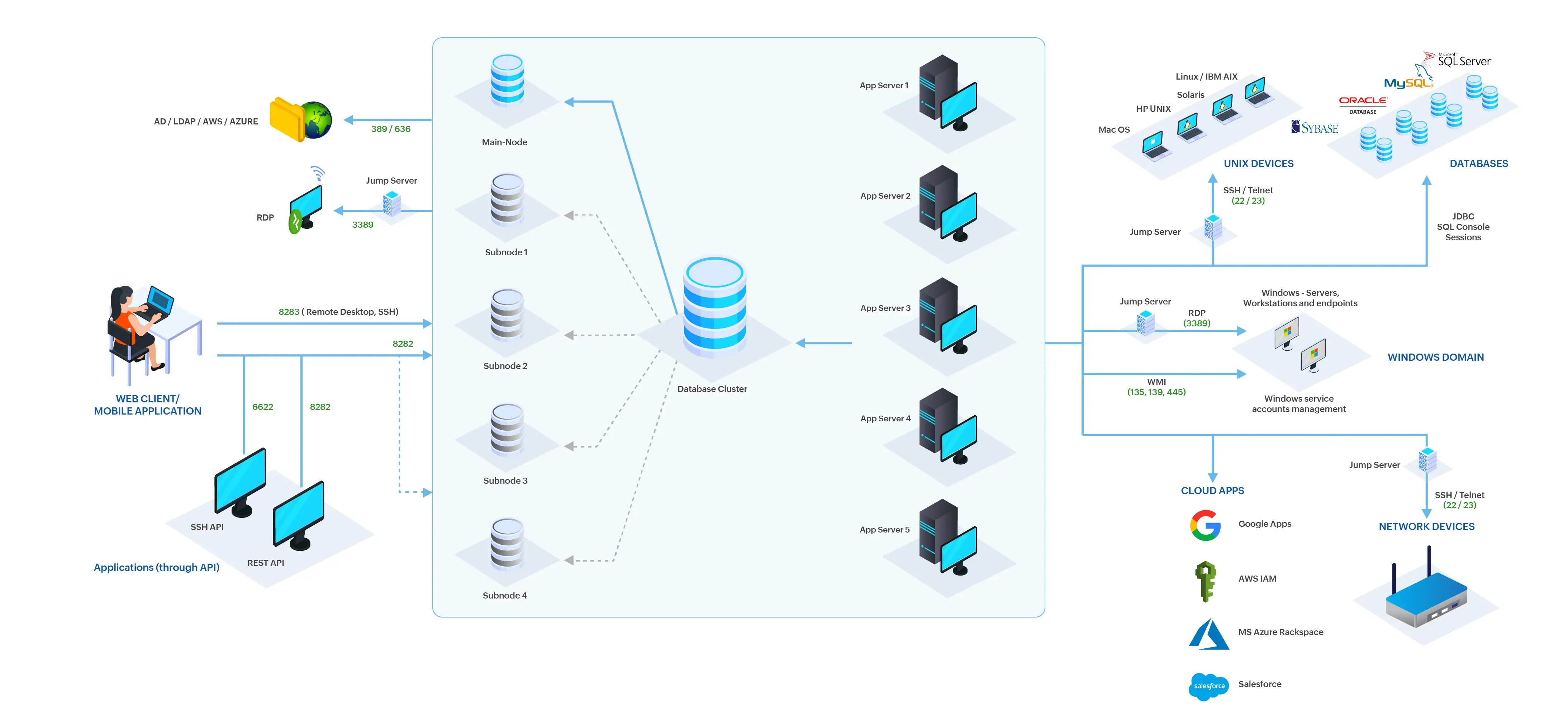
Considering the continually growing user base, an organization should have continuous and uninterrupted access to the database to provide sustainable service. In general, application scaling is the process of improving an application's ability to handle enormous loads and operations without disrupting its performance and user experience. In PAM360, implementing Application Scaling via the external PostgreSQL database cluster aims at providing uninterrupted access to the resources and accounts, thereby enhancing the application scalability and overall performance. The model operates with one main node and several subnodes connected by a single PostgreSQL database cluster.
At the end of this document, you will have learned the following topics related to Application Scaling in PostgreSQL.
- Prerequisites
- Configuring the Application Nodes
- Changing a Subnode into a Main-Node
- Node-Based Operations Performed from the PAM360 Web Interface
- Node-Based Audit Trails
1. Prerequisites
The PAM360 main node and all its sub-nodes should point to the same PostgreSQL database cluster, although they do not need to be connected individually. However, the main node, i.e., the machine that will perform the operations, is required to satisfy any of any of the following conditions:
- If PAM360's agentless password management capability is enabled, the main-node and the target endpoints should reside in the same subnet.
- The main-node and the target end-points must be capable of communicating with one another when residing in different networks, i.e., they should not be blocked by a firewall or situated outside the range of connectivity, such as demilitarized zone.
Additional Details
- You can change any configured subnode into a main-node until it has adequate connectivity to other machines and can carry out the scheduled operations without interruption.
- You can create up to four subnodes in this application scaling model.
2. Configuring the Application Nodes
Caution
During the installation process, select the configuration server as the High Availability Primary Server and do not start the PAM360 service after the installation.
To configure the main node, do the steps that follow:
- Install the PAM360 application on the server you intend to use as a main node.
- Configure the PostgreSQL database cluster as the backend database. Now, the PAM360 application installed in the main node will work using the standalone PostgreSQL database cluster.
- Restart the PAM360 service on the main node.
- Navigate to the <PAM360-Installation-Directory>/bin folder, open the command prompt, and run the appropriate command based on your PAM360 build and operating system:
- For builds 8400 and above, execute AppScalingSetup.bat <Hostname-of-the-Subnode> or AppScalingSetup.sh <Hostname-of-the-Subnode> to generate the AppServerPack_<Hostname-of-the-Subnode>.zip in the <PAM360-Installation-Directory>/Replication folder.
- For builds 8310 and below, execute AppScalingSetup.bat or AppScalingSetup.sh to generate the ApplicationScalingPack.zip in the <PAM360-Installation-Directory>/ApplicationScaling folder.
To configure the subnodes, do the steps that follow:
- Install the PAM360 application on the server you intend to use as a subnode.
- Download the root CA certificate of the PostgreSQL database cluster. If you are unaware of creating an SSL for the PostgreSQL database, refer to this section to generate the required SSL certificates and validate the SSL connection.
- Import the PostgreSQL database cluster's root CA certificate into the PAM360 application installed in the subnode. To do so, navigate to the <PAM360-Installation-Directory>/bin folder on the subnode, open the command prompt and execute the following command:
importCert.bat <Absolute-Path-of-the-PostgreSQL-Database-Cluster-Certificate>
- Copy the ZIP file generated in the main node node and extract it in the subnode:
- For builds 8400 and above, extract the AppServerPack_<Hostname-of-the-Subnode>.zip file in the PAM360-Installation-Directory.
- For builds 8310 and below, extract the ApplicationScalingPack.zip in the <PAM360-Installation-Directory>/conf folder.
- Copy the pam360_key.key file from the main node and paste it into any directory of the subnode. Now, update the full path of the pam360_key.key file in the <PAM360-Installation-Directory>\conf\manage_key.conf file in the subnode. If the encryption key is in a remote path, mention the path in a UNC format.
- Navigate to the <PAM360-Installation-Directory>/conf folder and open the file named system_properties.conf using Wordpad with administrator rights. Add the line ignore.scheduler=true at the end of the file and save.
- Navigate to the <PostgreSQL-Installation-Directory>pgsql_installation\data folder, open the file pg_hba.conf and add an entry at the end with the IP address of the configured subnode. For example, host all <user name> <ip address>/32 md5.
- Navigate to the <PostgreSQL-Installation-Directory>pgsql_installation\data folder, open the file postgresql.conf, search for listen_addresses and provide the IP address of the configured subnode in a comma-separated manner.
- Now, restart the PostgreSQL server.
Additional Detail
Repeat the same procedure for all the required number of subnodes.
- Now, start the PAM360 service in all the subnodes. As a result of the previous steps, all the subnodes will start using the same PostgreSQL cluster as the backend database.
- The default URL of the subnodes will look like https://subnode_servername:8282. To apply your license file in all the subnodes, open the URL of all the subnodes in a web browser and log in. Click the profile icon in the top right corner and click the License option. Here, add your license XML file and upgrade.
- Navigate to Admin >> Server Settings >> PAM360 Server to update your SSL certificate in all your subnodes.
- Restart the PAM360 service in all the subnodes.
Now all the subnodes will start with the relevant SSL certificate and use the same PostgreSQL cluster as the backend database.
Once the main-node and subnodes are configured, navigate to Admin >>
Business Continuity >> Application Scaling to view and manage them from the PAM360 GUI.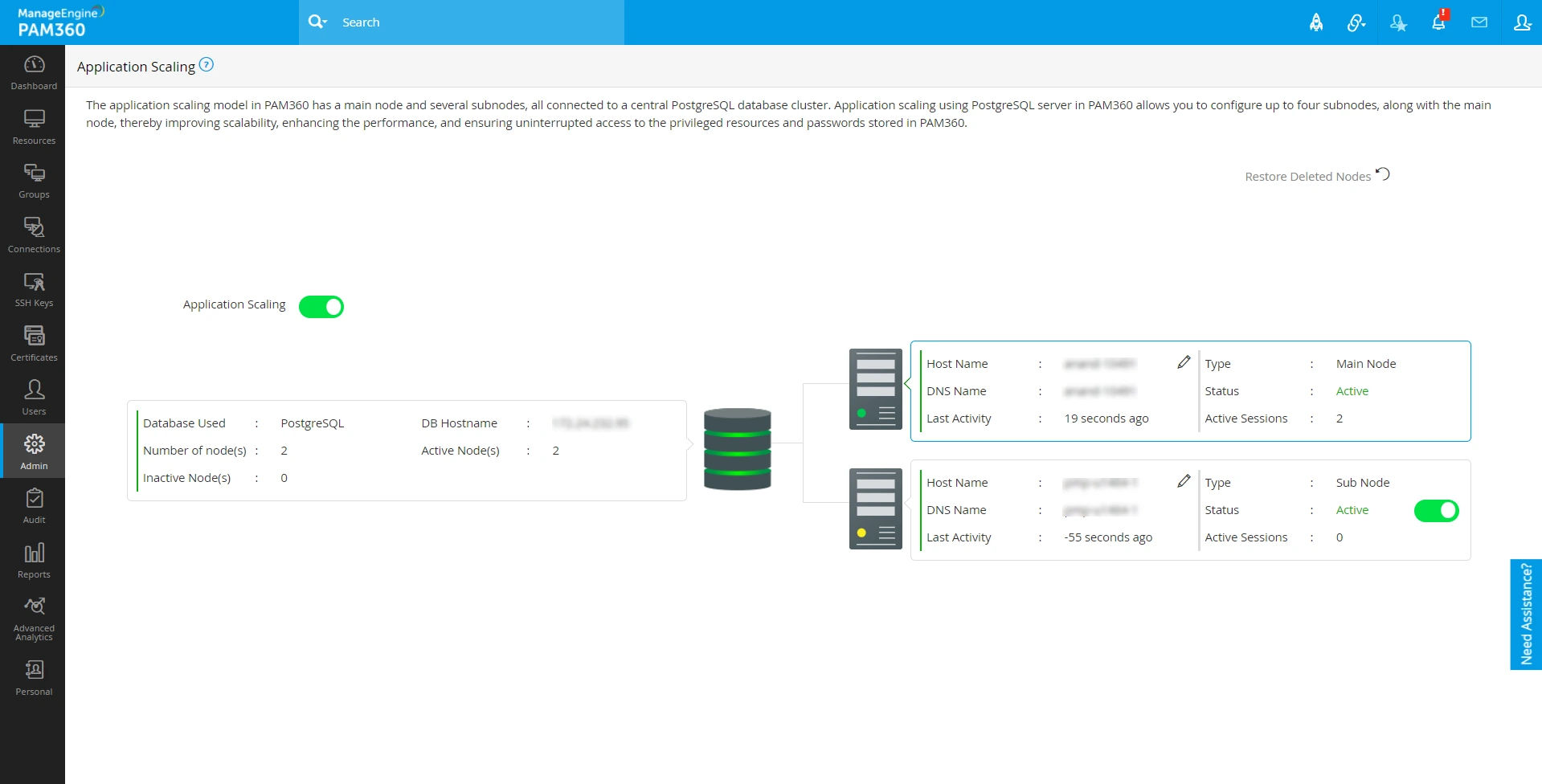
3. Changing a Subnode into a Main-Node
Follow the below steps to change any of the configured subnode in the PostgreSQL database cluster into a main-node. This change can be done at any point in time from any of the available PAM360 application servers.
- Keep the PostgreSQL database cluster running.
- Stop all the PAM360 applications in the servers, including the main-node.
- Navigate to the <PAM360-Installation-Directory>/bin folder in any of the required subnode, open the command prompt and execute the command makePrimary.bat or makePrimary.sh based on the operating system.
- Executing the above command will show the main node and the list of available subnode servers. Choose any PAM360 application server from the drop-down and click Save.
- Restart all the application servers that stopped earlier.
- Now, the selected subnode server will start performing as the main node.
4. Node-Based Operations from the PAM360 Web Interface
Additional Detail
Only the administrators and users with custom roles having the 'Application Scaling' permission can enable, disable, rename, delete, and restore the subnode(s), from the server that act as a main-node.
4.1 Enable or Disable a Subnode
- Navigate to Admin >> Business Continuity >> Application Scaling.
- From the Application Scaling dashboard, click the toggle button beside the desired subnode to enable or disable it.
4.2 Rename a Node
- Navigate to Admin >> Business Continuity >> Application Scaling.
- From the Application Scaling dashboard, click the edit icon beside the Host Name of the desired node.
- In the pop-up that opens, update the server name and click Confirm.
- Now, you have successfully renamed the node.
4.3 Delete and Restore a Subnode
Navigate to Admin >> Business Continuity >> Application Scaling.
To delete a subnode:
- First, disable the subnode using the toggle button.
- Click the Delete icon on the top right corner of the subnode. In the pop-up that opens, click Confirm.
- You have successfully deleted the subnode.
Additional Detail
Deleting the subnode will only hide the node from the Application Scaling dashboard and will not remove the entry from the database cluster. Delete the physical server and any server-specific configurations to remove the server from PAM360 entirely.
To restore a subnode:
- Click the Restore Deleted Nodes icon in the Application Scaling dashboard.
- Now, select the desired subnodes and click Restore. You have successfully restored the selected subnodes.
Additional Detail
If the nodes are removed from the database cluster and the application servers, the subnodes cannot be restored.
5. Node-Based Audit Trails
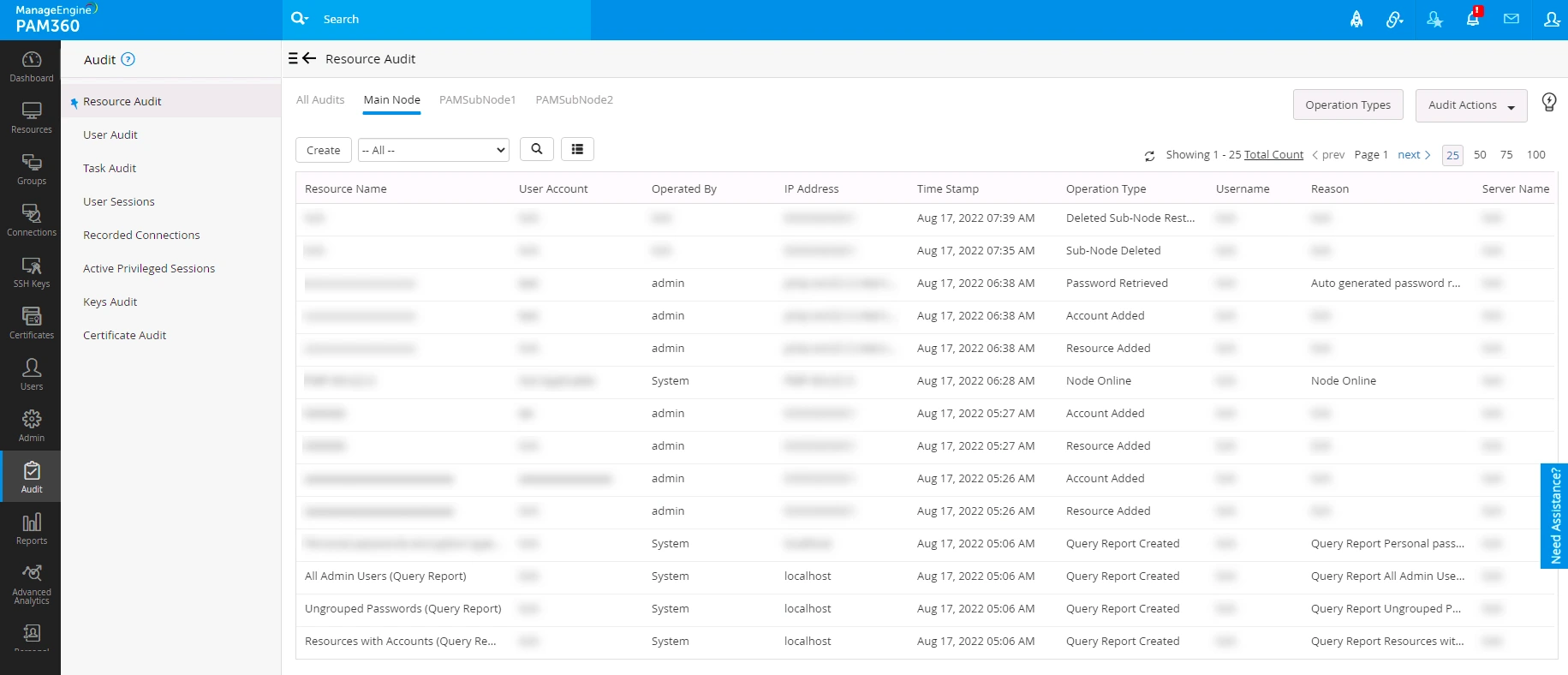
By default, PAM360 comprises Resource, User, and Task-based audit categories. Once configured and Application Scaling is enabled, the product additionally shows node-based audits in each category with the main-node and available subnode(s) in separate columns. This assists you with the complete audit trails under Resource Audit and User Audit.
To know more about audits, click here.