Integrating GlobalSign SSL Certificate Authority with PAM360
PAM360 facilitates integration with GlobalSign Certificate Authority (CA), making it possible for enterprises to automate the end-to-end management of web server certificates signed and issued by GlobalSign from a centralized platform. This document discusses the steps to manage the entire lifecycle of SSL certificates issued by GlobalSign, directly from the PAM360 web interface - right from importing existing orders, certificate request and provisioning, to deployment, renewal and thereupon.
Follow the step-by-step procedure below to integrate GlobalSign CA with PAM360:
- Adding GlobalSign Account into PAM360
- Placing a Certificate Order
- Configuring the DNS Account
- Domain Control Validation and Certificate Deployment
- Managing SSL Certificates Issued by GlobalSign CA
Caution
Add the following base URL and port as an exception in your firewall or proxy to ensure PAM360 is able to connect to the GlobalSign's CA Services.
- URL: https://system.globalsign.com/kb/ws/v1
- Port: 443
1. Adding GlobalSign Account into PAM360
Follow the below steps to add your GlobalSign account into PAM360:
- Navigate to Certificates >> GlobalSign and enter your GlobalSign credentials for authentication.
- Once your GlobalSign account is verified and added, you may proceed with placing certificate order and domain control validation.
- If the GlobalSign account fails to get added to PAM360, contact the GlobalSign support, get an exception for the user's IP address and try again.
Additional Detail
You can find the user's IP address from the Audit section in PAM360.

2. Placing a Certificate Order
Upon configuring the GlobalSign credentials, you can leverage GlobalSign's API to generate certificate signing requests (CSRs), place orders, procure, and manage certificates directly from PAM360.
To generate a CSR and place a certificate order,
- Navigate to Certificates >> GlobalSign and click Order Certificate.
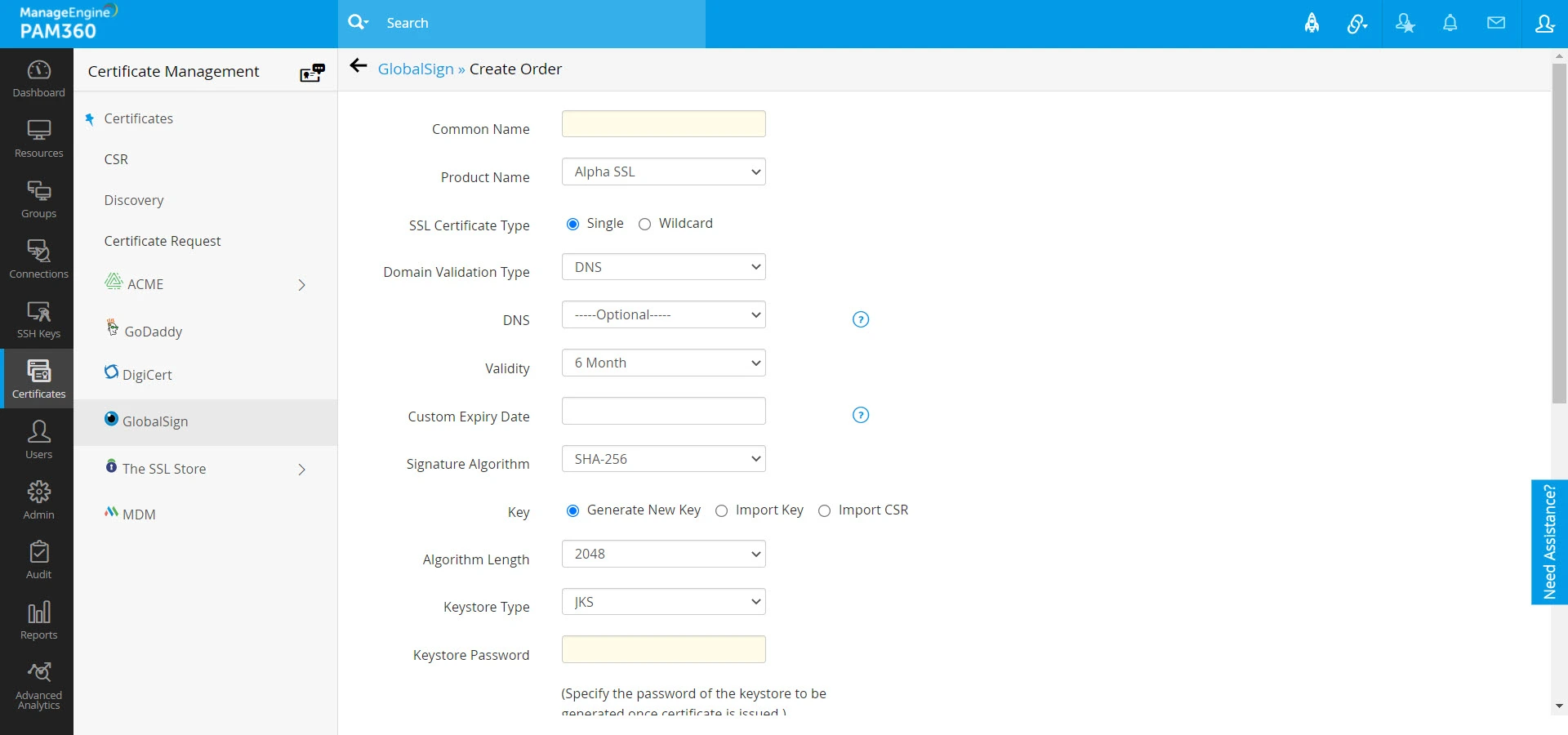
- In the window that opens, enter the Common Name, Product Name, SSL Certificate Type, Domain Validation type and Validity.
- PAM360 supports all three domain control validation methods: DNS-based, File/HTTP-based, and Email-based validation.
- Then provide the SSL certificate type, signature algorithm, algorithm length, keystore type, keystore password, primary and secondary contact details. Users also have the option to import and use an already existing CSR or private key.
- If the Product Name is chosen as Domain SSL, enter the SSL Certificate Type as Single/Wildcard.
- For any Product Name other than Domain SSL, provide the UCC SAN and validity for the same.
- The approver email ID is the email ID to which Domain Control Validation (DCV) verification mail will be sent. The approver email ID should take either of the following formats:
- <admin@domain>, <administrator@domain>, <hostmaster@domain>, <webmaster@domain>, or <postmaster@domain>
- Any administrator, registrant, tech or zone contact email address that appears on the domain’s WHOIS record and is visible to the CA system.
- Then, provide the organization details(applicable for organization validation and extended validation order types only), administrator contact details and contact details of the technician placing the certificate order.
- After filling in the details, click Create.
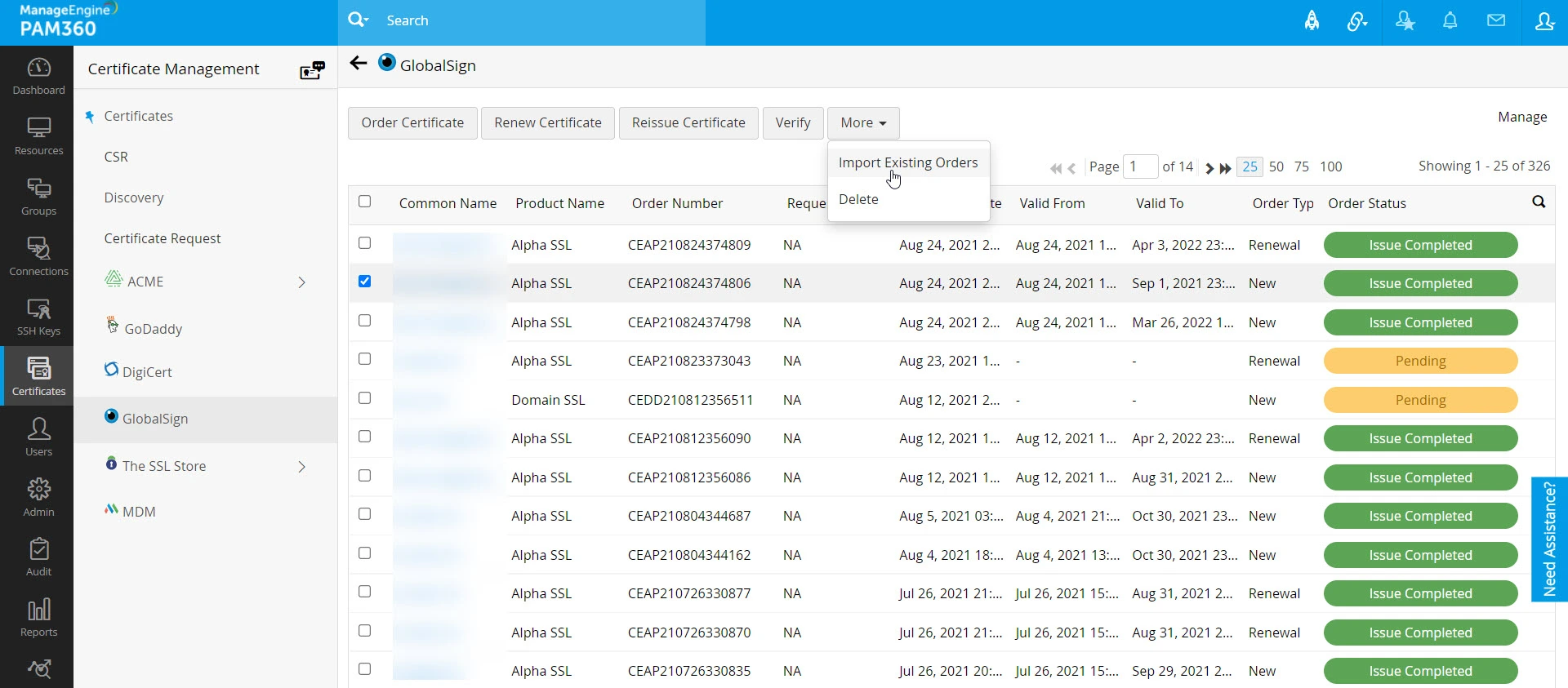
- You will be taken to a window where you can see the list of certificate orders placed along with their statuses displayed to the right of the table view.
Additional Detail
PAM360 allows you to import the already existing certificate orders placed within your account from GlobalSign and track their statuses. Click Import Existing Orders from the More top menu to import the existing open orders into PAM360.
3. Configuring the DNS Account
If you are opting for DNS based domain validation in the certificate order, you should configure the DNS account in PAM360 and specify it in the 'DNS' field in the order for automating the challenge verification procedure. To configure your DNS account,
- Navigate to GlobalSign >> Manage.
- Switch to the DNS tab.
- Here, you can add a maximum of one DNS account for each DNS provider supported. PAM360 currently supports automatic domain control validation for Azure, Cloudflare, Amazon Route 53 DNS, RFC2136 DNS update, ClouDNS, and GoDaddy DNS.
- Click Add. In the pop-up that opens, choose the DNS provider.
3.1 Azure DNS
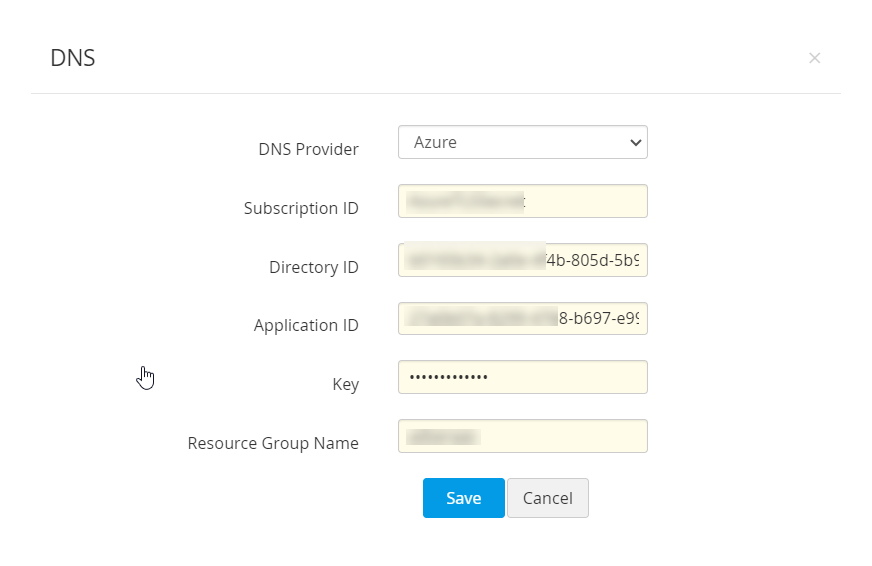
- Provide the Subscription ID, which is available in the Overview page of the Azure DNS zone.
- Provide the Directory ID, which is available in Microsoft Entra ID >> Properties.
- If you have an already existing Azure application, provide its Application ID and Key.
- If not, follow the steps mentioned below to create the Azure application and key, and give the application access to the DNS zones for making API calls.
- To create the Azure application and key,
- Navigate to App registrations >> New application registration.
- Provide the application name, select the application type Web app / API and provide the sign-on URL. Click Create.
- After successful creation, you are directed to a window that displays the Application ID.
- To get the application key, navigate to Keys and create a key.
- Provide the key description, duration and click Save.
- Once the key is saved, key value is displayed. Copy and save the key value for future references.
- To give the application access to DNS zones,
- Navigate to the resource group where all DNS zones are created or switch to a specific DNS zone.
- Switch to Access Control (IAM) and click Add.
- Choose the role as Contributor, assign access to Microsoft Entra ID user, group or application, search and select the application created in Azure Directory and click Save.
- The created Azure application is now given access to DNS zones for making API calls.
- Finally, enter the Resource Group Name, which is the group name in which you have created the DNS zone and click Save.
- Your DNS account details are saved and listed under Manage >> DNS.
3.2 Cloudflare DNS
- In the Email address field, specify the email address associated with the Cloudflare account.
- For Global API Key, use the 'Generate API' key option in the domain overview page of the Cloudflare DNS to generate the key and paste the value in this field.
- Click Save. Your DNS account details are saved and listed under Manage >> DNS.
Caution
For DNS-based domain validation type, if you are going to specify an already configured DNS account in the certificate order for domain control validation, make sure its status is marked as Enabled under Manage >> DNS.

3.3 AWS Route 53 DNS
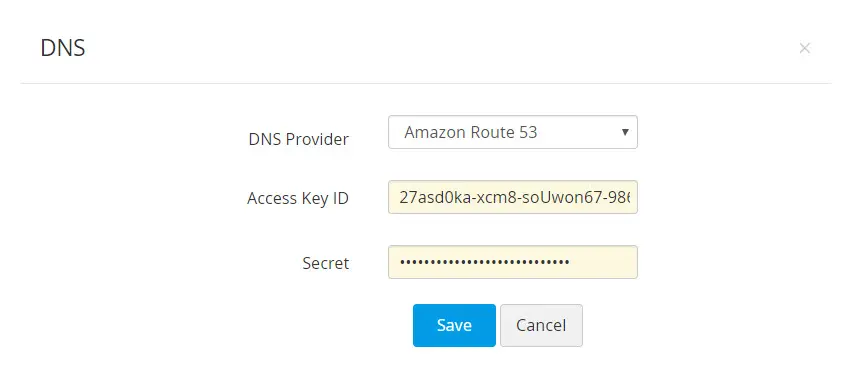
- Generate and specify the Access Key ID and Secret associated with your AWS account.
- If you do not have an AWS account, create one and generate the Access Key ID and Secret by following the steps given below:
- Login to the AWS console and navigate to IAM Services >> Users.
- Click Add user. Provide the user name and select the access type as Programmatic access.
- Switch to the next tab, click Attach existing policies directly under Set Permissions and search for AmazonRoute53FullAccess.
- Assign the policy that is listed and switch to the next tab.
- In the tags section, add appropriate tags (optional) and switch to the next tab.
- Review all the information entered and click Create user.
- The user account is created and subsequently, an access key ID and a secret is generated. Copy and save the key ID and secret in a secure location for it will not be displayed again.
- If you already have an AWS user account, you have to grant AmazonRoute53FullAccess permission to the user and generate the access key if the user does not have one. And if the user account has an access key associated already, it is just enough to ensure the required permission is granted.
To grant the required permissions, follow the below steps:
- Navigate to the Permissions tab, select the required user account and click Add Permission.
- Click Attach existing policies directly under Set Permissions and search for AmazonRoute53FullAccess.
- Assign the listed policy and hit Save.
- To generate the access key,
- Select the particular user account and navigate to the Security Credentials tab.
- In the window that opens, click Create access key.
- An access key ID and a secret is generated. Copy and save the key ID and secret in a secure location for it will not be displayed again.
3.4 RFC2136 DNS Update
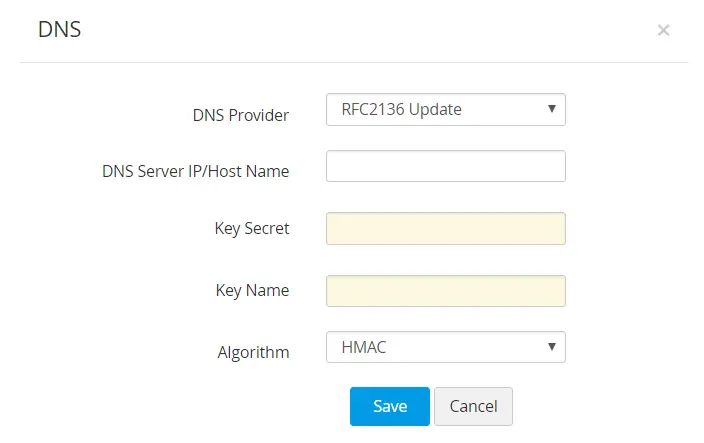
If you are using open source DNS servers such as Bind, PowerDNS etc., that support RFC2136 DNS update, follow the steps below to automate DNS-based domain control validation procedure using PAM360.
- The DNS Server IP / Hostname represents the server name / IP address in which the DNS server is installed or running.
- These details are usually found in the server installation directory. For instance, in the case of Bind9 DNS server, you can find these in the file named.local.conf in the server installation directory.
- Provide the Key Secret, which is nothing but the key content found in the server installation directory.
- Provide a name for the key, and choose the signature algorithm. Click Save.
3.5 GoDaddy DNS
If you are using GoDaddy DNS for DNS validation, follow the steps below to automate DNS-based domain control validation procedure using PAM360.
To obtain GoDaddy API credentials, follow these steps:
- Go to the GoDaddy developer portal and switch to the API keys tab.
- Log in to your GoDaddy account if you aren't logged in already.
- Once you log in, you will be redirected to the API keys page where you can create and manage API keys. Click Create New API key.
- Provide your application name, choose the environment type as Production and click Next.
- The API key and its secret is generated. Copy and save the secret in a secure location, as it will not be displayed again.
Now, in the PAM360 interface, follow the below steps to add GoDaddy DNS to the GlobalSign certificate repository:
- Navigate to Certificates >> GlobalSign and click Manage at the top-right corner of the page.
- Switch to the DNS tab and click Add.
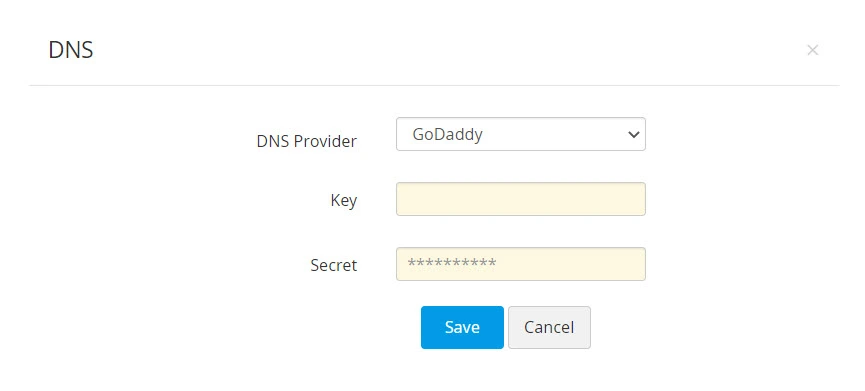
- Choose GoDaddy from the DNS Provider drop-down menu.
- Enter the Key and Secret that was previously generated from the GoDaddy portal. Click Save.
3.6 ClouDNS
If you are using ClouDNS for DNS validation, follow the steps below to automate the DNS-based domain control validation procedure using PAM360:
To obtain ClouDNS API credentials, follow these steps:
- Login to your ClouDNS account and go to Reseller API.
- If you have already created an API user id, you will find it under API Users. If not, click Create API to generate a new one.
Click here to learn more about ClouDNS API Auth IDs.
Now, in the PAM360 interface, follow the below steps to add ClouDNS to GlobalSign CA:
- Navigate to Certificates >> GlobalSign and click Manage from the right most corner.
- Switch to the DNS tab and click Add.
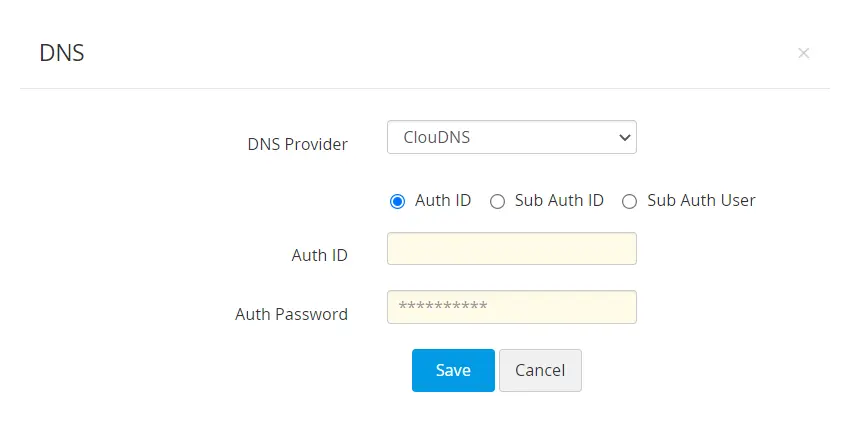
- Choose ClouDNS from the DNS Provider dropdown.
- Choose one of the following options: Auth ID, Sub Auth ID, Sub Auth User.
- Enter the chosen ClouDNS Auth ID, its respective Auth Password, and click Save.
3.7 DNS Made Easy
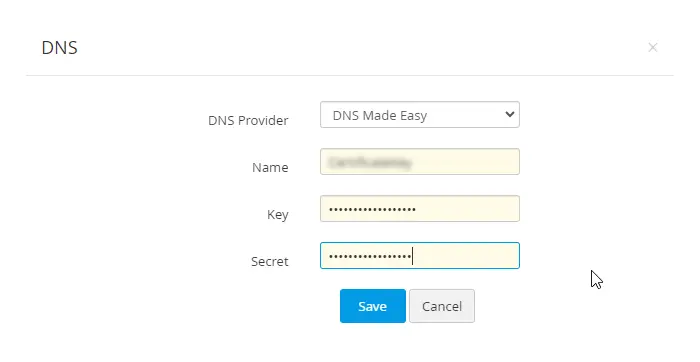
- Enter the name of your choice in the Name field.
- The Key and the Secret will be available in the DNS Made Easy webpage under Config >> Account Information. Enter those details in the respective fields.
- Now, click Save to save your DNS account details. The saved DNS details will be listed under Manage >> DNS.
4. Domain Control Validation and Certificate Deployment
Once the certificate authority receives your order, you will have to go through a process called Domain control validation (DCV) and prove your ownership over the domain upon the completion of which you will receive the certificate.
PAM360 supports the following DCV methods:
- E-mail based DCV
- File or HTTP-based DCV
- DNS-based DCV
Caution
If the end server in which you are deploying the challenge file is a Windows resource, install the SSL agent using the steps mentioned here.
4.1 Email-Based Domain Control Validation
- In email based domain control validation, the certificate authority sends a verification email to the approver email ID specified when placing the certificate order.
- This email will guide you through the steps that need to be performed in order to complete the domain control validation procedure.
- After completing the steps, navigate to the PAM360 server, and switch to the GlobalSign tab.
- Select the order and click Verify from the top menu.
- On successful verification, the certificate authority issues the certificate which is fetched and added to PAM360's secure repository. You can access the certificate from the Certificates >> Certificates tab.
- From here, you can deploy the certificate to necessary end-point servers such as a Certificate Store or an IIS server directly from PAM360.
Click here for more details on certificate deployment.
4.2 File / HTTP based Domain Control Validation
If you have opted for File/HTTP-based domain control validation, a challenge file will be displayed when creating the certificate order. Navigate to the domain server, create the specified path and deploy the challenge file in that path.
The entire process of deploying the challenge file in the end-point server can be automated from PAM360. This can be achieved by configuring the server details in the Deploy tab under Manage.
To automate domain control validation, follow the below steps:
- Switch to GlobalSign >> Manage.
- Go to the Deploy tab and click Add.
- In the pop-up that opens, choose the challenge type as 'http-01', specify the domain name, choose the server type (Windows or Linux) and enter the server details. Click Save.
- The challenge file is automatically deployed to the corresponding end-server in the specified path.
- Once you have deployed the challenge file, navigate to the PAM360 server, switch to the GlobalSign tab, choose the order and click Verify from the top menu.
- On successful domain validation, the certificate authority issues the certificate which is fetched, added to PAM360 certificate repository (Certificates >> Certificates).
4.3 DNS-based Domain Control Validation
If you have opted for DNS-based domain control validation, a DNS challenge value and text record will be displayed when creating the certificate order. Copy and paste the text records manually in the domain server.
Similar to the HTTP challenge, the entire challenge verification process can be automated from PAM360. This can be achieved by configuring the server details in the Deploy tab under Manage. To automate domain control validation, follow the below steps:
- Switch to GlobalSign >> Manage.
- If the end-server is a Windows machine, download and install the PAM360 agent for Windows using the steps mentioned in the prerequisite section.
- Switch to the Deploy tab and click Add.
- In the pop-up that opens, choose the challenge type as 'dns-01', specify the domain name, choose the DNS provider (Azure, Cloudflare, Amazon Route 53 DNS, RFC2136 DNS update, ClouDNS, and GoDaddy DNS.) and enter the server details.
- Check Deploy Certificate option to deploy the certificate to the end-server after procurement. Click Save.
- The DNS challenge values and text records are automatically created in the corresponding DNS servers.
- Once the challenges have been fulfilled, navigate to the PAM360 server, switch to the GlobalSign tab, choose the order and click Verify from the top menu.
- On successful domain validation, the certificate authority issues the certificate which is fetched and automatically added to PAM360 certificate repository. You can access the certificate from the Certificates >>Certificates tab.
- From here, you can deploy the certificate to the necessary end-point servers such as a Certificate Store or an IIS server directly from PAM360. Click here for more details on certificate deployment.
Additional Details
- For DNS based domain control validation, if you had chosen a DNS account configured under Manage >> DNS when placing the order, PAM360 automates challenge verification using that account. Instead, if you have already configured the domain and server details under Manage >> Deploy, the challenge verification, and subsequently the deployment of certificates is carried out for that specific domain and server alone.
- For RFC2136 DNS update, if you have opted Global DNS configuration, the domain name itself acts as the zone name (Global DNS configuration is possible only if you are using the same Key Secret for all zones). Whereas, if you have opted domain-agent mapping, you have to provide the Zone name, Key Name, and Key Secret for each domain separately.
5. Managing SSL Certificates Issued by GlobalSign CA
You can renew, request reissue, or delete certificate orders placed to third-party certificate authorities from PAM360.
5.1 Renewing a Certificate
- Navigate to Certificates >> GlobalSign.
- Select the required order and click Renew Certificate from the top menu.
- Complete the domain control validation (DCV) procedure if necessary.
Upon successful validation, the certificate will be issued, and the new version will get automatically updated in the Certificates >> Certificates tab.
Caution
Certificate renewal is allowed only 90 days before the expiry date of the selected certificate.
5.2 Re-issuing a Certificate
- Navigate to Certificates >> GlobalSign.
- Select the required order and click Reissue Certificate from the top menu.
- The certificate is reissued and automatically updated in the Certificates >> Certificates tab.
5.3 Verifying a Certificate Request
- Navigate to Certificates >> GlobalSign.
- Select a certificate order which is pending in PAM360 and click Verify from the top menu.
- If the selected certificate is a Domain Validation certificate, then PAM360 will perform Domain Verification and URL Verification with GlobalSign and issue the certificate once the verification is complete. The issued certificate will be added to the SSL certificate repository in PAM360.
- If the selected certificate is not a Domain Validation certificate, then PAM360 will fetch the status of the certificate alone from GlobalSign.
5.4 Deleting a Certificate Request
- Navigate to Certificates >> GlobalSign.
- Select the required certificate and click Delete from the More top menu.
- The certificate request is deleted from PAM360.
Additional Detail
When a certificate request is deleted, it is removed only from PAM360. You can find the order being open in the GlobalSign website for your account and you can import it into PAM360 if needed using GlobalSign >> More >> Import Existing Orders.