Displaying Messages to PAM360 Users
Effective communication is crucial, especially while managing critical IT operations. PAM360 offers a robust Message Board feature to facilitate effective communication by allowing administrators to broadcast important messages to all the PAM360 users within your environment. The Message Board feature enables you to deliver prompt notifications to users about scheduled maintenance, security updates, or any other significant events.
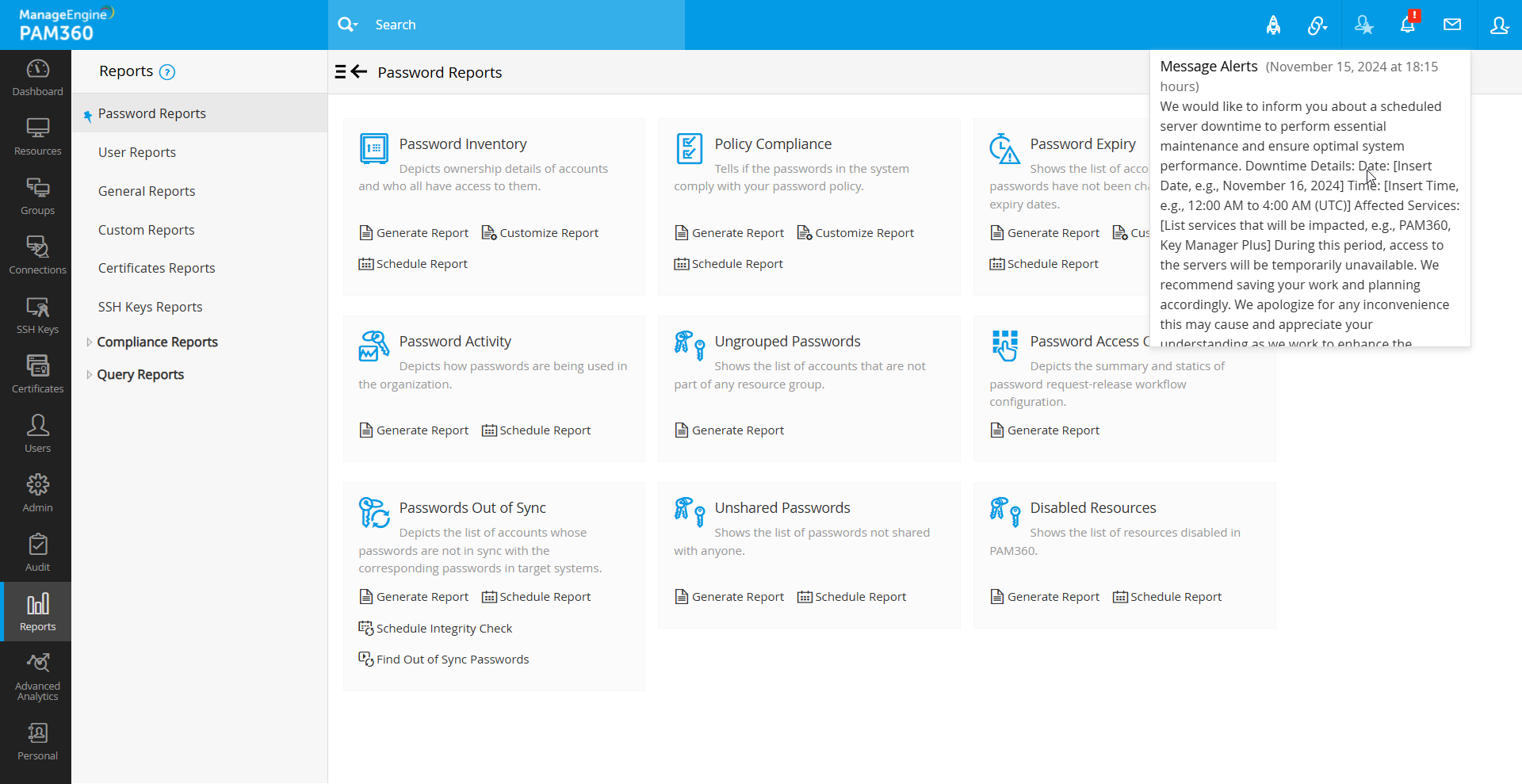
For instance, if the PAM360 server needs to be taken offline for a few hours due to maintenance, you can use this feature to inform all relevant personnel in advance. The message you compose will be prominently displayed to users as a banner within the PAM360 user interface (GUI), as an email notification, or both, depending on your preferences.
Follow the steps outlined below to compose and broadcast important messages to all PAM360 users.
- Navigate to Admin >> Customization >> Message Board.
- In the Message field, enter the message you wish to display to all the PAM360 users.

- Specify the recipients who should receive the message. You can choose to display the message to all users or limit it to administrators (including password administrators).
- Select the mode of delivery for the message. You can choose to send it as an Email Notification to the selected recipients, as an Online Alert, or both.
- If you choose Email Notification, PAM360 will retrieve the email addresses from the user database and delivers the message directly to their mailbox.
- If you select Online Alert, the message will appear as a banner in the PAM360 GUI. Users can click on the alert to view the full message.
Caution
Ensure that the mail server settings are properly configured to enable the seamless delivery of the message as an Email Notification to the selected recipients.
- Set the duration for which the message should be displayed as an online alert on the PAM360 GUI. By default, the duration is set to 1 day.
- Click Save to finalize and broadcast the message.
- Click the Messages icon on the top right corner of the PAM360 interface to view the broadcasted message.