PAM360 Dashboards
PAM360 offers a comprehensive suite of interactive dashboards that streamline the privileged access management (PAM) process for enterprises. The dashboard feature in PAM360 provides a detailed overview of crucial aspects of privileged account management within an organization. From monitoring password health to addressing policy breaches, it facilitates the implementation of robust security measures based on actionable insights.
Out-of-the-box, PAM360 benefits organizations with:
- Real-time Insight - to gain immediate visibility into security configurations and privileged access activities across your infrastructure.
- Risk Mitigation - to utilize instant remediation controls to promptly address and mitigate identified risky behavior.
The following dashboards are available in PAM360 are:
These interactive dashboards enhance PAM processes by offering dynamic monitoring and swift response capabilities, ensuring robust security management across the enterprise. Access to the PAM360 dashboards is restricted to users with administrator and auditor roles. The following table outlines the dashboard visibility for various user roles available in PAM360.
Dashboard | Privileged Administrators | Administrators | Password Administrators | Password Auditors |
|---|---|---|---|---|
Password Dashboard | ✔ | ✔ | ✘ | ✔ |
User Dashboard | ✔ | ✔ | ✘ | ✔ |
Keys Dashboard | ✔ | ✔ | ✘ | ✘ |
Security Hardening Dashboard | ✔ | ✘ | ✘ | ✔ |
Additional Details
- While creating a custom user role, to allow access to the security hardening dashboard, ensure the custom role has the Security Hardening Dashboard privilege enabled under PAM360 settings.
- To provide access to other PAM360 dashboards, select any of the default user roles with access to these dashboards in the Use an Existing Role as Template drop-down field. This will enable the users with the custom user role to access the same PAM360 dashboards as the selected default user role.
1. Password Dashboard
The Password Dashboard in PAM360 serves as a centralized platform for monitoring password-related activities and metrics within the PAM360 environment. This feature enhances password management by offering comprehensive insights into password usage, policy violations, synchronization, and security vulnerabilities, allowing administrators to monitor the overall password health and security compliance. The dashboard's intuitive interface and real-time updates enable administrators to manage passwords of privileged resources within the organization efficiently, thereby strengthening the overall security posture and ensuring compliance with regulatory requirements.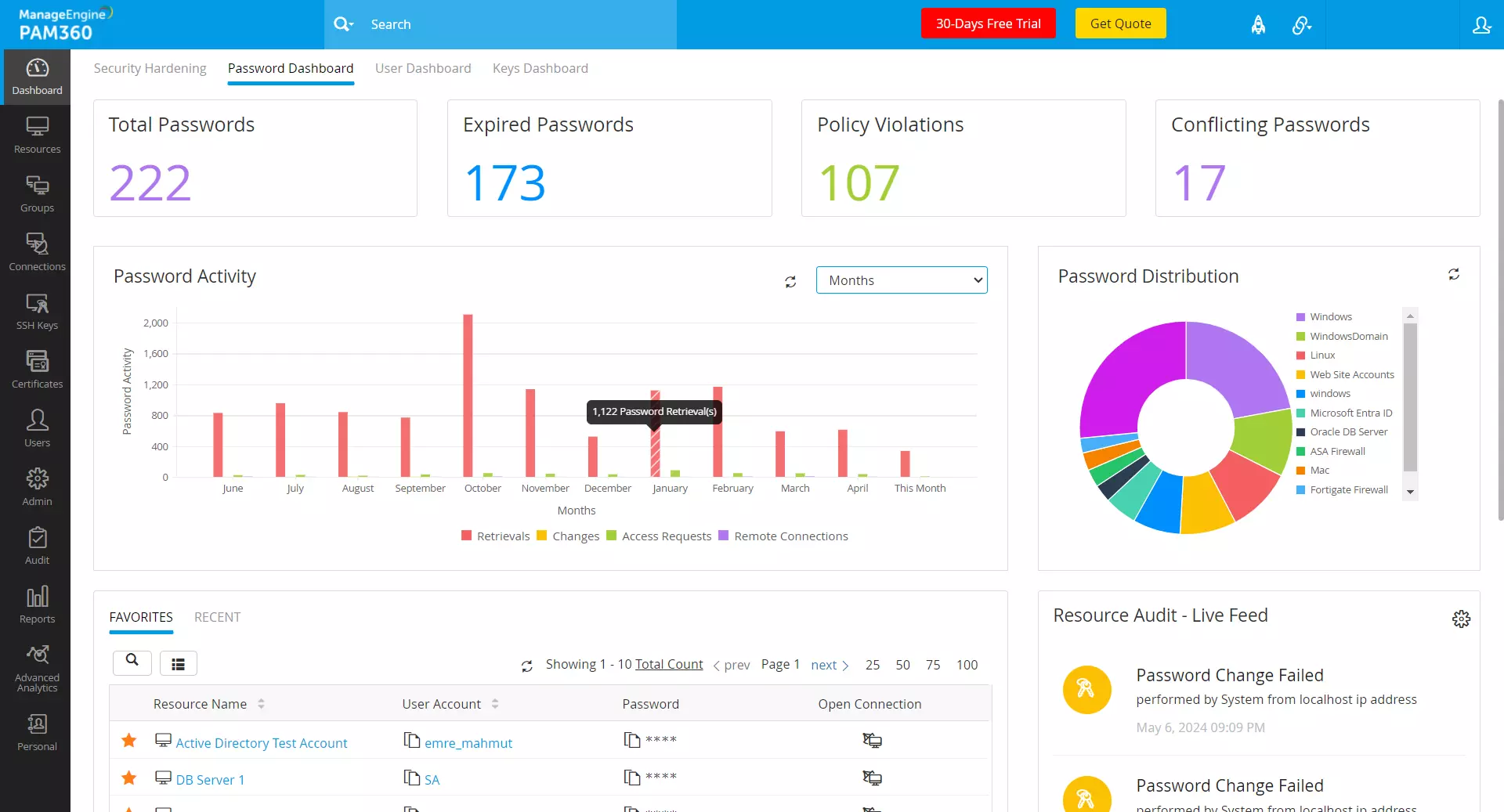
- Total Passwords - The Total Passwords tile within the Password Dashboard tab specifies the total number of passwords stored within the PAM360 environment. Click on this tile to access a detailed list of resources with details such as name, description, owner, and type. This section features a search filter that allows you to locate a specific resource based on its parameters. Click on the desired resource to view the list of associated passwords and their respective share permissions. These insights enable efficient management and auditing of password assets within the organization.
- Expired Passwords and Policy Violations - These tiles list the total number of expired passwords and the passwords that violate standard password policies within the PAM360 environment, aiding in identifying and mitigating the associated risks and security vulnerabilities. Click on these tiles to view a comprehensive list of resources with expired passwords or those with policy violations. These insights allow administrators to prioritize password updates and enforce password management best practices to enhance the overall security posture.
- Conflicting Passwords - This tile lists the total number of conflicting passwords, highlighting potential synchronization issues between local and PAM360 environments, where passwords may differ across resources. Click on this tile to view the list of conflicting passwords stored within the PAM360 environment. By identifying resources with conflicting passwords, administrators can take proactive measures to reconcile discrepancies and ensure consistency in password management practices, reducing the risk of unauthorized access and data breaches.
- Password Distribution - The password distribution chart displays the distribution of passwords across various resource types, facilitating the identification of resource types with a high concentration of passwords. Administrators can gain valuable insights into the password distribution pattern within their environment and implement targeted security measures to protect critical assets and sensitive information.
- Favorites and Recent - This section provides quick access to the recently accessed passwords and those marked as favorites in the Resources tab, enabling efficient retrieval and management of frequently used passwords. Additionally, this section includes a search filter and custom column chooser to filter and display only the passwords of interest.
- Resource Audit - Live Feed - The Live Feed section provides real-time information about actions related to accounts, resources, resource groups, passwords, and other general operations as they occur. Click the Live Feed Settings icon to configure activity preferences and refresh intervals for a customized view of password-related events. These insights enable administrators to identify and make timely decisions to mitigate security incidents and policy violations.
- Active Privileged Sessions - This section displays a list of active privileged sessions, allowing you to monitor active user sessions and detect suspicious behavior in real time. By identifying and investigating active privileged sessions, administrators can mitigate security risks, prevent unauthorized access, and enforce compliance with security policies and regulatory requirements.
- Password Activity - The password activity chart shows the number of password-related activities such as password retrievals, changes, access requests, and remote connections performed within a particular period. Users can adjust the timeline to view activities over different timeframes: minutes, hours, days, or months. Click on the respective segment of the graph to view detailed audits for each activity. Additionally, this section includes a search filter to help identify specific audits of interest based on your requirements.
2. User Dashboard
The User Dashboard in PAM360 provides a comprehensive overview of user activities, offering valuable insights into user behavior, role distribution, session management, and audit trail monitoring. It serves as a centralized hub to monitor and analyze user interactions within the PAM360 environment.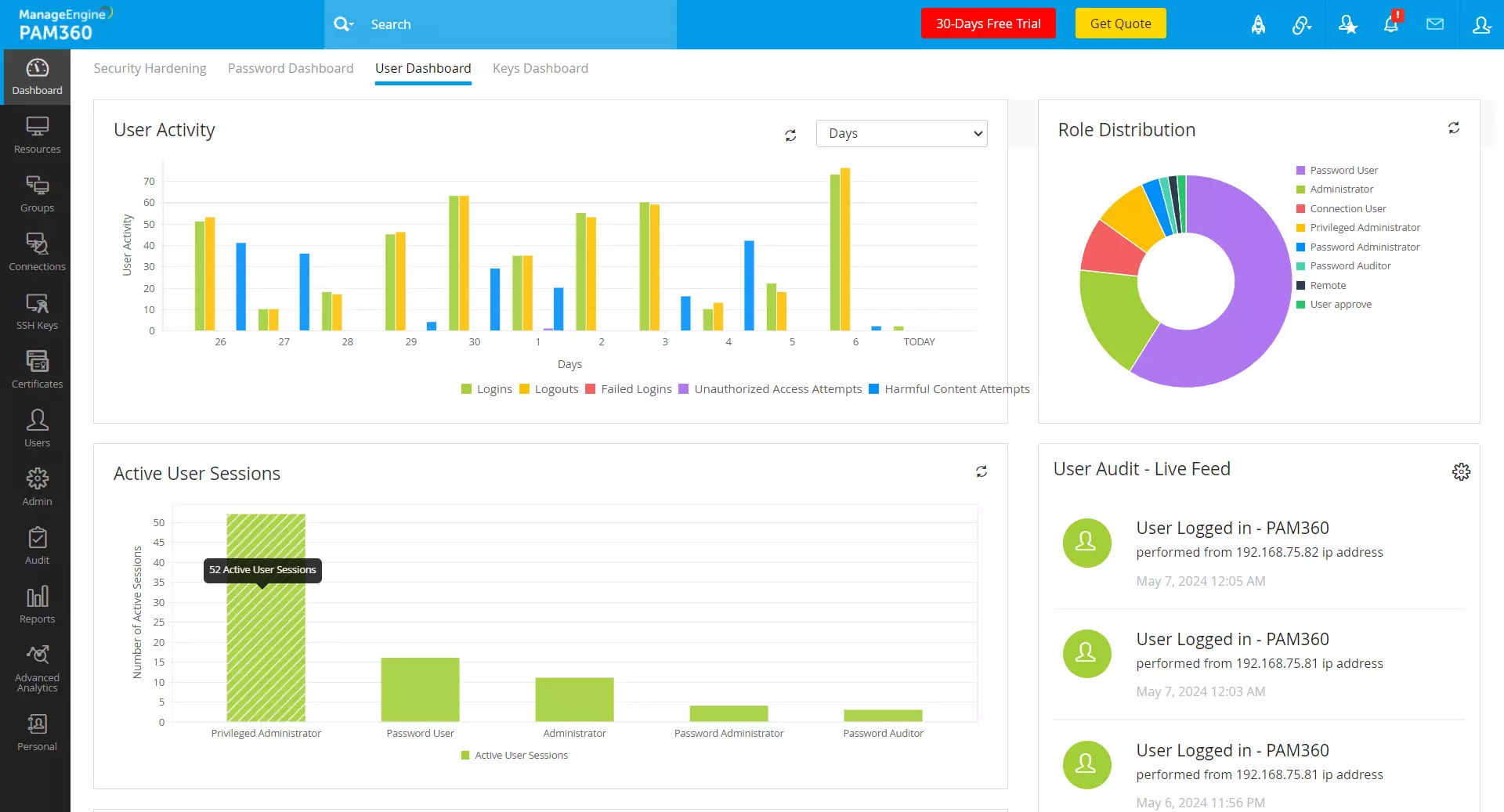
- User Activity - This section provides a detailed summary of all user activities over a configurable period, including successful logins, logouts, failed login attempts, and unauthorized access events. By analyzing the trends in user activity, administrators can identify anomalies, detect security incidents, and enforce access control policies to prevent unauthorized access and data breaches.
- Role Distribution - The role distribution section features a pie chart that visualizes the distribution of users across both default and custom user roles. By clicking on each segment of the chart, you can access a detailed list of users, which includes their user name, login name, current and last login timestamps, and session status for the corresponding user role. These insights help administrators assess role-based access controls, manage user privileges, and ensure compliance with least privilege principles and regulatory requirements.
- Active User Sessions - This section features a chart that displays the distribution of active user sessions across various user roles within the PAM360 environment. Click on each segment of the chart to view a comprehensive list of currently logged-in users for the selected role with session details such as username, current and last login timestamps, and session status.
- User Audit - Live Feed - The Live Feed section provides real-time information about actions related to users, user roles, user groups, organizations, and other general (user-related) operations. Click on the Live Feed Settings icon to configure activity preferences and refresh intervals for a customized view of events related to user operations. These insights enable administrators to identify and make timely decisions to mitigate security incidents, policy violations, and compliance breaches.
- Most Active Users - This section highlights the most active users based on resource access within the PAM360 environment. Monitoring user activity can reveal trends and anomalies that might indicate security issues. By identifying and analyzing these activity patterns, administrators can detect abnormal behavior and investigate potential security threats or policy violations to maintain the integrity and security of the IT infrastructure.
3. Keys Dashboard
The Keys Dashboard serves as a centralized hub for monitoring and managing cryptographic keys and digital certificates, providing administrators with valuable insights into keys and certificate-related activities essential for maintaining the security and integrity of their IT infrastructure.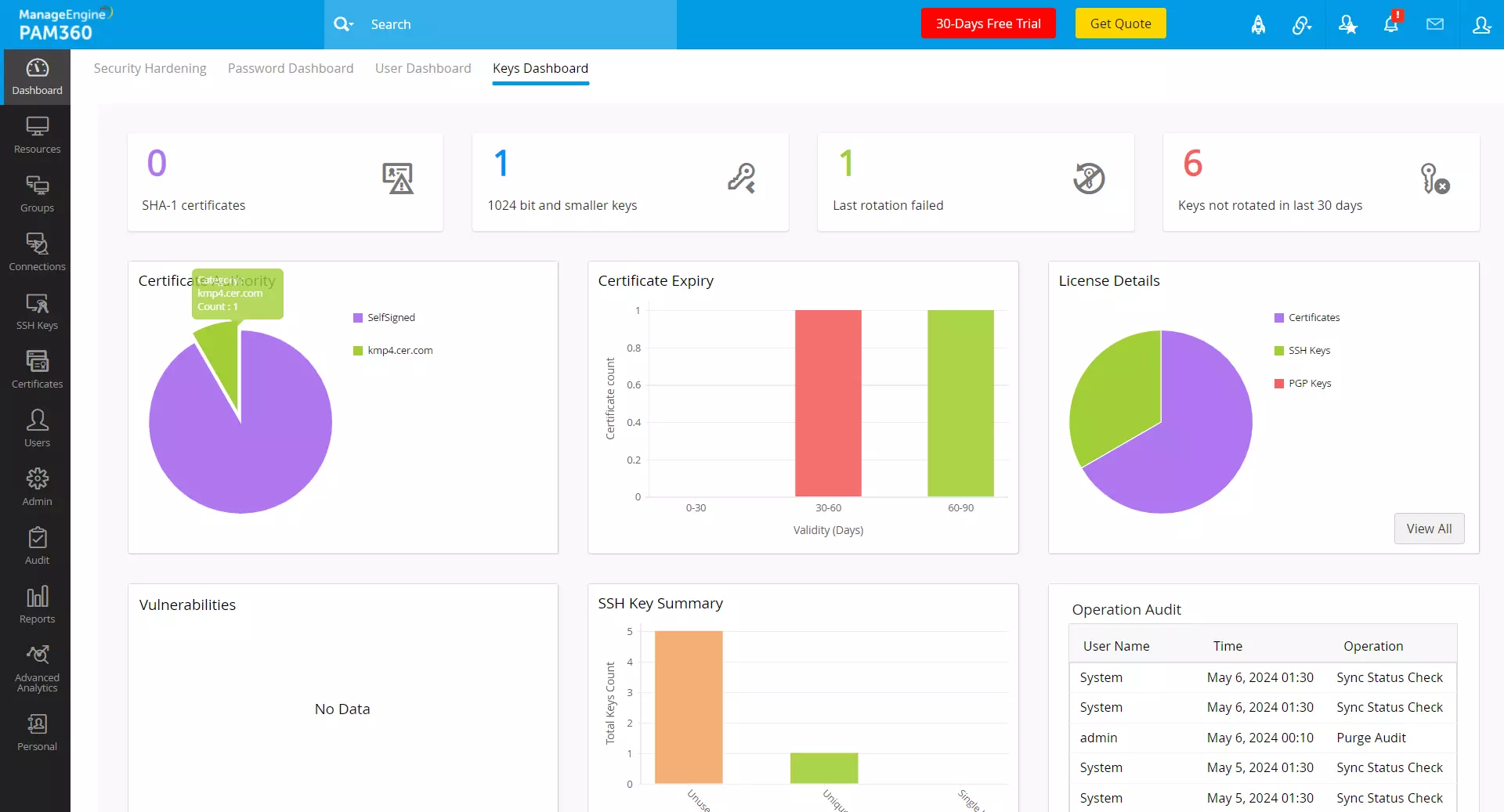
- SHA-1 Certificates - This tile displays the total number of certificates using the SHA-1 hashing algorithm stored within the PAM360 environment. Click on this tile to get a comprehensive view of all SHA-1 certificates with details such as DNS name, issuer, validity, key size, and hashing algorithm. These insights enable administrators to identify and prioritize the migration of SHA-1 certificates to more secure algorithms like SHA-256 to mitigate the risk of cryptographic weaknesses and potential vulnerabilities.
- 1024-bit and Smaller Keys - This tile lists the total number of keys within the PAM360 environment that are 1024 bits or smaller and vulnerable to brute-force attacks and cryptographic exploits. Click on this tile to view a comprehensive list of these keys, with their details such as key name, type, length, fingerprint, and age. These insights enable administrators to replace weaker keys with keys that are stronger and more secure in key length to enhance the organization's overall security posture.
- Last Rotation Failed - This tile lists the number of instances where key rotation processes have failed, potentially leaving cryptographic keys unchanged beyond their intended rotation schedule, allowing administrators to investigate the root cause of these failed rotation attempts and take corrective actions to ensure timely and secure rotation of cryptographic keys to prevent security incidents or compliance violations. Click on this tile to view a detailed list of such keys and their corresponding details.
- Keys Not Rotated in Last 30 Days - This tile highlights the number of cryptographic keys that have not been rotated within the last 30 days, signaling potential lapses in key management practices and increasing the risk of unauthorized access or data breaches. Click on this tile to view a detailed list of keys not rotated within the last 30 days with information such as type, length, fingerprint, and age. Administrators can prioritize the rotation of these keys to maintain compliance with security policies and regulatory requirements while minimizing exposure to security threats.
- Certificate Authority - This pie chart displays the distribution of certificates stored in the organization's secure infrastructure across various Certificate Authorities (CAs) responsible for issuing and managing digital certificates. Click on each segment of the chart to see a comprehensive list of all the certificates issued by that particular CA, along with details such as common name, DNS name, port, issuer, validity, and key size.
- Certificate Expiry - The Certificate Expiry chart provides real-time information about certificate expiry, displaying the number of expired certificates and those expiring in 0-30, 30-60, and 60-90 days. Click on each segment of the chart to view a comprehensive list of certificates for each time interval, including details such as common name, DNS name, issuer, validity, key size, algorithm, and expiry date. These insights enable administrators to monitor and manage certificate life cycles proactively to prevent service disruptions and security incidents caused by expired certificates. Administrators can leverage these insights to schedule certificate renewals or replacements before expiration to maintain the trustworthiness of digital identities.
- License Details - The License Details pie chart provides comprehensive insights into the licensing model, displaying the total number of accommodated SSL certificates, SSH keys, PGP keys, and key stores. Click on each section of the chart to view detailed information about the specific license type, including key details and expiry.
- Vulnerabilities - The vulnerabilities chart displays potential security weaknesses associated with cryptographic keys and digital certificates, such as weak cipher suites, POODLE SSL, and revoked SSL, etc. Administrators can leverage this chart to conduct vulnerability assessments and security scans, detecting and remediating these risks to ensure the confidentiality, integrity, and availability of cryptographic assets across the organization's IT infrastructure.
- SSH Key Summary - This chart summarizes essential information about SSH (Secure Shell) keys used for secure remote access and authentication, including the total number of keys, unused keys, unique keys, etc. Click on each section of the chart to view detailed information about that particular category of keys, including key details and expiration. Administrators can utilize this chart to review SSH key deployments and monitor key usage patterns to prevent unauthorized access and mitigate the risk of SSH-based attacks targeting critical systems and sensitive data.
- Operation Audit - This section displays the five most recent operations related to SSH keys and SSL certificates, including generation, distribution, rotation, and revocation events. By tracking these recent actions, administrators can ensure compliance with security policies, regulatory requirements, and industry best practices governing cryptographic usage and protection and swiftly identify any anomalies or unauthorized modifications.
4. Security Dashboard
The Security Dashboard provides administrators with real-time insights into crucial security-related activities within the PAM360 environment, ensuring robust protection against potential threats and vulnerabilities.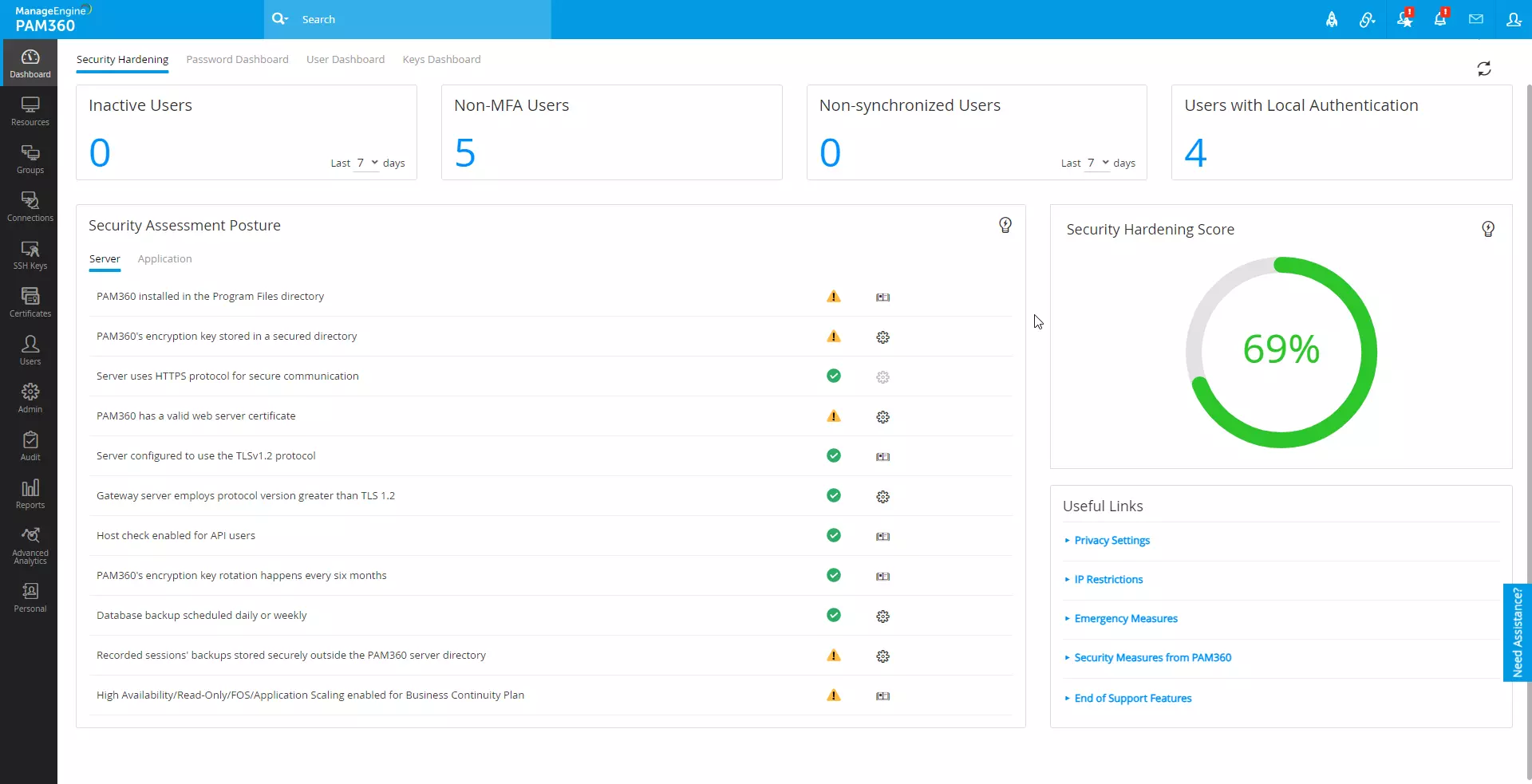
Refer to this help document to know more about the Security Dashboard and its configuration in detail.