Transferring Resource Ownership at Different Levels
PAM360 allows administrators to transfer ownership of individual resources, multiple resources, and resource groups to other administrators whenever required. Once ownership is transferred, the previous owner will no longer be able to access the resource unless the new owner explicitly shares it back. Importantly, all existing shares configured for other users will remain intact even after the transfer.
Caution
Transferring ownership in the PAM360 UI does not automatically update ownership of remote resources that are managed via an agent installed by another administrator. If such resources are involved, the conf file in the agent installation directory must be manually updated with the new username (for example, `UserName=admin`) to ensure proper management.
By the end of this document, you will be able to:
1. Transferring the Resource Ownership
PAM360 allows you to transfer ownership of either a single resource or multiple resources in one go. To transfer the ownership of a resource,
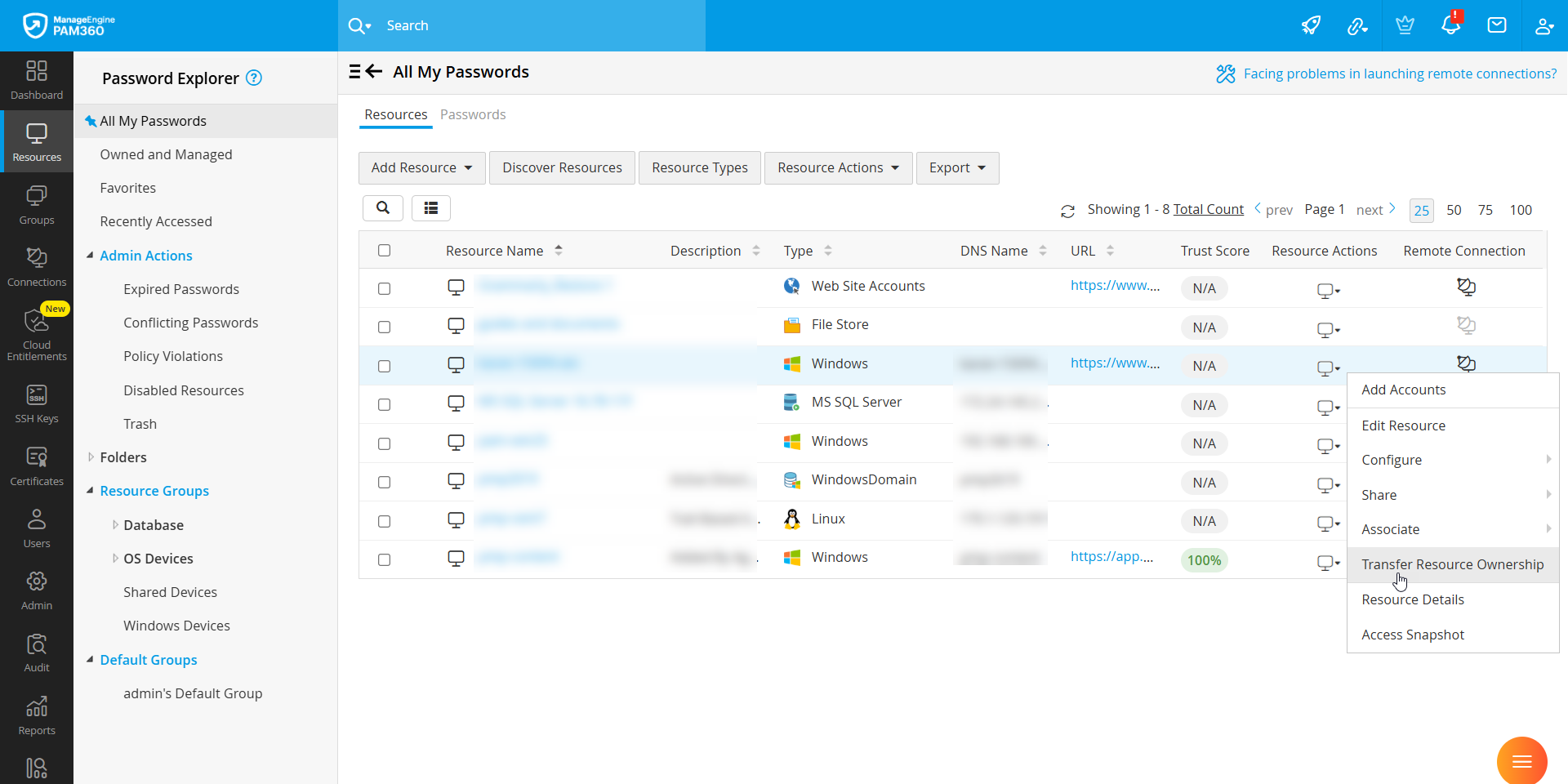
- Navigate to Resources >> Owned and Managed and click the Resource Actions icon next to the required resource.
- Select Transfer Ownership from the drop-down menu.
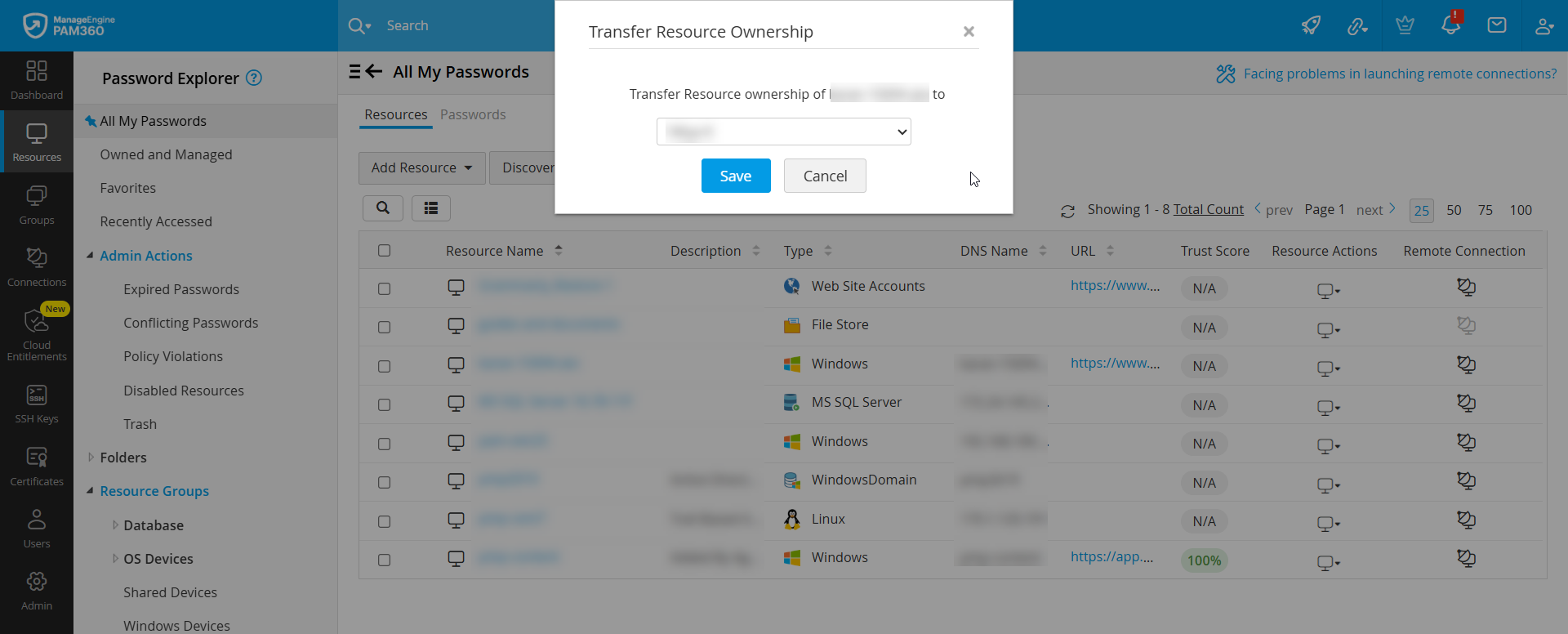
- In the pop-up window, select the administrator to whom you want to transfer ownership and click Save.
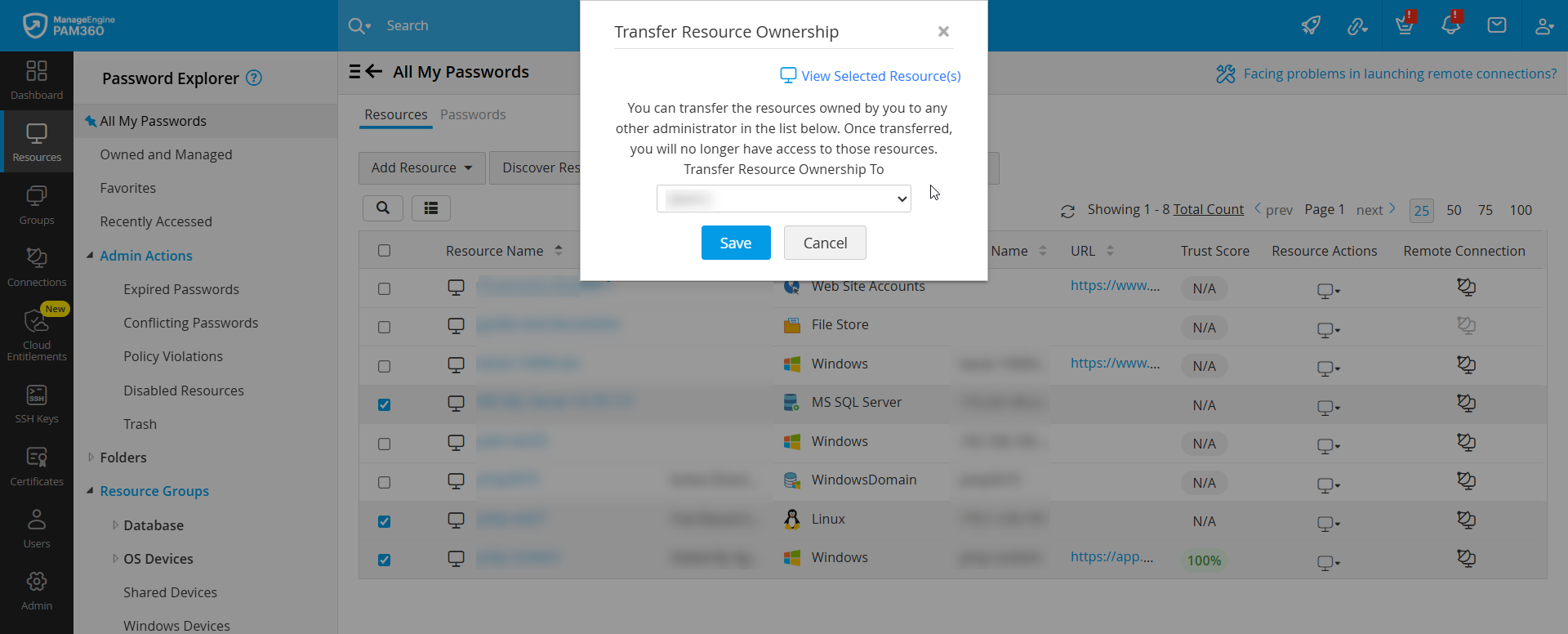
To transfer ownership of multiple resources at once, choose the required resources from the Resources tab and select Resource Actions >> Manage >> Transfer Ownership. In the pop-up window that appears, select the administrator to whom the ownership should be transferred and click Save to apply the changes.
1.1 Transferring all Owned Resources
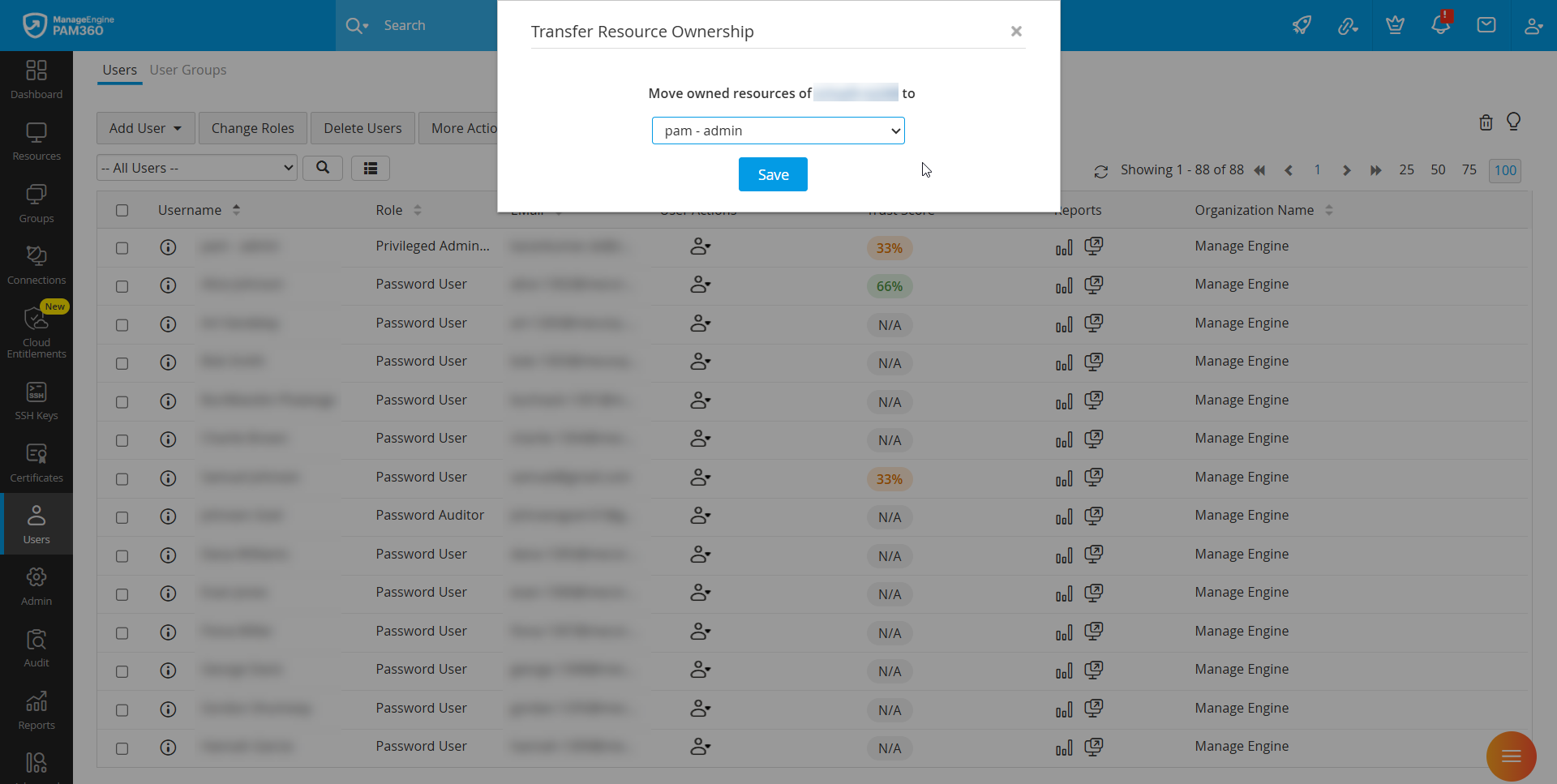
To transfer the ownership of all resources managed by a specific user, use the steps below:
- Navigate to the Users tab and click the User Actions icon beside the user whose resources are to be transferred.
- In the dropdown that opens, click Transfer Resource Ownership.
- Select the new user account to which the resources are to be transferred.
- Click Save to complete the transfer.
2. Transferring the Resource Group Ownership
In addition to individual resources, administrators can also transfer the ownership of static and dynamic resource groups.
Prerequisites for Dynamic Resource Groups
To transfer the ownership of a dynamic resource group, you must first ensure that the dynamic group share permission is enabled for the administrator from whom the resource group is being transferred. This permission can only be granted at the user group level, not for individual users. Therefore, make sure that only the intended users are part of the specific user group where this permission is assigned. Follow these steps to enable the dynamic group share permission:
- Navigate to Users >> User Groups.
- Click the User Group Actions icon beside the required user group and select User Group Privileges.
- Enable the checkbox Permit group members to share the Dynamic Resource Groups owned by them with others granting ‘Full Access’ permission, then click Save.
Now, follow these steps to transfer the ownership of a resource group:
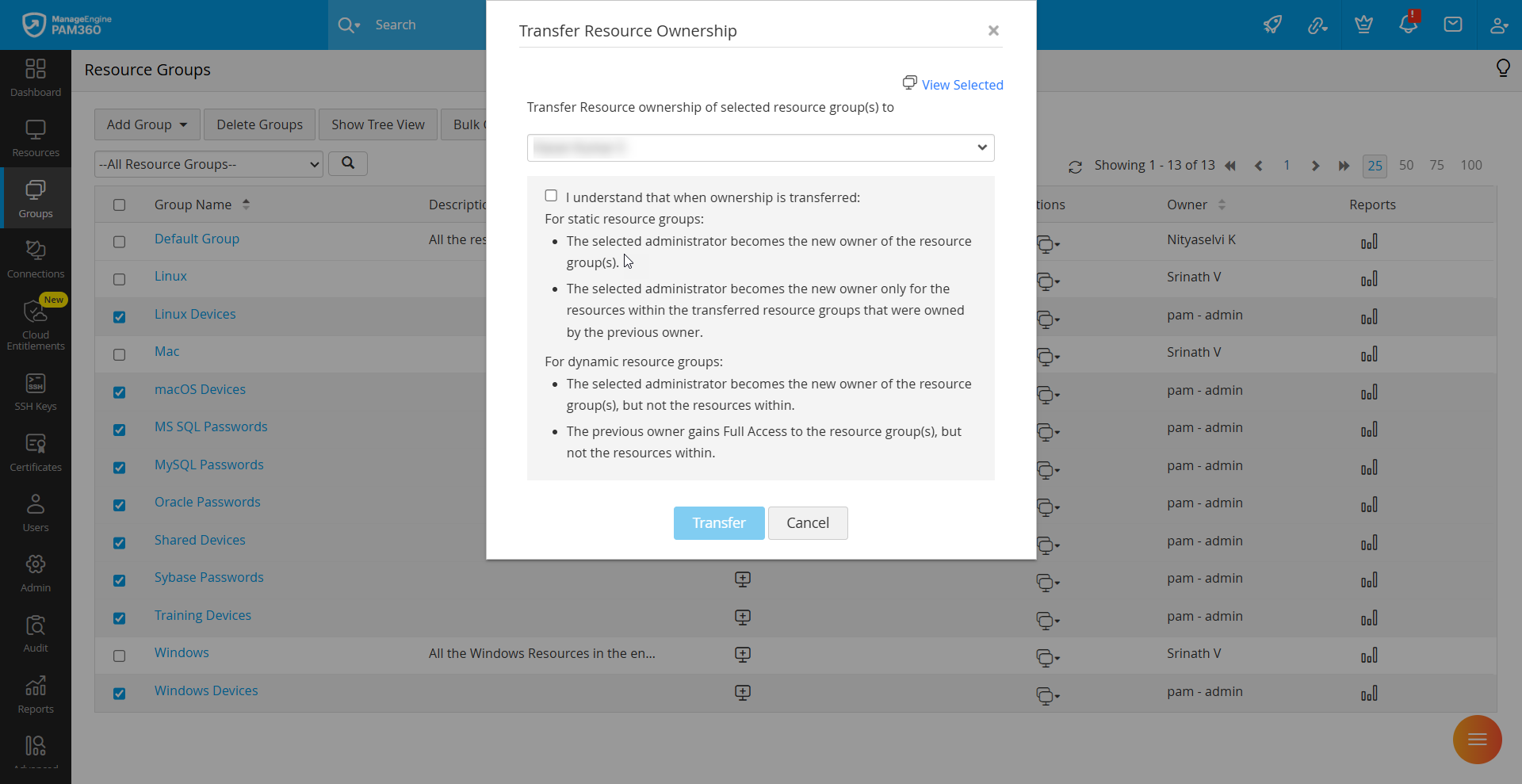
- Navigate to the Groups tab.
- Click the Actions icon beside the required resource group and select Transfer Ownership.
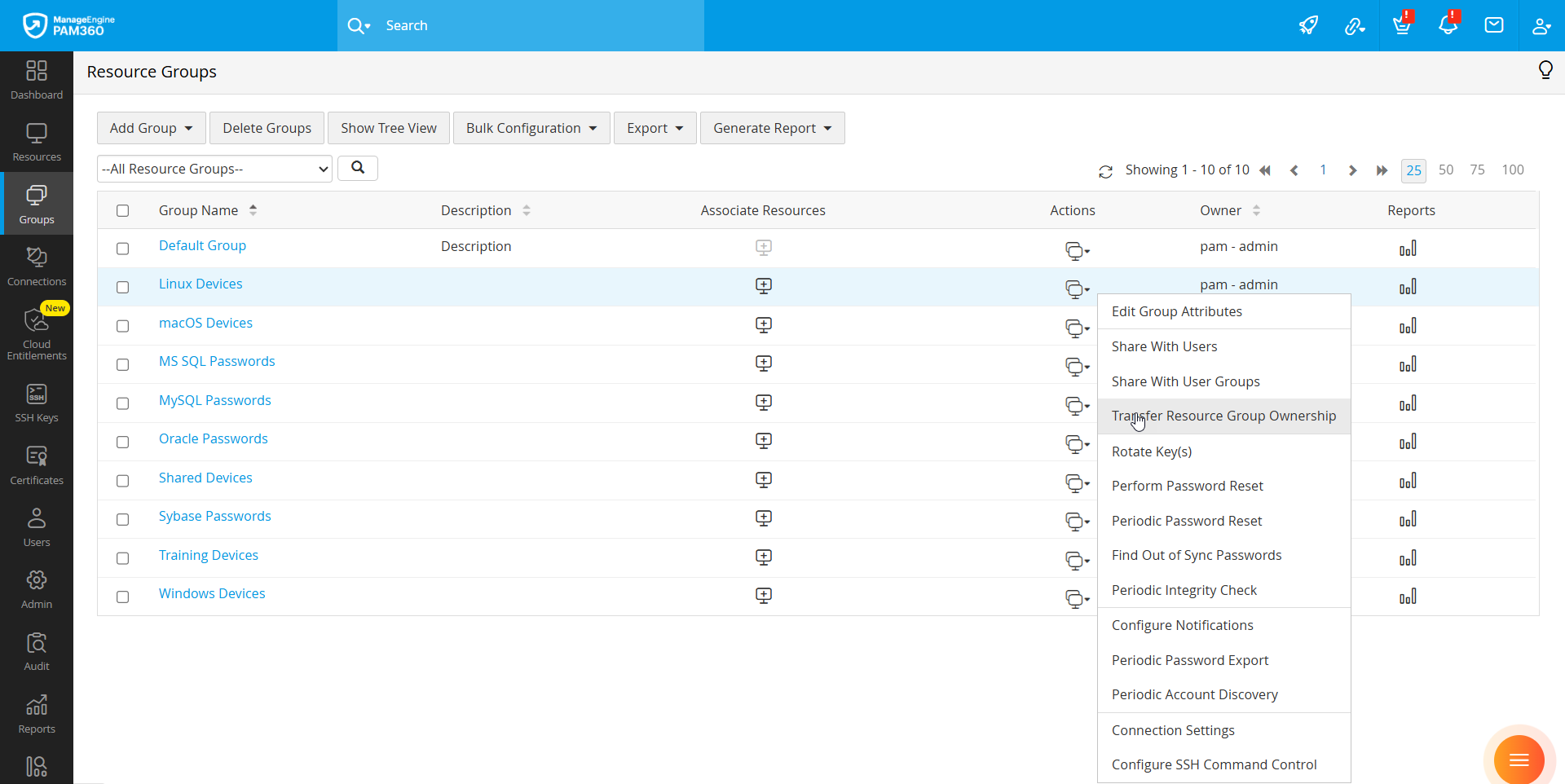
- In the pop-up window that opens, choose the administrator to whom the ownership will be transferred.
- Read the consent statement, select the checkbox and click Transfer.
Transfer Results Based on Group Type
| Group Type | Transfer Results |
|---|---|
Static Resource Group | The selected administrator becomes the owner of both the resource group and all resources within the group that were originally owned by the previous administrator. |
Dynamic Resource Group | The selected administrator becomes the owner of the resource group only, without gaining ownership of the individual resources contained within it. The previous owner retains Full Access to the group and complete ownership of the resources within it. |
Additional Details
- The default resource group cannot be transferred.
- Ownership of individual resources contained within a dynamic resource group can still be transferred in bulk from the Resources tab.
2.1 Transferring Ownership of Multiple Resource Groups
For large-scale changes, PAM360 allows you to transfer the ownership of multiple resource groups simultaneously. However, this action can only be performed by a Super Administrator. Ensure that you are logged in with a Super Administrator account before proceeding. If needed, refer to the help document on promoting an Administrator to a Super Administrator for guidance.
To transfer ownership of multiple resource groups in bulk, follow these steps:
- Navigate to the Groups tab, select the required resource groups and click Bulk Configuration >> Transfer Ownership.
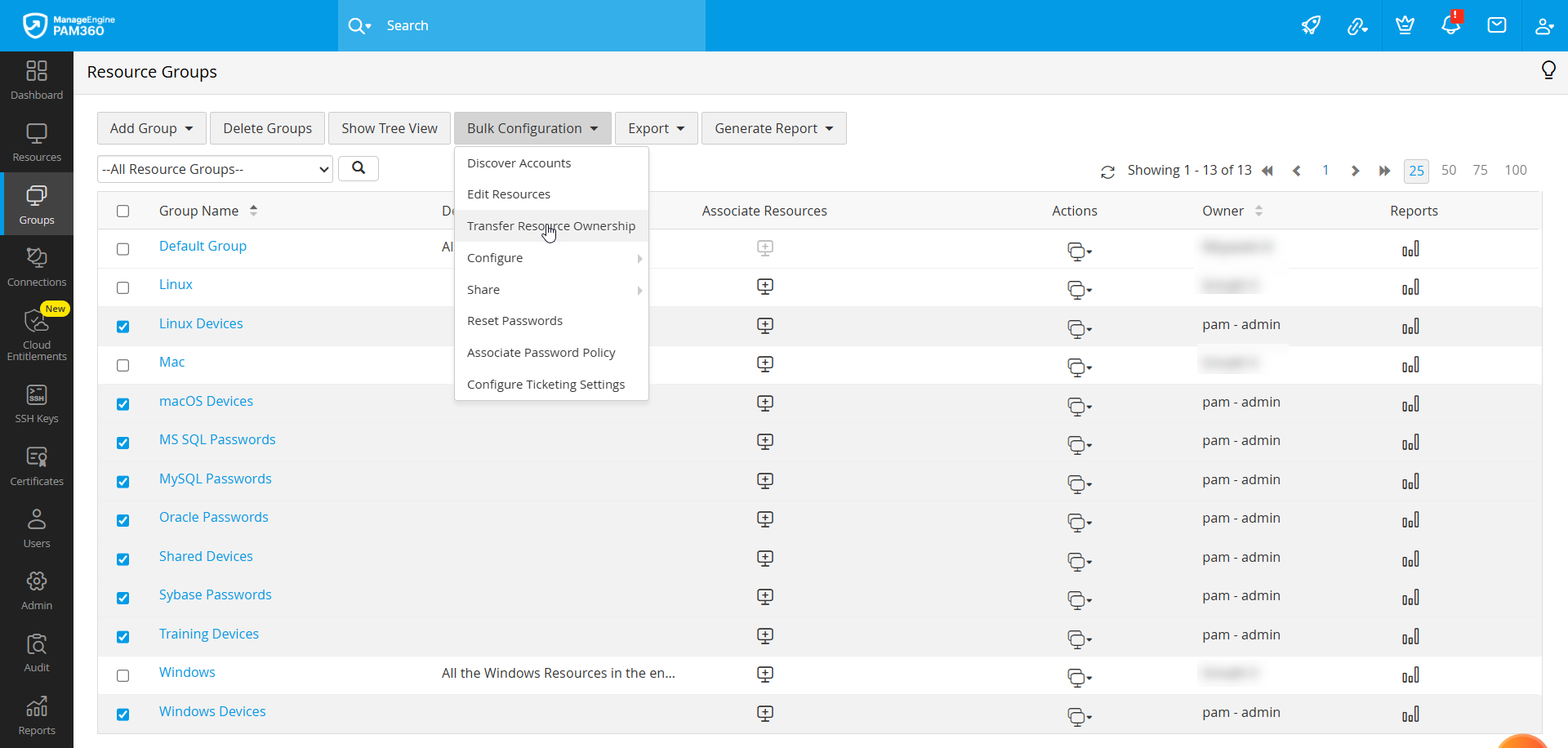
- Click View Selected at the top-right corner to verify the list of selected groups.
- Choose the new administrator from the drop-down list.
- Read the consent information, enable the checkbox, and click Transfer.