Configure MS SQL Database
MS SQL Server Configuration for OpManager
If you choose to use MS SQL as the backend database for OpManager, we recommend that you create a seperate account for OpManager in your MS SQL database server. This ensures proper functionality. However, if you wish to proceed with your existing server account credentials, you may skip this configuration procedure and proceed directly with the installation.
| Note | It is highly recommended that you use MS SQL database for production. This also provides failover/high availability. |
Steps to configure MS SQL
Step 1: To ensure proper communication between the MS SQL database server and OpManager, a new account has to be created with the below mentioned steps.
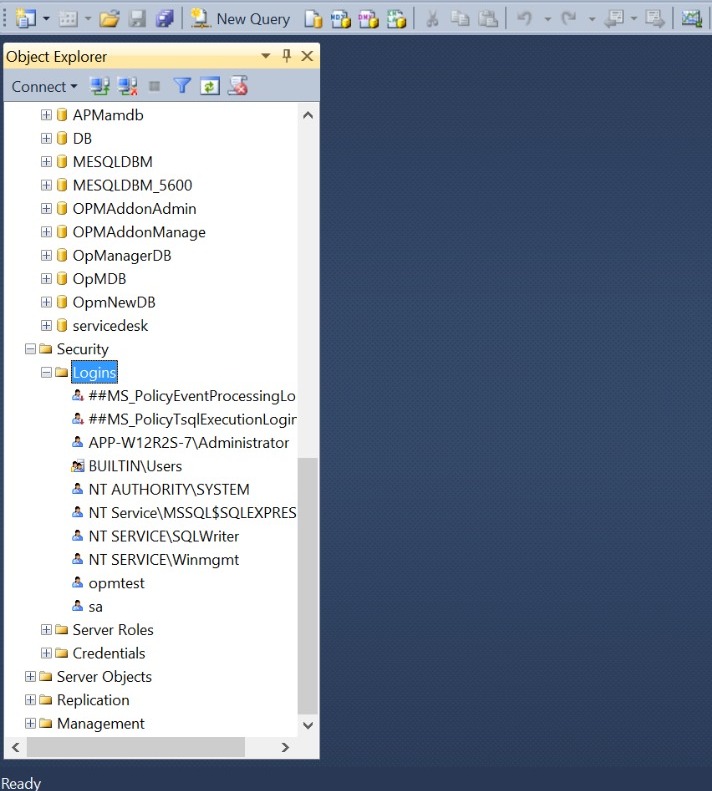
- Open SQL Management Studio and login using your Server Account (sa)/ Windows credentials.
- Right click on Logins.
- Select New Login.
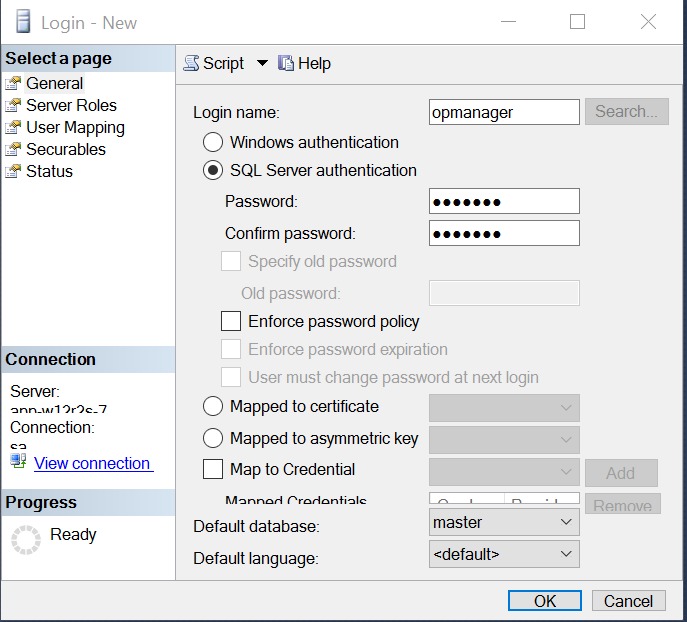
Step 2: Select Authentication type. For Windows authentication, select and login using your Windows login credentials. For SQL Server authentication, enter the password.
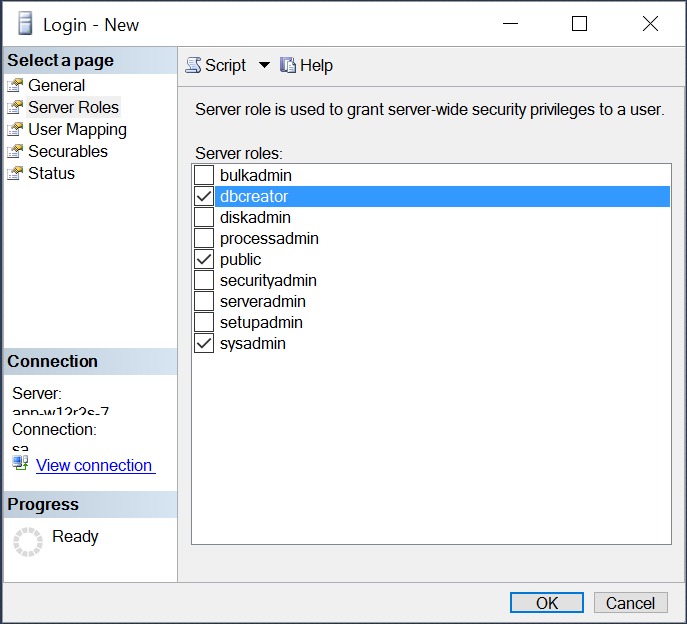
Step 3: Click on Server Role. Select server roles dbcreator, public and sysadmin.
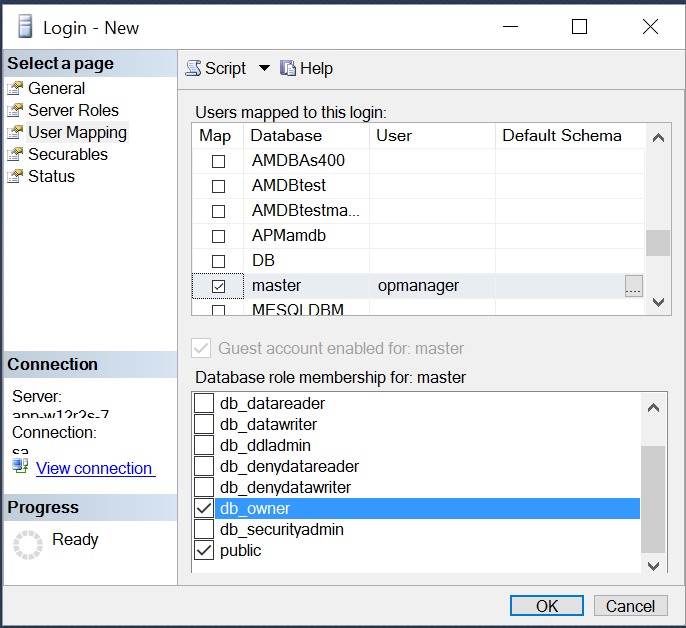
Step 4: Click on User Mapping. Map this login to master with database role ownership as db_owner and public. Click OK.
Thank you for your feedback!