Notification Settings and SSH Policy Configuration
PAM360 offers comprehensive notification settings for the management of SSL certificates, SSH keys, PGP keys, domain expirations, and Azure TLS secrets. With customizable notifications and flexible SSH key policies, users can ensure proactive management of sensitive keys and certificates across their environments. This document will guide you through managing notification settings for key and certificate operations, configuring email alerts, syslog notifications, and setting up SSH key policies for better security and compliance.
1. Managing Notification Settings for Keys and Certificates
PAM360 allows notifications to be sent via email or as syslog messages under the following conditions:
- SSL Certificate Expiry: Receive alerts if SSL certificates are approaching their expiration date within a specified number of days.
- Domain Expiry: Get notified about upcoming domain expirations within a set timeframe.
- Azure TLS Secrets Expiry: Receive alerts for Azure TLS secrets that are nearing their expiration.
- SSH Key Rotation: Be alerted if SSH keys are not rotated within a configured number of days.
- Certificate Management Operations: Receive notifications for any certificate management activities within the application.
- PGP Key Expiry: Set up email notifications specifically for PGP key expiration. To learn more about PGP keys, click here.
Caution
Notifications for PGP key expiration are sent only via email.
To configure notifications settings, follow these steps:
- Navigate to Admin >> PKI Management >> Notification Settings.
- Enable SSL Certificate Expiry Notifications by selecting the Notify about SSL certificates expiring within checkbox and entering the desired number of days. Notifications will be sent only for certificates expiring within the specified period.
- To customize the notification frequency, enable the following as required:
- Notification Email Frequency: Opt Daily to receive daily alerts or use the Customize option as desired based on your organization's notification requirements.
- Exclude expired certificates from email notifications: Select to exclude already expired certificates from notifications.
- Include multiple servers list for certificates: Enable to fetch the servers details where certificates are deployed.
- Send a separate email per certificate: Choose to receive separate emails per certificate, allowing customization of subject lines and attributes for each expiry notification.
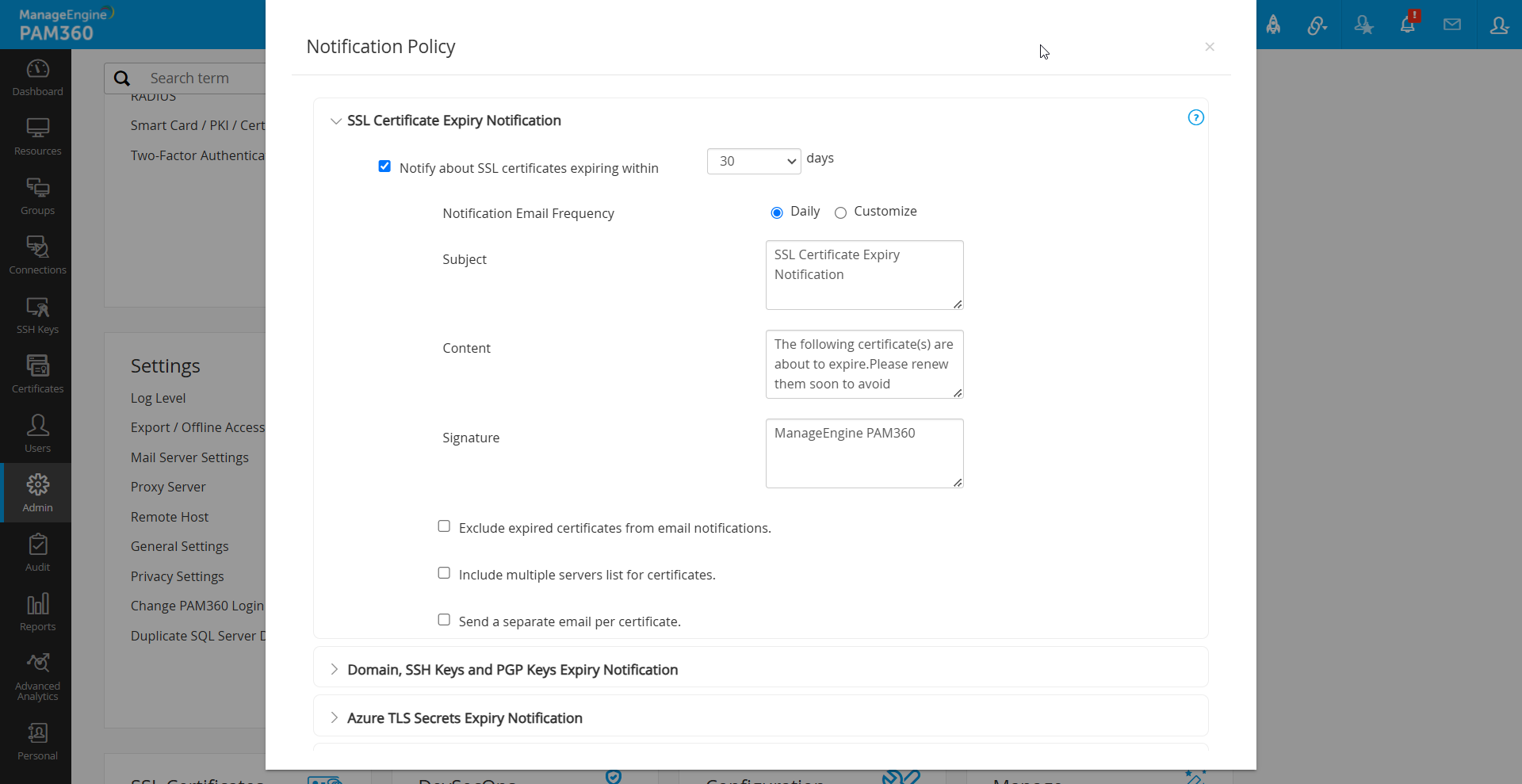
- Domain expiration, PGP key expiration, Azure TLS secret expiration, and SSH key rotation failure notifications can also be enabled by selecting the respective checkboxes.
Caution
Notifications for SSL certificate expiry and overdue SSH key rotations are sent as per the configured recurrence time.

- Users have the option to modify the Subject, Content, and Signature of email notifications for different expiry alerts and the notifications can be delivered in two ways:
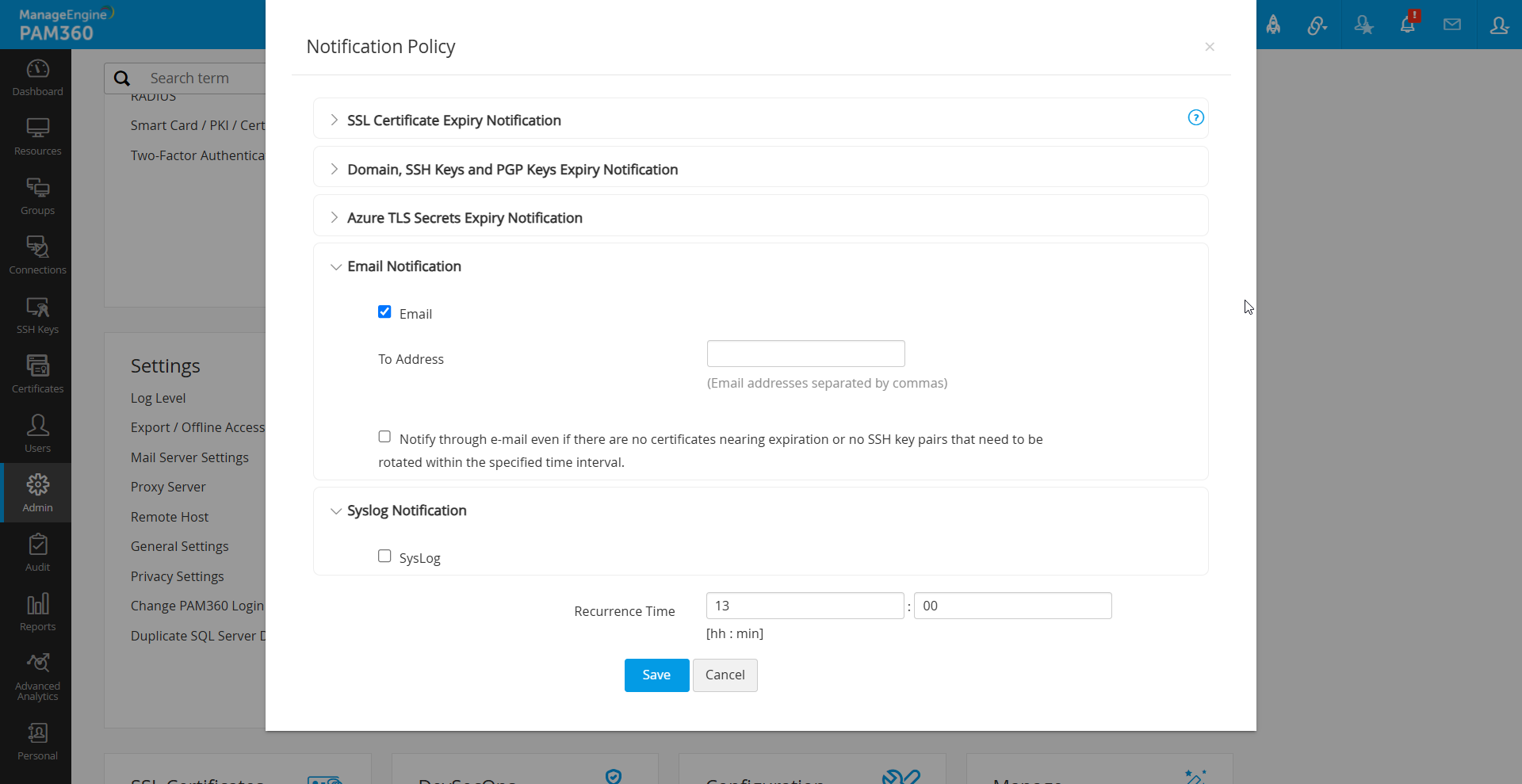
- Email: Enter the recipient addresses. Ensure that mail-server settings are configured under the Mail Server Settings tab.
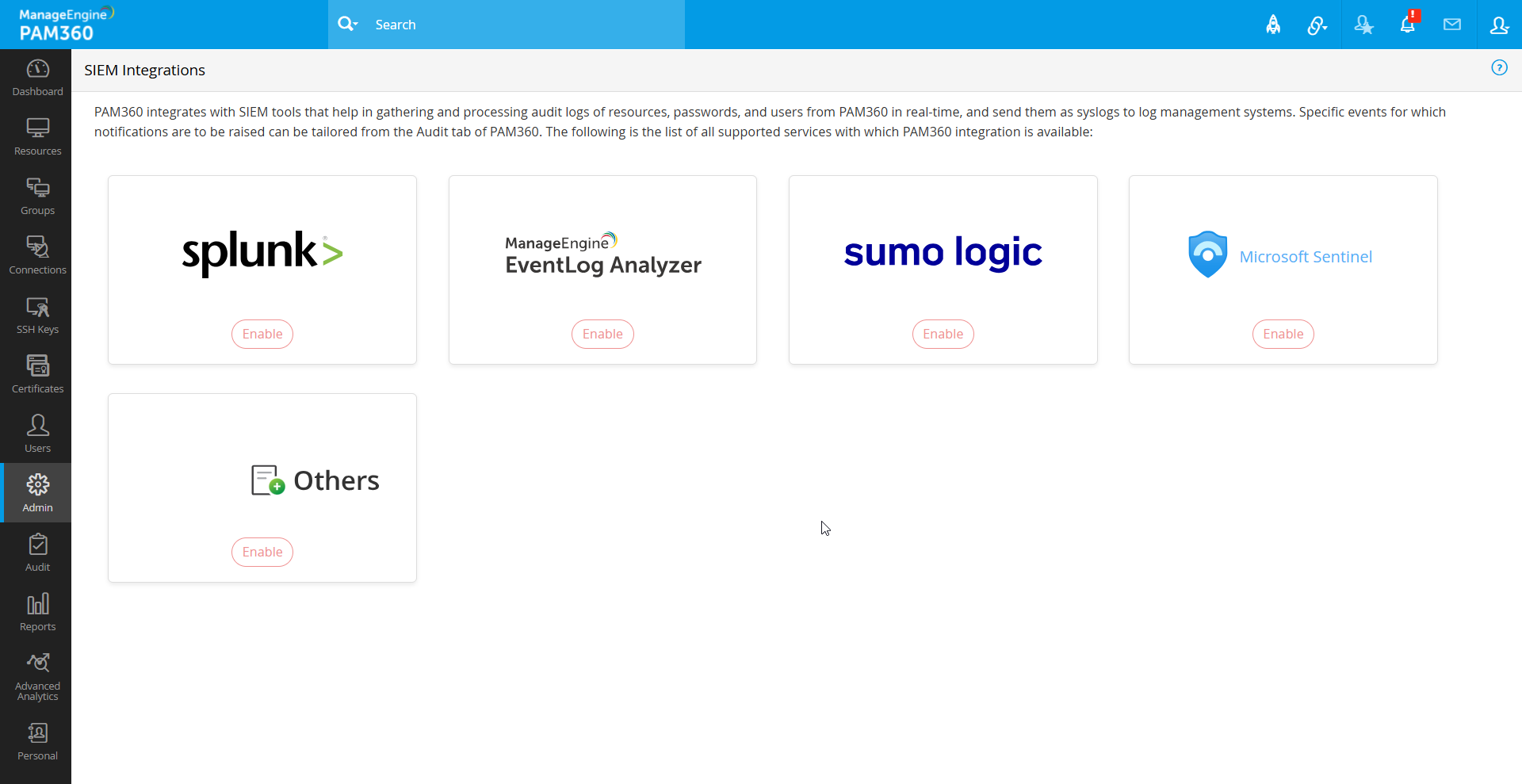
- Syslog: For syslog notifications, go to Admin >> Integration >> SIEM to select the integration option, specify the server IP, and configure the port for syslog delivery. The below shown are the examples for syslog formats:
- SSH: `<190> Key_Name:172.21.147.130_test123_id Days_Exceeded:0 Modified_On:2016-02-16 17:41:24.008`
- SSL: `<190> Parent_Domain: manageengine.com Included_Domain: pam360.com Days_to_Expire: 100 Expire_Date: 5.08.2017`
- After configuring these settings, click Save.
Caution
The specified number of days for SSH key rotation and SSL certificate expiry notifications is also applied to dashboard settings.
2. SSH Policy Configuration
PAM360 enables high-level SSH key management policies, allowing you to specify whether new keys should retain or overwrite existing keys in the authorized_keys file. This helps manage keys efficiently and enhances security by allowing a fresh start if needed. The available key rentention options are:
- Append: Retains existing keys while adding newly deployed keys.
- Overwrite: Removes all existing keys, ensuring that only PAM360-generated keys remain in the environment.
To configure or modify the SSH key policy, follow the below steps:
- Navigate to the Admin >> PKI Management >> SSH Policy Configuration.
- Select either Append or Overwrite to define how new keys are added to the `authorized_keys` file.
- Click Save to apply the changes.
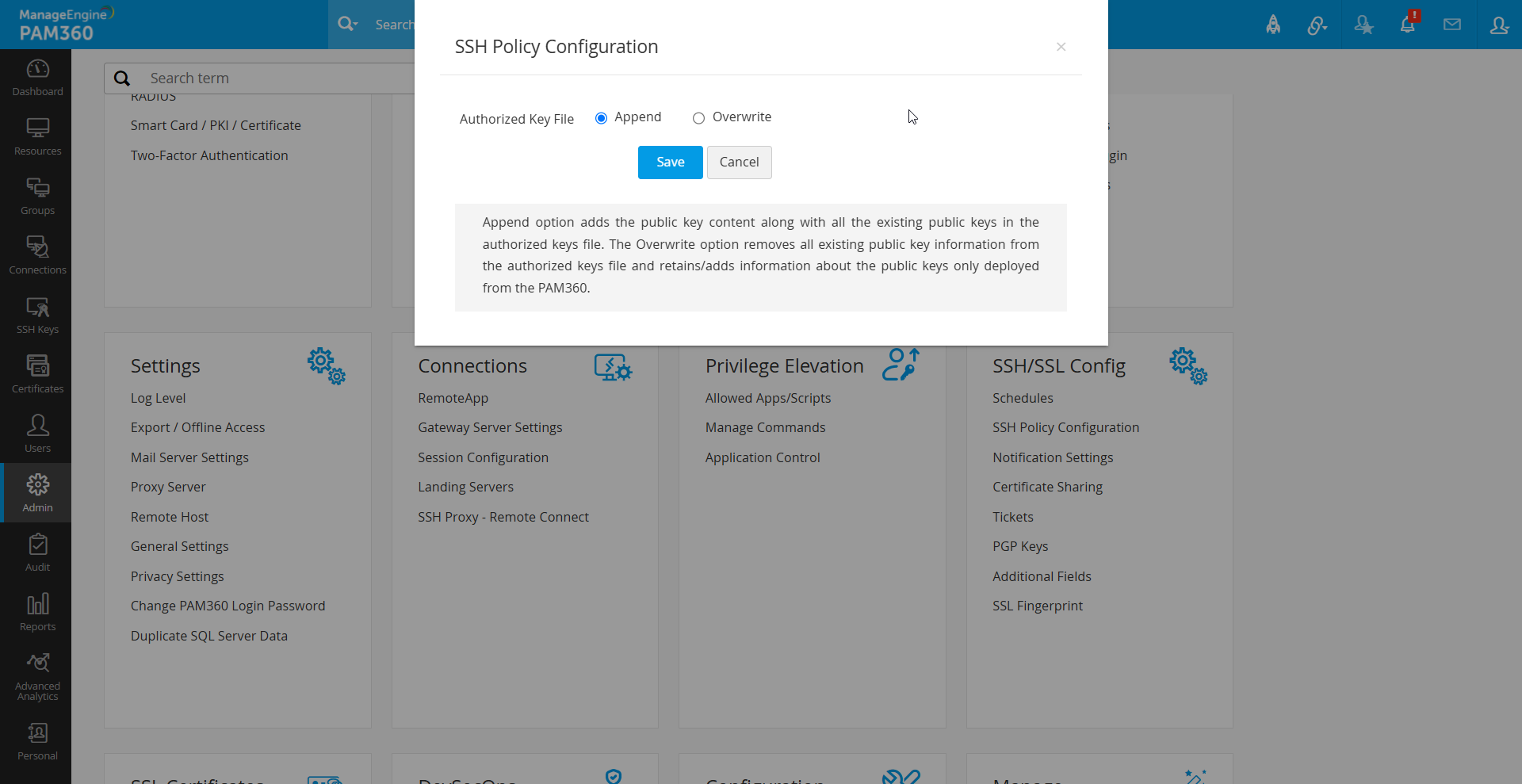
Following these steps ensures that PAM360 efficiently manages key expiration notifications and enforces SSH key policies to meet organizational compliance and security needs.