Configuring PAM360 Remote Connect
The PAM360 Remote Connect application (an independent desktop client for Windows) revolutionizes remote access by offering seamless, password-less connectivity to PAM360 resources with just one click. The remote client integrates RDP, SSH, and thick-client SQL connections into a unified interface, eliminating the hassle of switching between external desktop clients. The ability to launch concurrent sessions and customize SSH connections enhances user experience significantly. Additionally, MSP users managing multiple organizations can effortlessly switch between organizations and initiate remote sessions to the desired resources, making remote sessions more efficient and convenient.
This document outlines the installation process, system requirements, and operations within the interface. Read further to learn about Remote Connect in detail.
- System Requirements
- Steps to Install and Log into Remote Connect
- Possible Operations in the PAM360 Remote Connect Interface
- Real-time Scenario
Caution
Working instance of the PAM360 web application with a login credential, and it should be accessible from the end-user machine.
1. System Requirements
| Hardware Requirements | Supported Operating Systems |
|---|---|
Processor
RAM
Hard Disk
| Windows
Note: PAM360 Remote Connect can also be run on VMs of the above operating systems. |
2. Steps to Install and Log into Remote Connect
- Go to the PAM360 Remote Connect download page and download the PAM360RemoteConnect.exe file.
- Open the PAM360RemoteConnect.exe and follow the instructions in the Installation Wizard to install the application.
- Once the application is successfully installed, launch PAM360 Remote Connect.
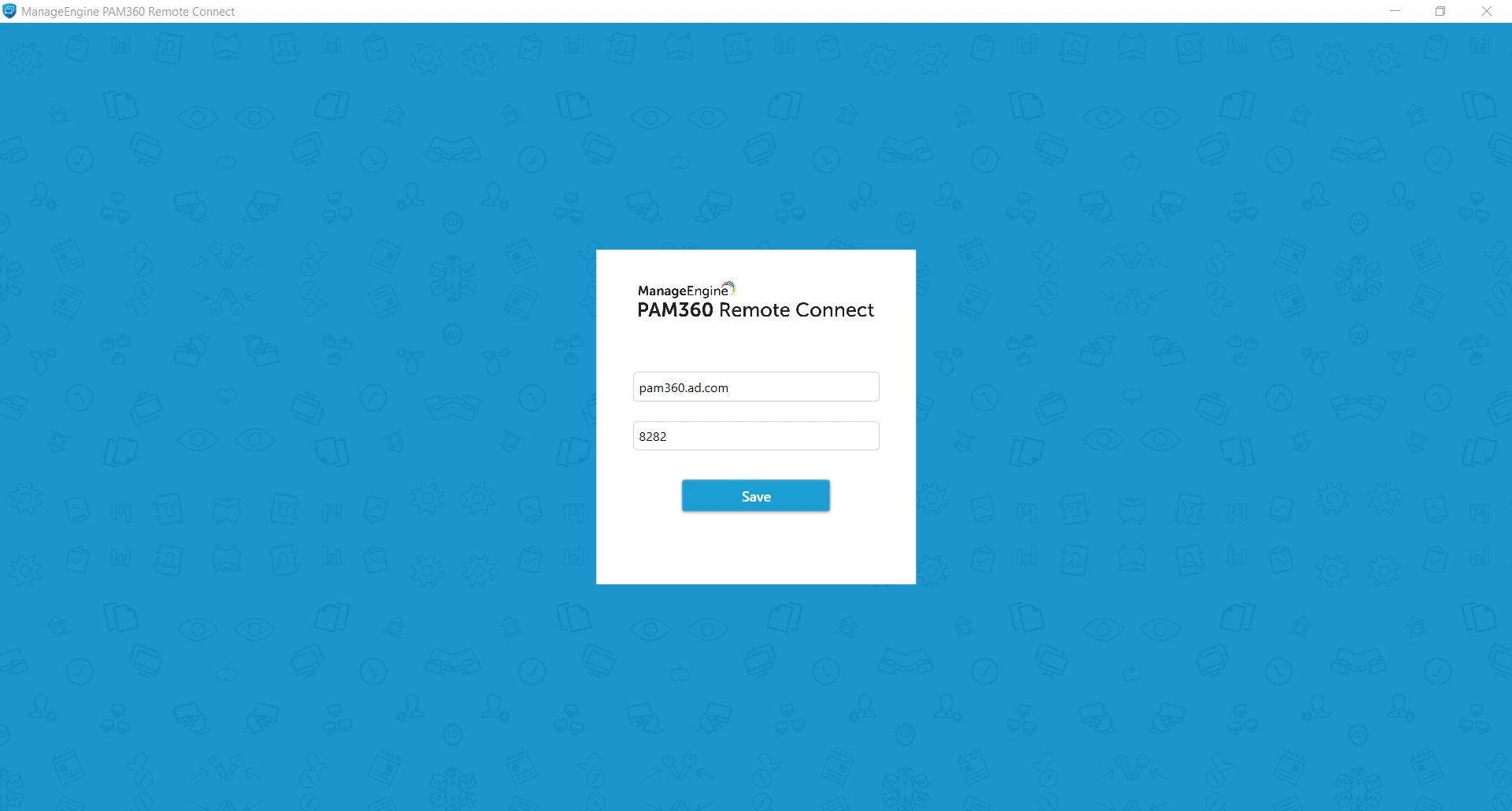
- On the Server Configuration page, do as follows:
- Enter the hostname and port of your PAM360 web server and click Save.
Caution
Ensure that the PAM360 service is running for a successful login.
- If you have an MSP build, enter the Org name. If you are unsure of your Org name, navigate to the PAM360 web interface, go to Admin >> Organizations and find your Org name.
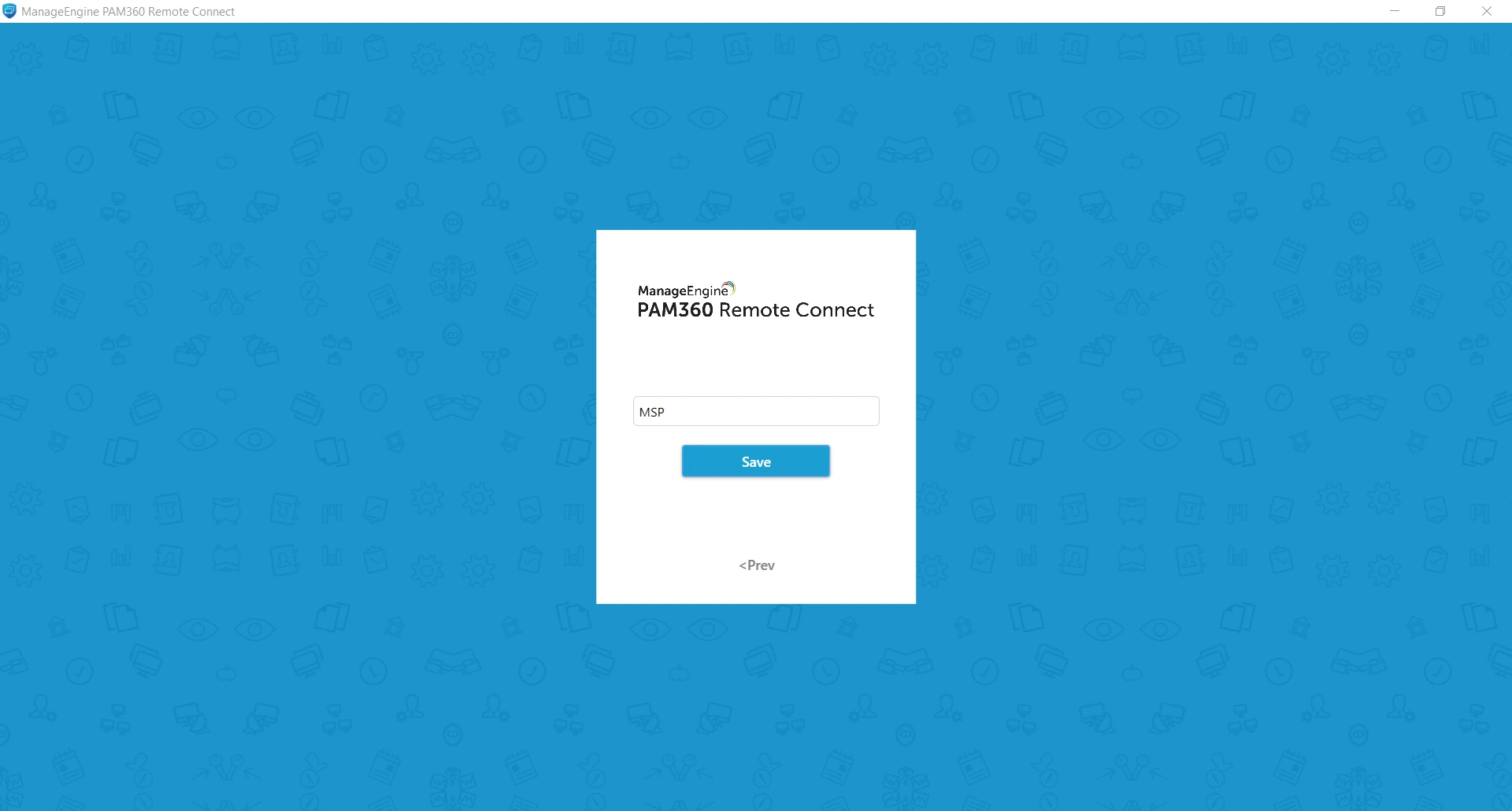
- If you do not have an MSP build, you will be redirected to the login page directly without the prompt to enter Org name.
- Enter your PAM360 login credentials. All the authentication modes that are enabled in your PAM360 server such as Active Directory/Microsoft Entra ID/LDAP authentication, SAML single sign-on methods, and two-factor authentication will be applied to Remote Connect as well. For example, if Active Directory/Microsoft Entra ID/LDAP authentication is enabled for your PAM360 login, you can log in to Remote Connect using your Active Directory/Microsoft Entra ID/LDAP credentials.
Additional Detail
Click the Server Configuration option present at the top-right corner of the login page to modify the server details at any time.
3. Possible Operations in the PAM360 Remote Connect Interface
All RDP, SSH-based resources, and thick-client installed database resources for SQL connections and accounts owned by you and/or shared with you will be available for your use in the Remote Connect interface. The display area is split into two panes: Resources and Accounts.
Click any resource from the Resources pane on the left to view the accounts belonging to it in the display area on the right. Similar to the Connections tab in PAM360's web application, PAM360 Remote Connect displays Domain Accounts and Local Accounts of the selected resource in separate columns. You can establish remote connections to a resource using either the local accounts or one of the available domain accounts. Click here to learn about the connection tab operations in detail.
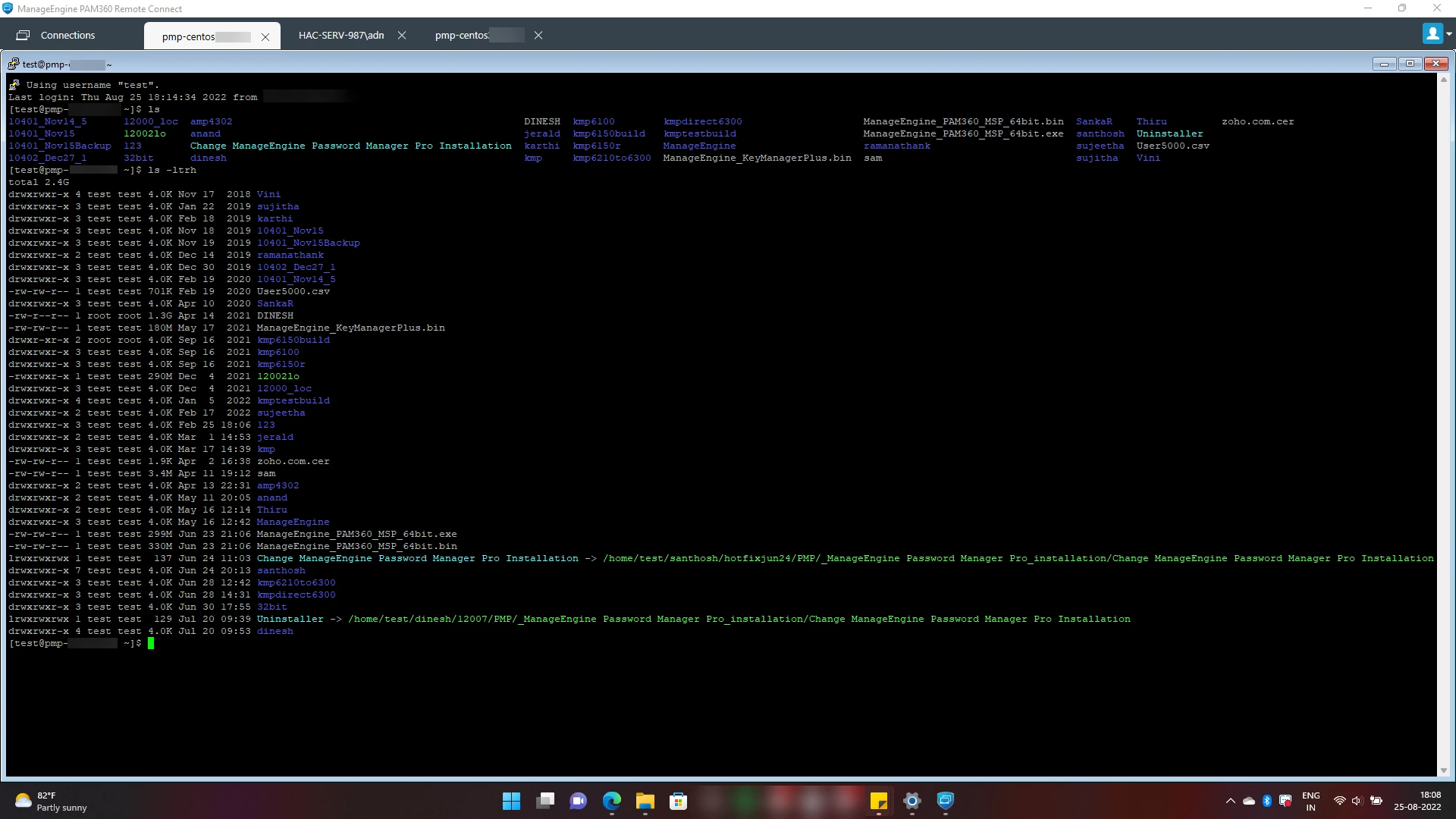
Hover over any account and click Connect to successfully launch a remote connection to the selected resource. You can launch concurrent remote connections and manage them from different tabs in the same window. Use the sort option in the Resources pane to sort the resources as per alphabetical or reverse alphabetical order. Both the panes have individual search bars to help you locate resources and accounts using keyword search. Using Remote Connect, you can launch remote connections to target machines as performed in an MSTSC connection, via SSH PuTTY client, and third-party thick-client applications for database connection.
Additional Detail
Single-click auto logon using Active Directory/Microsoft Entra ID/LDAP credentials is currently not supported in PAM360 Remote Connect, so the 'Logged-in AD/Microsoft Entra ID/LDAP credential' tab will not be displayed.
3.1 Launching Remote Connections to Resources with Password Access Control
When Password Access Control is enabled for a resource that is shared with a user, the user will be able to send a password request, check out the password after admin approval, launch the remote connection, and check the password back in, right from PAM360 Remote Connect without the need to open the PAM360 web interface.
As of now, the resource owners cannot terminate an active remote session taken via Remote Connect. However, if access control is enabled for the resource, the password will be automatically checked back in after the specified time and the remote session will end. Click here to learn how to configure the time limit for password access control.
3.2 Launching Thick-Client Applications Using Application Credential Injection
To log in to a third-party thick-client application using Application Credential Injection, follow the steps below:
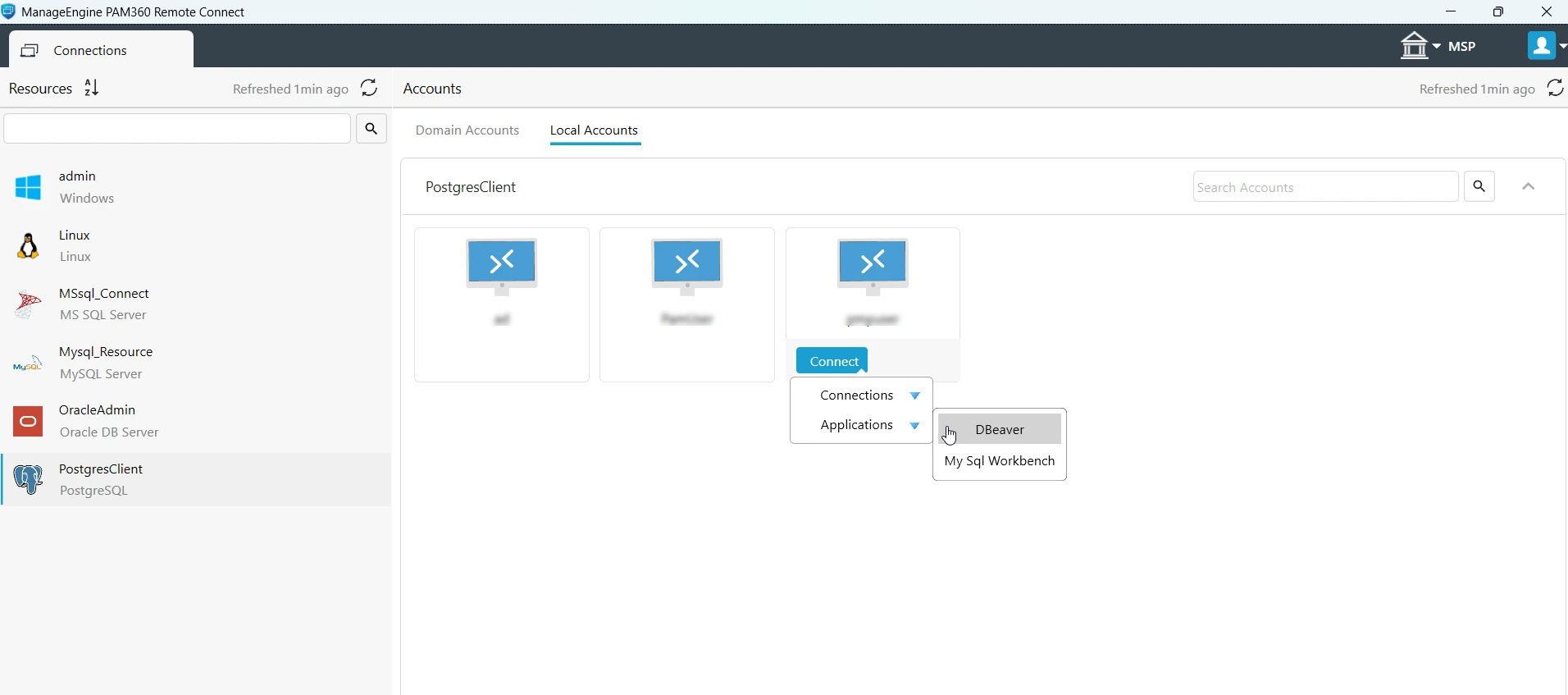
- In the Resources pane, select the resource you want to access.
- Navigate to the Local Accounts tab and select the required account for connection.
- Hover over the Connect button, then click Application from the dropdown to launch the session through the corresponding thick-client application.
Caution
Avoid interacting with other applications or windows immediately after launching the connection, as it may disrupt the password autofill in the thick-client application. Once the password is filled in and the connection is successfully established, you can proceed with your tasks as usual.
Additional Details
- You can launch only one instance of a thick-client application at a time. However, if the target database server is MySQL and already launched the connection using DBeaver, you can again launch a connection to the same account using the MySQL Workbench application (if already installed and configured) from PAM360 Remote Connect.
- Some common pop-ups like Tip of the day, authentication dialog boxes encountered during login are managed by PAM360 Remote Connect. However, any unknown pop-ups, Update DBeaver, etc., should be handled manually by the user to ensure that the connection executes as expected.
Now, the passwords will autofill automatically in a secure way, establishing the connection to the selected database server without any manual intervention. If there is any issue in the connection to the database server using the third-party thick-client application, terminate the connection window and reinitiate the connection using the application after sometime.
4. Real-time Scenario
PAM360 Remote Connect is recommended for a trusted subset of privileged users in an enterprise who do not require metered access to the resources in the environment. For such users, Remote Connect is highly beneficial since it can be installed on any Windows machine without the need to run the PAM360 server on the same machine.
Consider John, an IT Admin, whose responsibility is to perform a routine sweep of the test machines in his environment to check for suspicious software. In this case, John must ensure that the following conditions are satisfied:
- The test machines must be added as resources in the PAM360 web application.
- The test machines need not reside in the same network but they need to be able to connect to each other via RDP/SSH protocols.
If the above conditions are satisfied, John can install PAM360 Remote Connect on his own laptop or any other test machine independently and launch remote connections to other endpoints and perform his duties.