Security Hardening Dashboard
The security hardening dashboard is an advanced PAM360 dashboard designed to assess and enhance the security posture of both the PAM360 application and server, supported by a dynamic security score. This centralized dashboard serves as a powerful tool for administrators, facilitating the quick implementation of PAM360 best practices. Going beyond application and server postures, the dashboard includes user status reports and a security hardening score, providing a holistic approach to security management. This all-in-one toolkit is a valuable resource for administrators looking to maximize the security potential of PAM360 efficiently.
Salient Highlights of Security Hardening Dashboard
- Introduces a dynamic security score that serves as a real-time indicator of your PAM360 environment's security health.
- Spotlights PAM360's best practices, thus allowing proactive security management.
- Provides insights into the security postures of both the PAM360 application and server through a centralized and user-friendly interface.
- Offers assessment procedures to streamline the identification and resolution for security improvements.
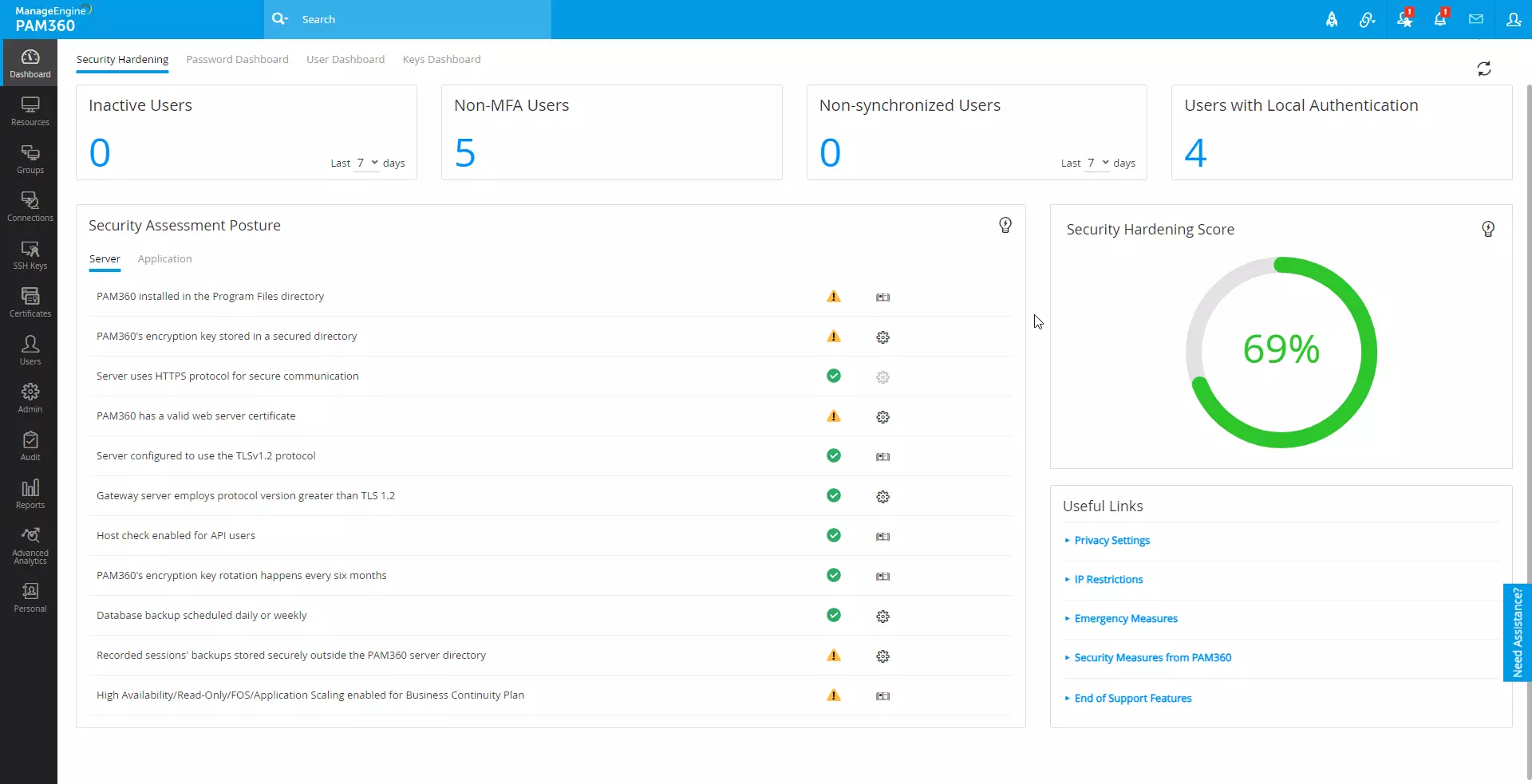
1. User Status Reports
The comprehensive overview of user status reports within the security hardening dashboard offers valuable insights into user activities and authentication methods, allowing you to maintain a secure and well-managed PAM360 environment. These insights are organized into four distinct sections for easy analysis:
- Inactive Users - The Inactive Users tile shows the total number of users who have not logged into PAM360 within the selected number of days from the current date. Click on the Inactive Users section to get a detailed list of inactive users with the relevant details, such as the user role and last login time.
- Non-MFA Users - This tile displays the total number of PAM360 user accounts without Multi-Factor Authentication (MFA). Click on this tile to view the detailed list of user accounts with MFA details. In the Enable Authentication window, you can directly enable MFA to log into PAM360 for user accounts without MFA.
- Non-synchronized Users - The Non-synchronized Users tile shows the total number of user accounts that are not synchronized between Active Directory/Microsoft Entra ID/LDAP and PAM360 in the selected number of days from the current date. Click on the Non-synchronized Users section to get the list of non-synchronized user accounts with the relevant details, including the sync detail and last synced time.
- Users with Local Authentication - This tile shows the total number of users with local authentication without Active Directory/Microsoft Entra ID/LDAP authentication.
Additional Details
User accounts with Super Administrator privilege are excluded from this list.
2. Security Assessment Posture
The security assessment posture is a comprehensive list of both PAM360 server and application postures responsible for PAM360 security hardening. It encompasses a range of lists that include server-side protocols, SSL, licenses, user accounts, and application-specific elements to ensure the robust hardening of the PAM360 environment. The security assessment postures are broadly classified into two categories: Server and Application.
Additional Details
A green check mark beside the respective posture indicates that the posture meets the recommended configuration/setting that is required for the hardening of PAM360. On the other hand, the alert icon indicates that an action is required to meet the recommended status.
2.1. Server
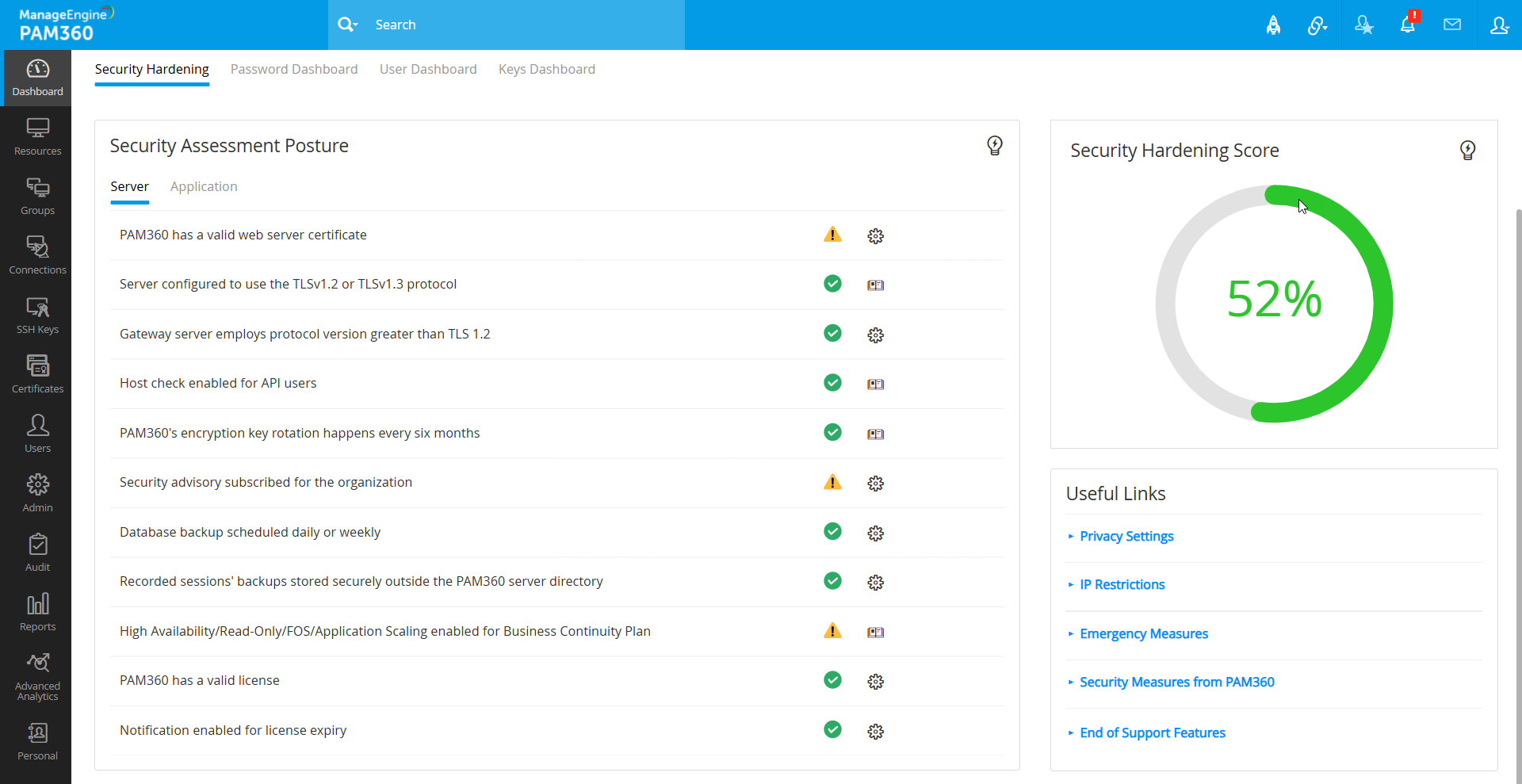
- PAM360 installed in the Program Files directory - The posture ensures that the PAM360 application is installed in the Program Files directory of the server.
- PAM360's encryption key stored in a secured directory - Verifies that the encryption key of PAM360 is stored outside the PAM360 installation directory.
- Server uses HTTPS protocol for secure communication - Ensures that the server employs the HTTPS protocol for secure data transfer.
Additional Details
Only super administrators can modify the recommended setting in this posture.
- PAM360 has a valid web server certificate - Verifies the authenticity of the PAM360 server through a valid web server certificate, establishing trustworthy connections.
- Server configured to use the TLSv1.2 protocol or TLSv1.3 protocol - Ensures that the server is configured to use the TLSv1.2 protocol or TLSv1.3 protocol, enhancing the security of data transmissions.
- Gateway server employs protocol version greater than TLS 1.2 - Verifies that the gateway server utilizes an SSL protocol version higher than TLS 1.2 for secure communication.
- Host check enabled for API users - Verifies whether the host check is enabled for API users for an added layer of verification during server interactions.
- PAM360's encryption key rotation happens every six months - Ensures that the PAM360's encryption key rotation happens every six months to enhance the overall security. Click here to learn more about rotating PAM360's encryption key.
- Security advisory subscribed for the organization - Verifies if the subscription to receive security advisories about newly resolved vulnerabilities as email notifications is enabled.
- Database backup scheduled daily or weekly - Verifies that the database backup schedule is enabled daily or weekly to minimize data loss in unforeseen circumstances.
- Recorded sessions' backups stored securely outside the PAM360 server directory - Verifies that the recorded session backups are stored securely outside the PAM360 server directory.
- High Availability/Read-Only/FOS/Application Scaling enabled for Business Continuity Plan - Ensures that the High Availability/Read-Only/Failover Service/Application Scaling recovery is activated for uninterrupted business continuity.
- PAM360 has a valid license - Ensures that the PAM360 license is valid and not expired.
- Notification enabled for license expiry - Verifies that the notification is enabled for the PAM360 license expiry.
2.2. Application
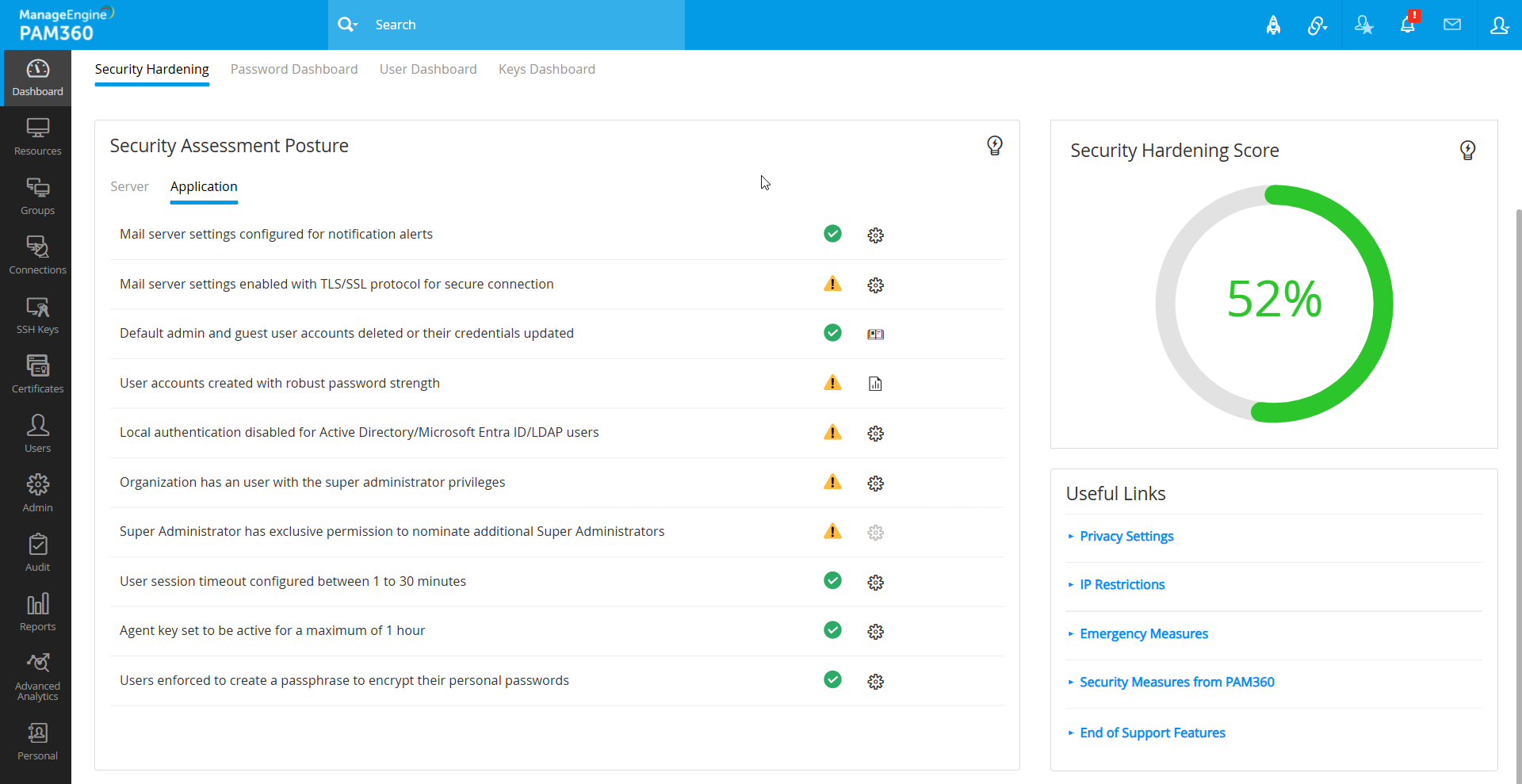
- Mail server settings configured for notification alerts - Verifies that the mail server setting is configured to send email alerts to the users within the application.
- Mail server settings enabled with TLS/SSL protocol for secure connection - This posture ensures that the TLS/SSL protocol is enabled in the mail server settings for a secured connection.
- Default 'admin' and 'guest' user accounts deleted or their credentials updated - Verifies that the default admin and guest user accounts are deleted or their corresponding credentials are updated.
- User accounts created with robust password strength - Ensures that all the user accounts in PAM360 have robust password strength.
- Local authentication disabled for Active Directory/Microsoft Entra ID/LDAP users - Ensures that local authentication is disabled for the Active Directory/Microsoft Entra ID/LDAP user accounts.
- Organization has an user with the super administrator privileges - Ensures that you have at least one user with super administrator privilege within your PAM360 environment.
- Super Administrator has exclusive permission to nominate additional Super Administrators - Ensures that only the super administrator has exclusive privileges to create additional users with super administrator privilegess. Refer to step 3 in scenario 2.
Additional Details
Only super administrators can modify the recommended setting in this posture.
- User session timeout configured between 1 to 30 minutes - Ensures that the user session auto logout setting is configured between 1 to 30 minutes.
- Agent key set to be active for a maximum of 1 hour - Verifies that the Windows Domain/Windows/Linux agent installation key is set to be active for a maximum of one hour.
- Users enforced to create a passphrase to encrypt their personal passwords - Ensures that the users are required to create their own passphrase for encrypting their personal passwords.
3. Security Hardening Score
The security hardening dashboard provides a comprehensive assessment of PAM360's overall security readiness, presenting a score percentage based on predefined posture requirements and user statuses. This concise metric serves as a measure of PAM360 environment's security level, reflecting the configurations implemented.
A perfect 100% hardening score is achieved when all Security Assessment Posture parameters are marked with a green check mark, and there are no inactive, non-MFA, non-synchronized, or local authentication users. A lower score indicates areas that require attention and action to bolster PAM360 environment's security. It is important to note that the score is dynamic and adjusts based on the selected time frame for user status evaluation. For instance, if there are no inactive users in the last 15 days, the score improves. However, a broader timeframe, such as the past 90 days, may reveal inactive users that impact the score. In such cases, proactive measures, such as locking or deleting users from PAM360, are recommended to enhance the security hardening score.
You can increase your security hardening score by performing the required actions from the Security Assessment Posture section. The following icons will help you in accomplishing the recommended actions for a better security score.
- Alert icon - The alert icon on the Server and Application postures indicates that the posture does not meet the recommended PAM360 best practices. Click the gear or help manual icon beside the alert icon and perform the required actions to increase the security score and harden your PAM360 environment.
- Gear icon - Clicking the gear icon redirects you to the settings page inside the PAM360 console. For a few cases, you can directly configure the setting from the Security Assessment Posture using the dialog box that opens.
- Help Manual icon - Clicking the help card icon beside the respective posture gives you the information on configuring the necessary action as required. Read the instructions and apply the steps to complete the recommended configuration to increase your security hardening score.
- Report icon - Access comprehensive reports linked to each posture within the Security Assessment section by clicking the report icon. Based on the report, perform the necessary actions to mark the posture with a green tick mark.