Super Administrator in PAM360
PAM360 includes a set of predefined user roles, each with its own permissions. The Super Administrator is not a standard user management role, but a privilege elevation that grants unrestricted access across the product. Any administrator can be elevated to a super administrator, and once enabled, they gain complete, non-restrictive access to all resources, including those owned by other administrators.
Caution
Super administrator privileges can be assigned only to users who hold an administrator-level role, such as Privileged Administrator, Administrator, Cloud Administrator, Password Administrator, or any custom role with administrative permissions.
At the end of this document, you will have learned the following topics in detail:
- Promoting Administrator to a Super Administrator
- Creating a Custom Super Administrator Role
- Use Case Scenarios for the Super Administrator Role
1. Promoting Administrator to a Super Administrator
You can assign super administrator privileges either while adding a new user or by modifying an existing administrator. To do so, follow these steps:
- Open the Users tab, then either select Add User to create a new super administrator or choose User Actions >> Edit User beside an existing administrator user to promote them a super administrator.
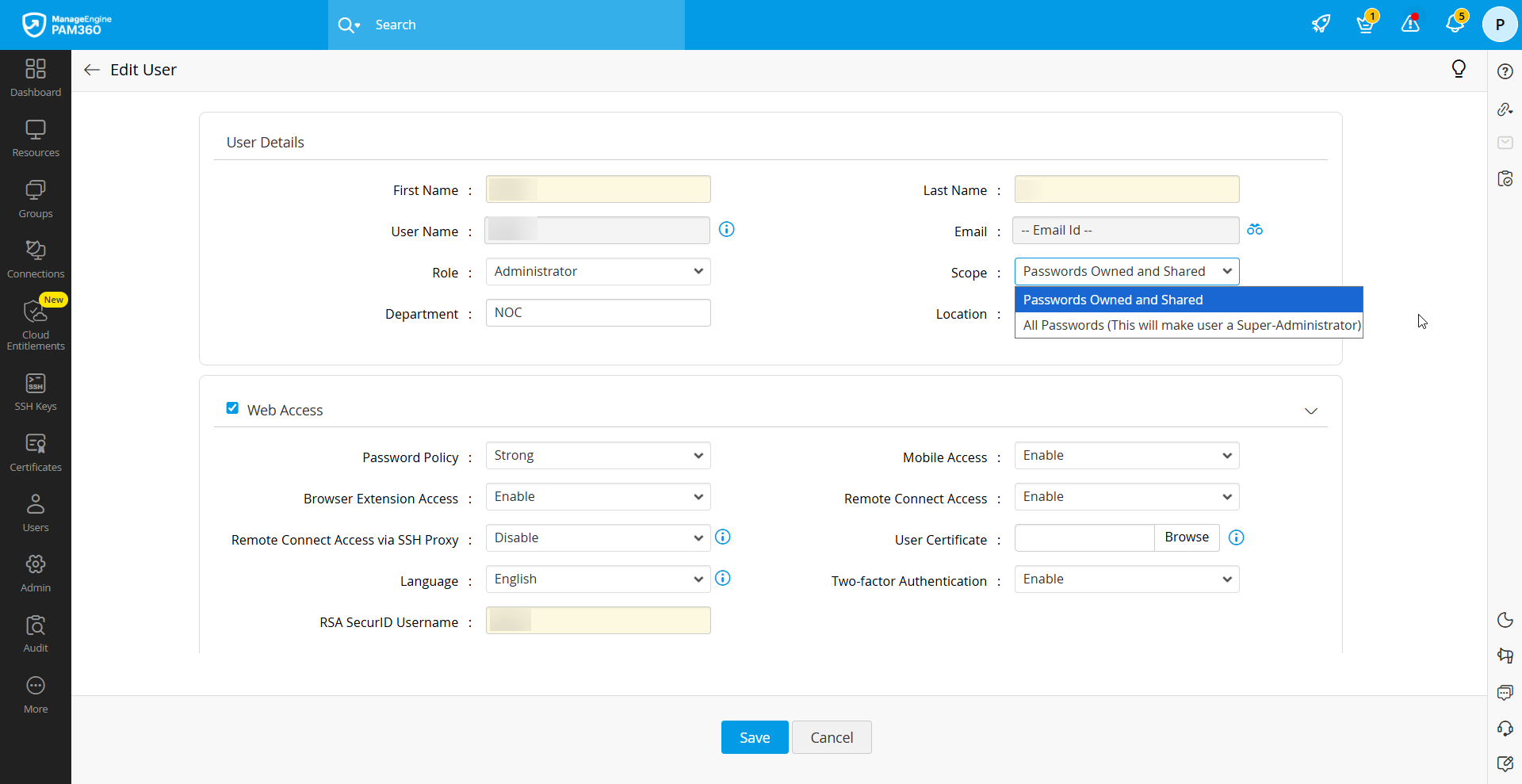
- In the window that opens, set the Role to an administrator role for new user and set the Scope as All Passwords and click Save.
The user is now elevated to super administrator status and will receive an email notification confirming the promotion. You can refer to the user management documentation for details on adding or editing users.
2. Creating a Custom Super Administrator Role
You can also build a custom administrator role and elevate it with super administrator privileges, while assigning any additional permissions you require. Follow these steps to create a custom role with super administrator privilege:
- Navigate to Admin >> Customization >> Roles and click Add Role.
- In the Add Role window, enter the role name and description, and select the required role-specific privileges.
- Tick the Enable Super Administrator Privileges checkbox. This option will elevate the administrator role to a super administrator in PAM360.

When this custom role is later assigned to an administrative user with the Scope set to All Passwords, the user automatically receives super administrator privileges in addition to the role-specific permissions.
3. Use Case Scenarios for the Super Administrator Role
Scenario 1: To Gain Access to All Resources in PAM360
You may elevate a high-level executive account, such as the CIO or CEO’s AD/LDAP account, to super administrator status in PAM360 when full access to all stored data is required. However, in such scenarios, enabling Two-Factor Authentication for their PAM360 account is strongly recommended. This ensures that even if their AD account is compromised, direct access to PAM360 resources is still protected, as TFA should be bypassed to proceed.
Scenario 2: To Use as a Precautionary Break Glass Account
Creating a super administrator account as a contingency is a smart fail-safe, especially for situations like the unexpected loss of an administrator user, or when the primary server administrator is unavailable. This prevents lockouts and ensures that critical access remains possible during emergencies. That said, this role should be tightly controlled, and ideally, only one super administrator account should exist. To enforce this, PAM360 allows you to block the creation of additional super administrator accounts and restrict login access to the existing one. Only a super administrator can perform this action. Follow the steps below to disable the creation of any further super administrator accounts:
- Create a local administrator account in PAM360.
- Import your administrator account from active directory or LDAP and promote the local administrator account to be the super administrator.
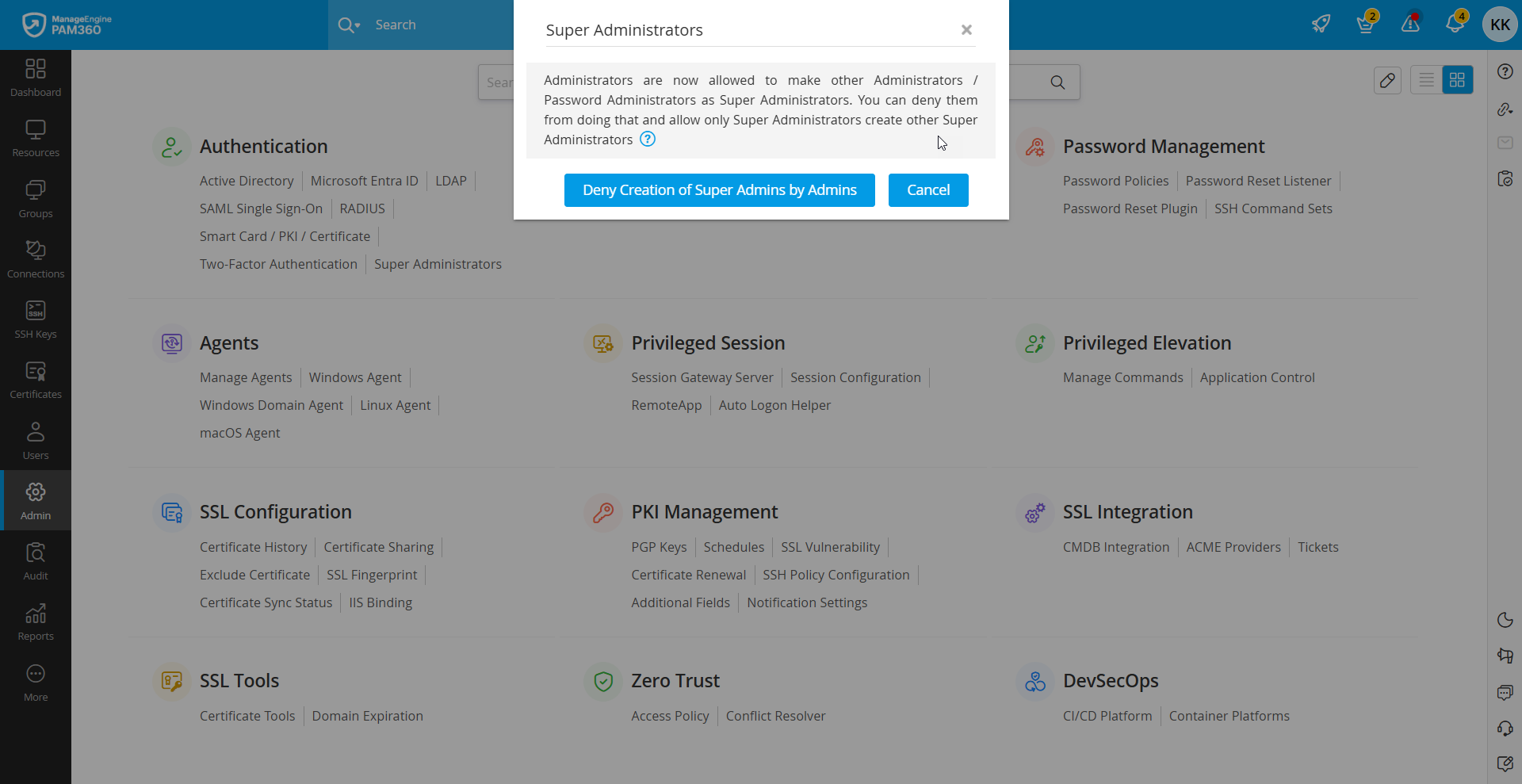
- Login using the super administrator account, navigate to Admin >> Authentication >> Super Administrators, and click the option Deny Creation of Super Admins by Admins.
- To restrict the usage of the super administrator account, navigate to Admin >> Customization >> General Settings. Click User Management from the left pane and select the option Disable local authentication. This option will disable the local authentication of the super administrator account.
Once the local authentication option is disabled, it will no longer be available on the login page and the local administrator account cannot be used to log in to PAM360. To regain access to this account during an emergency, contact our support team to bring back the local authentication option to the login page and use the local administrator account to recover your passwords.
Scenario 3: To Transfer Ownership of Resource Groups in Bulk
In PAM360, users with super administrator privileges can transfer ownership of resource groups in bulk. Click here to learn how to transfer resources groups in bulk using super administrator privileges.