Remote Password Reset
In any organization, privileged accounts hold elevated access to critical systems and sensitive data, making them high-value targets for cyberattacks. To minimize the risks of credential misuse or compromise, enforcing strong password reset policies is a fundamental aspect of a robust Privileged Access Management (PAM) strategy.
PAM360 strengthens this security framework through its Remote Password Reset capability - a core feature that enables administrators to rotate passwords for remote machines automatically or on-demand directly from the PAM360 console. With the required administrative credentials configured, this process can be executed seamlessly with a single click, ensuring consistent password hygiene, reducing manual intervention, and safeguarding privileged credentials across the enterprise.
PAM360 supports remote password resets for any resource type that can be accessed through a command-line interface (CLI) and accepts commands for password management. Remote password reset operations can be performed in two modes based on the target machines connectivity:
- Agentless Mode: PAM360 connects directly to the target system using the specified administrative account to log in and perform the password reset.
- Agent Mode: Designed for systems located in demilitarized zones (DMZs) or behind firewalls, where direct communication from PAM360 is not possible. In this case, the PAM360 Agent facilitates the reset operation for the target machine.
Apart from the above, if you have an environment that does not have a direct connection with the PAM360 server but has the PAM360 Application Gateway installed and connected to the PAM360 server, you can perform the password reset operation through the Application Gateway. Refer to this document for more detailed information on PAM360 Application Gateway.
By the end of this document, you will have learned the following operations in detail:
1. When Remote Password Reset Occurs via PAM360?
Specifically, it happens in the following scenarios:
- User-initiated password reset from PAM360: The administrator or authorized user triggers a change password operation for a remote resource (Windows, Linux, network device, database, etc.) via the PAM360 interface. Upon relevant action, the new password is automatically applied to the remote system.
- Scheduled or periodic password resets: PAM360 can enforce periodic password rotations based on policies. At the scheduled time, it resets the password on the remote resource automatically.
- Access control workflow: For an account configured with access control, whenever a user requests the password to initiate a connection, the current password is shared with the user. Once the user’s session ends, the password is automatically rotated both in PAM360 and on the remote resource, ensuring security.
2. Performing a Remote Password Reset
Caution
To perform a remote password reset, PAM360 requires an account with administrative privileges. When resetting a resource account password, PAM360 uses the configured administrative credential to remotely log in to the target system and complete the reset. Ensure that the administrative credential and other prerequisites are properly configured under Configure >> Remote Password Reset section of the resource. Refer to this documentation for configuration procedure based on the resource types.
To perform a remote password reset using the manual change operation, follow these steps:
- Navigate to the Resources section under the Resources tab, select the relevant resource, and identify the account for which you want to perform a remote password reset.
Alternatively, you can go to the Passwords section under the Resources tab and locate the required account directly. - Click the Account Actions icon against the account whose password you want to change and select Change Password from the drop-down list.
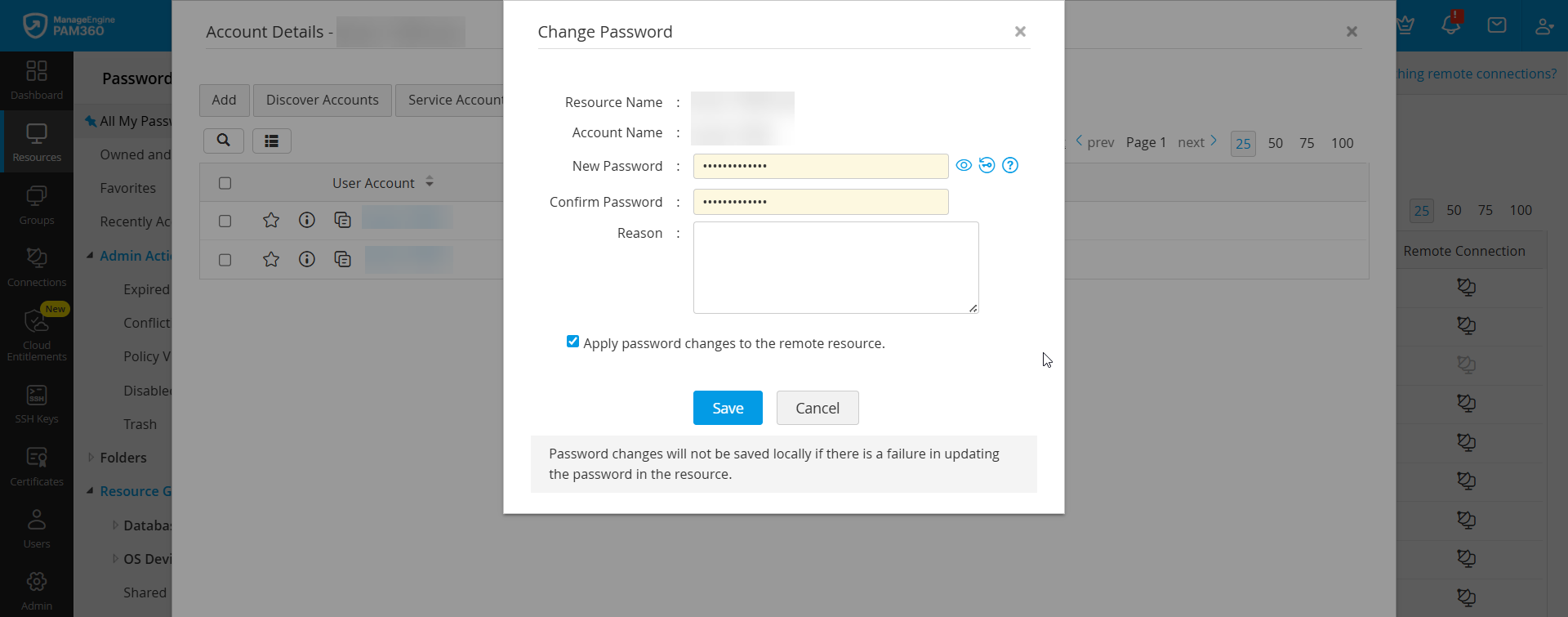
- In the pop-up form that appears, enter the new password and confirm the same. If required, opt for the inbuilt PAM360 password generator.
- Enable the option Apply password changes to the remote resource.
Caution
- When entering a new password, any password policy configured by the administrator for the resource will be automatically enforced.
- If a remote synchronization attempt fails, the password change will not be saved locally to ensure consistency between PAM360 and the target system.
- Click Save. You have now successfully performed an on-demand remote password reset for the selected account.
To perform a remote password reset for multiple accounts across multiple resources in bulk, follow these steps:
- Navigate to the Resources section under the Resources tab, select the desired resources.
- Click Resource Actions on the top pane and select Reset Passwords from the drop-down list.
- In the Reset Passwords window that appears, under Password Allocation, choose one of the following options:
- Generate unique password for every account: PAM360 automatically generates a strong and unique password for each account under the selected resources.
- Use the password specified here for all accounts: Enter a common password that will be applied to all accounts. You can also opt for the inbuilt PAM360 password generator.
- Enable the option Apply password changes to remote resource(s) to push the new passwords to the corresponding remote systems automatically.

- Specify the reason for the password reset and select the users or user groups to notify by email. You can also enter additional email addresses, separated by commas.
- Click Save. You have now successfully performed an on-demand remote password reset for the selected accounts.
Refer to this documentation to learn more about configuring scheduled Periodic Password Reset.
3. Remote Password Reset using PAM360 Agents
This section explains when PAM360 agents are needed to reset local account passwords on remote machines and offers troubleshooting tips to help administrators resolve password reset issues quickly, ensuring continuous security and compliance.
When the PAM360 Agent is installed and started as a service for the first time on a target machine, the machine is automatically discovered and added to the PAM360 inventory as a resource, along with all of its associated local accounts. Once deployed, the agent establishes a secure, encrypted channel with the PAM360 server to perform privileged operations such as password verification and password resets on that machine.
The use of agents ensures that PAM360 can perform password reset operations even in environments where direct communication with the server may not be possible. Agents are particularly critical in the following scenarios:
- Password Resets in DMZ: Required when resetting passwords on machines located in a Demilitarized Zone (DMZ) or in isolated networks that are not directly accessible from the PAM360 server.
- Cross-Platform Password Resets: Necessary when the PAM360 server is hosted on a Linux platform but needs to reset passwords on Windows devices, ensuring compatibility and secure execution.
- Missing Admin Credentials: Useful when administrator credentials for a remote resource are not stored within the PAM360 repository. In such cases, the agent facilitates password reset operations locally on the machine.
3.1 Troubleshooting Steps
Verify the following, if the password reset operation does not take effect on the target systems:
- The user account used to install the agent has sufficient privileges to execute password reset operations.
- Ensure that the PAM360 agent can communicate with the PAM360 web server. By default, this communication occurs via port 8282. If you have configured a custom port for the web server, update the agent configuration to use the same port.
- Verify that the PAM360 server name specified in the agent.conf file is reachable. If not, replace it with a reachable IP address or server name so the agent can establish a successful connection with the PAM360 web server.
- If you are unable to view an added resource, verify that the UserName specified in the agent.conf file is valid and reachable.
Explore this link to know more about installing the PAM360 agent in a target machine. All other requirements, such as the presence ofadministrative credentials, performing a remote password reset, remain the same as above.